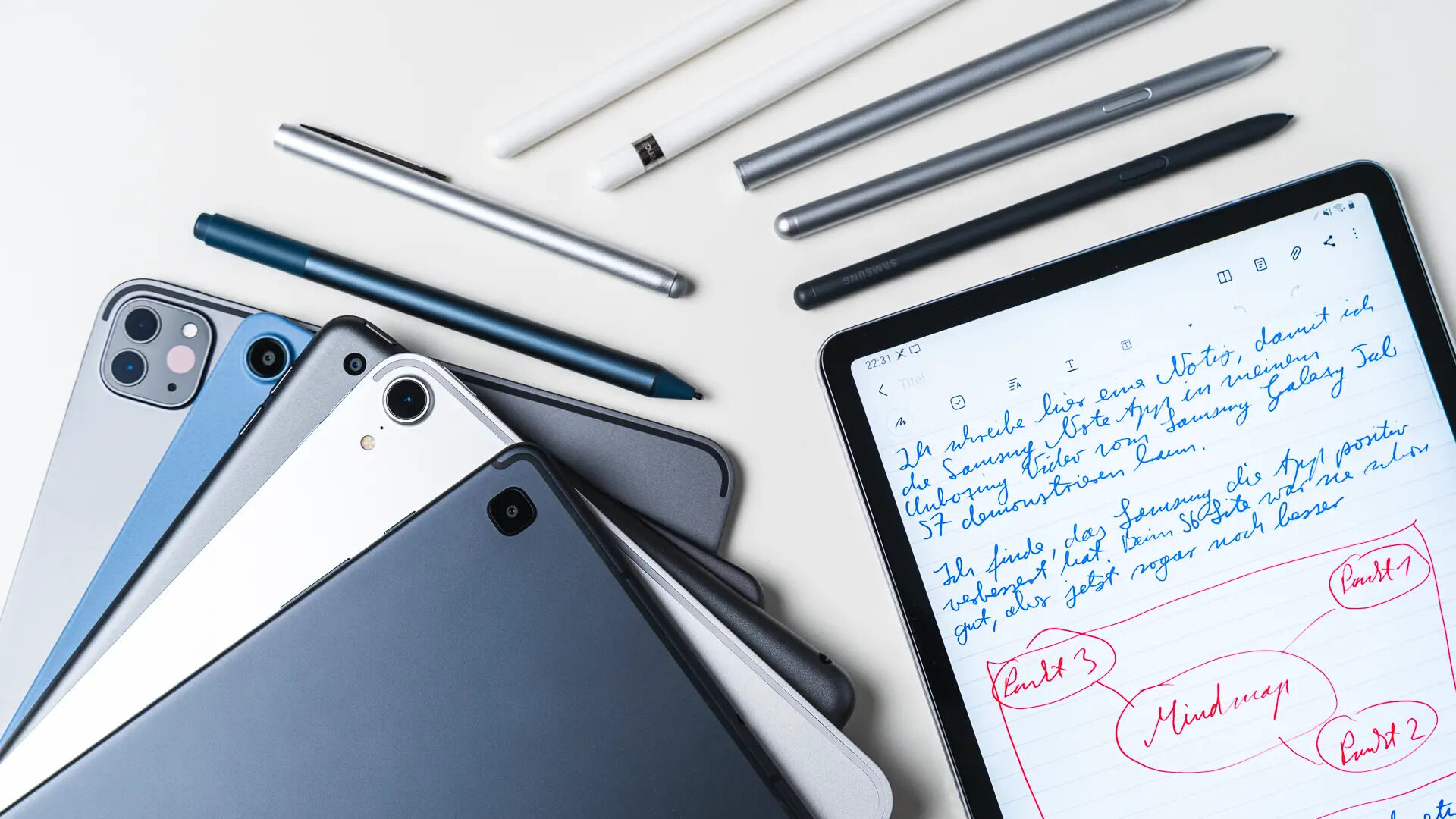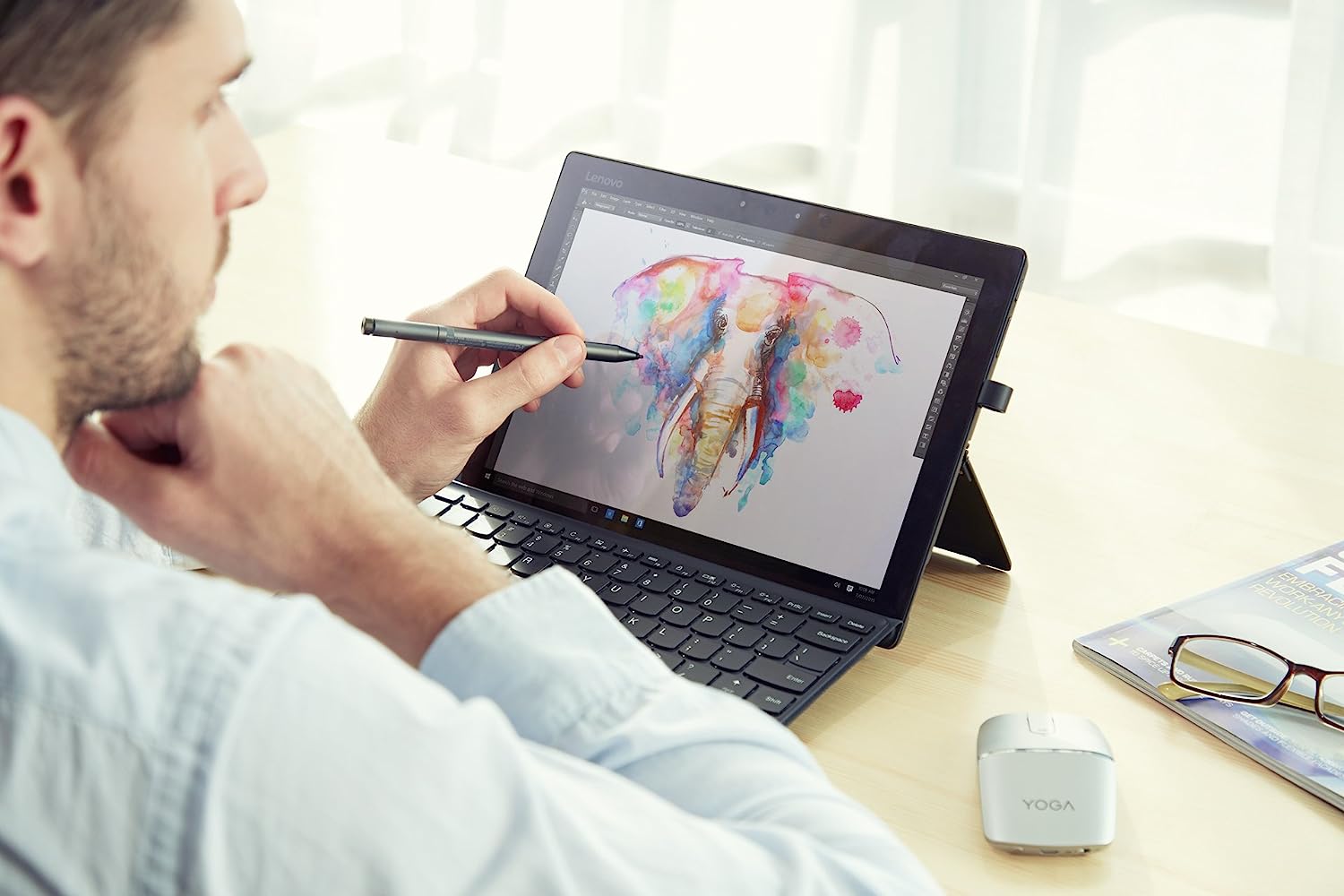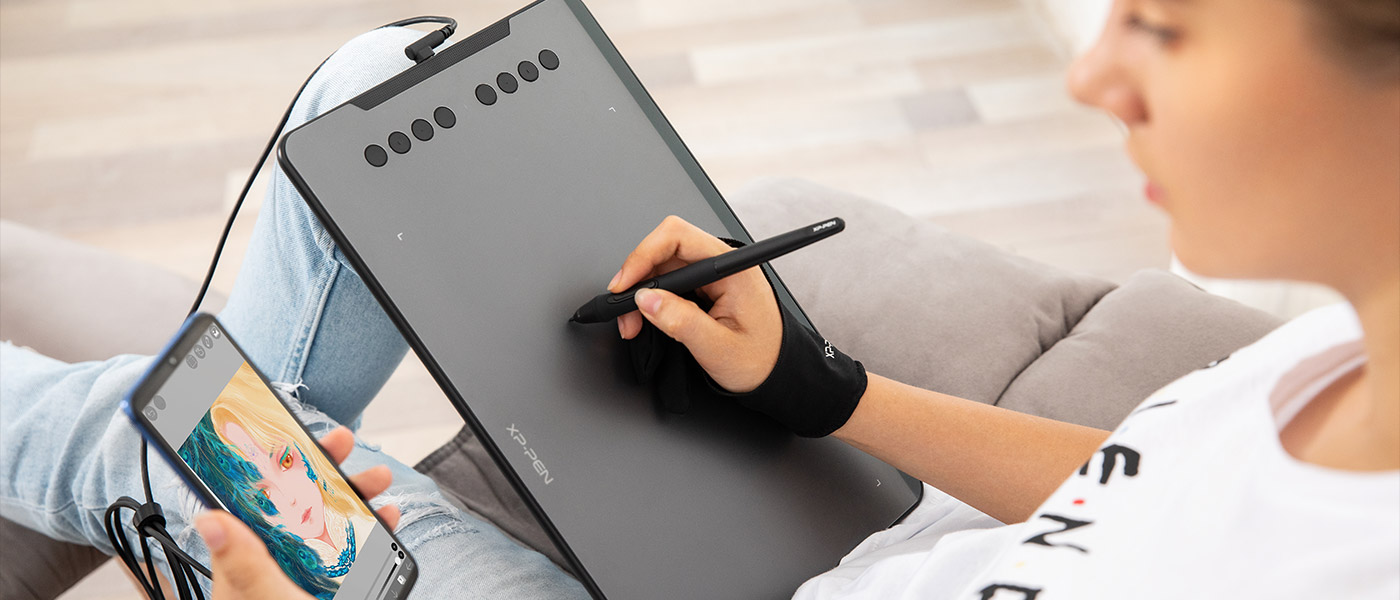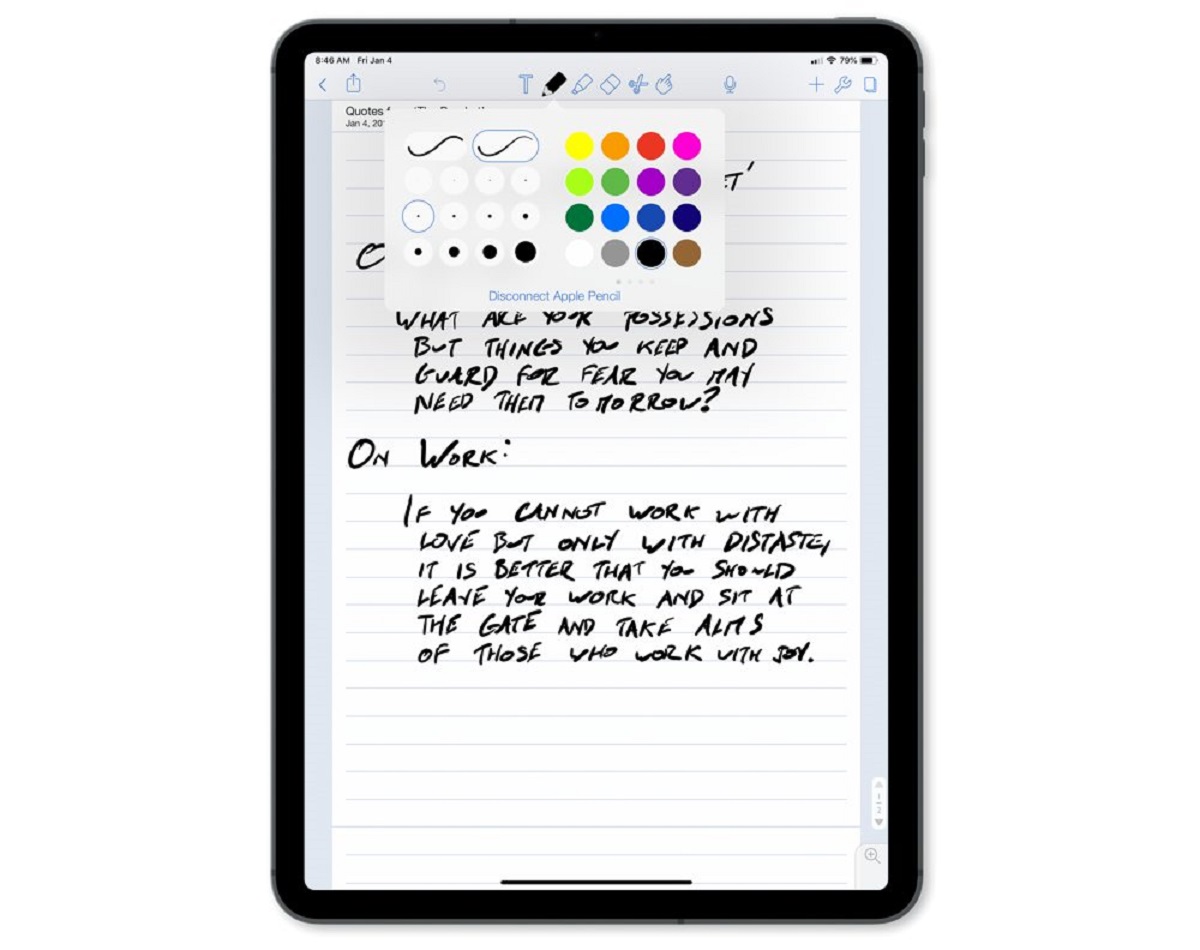
Yes, a stylus from a different brand will work if it uses the exact same protocol and your device supports that open standard, but it may lack proprietary features like pressure curve tuning or tilt sensitivity that are locked to the original brand.
When stylus protocol compatibility means full functionality
Open standards like USI and MPP are designed specifically for cross-brand functionality. For example, a Staedtler Noris digital pen (which uses Wacom EMR) works out of the box on a Samsung Galaxy Tab S7 that also supports Wacom EMR. You get pressure sensitivity and palm rejection without any driver tweaks. Similarly, a Lenovo Precision Pen 2 (which uses the Microsoft Pen Protocol) will function on a Microsoft Surface Pro 8 that uses the same Microsoft Pen Protocol. The key is that both the stylus and the tablet must explicitly support the same version of the protocol. MPP must pair with MPP. The tablet must not have locked the protocol to its own brand through firmware. In these cases, the pen’s basic functions, pressure, hover, and tip click, transfer cleanly. This is the core promise of open standards, and it is why many users explore tablet stylus alternatives from third-party manufacturers without worrying about a complete failure.
The hidden catch with proprietary extensions
Even when the protocol matches, a stylus might pair and draw basic lines but still fail to deliver pressure sensitivity, tilt, or shortcut buttons. Brands layer custom firmware on top of the shared protocol. For instance, try a Wacom Pro Pen 2 on a Huawei MatePad Pro that also supports the same protocol. You may get pressure and tilt, but the two side buttons on the pen may do nothing. Huawei’s firmware expects a specific button ID that only its own M-Pencil sends. The same issue occurs with tilt. Some brands implement tilt as a proprietary extension to the shared protocol. A third‑party AES 2.0 pen might report tilt data that the tablet simply ignores. This is also why the active stylus demystified article explains that “protocol match” is necessary but not sufficient. You must check whether the pen’s extra features are part of the open standard or a brand‑specific add‑on. If you only need basic writing, skip the premium feature check. For artists who rely on tilt or programmable buttons, it is a dealbreaker.
The mistake people make with protocol versions
The common failure case catches many users off guard. A newer stylus using AES 2.0 fails on an older AES 1.0 device, even though both technically share the same protocol family. For example, do not buy a newer stylus for a 2016 Microsoft Surface 3 that only supports an older protocol version. The pen may not write at all, no cursor, no pressure, nothing. The tablet’s digitizer simply does not understand the newer packet structure. The same applies to MPP. A Surface Slim Pen 2 will not function on a Surface Pro 4 that uses an incompatible protocol version. Before purchasing, verify the protocol support. Contact the PC manufacturer and explicitly ask if MPP or a specific active pen is supported for your notebook model, or check the device's HID information in Device Manager by expanding 'Human Interface Devices,' locating 'HID Compatible Pens,' and checking the 'Hardware ID' in the 'Details' tab. If the tablet’s firmware only supports AES 1.0, buy a pen that explicitly says AES 1.0, not just “AES.” Once you have a compatible stylus, connecting and using a stylus pen often requires a quick Bluetooth pairing to unlock its full button and pressure functionality. This is where practical steps like swapping out your stylus tip or turning on your stylus become irrelevant if the protocol version mismatch prevents any communication at all.
This means you can pair, say, a Wacom pen with a Lenovo tablet that also supports the same protocol. You will get basic inking and cursor movement. However, the moment you expect the pen’s eraser to function or its side buttons to trigger your favorite shortcut, you may find those features dead. The tablet’s firmware only recognizes its own brand’s command set.