First things to know about your stylus pen connection
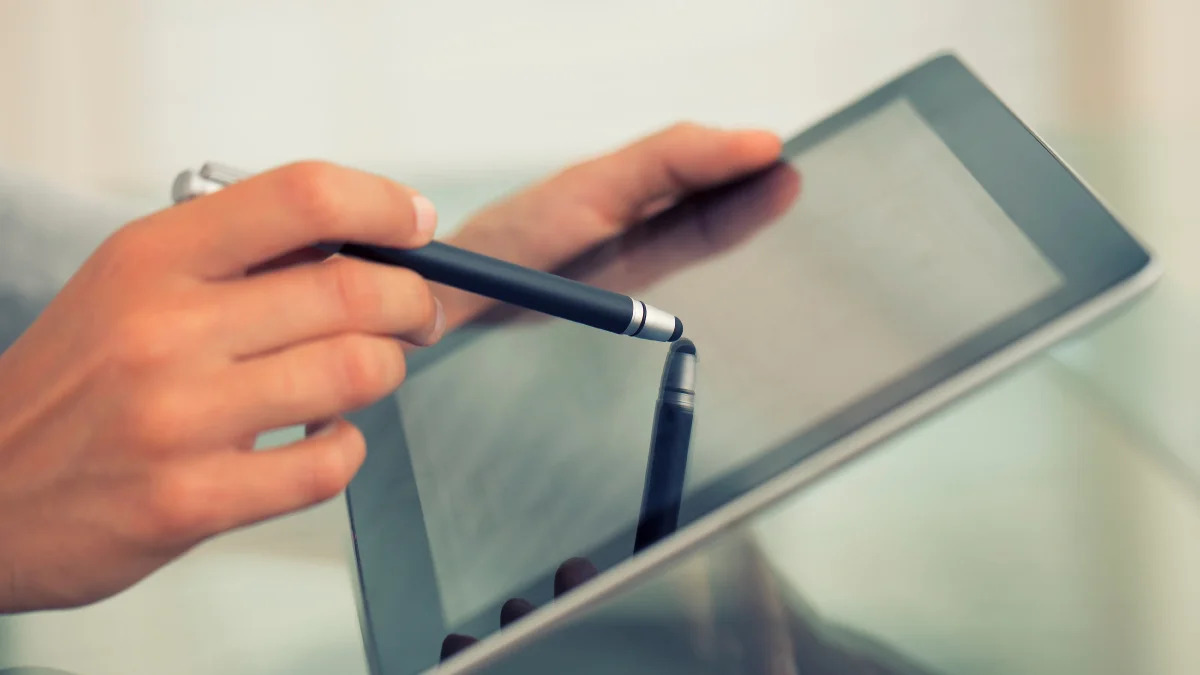
Before attempting any stylus pen connection, understand what you are actually holding. A passive stylus is simply a conductive nub, often rubber or mesh, that mimics your finger. It works on any touchscreen, requires no battery, and never needs pairing. The trade-off is that it cannot detect pressure or offer palm rejection, and over time you will notice passive stylus wear and failure as the tip flattens or the internal conductive material degrades, causing erratic taps or no response at all.
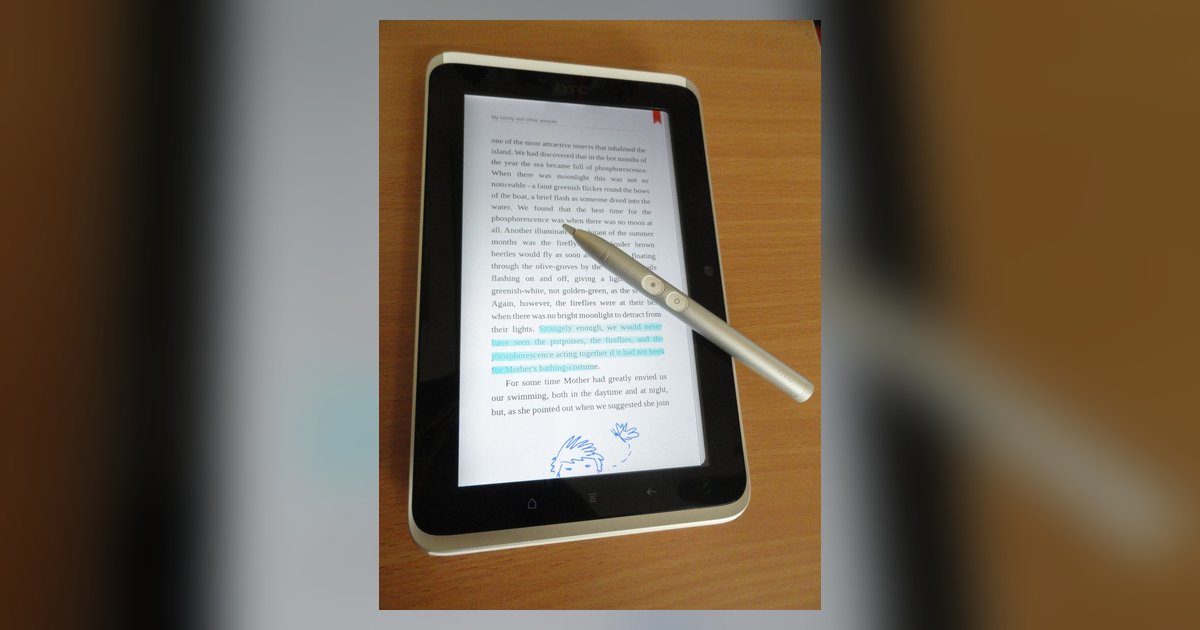
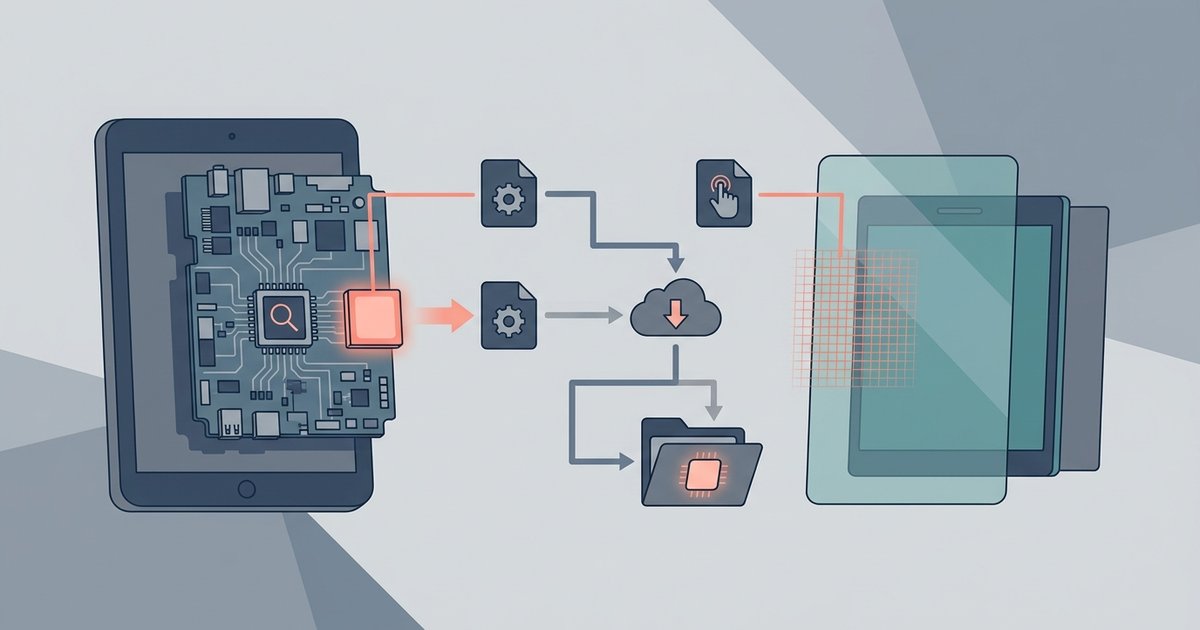
An active stylus is a completely different device. It contains a small circuit board and battery, and it communicates wirelessly with the screen using a specific digitizer protocol (often Wacom AES, MPP, or Apple Pencil’s proprietary system). For a deep look at how these pens sense tilt and pressure, tablet PC pen operation explains the electromagnetic resonance or Bluetooth handshake that makes them work. If you are trying to use a pen from a different manufacturer, success depends entirely on using a different-brand stylus with matching protocol to determine whether a third-party pen will actually function on your device. Similarly, the precise behavior of pressure curves and hover distance is governed by the specific tablet PC pen operation that your device’s firmware expects. For anyone confused by the technology inside, the active stylus demystified breaks down the internal components and signal processing. Mixing a passive tip into an active slot, or pairing an active pen with a screen that lacks the correct digitizer, is the single most common cause of skipped strokes and invisible input.
- using a different-brand stylus with matching protocol — can I use a stylus from a different brand if the protocol matches
- passive stylus wear and failure — does a passive stylus wear out and stop working
- tablet PC pen operation — How Do Tablet PC Pens Work
Connecting your pen and tablet
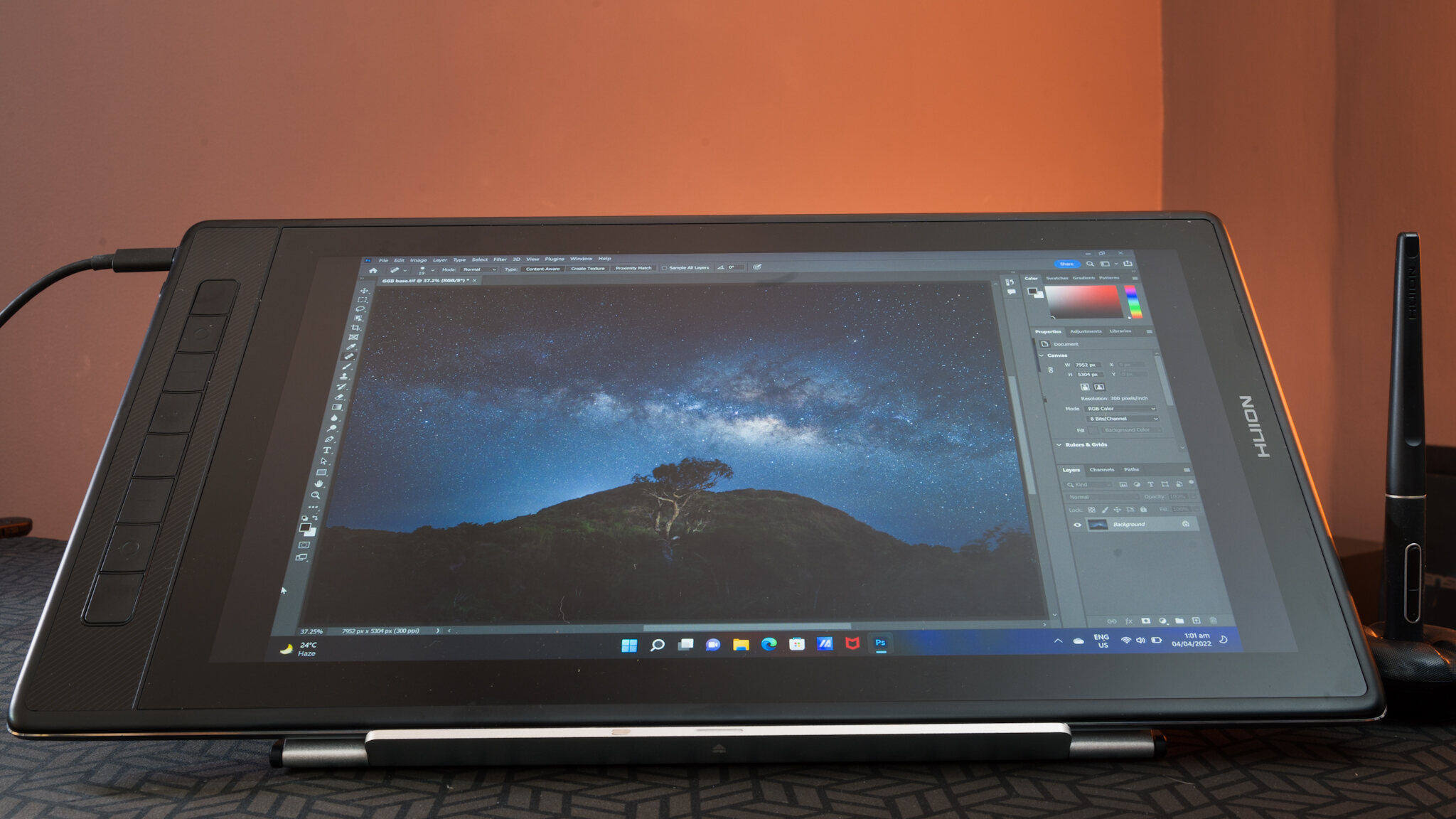
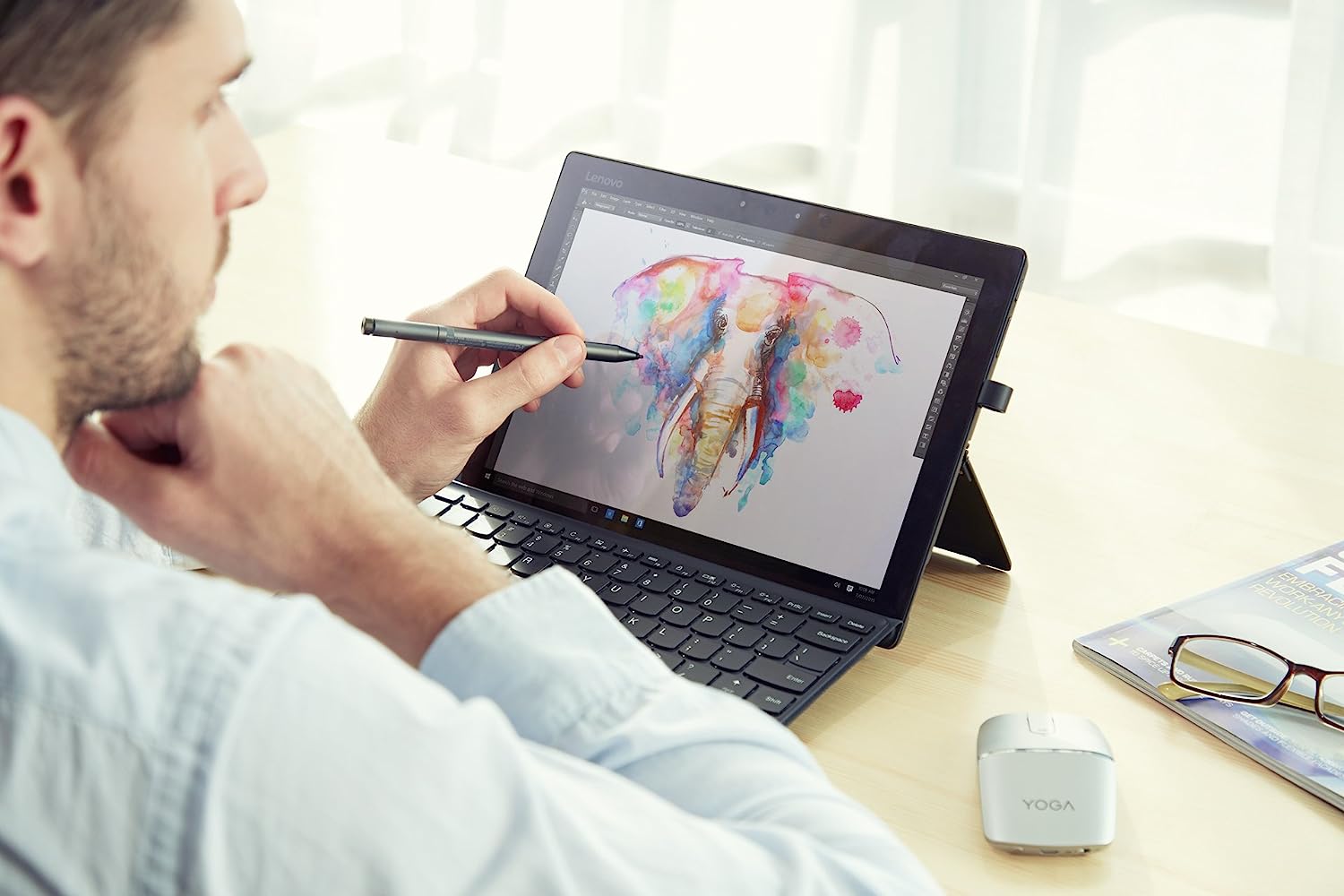
Before you press any buttons, look at the tip of your pen. If it is a hard plastic or rubber nub that never needs a battery, you have a passive stylus, just touch it to the screen and it works instantly, no setup required. If the tip feels slightly springy or the pen has a power switch or LED, you have an active stylus, and that means you must pair it. For most active pens, the process starts with enabling Bluetooth on your tablet via Settings > Bluetooth, then turning on your stylus; a short press of the top button or a slide switch wakes it, and then your tablet or phone will prompt you to confirm a Bluetooth connection. If you are using a Windows or Android device, you may need to open your Bluetooth settings to finalize the pairing. For example, to connect Lenovo pen to tablet, you typically hold the top button for three seconds until the LED blinks, then select it from the Bluetooth list. Similarly, to connect Huion pen to tablet, you often follow the manufacturer's specific pairing instructions. Once paired, you can also use your tablet as a drawing pad for PC by installing the manufacturer's driver software, which unlocks pressure sensitivity and tilt. If you prefer a mobile solution, you can use phone as a drawing tablet for PC with a free app that mirrors your desktop; just ensure your active pen is paired to the phone, not the computer. Passive pens are universal, but active pens only work with screens that support their specific protocol.
Fixing issues and daily upkeep
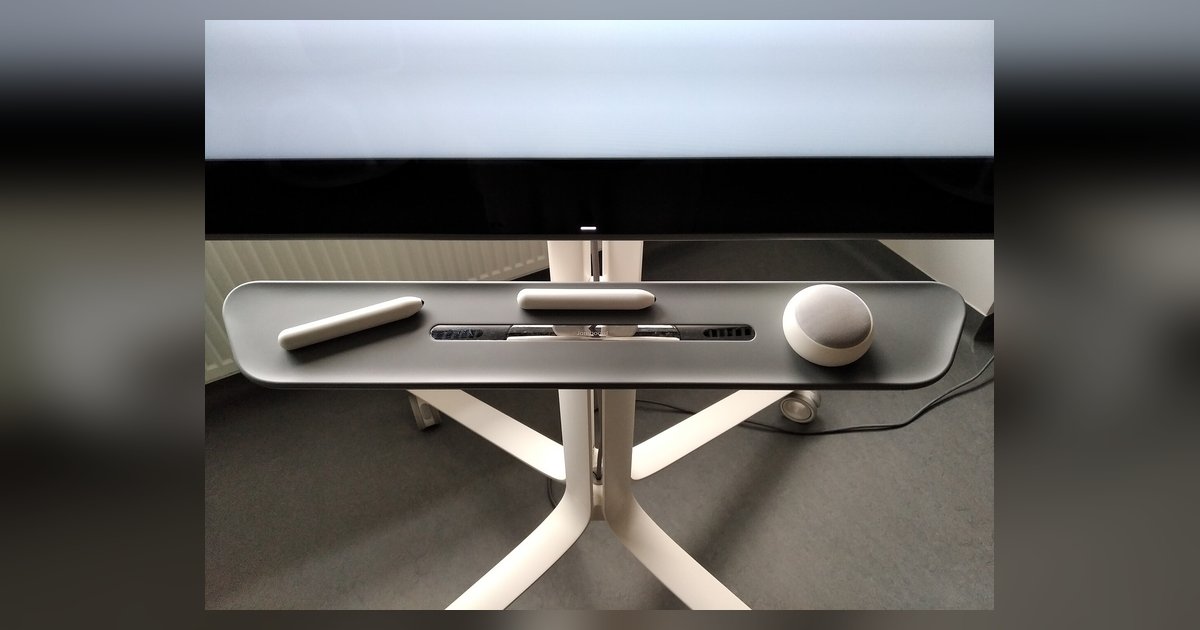
When your strokes suddenly feel erratic, the first thing to check is the tip. A worn nib can cause active stylus skipping or drawing wavy lines, which usually means the conductive mesh inside the tip has lost contact with the sensor. Simply swapping out your stylus tip for a fresh one often restores a smooth, consistent line. If the problem persists after a tip change, verify your device's screen protector: thick or matte protectors can interfere with the pen's signal, especially on older active stylus models. For passive styluses, erratic marks usually point to a dirty screen or a damaged rubber nib, clean both with a microfiber cloth. If you are suddenly without a pen, keep in mind that there are several effective tablet stylus alternatives, such as a clean, conductive object wrapped in a bit of anti-static foam, for basic tapping. Finally, if you are frequently locating your misplaced stylus pen, adopt a dedicated holder or a magnetic clip on your case, it saves the five-minute search before every sketching session. Daily upkeep is minimal: store the pen horizontally, and charge an active stylus only when the indicator light blinks. A deep look at how these pens sense tilt and pressure reveals the electromagnetic resonance or Bluetooth handshake that makes them work.