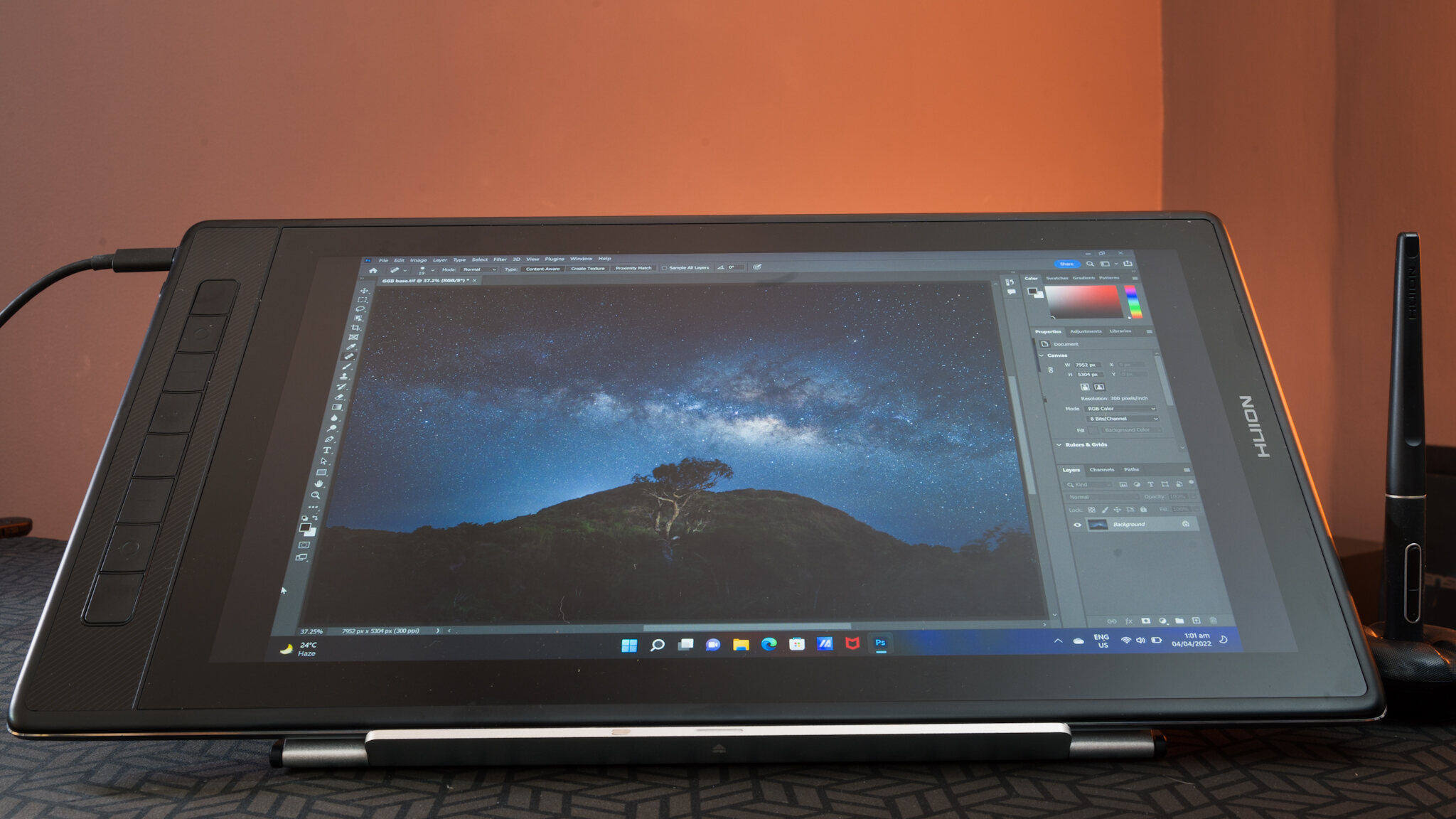
Before you connect your Huion pen to tablet: check compatibility
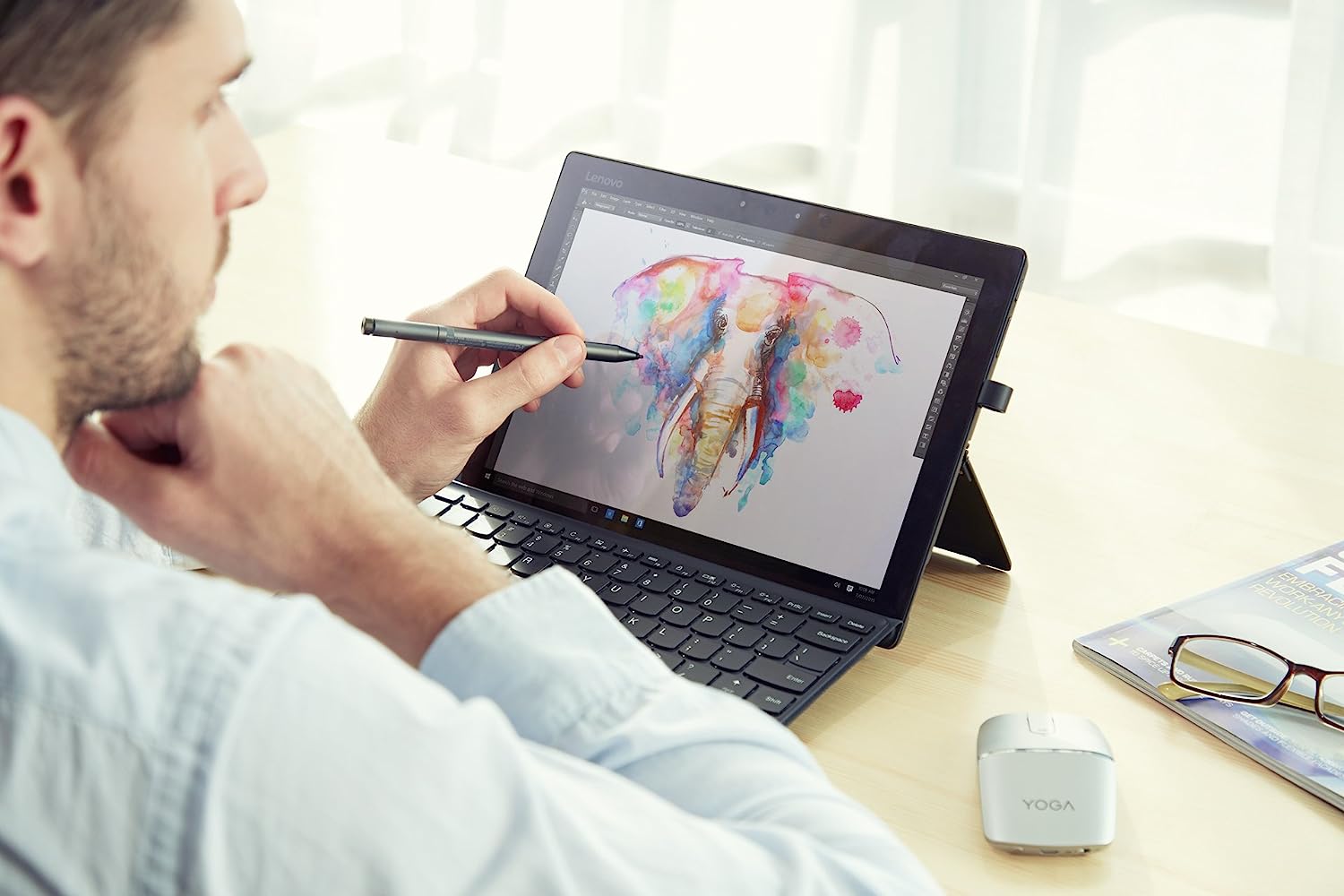
To connect a Huion pen to tablet, plug the included USB cable into your computer, install the correct driver from Huion’s official site, then restart, that’s the core wired process for most models. Before you start, confirm your pen and tablet model match, since different Huion series use different pen technology and not all pens work across tablets. Check your operating system: Huion drivers support Windows, macOS, and some Linux builds, but you must download the version that matches your OS version exactly. Also decide whether you’ll use a wired USB connection or Bluetooth, most Huion tablets connect via USB-C, but wireless models like the Inspiroy Dial 2 offer Bluetooth as an alternative. If your device uses a different brand, you may need to connect Lenovo pen to tablet with its own unique pairing steps. If your pen is lost or incompatible, you can still navigate with tablet stylus alternatives while you wait for a replacement. If you’re unsure, look up your tablet’s manual on Huion’s support page or contact customer support to verify compatibility before proceeding.
Install the Huion driver for your tablet model
After confirming compatibility, go to the official Huion website and navigate to the Support or Downloads section. Locate the driver for your exact tablet model and operating system, then download the installer file. Run the installer and follow the on-screen prompts, you’ll typically need to accept the license agreement and choose an installation location. Some drivers ask you to connect the tablet via USB during installation, while others let you finish first and pair later. Once the installation completes, restart your computer to ensure the driver loads correctly. If you cannot find the right driver, check the Huion FAQ or contact support for a direct link, but never download drivers from third-party sites, as they may be outdated or unsafe.
Connect the tablet to your computer via USB
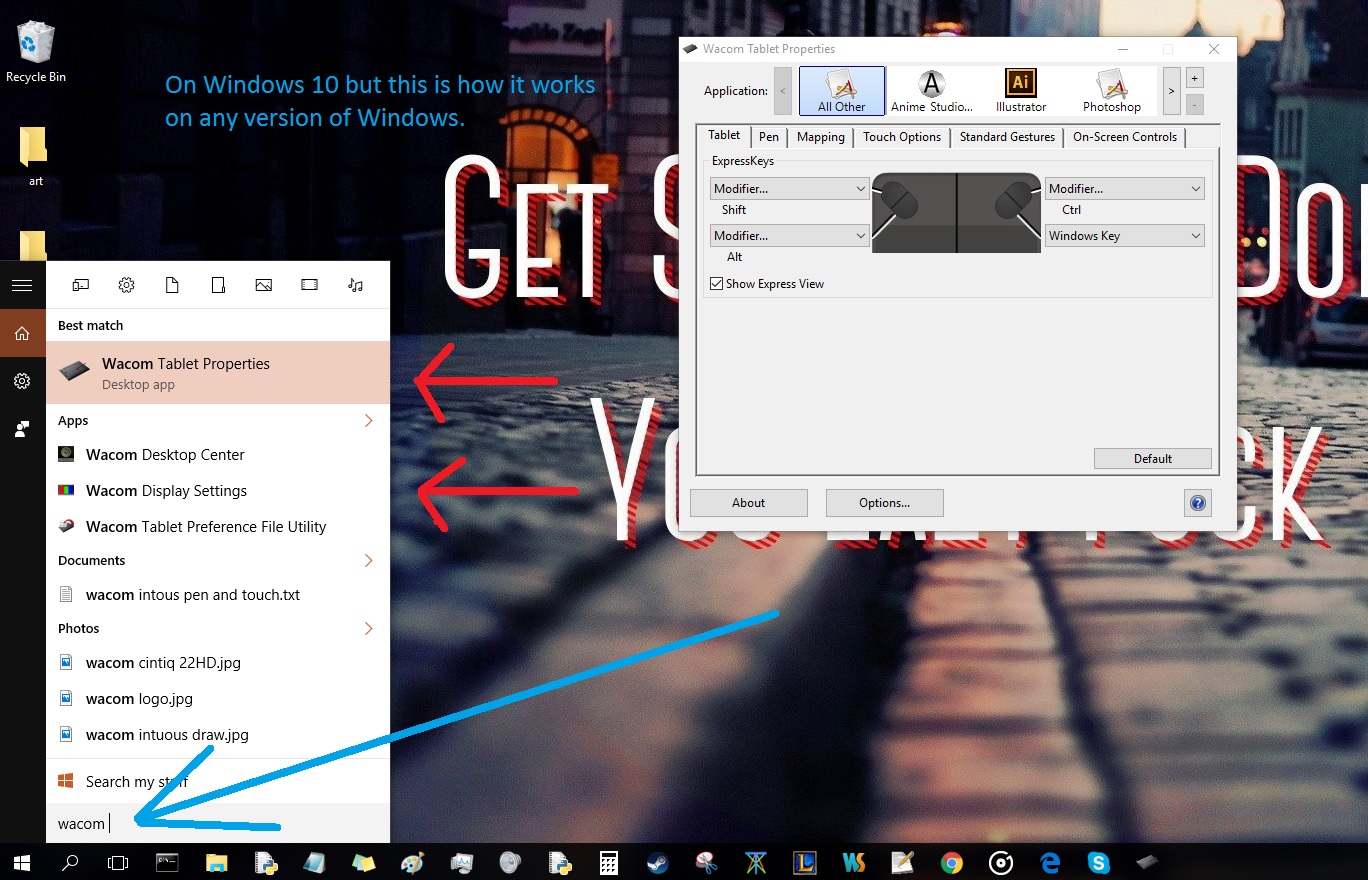
Take the USB cable from your Huion tablet’s package, this is often a USB-C cable, and plug one end into the tablet and the other into a USB port on your computer. Use a port directly on your computer rather than a hub if possible, as hubs can sometimes cause connection issues. After plugging in, open the installed driver software. A picture of your tablet should appear in the driver window, which confirms the connection is successful. If no image appears, try a different USB port or unplug and reconnect the cable. The driver’s tablet picture is your visual confirmation that the hardware is communicating properly, so don’t skip this check before moving on.
How the Huion pen works once the tablet is connected
Once the tablet is connected and the driver is installed, the Huion pen operates passively, it requires no pairing, batteries, or charging. Simply move the pen slightly above the active area of the tablet to position the cursor on your screen, and press the pen tip on the tablet surface to click or select. The pen’s side buttons work when the tip is within 10mm of the active area, allowing you to right-click or assign custom shortcuts. Because the pen is passive, there’s no power switch or Bluetooth setup involved for wired connections, just hold it naturally and draw. This is the key difference between connecting and using a stylus pen on a Huion tablet versus a battery-powered stylus: the Huion pen is instantly responsive the moment the tablet is recognized.
Connect a Huion pen tablet to an Android phone or tablet
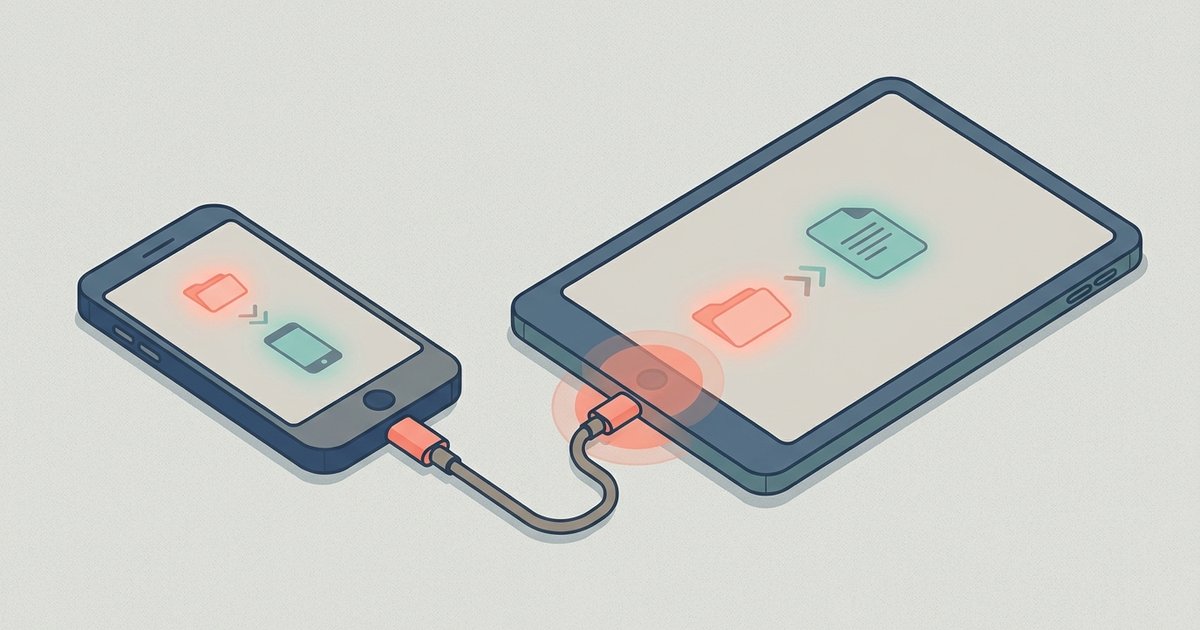
To connect a Huion pen tablet to an Android phone or tablet, first ensure your Android device runs OS 6.0 or later. Some Android models require you to enable the OTG function, go to your device’s Settings, find the OTG option, and turn it on. Next, choose the appropriate OTG adapter from your Huion tablet’s package based on your phone’s USB port type (USB-C, micro-USB, or Lightning for older devices), and connect the tablet to your phone. When connected, the tablet works without installing any driver on the phone, the connection is plug-and-play. However, the tablet automatically enters phone mode, where the pen only functions in the left gray area of the screen. In phone mode, the tablet’s press keys and the pen’s side buttons are generally not supported, unless you use the Huion Sketch app, which enables full functionality. For pen displays like the Kamvas Pro 13 & 16 (2.5K), use a USB-C to USB-C cable and connect a power adapter to power the display; Samsung phone users can activate DeX Mode for full-screen display, though not all Android devices support full-screen mode on Huion pen displays.
Bluetooth pairing for wireless Huion tablets
For wireless Huion tablets like the Inspiroy Dial 2, Bluetooth pairing follows a specific sequence. Turn on Bluetooth on your computer or Android device, then press the power button on the tablet to start it. If the tablet does not receive a Bluetooth connection request within 3 minutes, it will shut off automatically to save power, so keep your device nearby. Find your tablet (listed as “Inspiroy Dial 2-xxx”) in your device’s Bluetooth menu and follow the prompts to pair. If the tablet is not found, long-press the pairing button on the left side of the tablet until the indicator light flashes, this activates pairing mode. After pairing, the tablet connects wirelessly, but remember that Bluetooth models still require the driver installed on your computer for full pen functionality, while Android devices work without a driver in phone mode.
Test your Huion pen connection in drawing software
Open any art application, such as Photoshop, Krita, or Clip Studio Paint, and select a brush or pencil tool. Move the pen across the tablet’s active area and verify the cursor tracks accurately with no lag or offset. Apply gentle pressure with the pen tip to test pressure sensitivity; the brush stroke should thicken or darken as you press harder. If the cursor jumps or the pressure feels off, check the driver’s pen settings and recalibrate if needed. Customize the pen’s side buttons and the tablet’s press keys through the driver software, assigning functions like undo, eraser, or brush size to match your workflow. A successful test means the pen responds smoothly, pressure works, and your custom settings save correctly, if anything behaves oddly, proceed to troubleshooting.
Troubleshooting: Huion pen not working or skipping
If your Huion pen is not working or skipping, start by checking the USB port, try a different port directly on your computer, as some ports may have power or data issues. Update your driver to the latest version from Huion’s official website, as outdated drivers often cause connectivity or pressure problems. Replace worn pen nibs by rotating the pen holder, using the nib clip to pull out the old nib, and inserting a new one firmly, worn nibs can cause skipping or erratic lines. Ensure the pen is not left on the screen surface when not in use, as this can interfere with other cursor positioning equipment or prevent your computer from entering sleep mode. If issues persist, reset the tablet to its default settings through the driver software, then restart your computer. For Bluetooth models, unpair and re-pair the tablet, and check the battery level if your pen is battery-powered. If none of these steps resolve the issue, consult your user manual or contact Huion customer support for model-specific guidance.