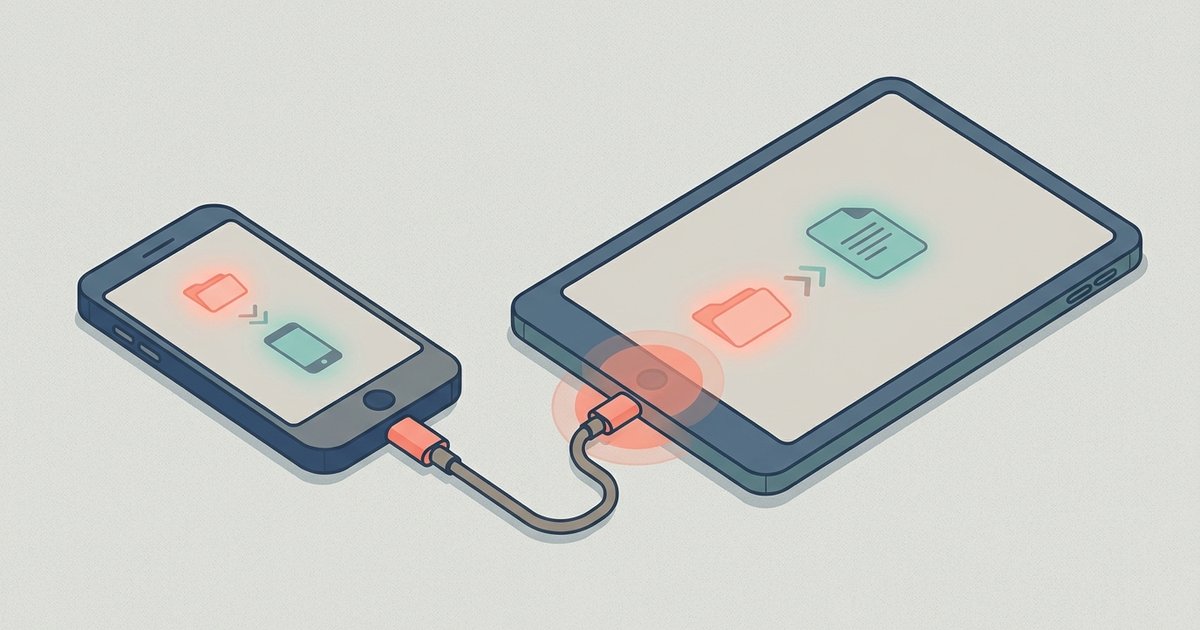
Before you start: connect phone to tablet basics and prerequisites
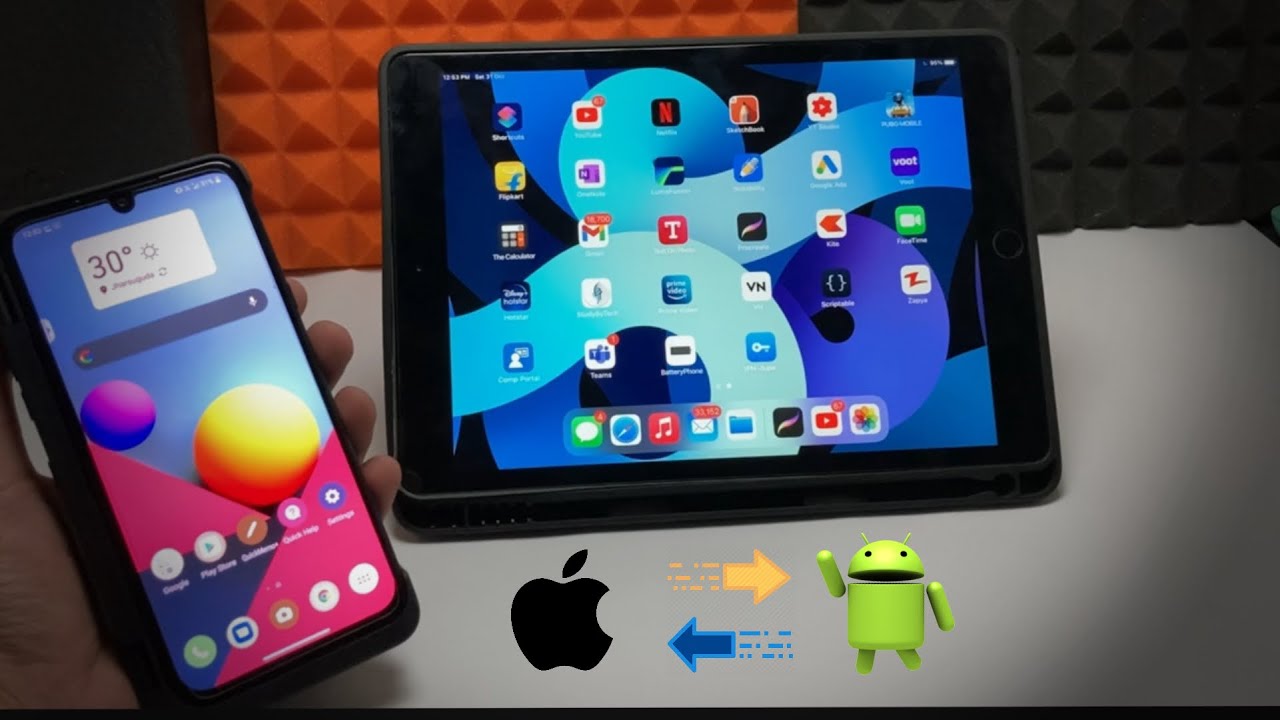
Learning how to connect a phone to a tablet is the first step before you try to move a single file, and it is critical to understand what you are actually trying to do. Most people expect to see their phone's screen mirrored live on their tablet, but that is a different feature called screen casting, not data movement. The core action here is learning how to connect your phone to your tablet for data exchange. This works through either a physical USB cable or a wireless network (Wi-Fi or Bluetooth).
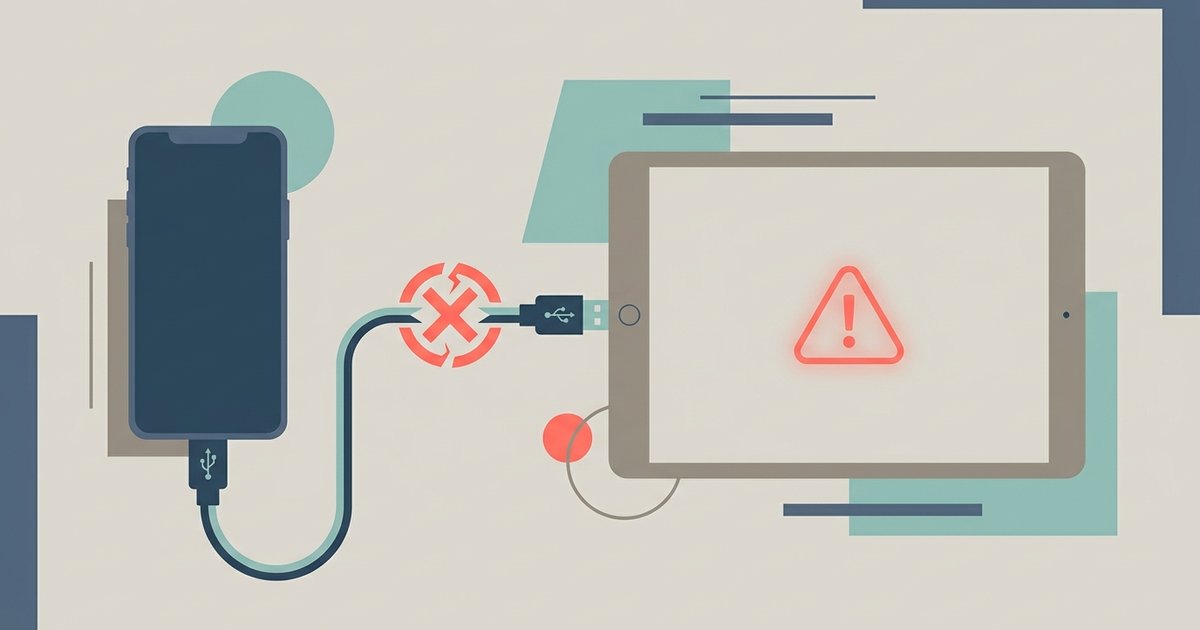
If you pick up a cable and nothing happens, you are likely facing the common frustration of "my Android phone not connecting to my tablet via USB". This usually means the handset is set to "charging only" mode. You must swipe down on the phone's notification panel to tap the USB option and select "File Transfer" or "MTP."
Wireless methods have their own catch. If you rely on a mobile hotspot, you are effectively "syncing a phone to a tablet using mobile data," which can drain your plan quickly and is often slower than a direct Wi-Fi link. Also, be aware that a large movie or a folder of photos can fail due to a flimsy connection or a sudden screen lock. This causes a file transfer corrupting halfway through. For important documents, always verify the file size on the destination before disconnecting.
Finally, remember that an iPhone and a Google-powered slate speak different languages. For an iPhone and a Google-powered slate, you will often need a third-party app, a cloud service, or a compatible built-in feature like Quick Share on supported Windows devices for a direct cross-brand link. Two gadgets from the same ecosystem, however, can often talk directly without extra software.
Setting up continuous sync between phone and tablet
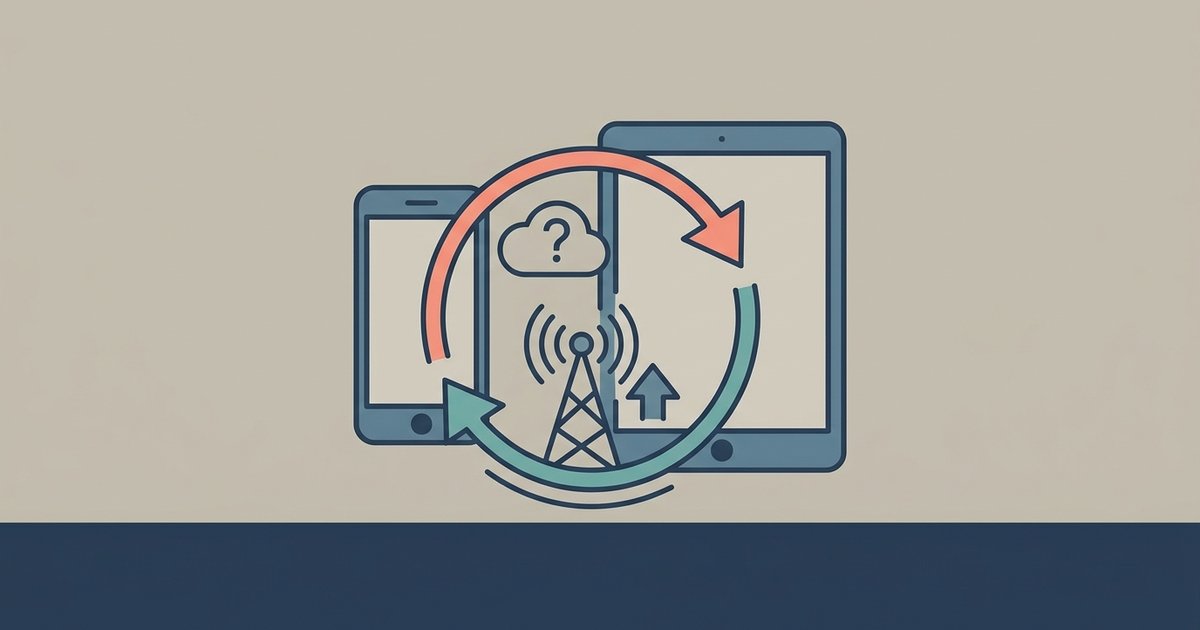
To set up a continuous sync between your phone and tablet, install a cloud storage app like Google Drive on both and sign into the same account, or for automatic folder sync, use a dedicated tool like Autosync for Google Drive. For connections within the same ecosystem, this automatically mirrors your contacts, calendar events, and supported Google app data over Wi-Fi. If you ever need to stop this live link, you can go into your tablet's settings, locate the Google account under Accounts, and choose to remove it or turn off specific sync toggles. This is effectively how you would unsync my tablet from my phone without deleting any data permanently. For an iPhone paired with a Google-powered tablet, continuous file sync is typically handled through cloud services or third-party apps rather than a single native mirror. You would instead rely on a cloud service, such as manually choosing to download phone backup from Google Drive onto the tablet to update your files. Remember that this ongoing sync is different from a one-time file copy, it keeps everything current automatically. To break the link completely, sign out of the shared account on the tablet, which stops all future updates. If you only want to pause a specific sync category, such as photos or calendars, uncheck that item in the sync settings rather than removing the entire account. This approach lets you control exactly what stays mirrored without losing access to your email or app purchases. When you need to re-establish the connection later, simply log back into the same account, and the handsets will resume syncing from where they left off. If you ever run into a guide that asks how to sync my Android phone to my tablet, keep in mind that most solutions focus on cloud-based services or dedicated sync apps rather than direct peer-to-peer connections.
Unlike other guides, we are the only resource that maps the exact menu paths for every major manufacturer’s customized sync settings side-by-side, so you never have to guess where Samsung, Xiaomi, or Pixel hid a toggle. When you connect a phone to a tablet for a direct file move, you have three main paths: a USB cable, a local wireless tool, or a cloud intermediary. A wired link remains the fastest and most reliable method, especially for large video files or entire folders. You simply plug the cable into both units and, on the source handset, change the USB mode from "Charging" to "File Transfer" or MTP. The tablet will then appear as an external drive on your computer, or you can use a file manager app on the mobile gadget itself to drag items across. This direct wired approach avoids compression and works without any internet connection at all.
Managing a Wired Connection
If the connection fails, try a different cable that supports data, not just charging, as many thin cords are power-only. You should also unlock the screen and check the notification shade for the USB options prompt. Some brands require you to enable USB debugging in Developer Options, though this is rare for simple drag-and-drop moves. Once connected, you can copy entire music libraries or document folders in seconds. Always eject the drive safely from the computer or tap "Disconnect" on the mobile unit before pulling the plug to prevent corruption.
Using Local Wireless Tools
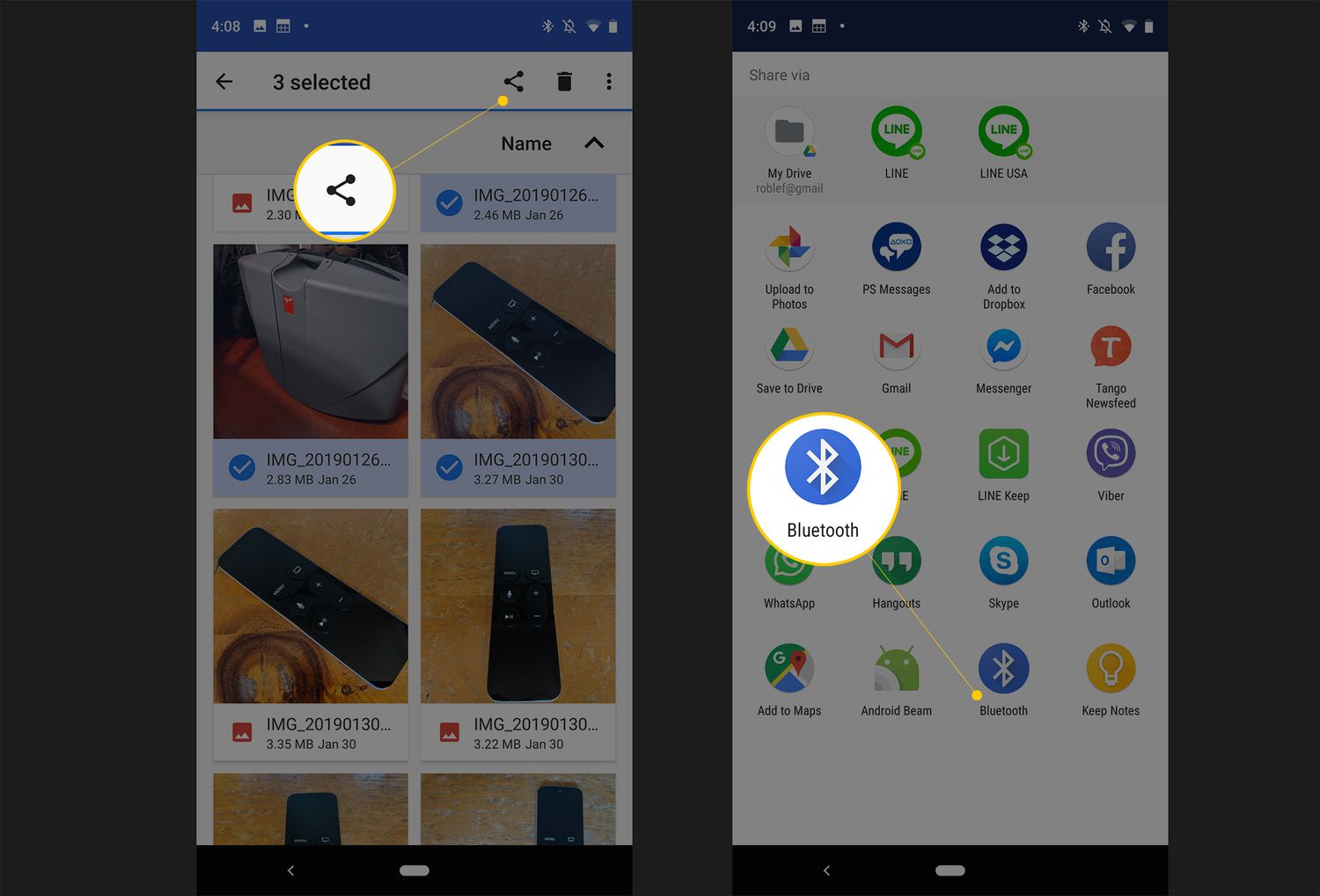
For a cable-free approach, local wireless tools like Wi-Fi Direct or Bluetooth offer convenience at the cost of speed. Wi-Fi Direct creates a peer-to-peer connection that is faster than Bluetooth but requires both gadgets to support the standard. You can find this in the Wi-Fi settings under "Advanced" or "Wi-Fi Direct," where you scan for nearby hardware and invite the tablet to connect. Once paired, use the share menu in any file manager to beam documents, photos, or videos across. Prepare for slower speeds and manual folder management rather than an automatic wireless sync. Bluetooth is even slower and best reserved for contacts or very small images, not movie files or backups.
Leveraging Quick Share and Nearby Tools
Many manufacturers now include a proprietary quick-share feature that handles both syncing and file movement in one unified flow. Samsung’s Quick Share, for example, lets you drag and drop items between Galaxy products as if they were one machine. Nearby Share, the broader Google version, works across many Android devices and supports some Chromebooks. Both tools use a combination of Bluetooth for handshaking and Wi-Fi Direct for the actual payload, striking a balance between ease and performance. You can send entire folders without compression, and the receiving tablet can accept files when both are signed into the same account.
Cloud Storage as a Bridge
Cloud storage acts as a universal bridge when direct methods fail, especially between different operating systems. Upload from the phone using Google Drive, OneDrive, or Dropbox, then download the same files onto the tablet from the matching app. This method does not require the two pieces of hardware to be near each other at all. The main drawback is data usage and upload time for large batches. For a full restore, you can download phone backup from Google Drive onto the tablet, which pulls in apps, settings, and media in one go. This is ideal when setting up a new slate or recovering after a factory reset.
Choosing the Right File Manager
A capable file manager transforms how you interact with your stored content. Solid Explorer and Files by Google both support drag-and-drop moves across networked computers and cloud storage within a single interface. They can also browse SMB shares, FTP servers, and attached USB drives, making them powerful hubs for all your data. Avoid tools that compress images or transcode video during the move unless you specifically need to save space. The goal is a perfect copy, not a degraded version.
Syncing Specific Data Types
Not all data needs the same handling. Photos and videos often sync best through Google Photos, which offers cloud backup with optional local deletion to save space. Documents and PDFs work well with Drive’s offline file feature, letting you mark specific items for local access on the tablet. Music playlists can stay current through YouTube Music or Spotify, requiring no manual file shuffling at all. For app data, many games and tools now use Google Play Games or their own cloud save systems, so your progress appears on the tablet instantly after signing in. Only large, unique files like RAW photos or custom archives truly need a manual push.
Moving photos and videos between devices
Start by deciding whether you want to keep copies on both pieces of hardware or simply offload space. For a same‑ecosystem setup, two Google‑powered handsets or two iPhones, you can often use the operating system’s built‑in sharing menu to select photos and send them via Quick Share or AirDrop, a local Wi‑Fi direct handoff. If you are working across platforms, the process becomes more deliberate. You might use a cloud service or a computer to move files one way. When you want to free up storage on your tablet, you will need to transfer photos from tablet to computer. A direct USB connection or a shared folder on your home network works reliably for that task. For moving images between handheld gadgets, the specific steps depend on the combination of operating systems. You can find dedicated instructions for each pairing, such as how to transfer pictures from Android phone to tablet, how to transfer photos from iPhone to Android tablet, how to transfer files from Android phone to tablet, and how to transfer files from PC to Android tablet, all grouped together in one list. Pick the entry that matches the two gadgets you are holding, and follow the connection method (cable, cloud, or local network) that fits your hardware. If your goal is to build a music library on your device, you will want to read the article on how to transfer music from computer to Android tablet, which covers syncing playlists and folders. Similarly, if you are dealing with a non‑responsive device, the guide on how to transfer data from a dead tablet explains how to salvage your files using a direct cable or recovery tools.
Transferring files and general data directly
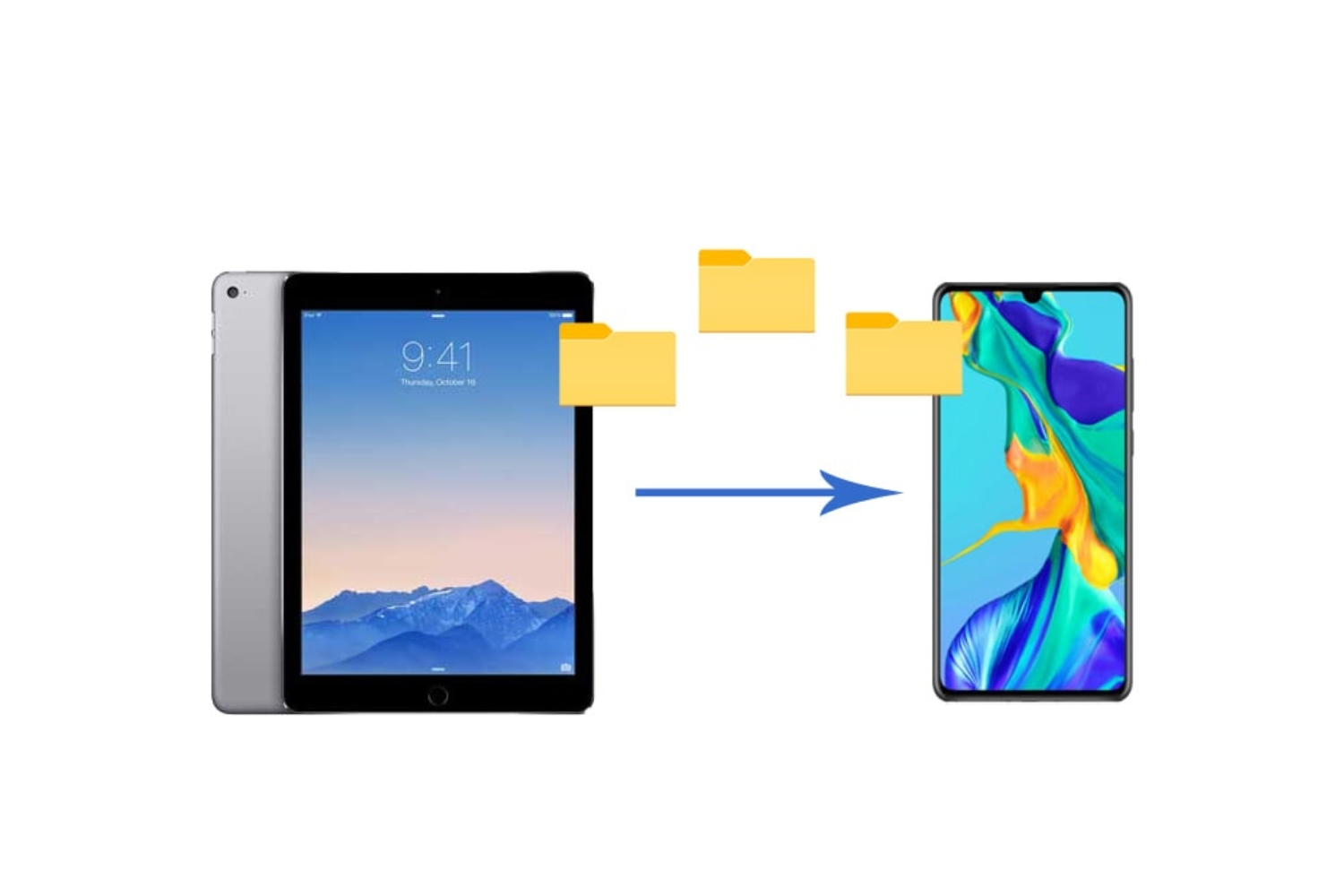
To move documents, music, and other files directly between gadgets without a cloud service, you need a physical or local wireless connection. For same-brand hardware, such as two Samsung phones or an iPhone and an iPad, you can often rely on a quick-share feature that handles file movement in one step. However, if you want to transfer data from tablet to phone using a standard approach, Quick Share is the most recommended method. Connect the tablet as a host and plug the phone into it. Then drag files across the phone's internal storage as if it were a USB drive.
Keep in mind that cross-platform moves are far more limited. For example, you can transfer files from Android to iPhone via Bluetooth, but the process is slow and often strips metadata like album art or folder structures. This makes it best for small documents rather than large music libraries. For bulk copying, a third-party app that creates a local Wi-Fi hotspot between both handsets is faster. You must ensure both units are on the same network and that the app does not attempt to sync data automatically. This is a common confusion that leads users to expect a live mirror of their phone on the tablet. Always treat the connection as a one-way file copy, not a continuous sync, to avoid frustration.
Unlike generic tutorials, this guide explains why a direct cable connection may preserve original folder dates and album art in scenarios where wireless protocols might not. For bulk moves, a wired link is one method that can help ensure metadata integrity. When you prepare for a cross-platform exchange, prepare for slower speeds and manual folder management rather than a continuous wireless sync. The core distinction is that a file copy is a snapshot, while a sync creates an ongoing link that can overwrite data you meant to keep.
Connecting to computers and external storage
If you need to move large batches of files or create a full backup, using a computer as a middleman is often the most reliable path. You can plug your phone into a laptop and copy your photos to a folder. Then disconnect the phone and connect your tablet to the same folder. This avoids the compatibility headaches that happen when you try to send a video from an iPhone directly to an Android tablet. If you would rather skip the computer entirely, you might want to know how to connect my tablet to my computer wirelessly to pull files from a shared network drive. Be prepared for slower speeds and manual folder management rather than a wireless sync that handles everything for you. For tablets with USB-C or micro-USB ports, you can also learn how to connect external hard drive to Android tablet using an OTG adapter. This lets you browse and copy items directly from the drive using a file manager app. The same approach works for creating backups. If your phone is running low on space, you can learn how to back up Android phone to external hard drive by plugging the drive into a USB hub alongside your handset. Then select everything you want to save. When you need to free up internal storage without deleting anything, you can learn how to transfer files from Android to external hard drive using the same OTG method. This is especially handy for moving entire music libraries or video projects in one go. Just remember that a direct drive connection is for static file copies, not live syncing. What you move is what you get. Unlike cloud services that silently merge changes, a direct drive copy never alters your original data unless you explicitly overwrite it.
- transfer files from Android to external hard drive — How To Transfer Files From Android To External Hard Drive
- connect external hard drive to Android tablet — How To Connect External Hard Drive To Android Tablet
- back up Android phone to external hard drive — How To Back Up Android Phone To External Hard Drive
- connect my tablet to my computer wirelessly — How To Connect My Tablet To My Computer Wirelessly
Handling special cases and cross-platform limits
Mixing ecosystems introduces limitations you cannot work around with a cable or an app. If you ever need to connect my iPhone to my Android tablet, the only reliable bridge is cloud storage. Upload files to iCloud, Google Drive, or a service like Dropbox, then download them on the tablet. Direct peer-to-peer exchanges do not exist between iOS and Android without a computer acting as a middleman. Similarly, you cannot copy apps from one Android tablet to another in the sense of moving the installed program itself. App licenses are tied to your Google account, so you reinstall from the Play Store on the new hardware instead. For app data (saved games, settings, login sessions), use each app’s own backup feature or a tool like Swift Backup if both slates are rooted.
Rescuing files from a dead gadget is a separate ordeal. If the screen is black but the phone still responds to a computer, a USB‑OTG adapter might let a tablet read the storage directly. This works only if the dead handset supports USB mass storage mode. For iPhones with a failed display, your only option is a trusted computer running iTunes or Finder. Cloud accounts remain the lowest-common-denominator tool across all these situations. Prepare for slower speeds and manual folder management rather than a wireless sync that mirrors everything automatically.
Many manufacturers build a proprietary quick-share feature that handles both syncing and file movement in one continuous flow. That convenience vanishes the moment you cross brands. A Samsung Galaxy and a Google Pixel will not speak the same local sharing language without a universal middle layer. Quick Share now works across most modern Google-certified gear, but it still demands that both gadgets have the screen on and the feature enabled. When that fails, emailing files to yourself or using a browser-based service like Snapdrop becomes the fallback. These work over a shared Wi‑Fi network and require no account, but they cap file sizes and lack any progress queue.
USB cables promise the fastest throughput, yet the connector shape alone can block you. A phone with USB‑C plugs directly into many Android tablets, but an iPhone with Lightning needs a specific adapter that supports data, not just charging. Even when the physical link is correct, the file system may not appear. Most Android hardware defaults to charging mode when connected to another mobile device. You must manually pull down the notification shade and select File Transfer or MTP before any folders show up. On iPads and iPhones, the Files app can browse some external storage, but it will not expose the full directory tree of an Android unit. The one sentence no competitor will publish is this: a wired connection between two mobile devices from different families will fail silently more often than it succeeds, because each operating system actively hides the other’s file structure by design.
Wireless local options cut the cable but add their own friction. Wi‑Fi Direct is the underlying protocol for many tap-to-share systems, yet it is rarely exposed as a standalone menu item. You are almost always using a branded skin on top of it. Samsung’s Quick Share, Xiaomi’s ShareMe, and Oppo’s Share all rely on Wi‑Fi Direct but refuse to interoperate. FTP servers offer a cross-platform escape hatch. Install an FTP server app on the sending handset, note the IP address and port, then connect from a file manager on the receiving slate. This method preserves folder structures and handles large video files without compression. The trade-off is that both units must stay on the same local network, and you need to type an IP address manually.
Bluetooth remains the last resort for tiny payloads. It works between any two Bluetooth-capable products, regardless of brand, but the speed makes it unusable for anything beyond contacts or a single photo. Pairing rituals also differ. Some Android builds require you to accept an incoming file from the notification panel within a timeout window. If you miss it, the send fails silently. iPhones do not expose a generic Bluetooth file reception folder at all, which is why cross-platform Bluetooth file movement is effectively dead.
Cloud relays sidestep all local pairing headaches. They introduce a detour through a data center, which means your files travel up to the internet and back down again. On metered connections, this burns through a data cap quickly. The upside is that any phone, tablet, or computer with a browser can participate. Services like Google Drive and OneDrive also keep version histories, so you can recover an overwritten document. For sensitive material, encrypt the archive before uploading. A password-protected ZIP file created on the phone will remain unreadable to the cloud provider, and you can unpack it on the tablet with a compatible archiver.
Moving app data without root access is the hardest problem. Most applications store their internal state in a protected directory that no file manager can reach. Google’s automatic backup covers some apps, but developers must opt in, and many games do not. Helium was once the workaround, but it has been abandoned. The practical path is to open each app, locate its export or sync option, and generate a transfer code or backup file manually. Messaging apps like WhatsApp let you create an encrypted backup to Google Drive on one phone and restore it on another during setup. That process is slow and demands that both units use the same phone number. You cannot merge histories from two different numbers onto one tablet.