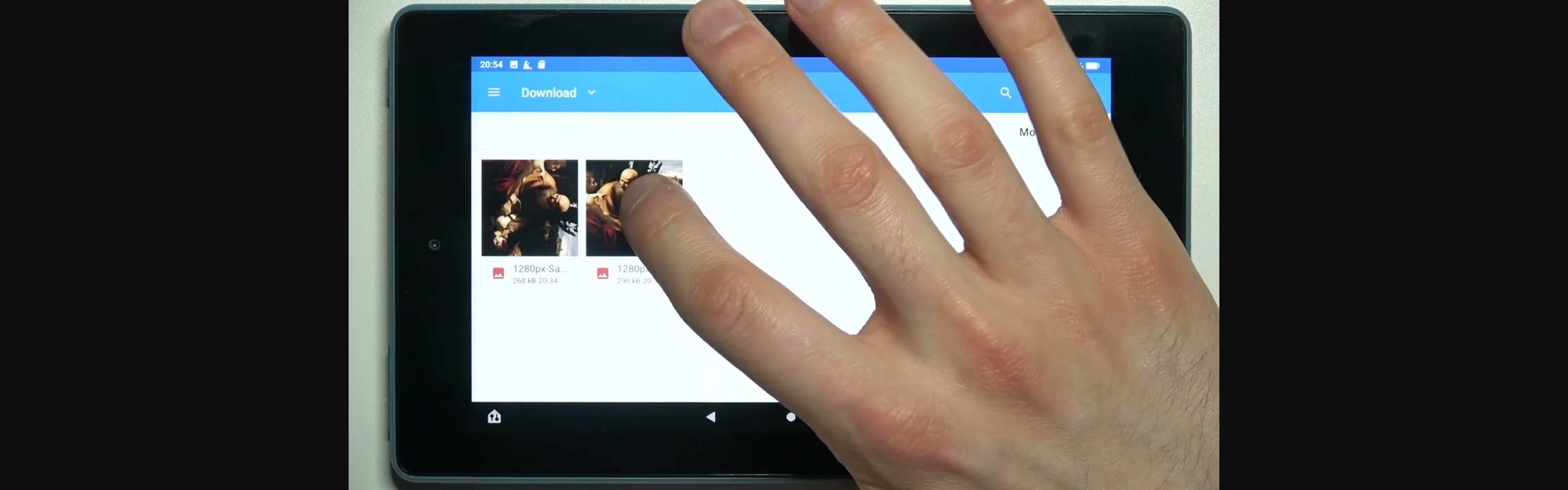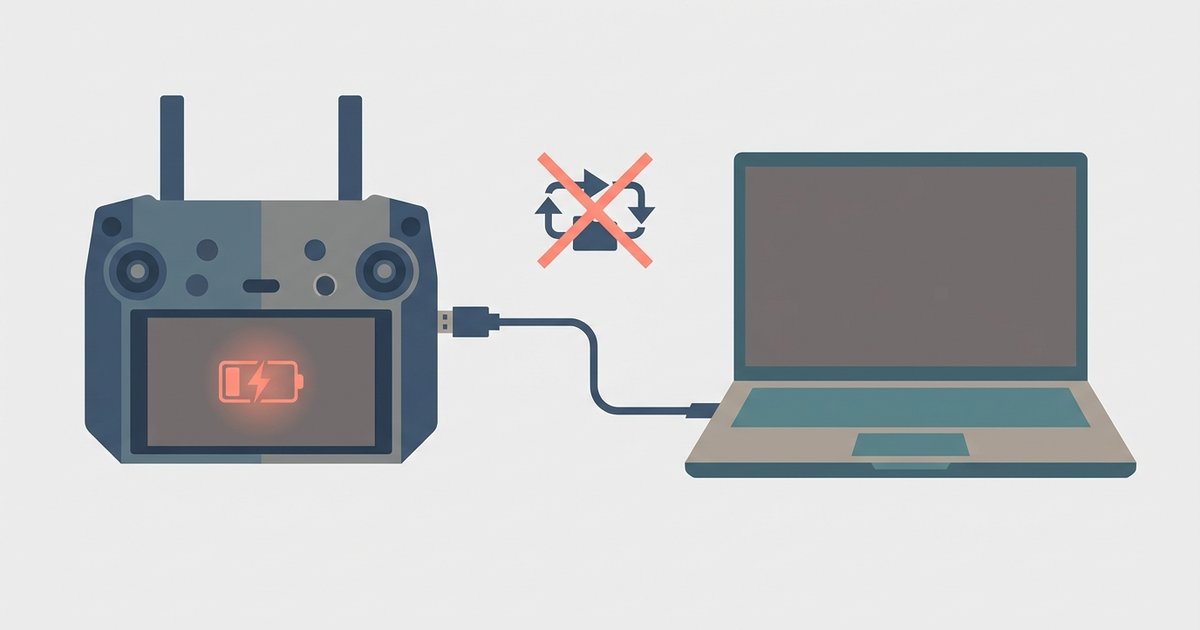
The DJI RC's USB port may require you to manually pull down the notification shade on the controller's screen and tap the USB notification to select 'Transfer Files' or 'MTP' mode before the PC will recognize it.
The hidden android menu for dji rc data transfer
To switch from charge-only to file transfer, wake your DJI RC and swipe down from the top of the screen to open the notification shade. You may see a persistent USB charging notification. Tap that notification to expand it. Then tap the option for file transfer or MTP (Media Transfer Protocol). Your PC should immediately detect the device as a portable drive, and a drive letter will appear in File Explorer. If you do not see the USB notification at all, try unplugging and re-plugging the cable while the screen is awake. The notification only appears when the cable is physically connected and the device is awake. Once you select MTP, the connection persists until you unplug the cable or manually change it back to charging.
When the cable is still the culprit
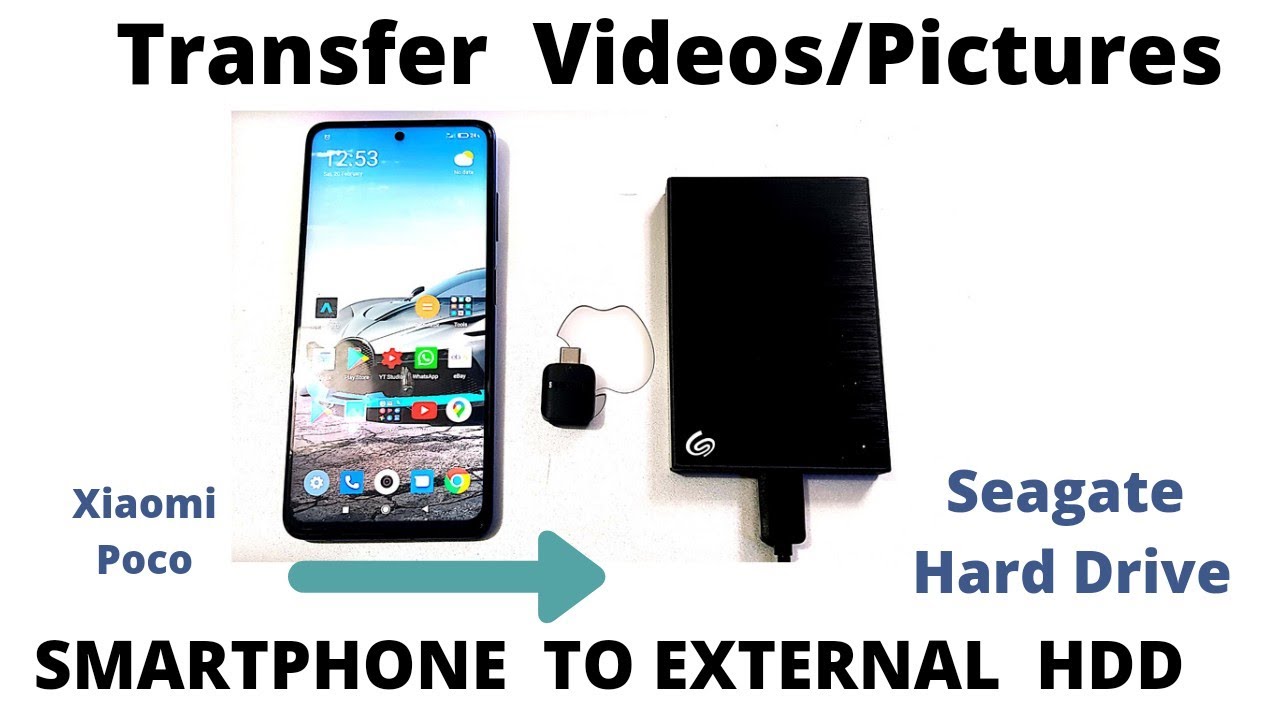
If you have set the USB mode to "Transfer files" but the PC still shows no new drive, the cable itself may be charge-only. Many USB-C cables lack the data wires required for file transfer. They are designed solely for power delivery. Test this by using a cable that you know transfers data between other devices, like a phone or external hard drive. Also inspect the remote’s USB-C port for debris or damage. Even a small piece of dust can block the data pins while still allowing the power pins to make contact. If a known-good data cable fails and the port looks clean, the port might be physically faulty. In that case, transfer files wirelessly using the DJI Fly app’s built-in feature, which is covered in the steps to connect dji controller to Wi-Fi. If the wireless connection itself is unstable, see DJI controller Wi-Fi connection keeps disconnecting from PC for troubleshooting steps. That method bypasses the USB port entirely and lets you pull photos and flight logs directly from the internal storage.
Driver and system recognition failures
Even with the correct MTP mode selected and a working data cable, Windows may fail to recognize the DJI RC because the required MTP driver is missing or corrupted. Open Device Manager on your PC by right-clicking the Start button and selecting Device Manager. Look under relevant device categories in Device Manager for an MTP-related entry with a warning icon, or an unrecognized device entry. Right-click that entry, select "Update driver," then choose "Browse my computer for drivers" and pick "Let me pick from a list of available drivers on my computer." In the list, find the appropriate MTP or Android device driver, select it, and install the driver. If no such entry appears, unplug the transmitter, plug it back in while the notification shade is open and MTP is selected, and watch Device Manager for a flash of new hardware. Once the driver installs, the device will appear as a drive. For binding the transmitter with the aircraft itself, follow the steps to pair drone with remote controller, which covers the binding process via the DJI Fly app.
The DJI RC may require you to use a persistent notification that appears while a cable is physically connected and the screen is awake to change the USB mode, which is why many users mistakenly believe the port only supports charging; for a complete walkthrough on how to connect dji controller to PC and enable data transfer, see the full guide.