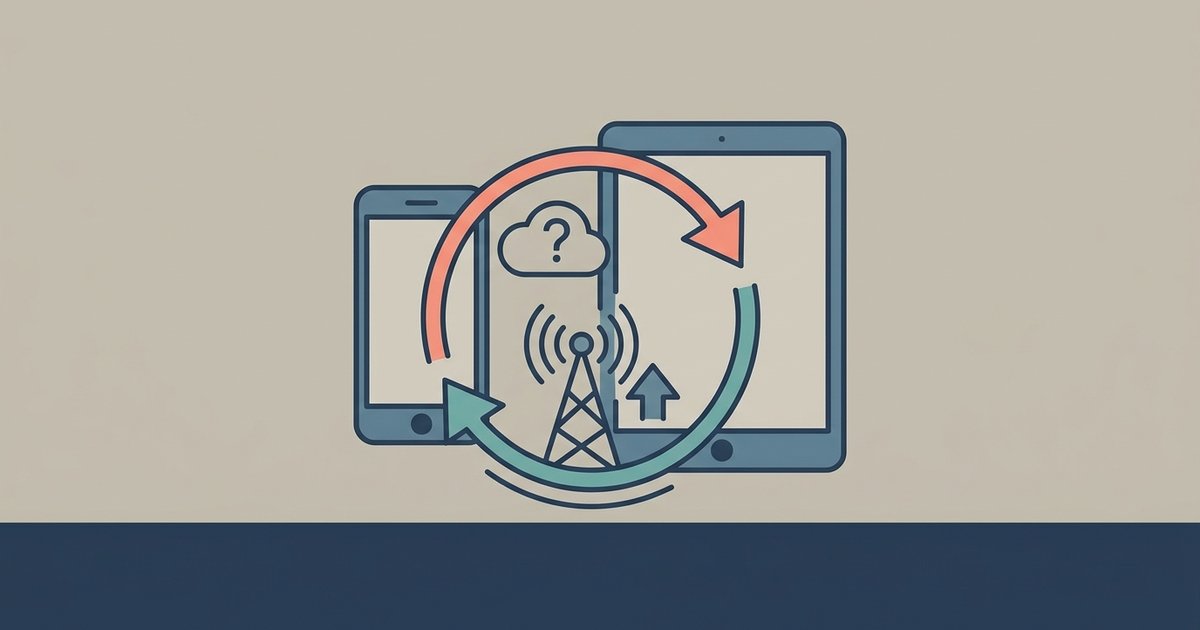
The transfer likely failed because the connection dropped or the app was pushed out of memory mid‑stream, leaving an incomplete file that the receiving device can’t recognize. You can often resume or recover it by re‑initiating the same transfer with the same app, which should detect the partial file and pick up where it left off.
1. File transfer corrupted due to a silent connection drop
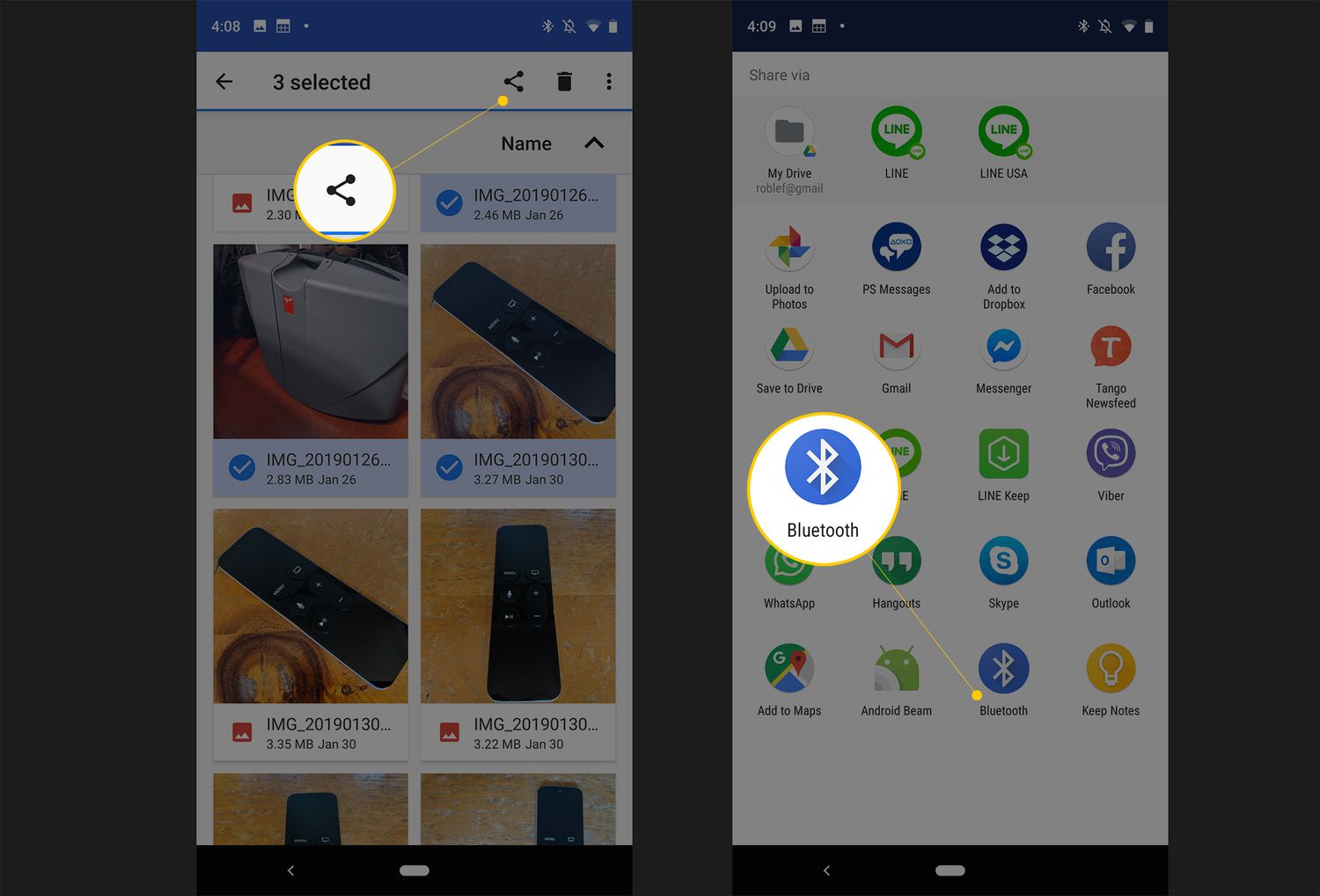
When you transfer pictures from Android phone to tablet, the link between devices is surprisingly fragile. A brief Wi‑Fi blip can sever the data stream silently. This happens when your phone switches between a 2.4 GHz and 5 GHz band while the tablet stays on the old one. Bluetooth file transfers suffer the same fate if you wander a few feet out of range. Worse, Android’s aggressive battery optimization often kills the background Wi‑Fi radio for a few milliseconds to save power. The transfer app treats this as a clean disconnect without writing a failure marker. The result is a file that shows the correct size on disk but contains a gap of zeroed‑out bytes near the end. When you try to open it, the receiving device sees the header and assumes the file is valid, only to choke on the missing data.
2. The app was killed in the background
Android’s memory management is the most common culprit behind a half‑written file. If you switch to another app or even let the screen dim, the system may decide the sync app is expendable and terminate its process. A third‑party “cleaner” or RAM booster can do the same, even if you’re actively watching the transfer. Unlike a graceful stop, this force‑kill leaves no chance for the app to finalize the file header or write a checksum. The partial file sits on the receiving side with a name and extension that look normal. But the app that created it can’t resume because it never knew the transfer was interrupted. To connect your phone to your tablet reliably, you must prevent Android from killing the sync app mid‑flight.
3. When you can’t just resume
Resuming a partial transfer depends on the app recognizing the incomplete data. Many apps fail this test. The partial file may be locked by a stale process or misnamed with a temporary extension. Or the original sender has already deleted the source file. Cloud services are especially treacherous. If you use a sync folder on Google Drive or OneDrive, the upload may appear “100% complete” on the server even though only half the bytes arrived. This happens because the service accepted the chunked header and closed the session. In that case, the cloud app treats the corrupt file as finished and will never attempt a resume. You must manually delete the partial file from the receiving device and delete the incomplete upload from the cloud. Then start a fresh transfer from the original source.
4. How to force a clean retry
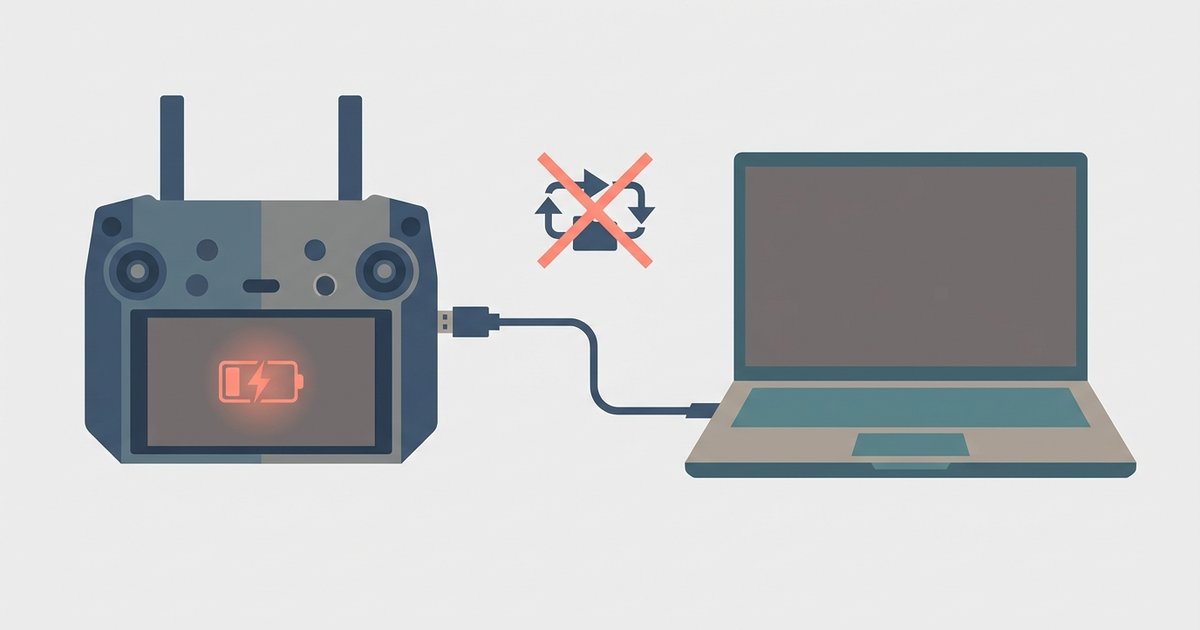
To get a clean transfer, first delete the visible partial file on the tablet. Then open your device’s Settings, go to Apps, find the sync app, and tap “Battery” to disable battery optimization. This prevents Android from killing it in the background. Next, ensure both devices are on a stable 5 GHz Wi‑Fi connection. The 2.4 GHz band is more prone to interference from microwaves and Bluetooth. Restart the app and re‑initiate the transfer. If you’re using Wi‑Fi Direct, make sure both screens stay on and the app remains in the foreground. For a wired alternative when wireless keeps failing, you can connect my tablet to my computer wirelessly via a local FTP server. Then use a USB‑C cable to move the file from phone to computer first. A wired hop eliminates the radio dropouts entirely. Once the file arrives intact, you can push it to the tablet over the same stable network.
A frustrated Android user who has already tried to sync my Android phone to my tablet via Wi‑Fi Direct or cloud sync knows the sinking feeling of watching a progress bar freeze mid‑way, only to find a corrupt, unopenable file on the destination.
Unlike other guides, we explain that Android’s own battery optimization kills the background Wi‑Fi radio mid‑transfer without writing a failure marker, creating a corrupt file that looks complete but contains zeroed‑out bytes. For a complete guide to moving files between phone and tablet without this pitfall, see our broader topic of How to Connect a Phone to a Tablet and Move Files.