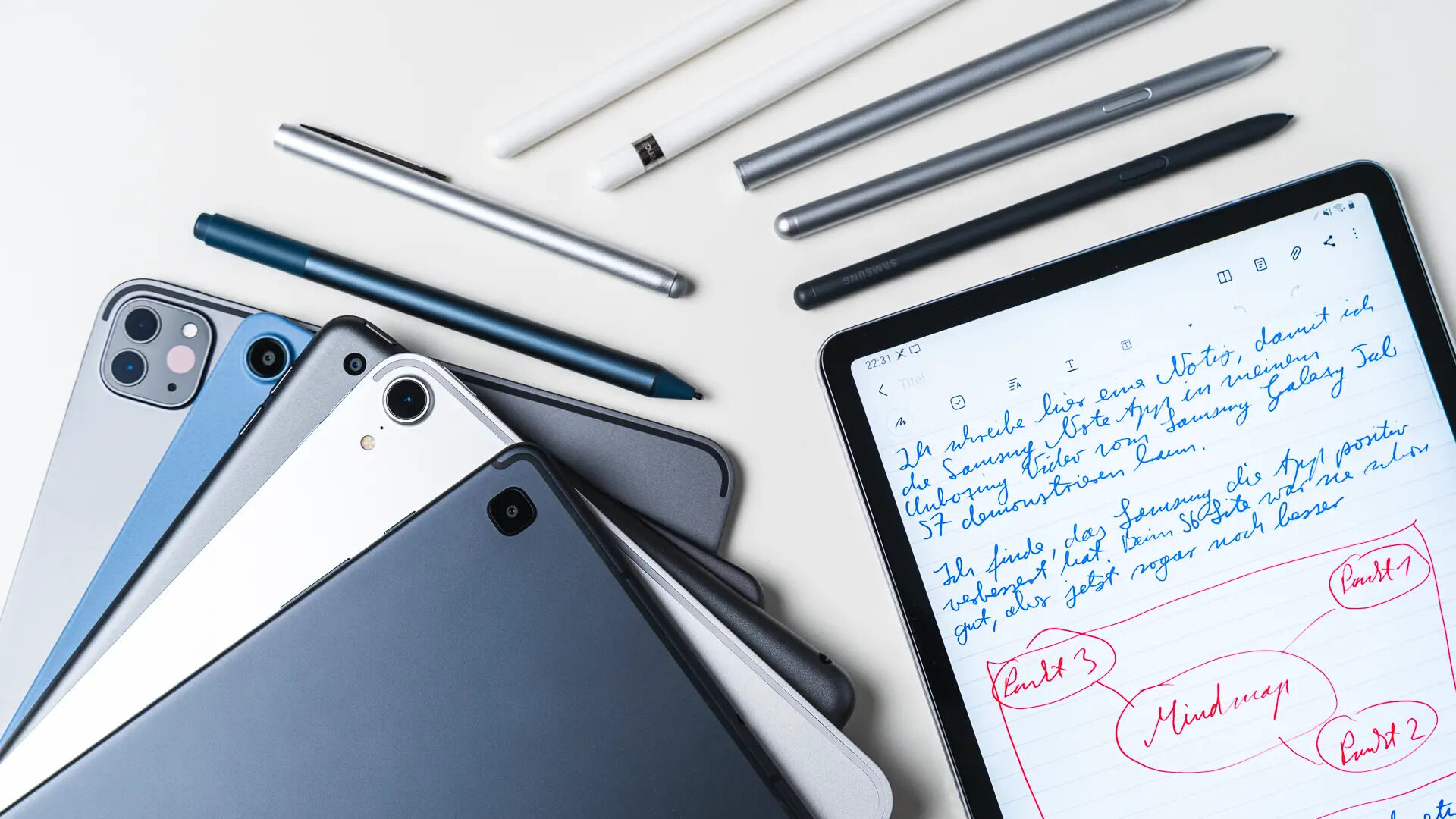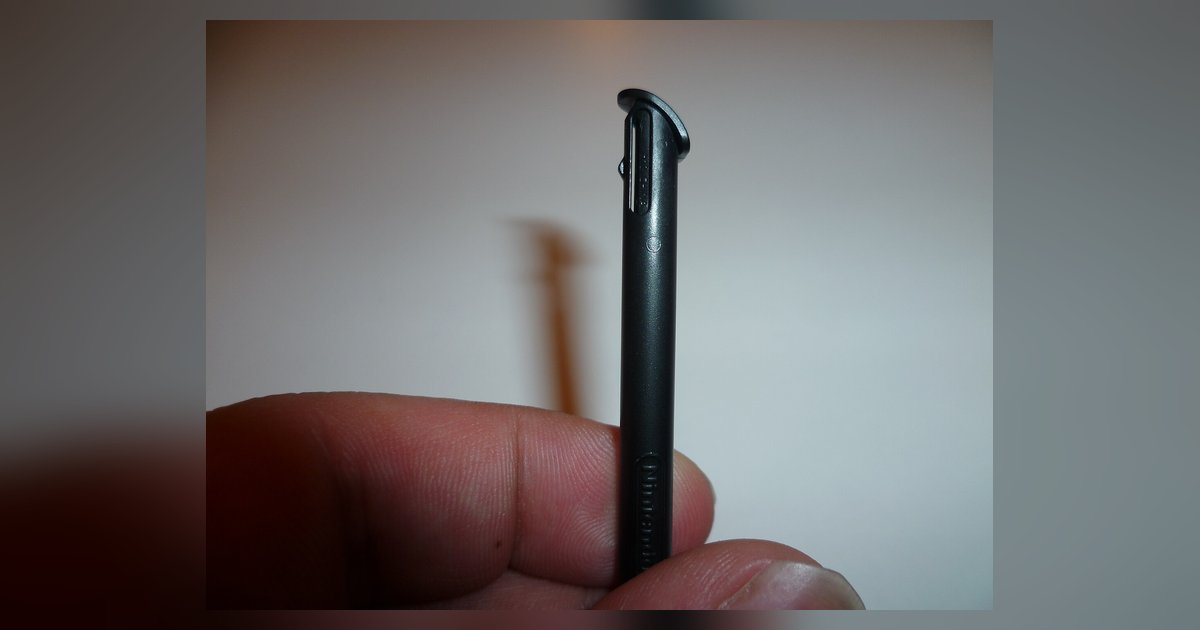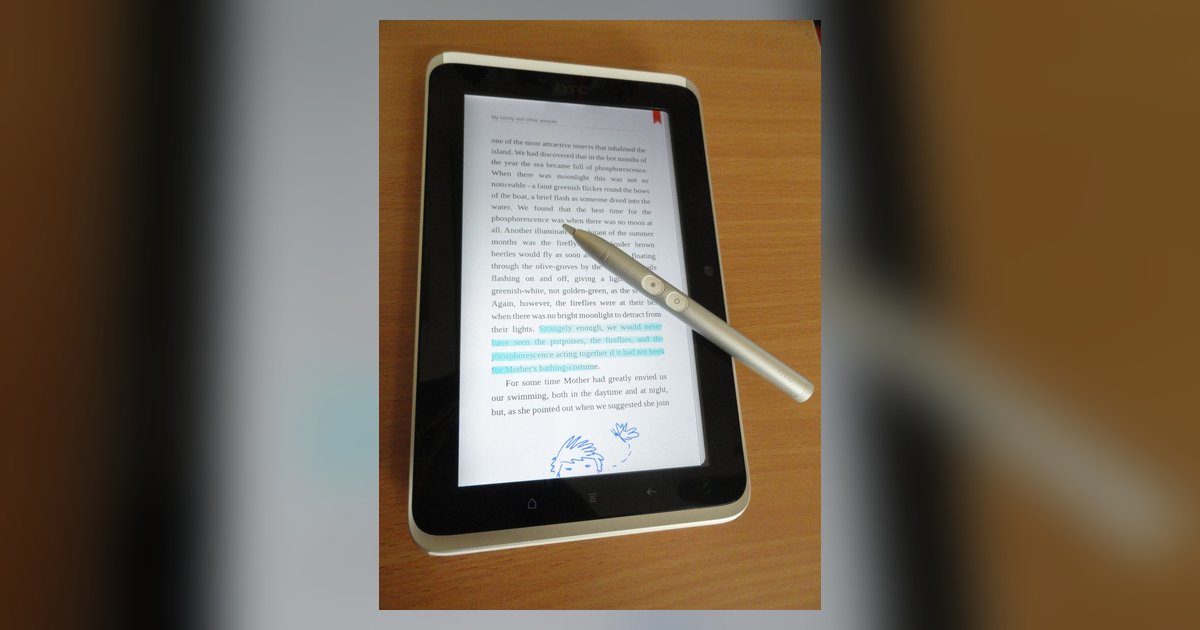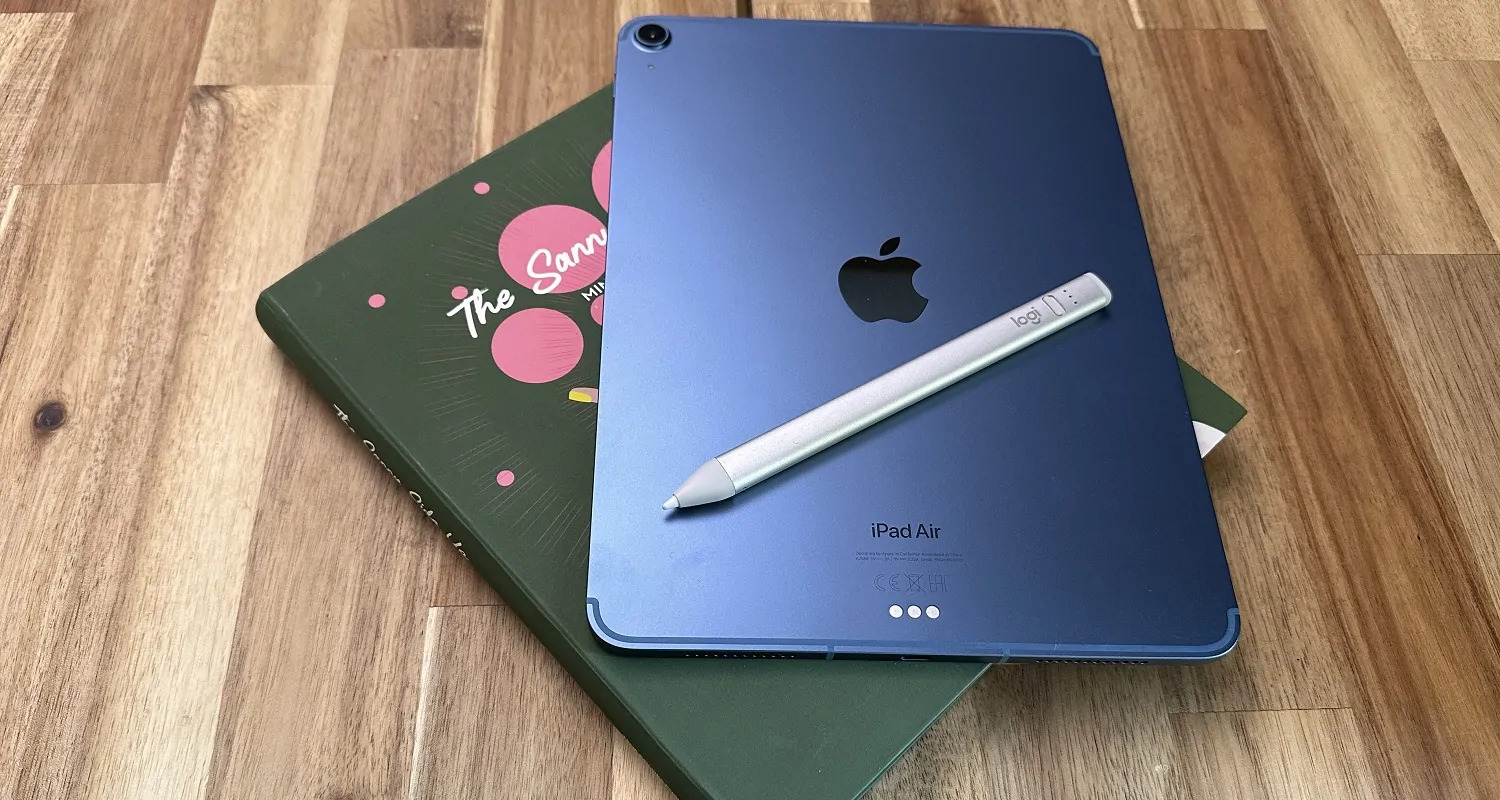
The jitter is usually caused by electromagnetic interference from a nearby charger or the screen protector creating a microscopic gap that confuses the digitizer, not a bad connection.
Electromagnetic interference causing stylus skipping lines
Non-certified USB‑C power adapters and magnetic third‑party cases generate a noisy electrical field that directly disrupts the stylus’s resonant frequency. The digitizer in your tablet listens for a specific signal from the pen. A nearby 65‑watt charger that lacks proper shielding floods that frequency band with stray AC ripple. Simply restarting Bluetooth does nothing because Bluetooth handles data packets, not the analog pen signal. Unplug all chargers within two feet of the tablet. Remove any case that uses magnets for a cover or stand. If the wavy lines vanish, the interference was the root cause. If the problem persists, you might need to explore tablet stylus alternatives while troubleshooting your hardware.
Screen protectors and the parallax gap problem
Thick tempered glass or air bubbles between the screen and protector distort the capacitive field. This makes the digitizer misread the pen tip position as wobbly lines. The active stylus relies on a precise electrostatic coupling at a distance of less than 0.3 mm. A 0.4 mm protector introduces a parallax gap that the sensor interprets as a constantly shifting offset. The result is sinusoidal jitter even when you draw a straight line. Remove the protector completely and test. If the jitter stops, switch to a thin PET film (0.15 mm or less) that is designed specifically for active pens. Many brands list compatibility with alternative tablet styluses on their packaging. Avoid any protector labelled “military‑grade” or “9H hardness” unless the manufacturer explicitly confirms active‑pen support.
Digitizer calibration drift and grounding issues
The tablet’s internal coordinate mapping can fall out of sync over time. This happens especially when the device is resting on a pillow or lap instead of a hard, grounded surface. A floating ground allows stray capacitance from your body to shift the digitizer’s baseline. The pen stroke then drifts or skips. Check your device’s manual for any built-in pen calibration tool; on some tablets you can find this under Settings → System or Accessibility. On Windows devices, open the Tablet PC Settings control panel and run the calibration tool. For a deeper fix, place the tablet on a wooden desk or a grounded metal surface. Touch the tablet’s metal frame with your bare hand while drawing. If the wavy lines smooth out, you have a grounding issue, not a broken pen.
When the stylus itself is not the problem
The failure case where users blame the pen but the real culprit is a swollen battery pressing against the screen from underneath. This creates phantom touch interference that mimics stylus skipping. A lithium‑ion battery that has expanded pushes the LCD panel upward. It generates false capacitive touches that the digitizer interprets as competing input. The result is erratic line breaks and sudden wavy segments that appear to come from the pen. Check the tablet’s back cover now. If it feels warm, bulging, or the screen shows a slight color shift when pressed, stop using the device immediately. This is a fire hazard, not a pen problem. For deeper reading on how each component works, see the active stylus demystified; if you have already misplaced your pen during testing, try finding it before ordering a replacement. And if you are using an Xp‑Pen device, refer to how to turn on your stylus to confirm the pen is actually transmitting. In this swelling scenario, the pen will appear dead even when powered on.
If you have already swapped batteries, toggled Bluetooth, and verified compatibility, the culprit is almost certainly an external electrical field or a physical barrier between the pen tip and the screen’s sensor layer. The fix rarely involves the stylus itself, but rather the environment or the accessory sitting on your glass. For more on connecting and using a stylus pen, see the full guide.