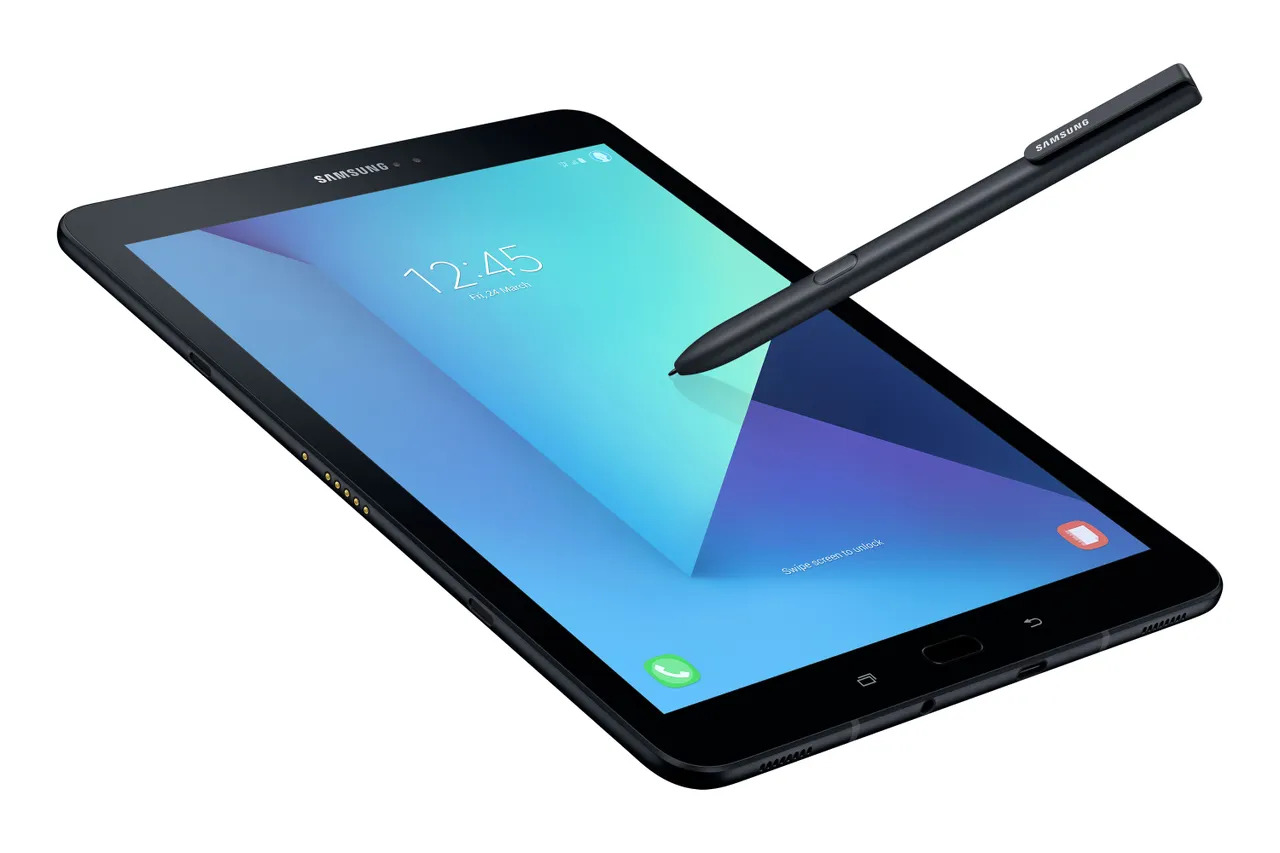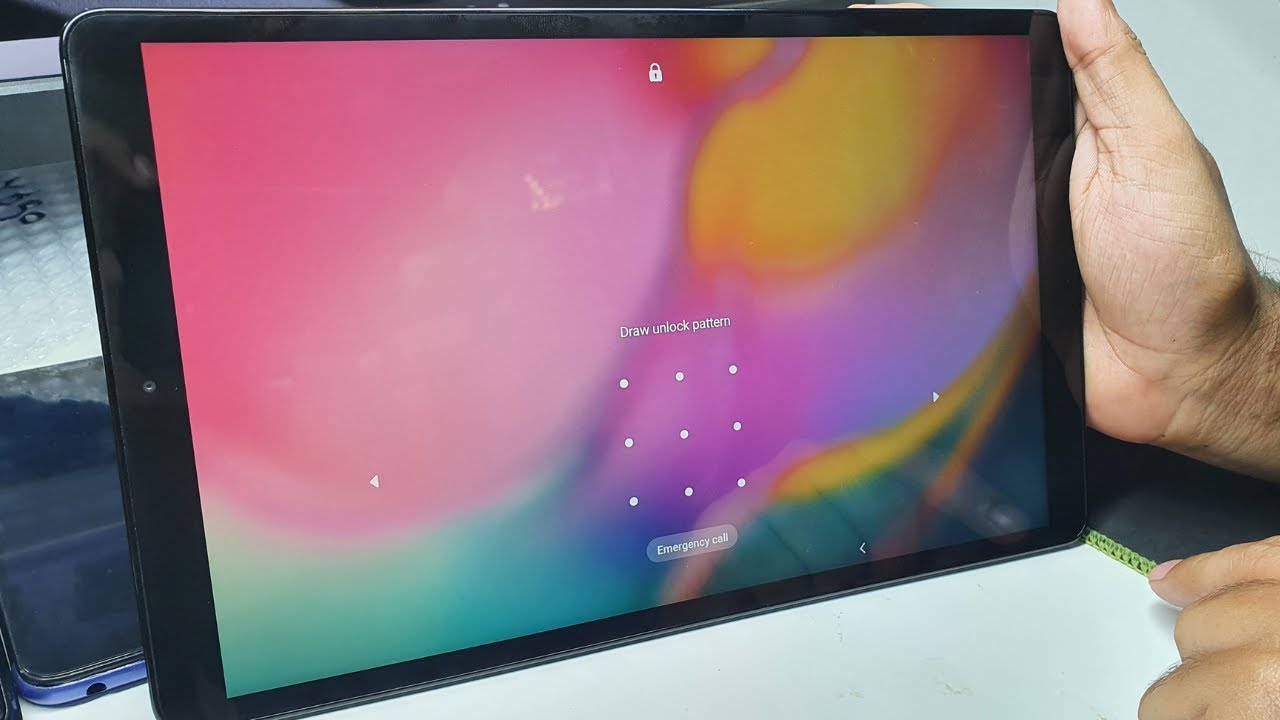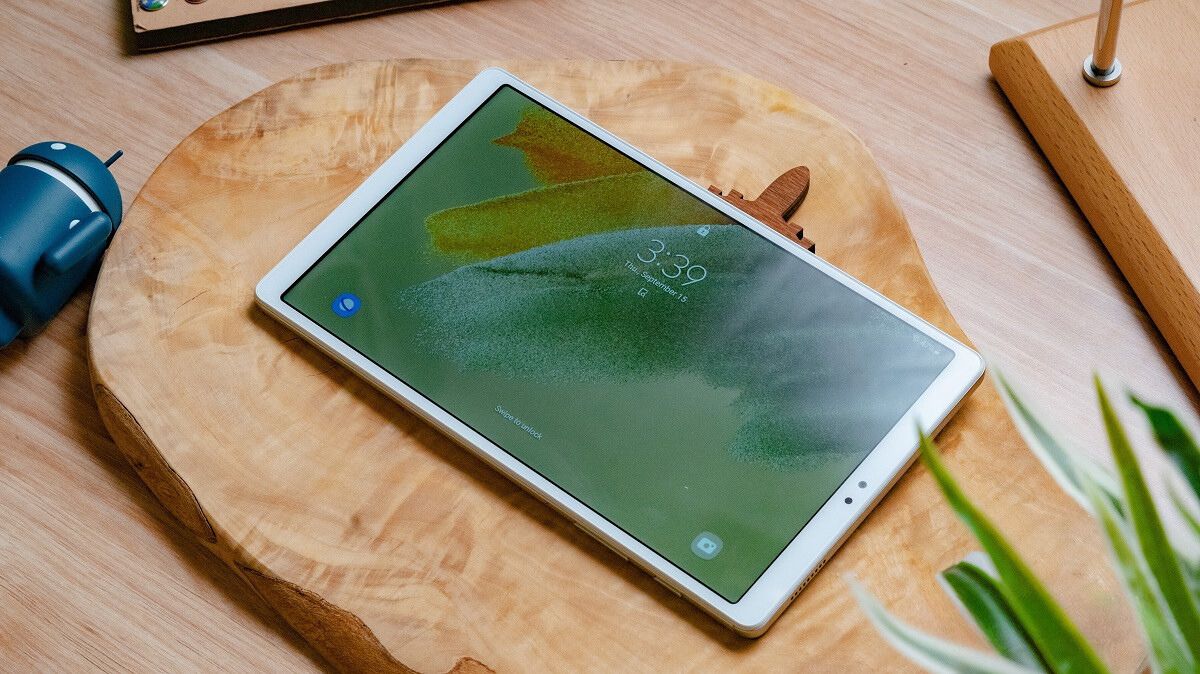
No, you cannot remotely unlock a Samsung tablet using Find My Mobile if the service was never turned on, because the tablet has no existing connection to your Samsung account. You will need to perform a factory reset using the hardware keys, which erases all data but removes the screen lock.
Why you can't unlock your Samsung tablet remotely
The tablet has no existing connection to your Samsung account. This erases all data but removes the screen lock. This is the only path available when no remote service was pre-configured. It requires you to physically interact with the device.
Find My Mobile works by sending a command through Samsung’s cloud servers. The device must have already logged into a Samsung account and enabled the “Remote unlock” toggle under the Find My Mobile or SmartThings Find settings. If you never turned on Find My Mobile before the lockout, the tablet never established this persistent connection to your account. Even if you now log into the Samsung website and try to use the “Unlock” button, the server receives no response. The tablet has no active session or permission to accept the command. There is no backdoor, hidden menu, or emergency bypass that can activate the feature retroactively. The service requires prior authorization at the system level.
The hardware key factory reset
To unlock a Samsung tablet when you forgot the pattern and Find My Mobile was never on, you must force a factory reset using the physical buttons. Power off the tablet completely. Then press and hold the Volume Up key and the Power key simultaneously until the Samsung logo appears. Release both buttons. This boots into the Android Recovery menu. Use the Volume keys to scroll to “Wipe data/factory reset.” Press the Power key to select it. Confirm “Yes” and wait for the process to finish. After the reset, the device reboots as if new, removing all lock screen credentials. This is the exact method described in guides on how to unlock a Samsung Galaxy Tab A if you forgot the password. It works on all Samsung tablets running Android 5.0 and later.
When Google's Find My Device is also useless
Many users assume Google’s Find My Device can serve as a backup. It cannot remove a screen lock on Samsung tablets running modern Android versions. Google’s service can locate, ring, or erase a device. The “Lock” and “Erase” functions only work if the tablet has an active Google account and Android Device Manager enabled. Even then, “Erase” performs a full factory reset, identical to the hardware method. It does not bypass the lock without data loss. On Samsung tablets, Google’s Find My Device service can locate, ring, or erase a device, but it does not offer a remote unlock feature that bypasses the screen lock without data loss. The only option Google offers is a remote factory reset, which still wipes your files. Trying to unlock a Samsung tablet through Google’s portal will simply fail or prompt a reset, not a targeted unlock.
What you lose and your last resort
A factory reset via hardware keys erases all user data: apps, photos, videos, contacts stored locally, documents, and any downloaded files. Samsung accounts, Google accounts, and Wi-Fi passwords are also removed. If you have a recent backup saved to Samsung Cloud, Google Drive, or a computer, you can restore most data after the reset. If you cannot perform the hardware key sequence because the tablet has a damaged power button, your last resort is visiting a Samsung service center with proof of purchase. The technician can perform a forced reset using proprietary tools. They will require a receipt or box showing the device belongs to you. Note that the phrase “hard reset Samsung tablet without password” describes exactly this process: using the button combination to wipe the device. This is the only self-service method available when no remote service was ever enabled.
For more detailed guidance on unlocking a locked tablet, including methods that may preserve your data, please refer to the broader topic of How to Unlock a Tablet You Are Locked Out Of.