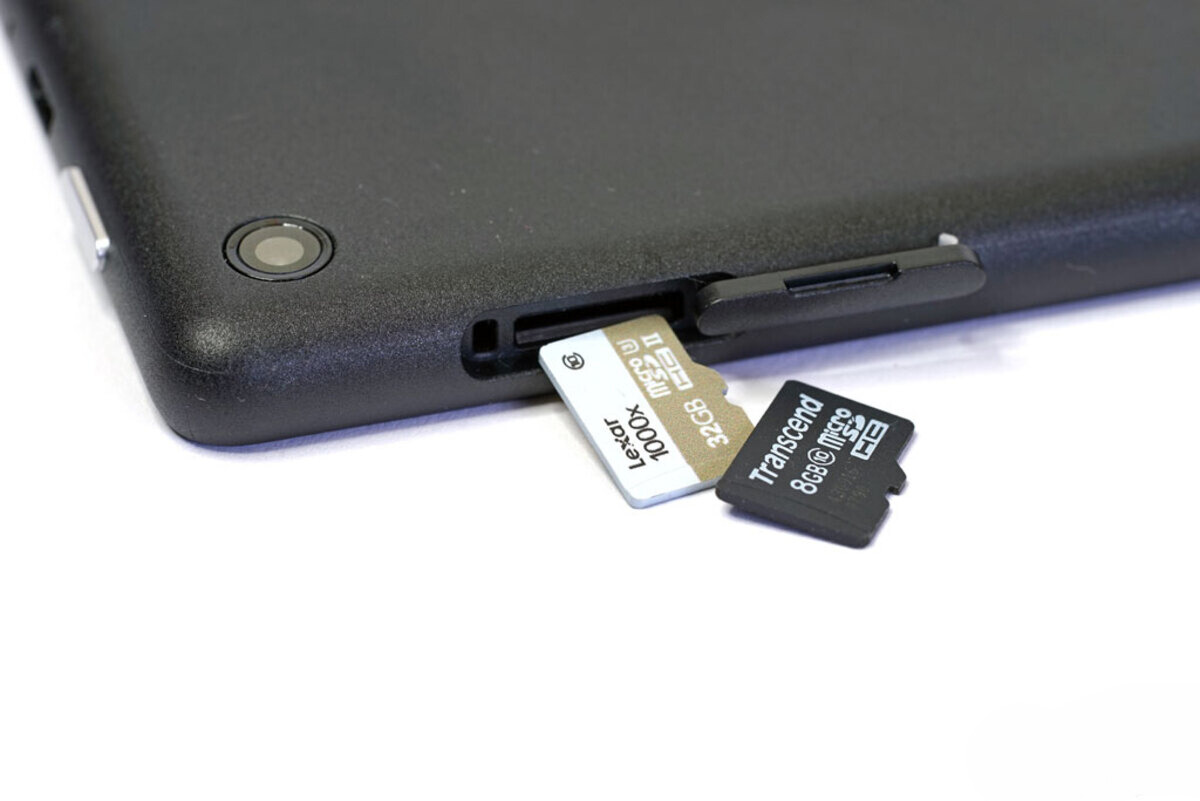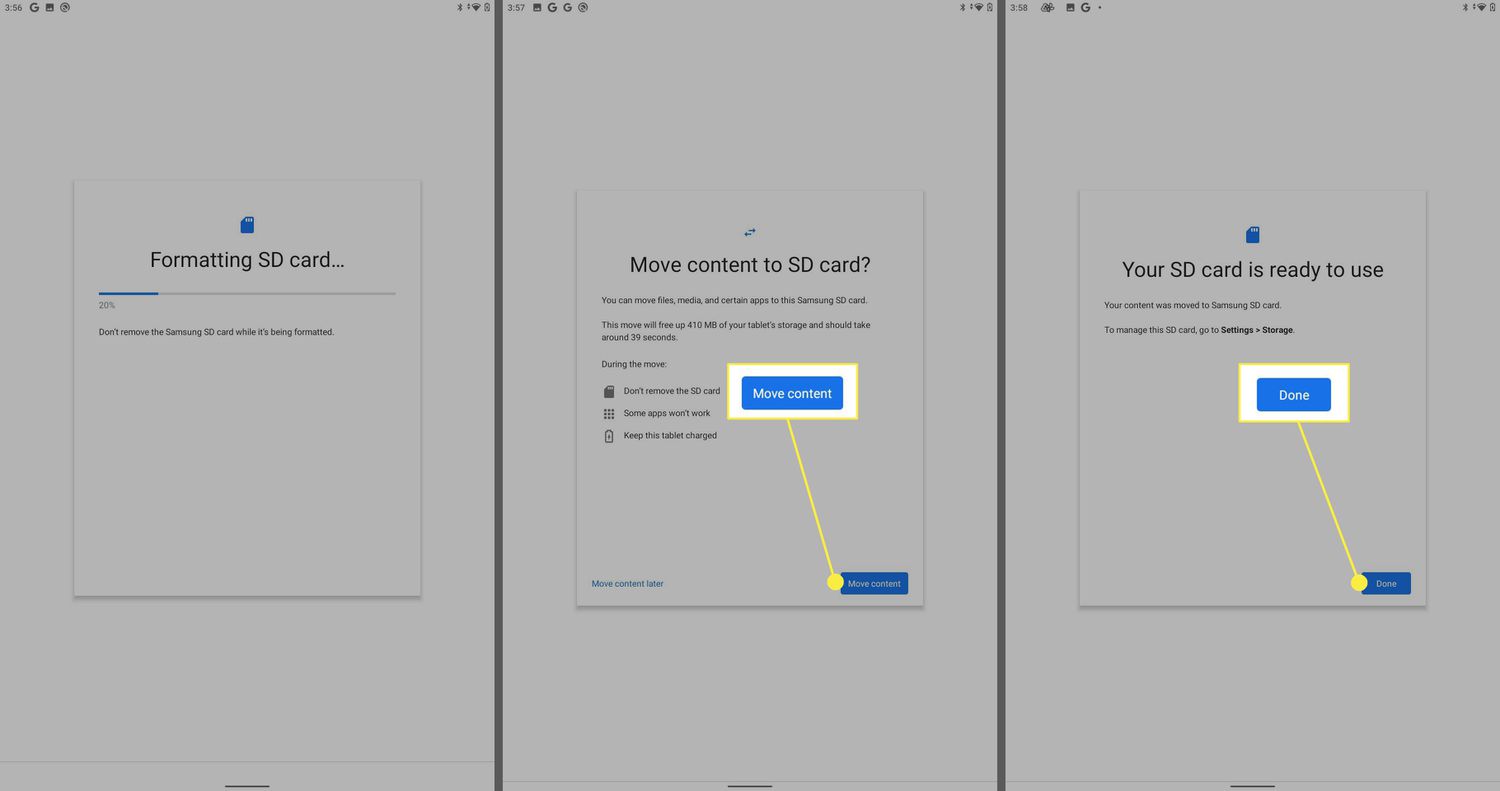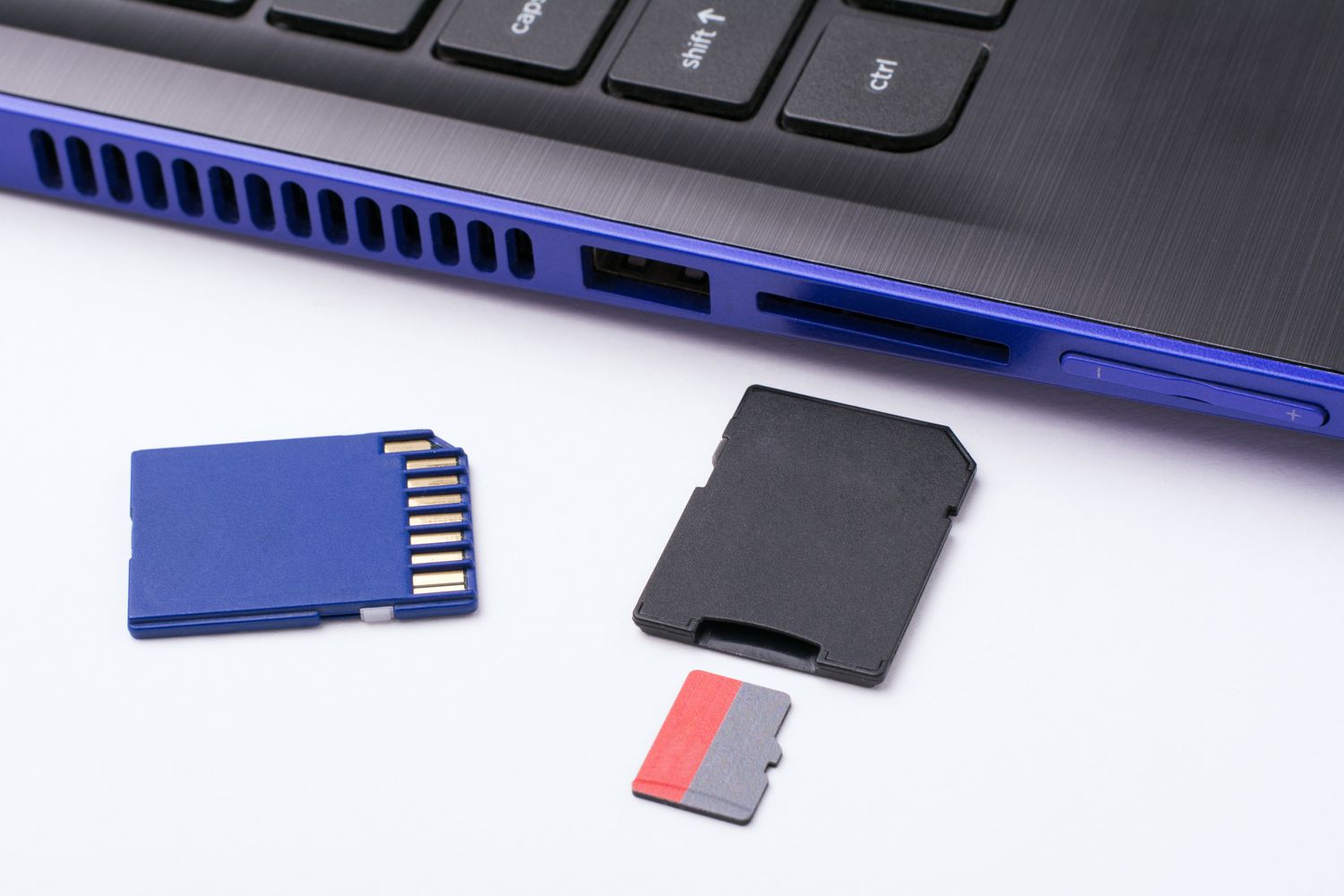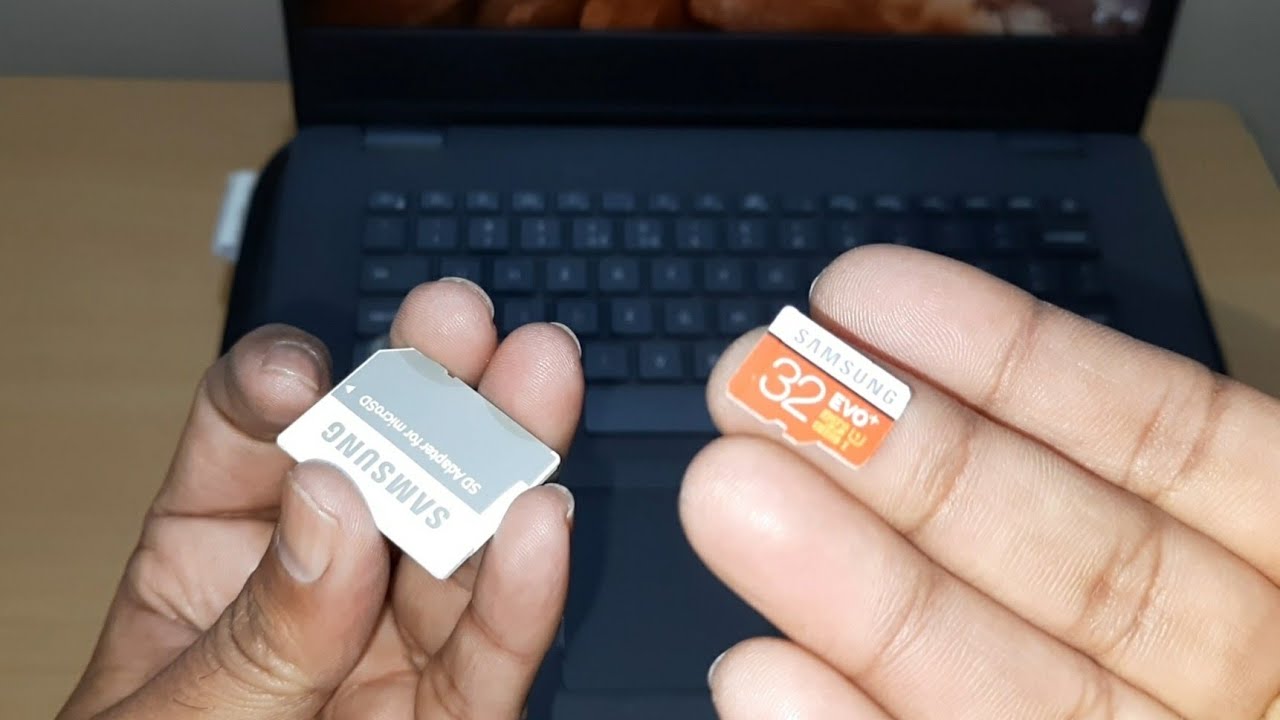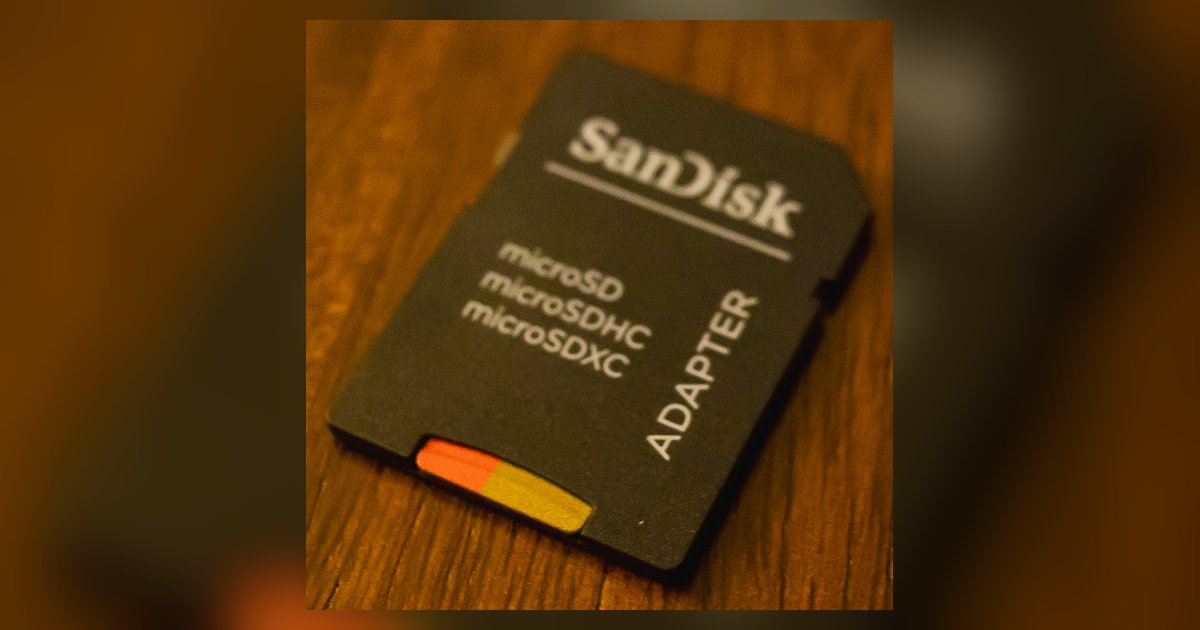
Your SD card acts as portable storage, not an extension of the internal drive. The Fire tablet only installs apps and large in-app downloads to the internal storage by default, so the SD card does not prevent the 'not enough space' warning for those operations.
Why your fire tablet storage is split in two
Amazon’s Fire OS treats the built-in space and the SD card as two completely separate locations. It does not combine them into a single pool. When you install an app, the tablet’s operating system writes the application’s core files exclusively to the onboard partition. It cannot automatically overflow into the card when the main space is full. This design is intentional. Amazon restricts app installation to the onboard memory to ensure performance and security. SD cards are slower and less reliable than the built-in NAND flash. Even if you use the “Format as internal” option, the system allows apps and their data to be stored on the SD card, though some core components may remain on internal storage. This option is available on Fire models via the standard storage settings when inserting an SD card. The result is that you can have 100GB free on your card but still get the “insufficient space” error on a 512MB main drive.
What you can actually move to the card
You can move personal media files, photos, videos, music, and downloaded Prime Video content to the SD card manually. To do this, open the Settings app and tap “Storage.” Then manage your files to move media manually, or for apps, go to Settings > Apps & Games > Manage All Applications, select the app, and tap “Move to SD Card” if available. However, moving an app to the card only shifts a fraction of its data. The app’s executable code and core resources often stay on the main drive. User data, like game saves or downloaded episodes, may be transferred. For example, moving Netflix to the SD card might free only 50MB of onboard space. It could leave 200MB of app cache and system files behind. The error persists because the built-in space is still consumed by these remnants. If you need to reclaim room, you must use the “clear storage on Amazon Fire tablet” option in Settings > Apps & Games > Manage All Applications. This wipes app caches and data completely.
When the sd card won’t help
The error can persist even after you move files and clear caches. The onboard space is consumed by three stubborn categories. First, system updates download directly to the main drive and can occupy 1-2GB after installation. Second, app cache grows silently. Each app may store hundreds of megabytes of temporary files that the SD card cannot absorb. Third, many apps refuse to split their data to external storage. Games and streaming services are common culprits. Amazon Photos or Kindle books often download content to the main drive by default. In this situation, the only solutions are to uninstall unused apps. You can also use the “delete files from file manager on Amazon Fire tablet” tool to remove old downloads and APK files. Physically removing the SD card forces the tablet to rely solely on the built-in space, though this won’t create more room. Using the SD card to add storage to Amazon Fire tablet works for media, not for apps. If you need to remove the card safely, follow the steps for how to “remove sd card from Fire tablet” in the tablet’s settings. This avoids corruption. Ultimately, the SD card is a helpful media locker.
It cannot solve the core limitation of a small internal drive. For a deeper dive into the full range of solutions and best practices, the broader topic of managing Fire Tablet storage covers everything from app management to file organization.