No, pinning the screen only locks the view to one app and prevents accidental swiping away; it does not force the pinned app or other apps to stop running in the background. Any apps already open in the task switcher will continue their background activity unless you manually close them or the system suspends them.
What fire tablet pinning actually does
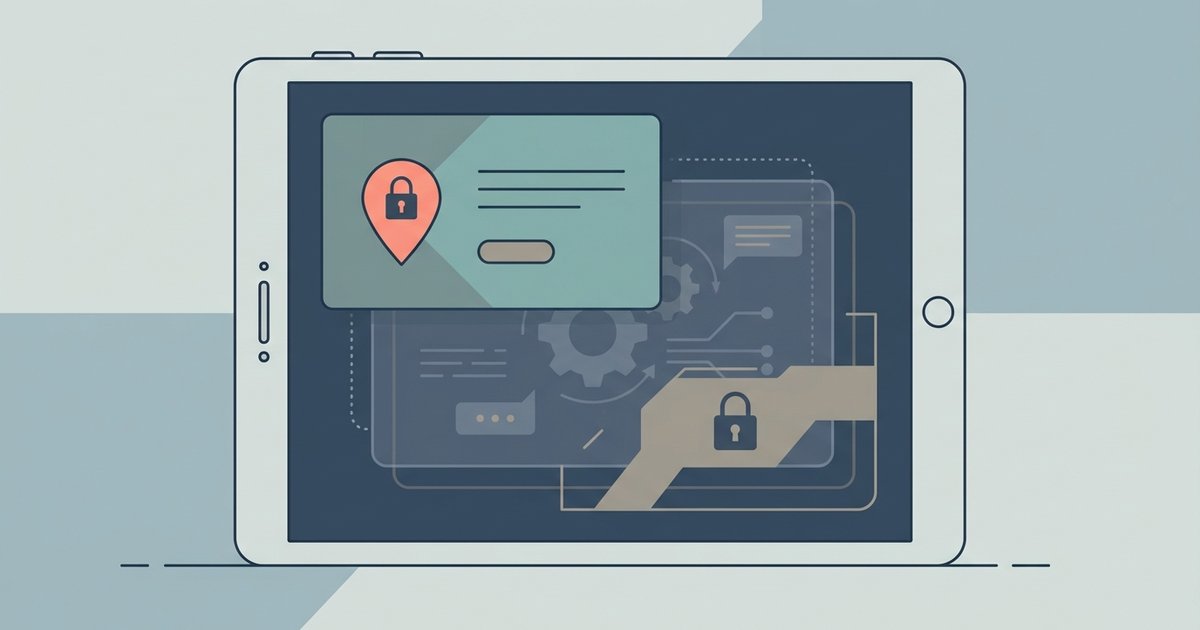
Screen pinning is a touch-interaction lock, not a task killer. When you enable pinning from the recent-apps menu on a Fire tablet, the device locks the display to the chosen app and disables the navigation bar, home, back, and recent buttons become unresponsive. This prevents a child from accidentally swiping to another app or reaching the system settings, a focused mode you can refine further by customising a Fire Tablet screen to hide distracting apps entirely. However, pinning does not send a “stop” signal to other running processes. It only freezes the foreground interaction; background apps remain in whatever state they were in, streaming, syncing, or idling, until the system or you takes action. Think of it as a child-proof door on the front room: the toddler cannot leave, but the radio in the kitchen keeps playing.
Why apps still show in the task switcher
The task switcher on Fire tablet is a historical list of recently used apps, not a list of actively running processes. When you pin an app, Fire OS hides the navigation buttons, so you cannot normally open the task switcher while pinned. But if you unpin, the task switcher reappears and still shows every app that was opened before pinning. Those apps remain in the switcher because pinning did not close them, it merely locked the screen. The system keeps their thumbnail and process data in the switcher’s memory so that unpinning can resume multitasking quickly. This is why you might see a video app still showing a paused frame or a browser with an open webpage: they were never told to stop. To clear that list, you must manually swipe each app away before or after pinning, which is a separate action from the pin itself.
How to actually stop background activity
To stop background activity before pinning, open the task switcher and swipe each app you do not want running away. This sends a standard “close” signal that forces the app to stop its background tasks, streaming, location polling, or network sync. After that, pin your chosen app. Fire OS also has a built-in battery saver that automatically suspends idle apps after a period of inactivity, but this is not guaranteed to stop every process. For example, a music app may still play audio in the background even when suspended, and a file-download app may continue transferring data. If you need absolute control, you can also go to Settings > Apps & Games > Manage All Applications, select each app, and tap “Force stop” before pinning. Note that these steps are independent of screen pinning: pinning does not replace them. For related everyday tasks like locking the device, you might want to know how to change lock screen on Fire tablet to add a PIN or password, or how to change the wallpaper on Amazon Fire tablet to make the pinned app’s backdrop less distracting. And if you ever need to unpin quickly to get to home screen on Fire tablet, use the standard unpin method for your device.