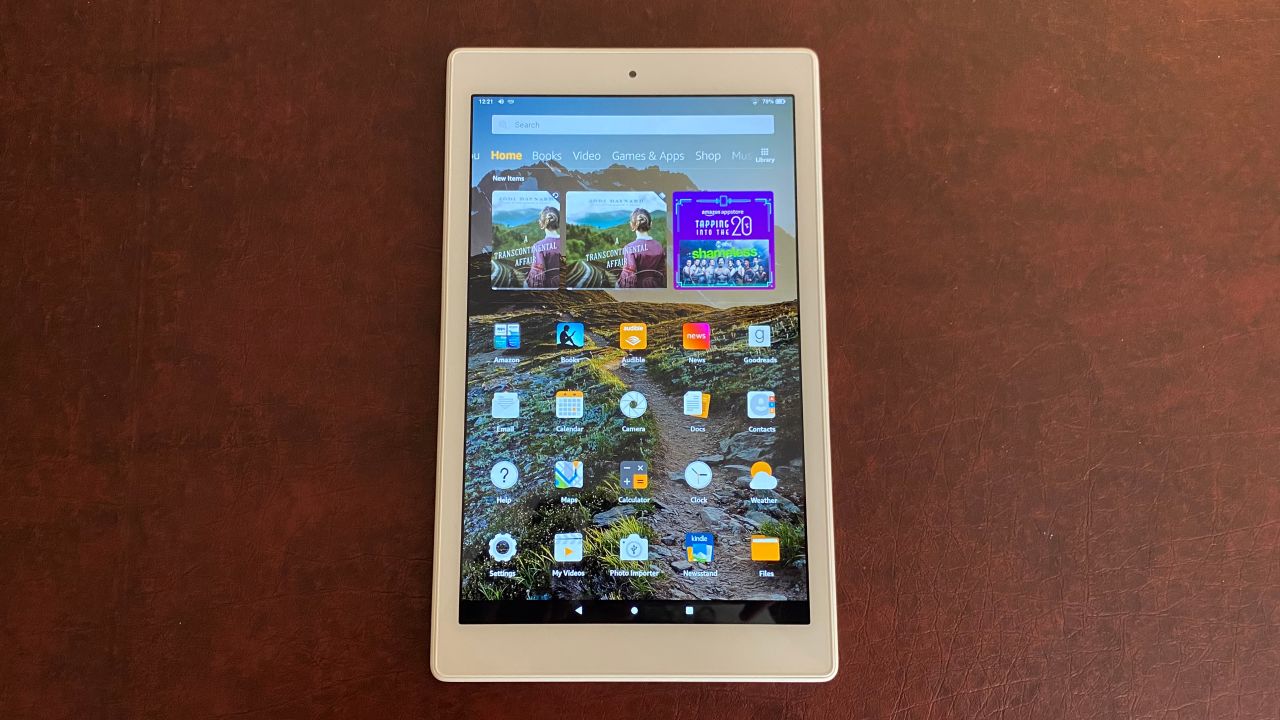
A blank task switcher on a Fire tablet usually means the system UI process has stalled or a restrictive parental control or power-saving setting is clearing your recent apps. Force stop the Amazon Appstore or restart the tablet to restore the recent apps list.
Force stop the Appstore to refresh recent apps
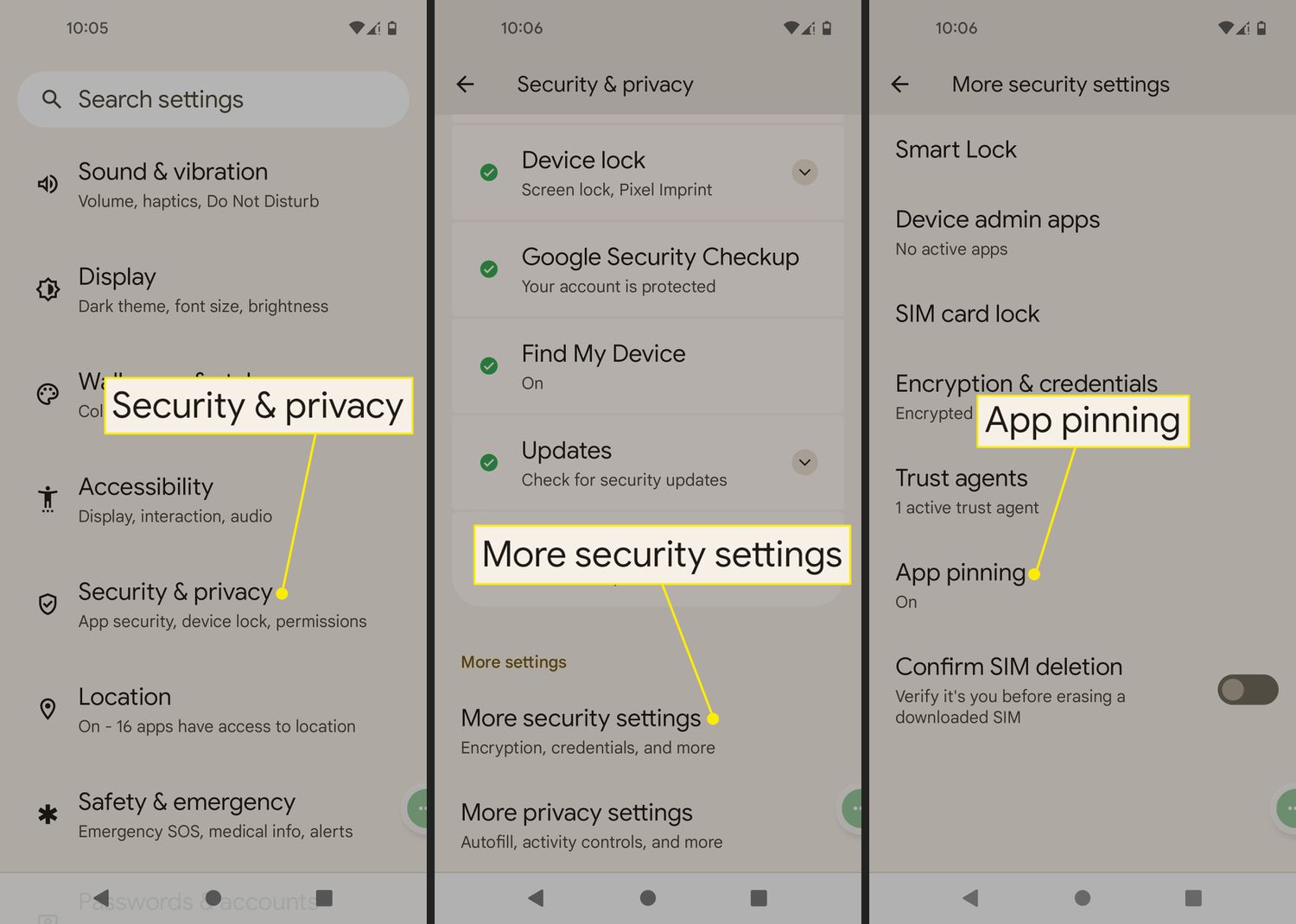
The quickest fix is to clear the Amazon Appstore’s cache and force stop its process. Go to Settings > Apps & Games > Manage All Applications > Amazon Appstore. Tap Force Stop, then if available tap Clear Cache (do not tap Clear Data unless you want to sign in again). After doing this, press the square icon again, the task switcher should immediately repopulate with your recent apps. This works because the Appstore process is responsible for maintaining the task history buffer; forcing it to restart resets that buffer without a full reboot. The task switcher on Fire tablet is a system-level overlay that relies on the Amazon Appstore process to track which apps you have used; when that process crashes or is cleared, the recent apps list disappears entirely. If the square icon still fails to respond, customising a Fire Tablet screen layout can sometimes restore hidden navigation elements.
Check parental controls and hidden apps
If the task switcher remains empty after force-stopping the Appstore, parental controls may be blocking your recent apps. Open Settings > Parental Controls. If a child profile is active, switch to the main adult profile by entering your PIN. Even in the adult profile, check the Hide Apps list, any app hidden here will also be hidden from the task switcher. To restore visibility, tap Edit and uncheck the apps you want to appear. If you have recently set up a child profile, the task switcher may show only the child’s allowed apps, not your full adult history.
When battery optimization clears your history
Fire tablets aggressively manage memory to extend battery life. If you have enabled battery optimization for the Amazon Appstore or for the system UI, the tablet may automatically wipe the recent apps list after a few minutes of inactivity. This is not a fault, it is Amazon’s intentional power-saving design. A forced shutdown (holding the power button for 10 seconds) also clears the task history because the system does not save a persistent record of recent apps between boots. After such a shutdown, the first time you open an app, the task switcher will show only that one app. Over the next few hours, as you use more apps, the list will rebuild. If you want to prevent this behavior, disable battery optimization for the Appstore in the same menu. While you are adjusting system settings, you can also change lock screen on Fire tablet to personalize the display that greets you after a restart.