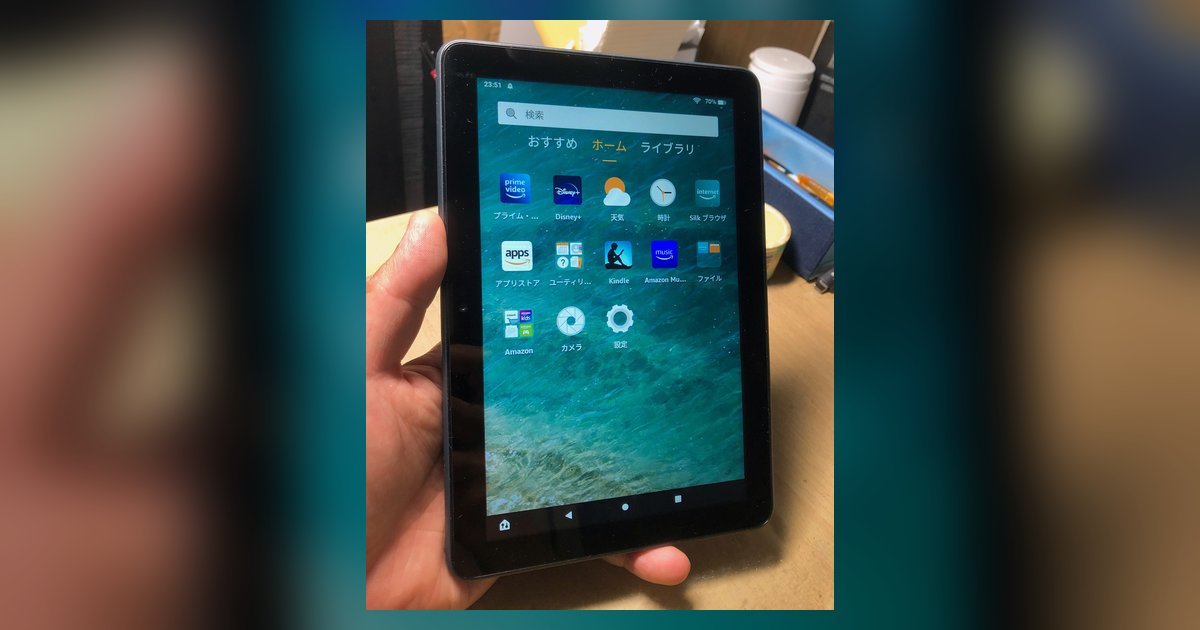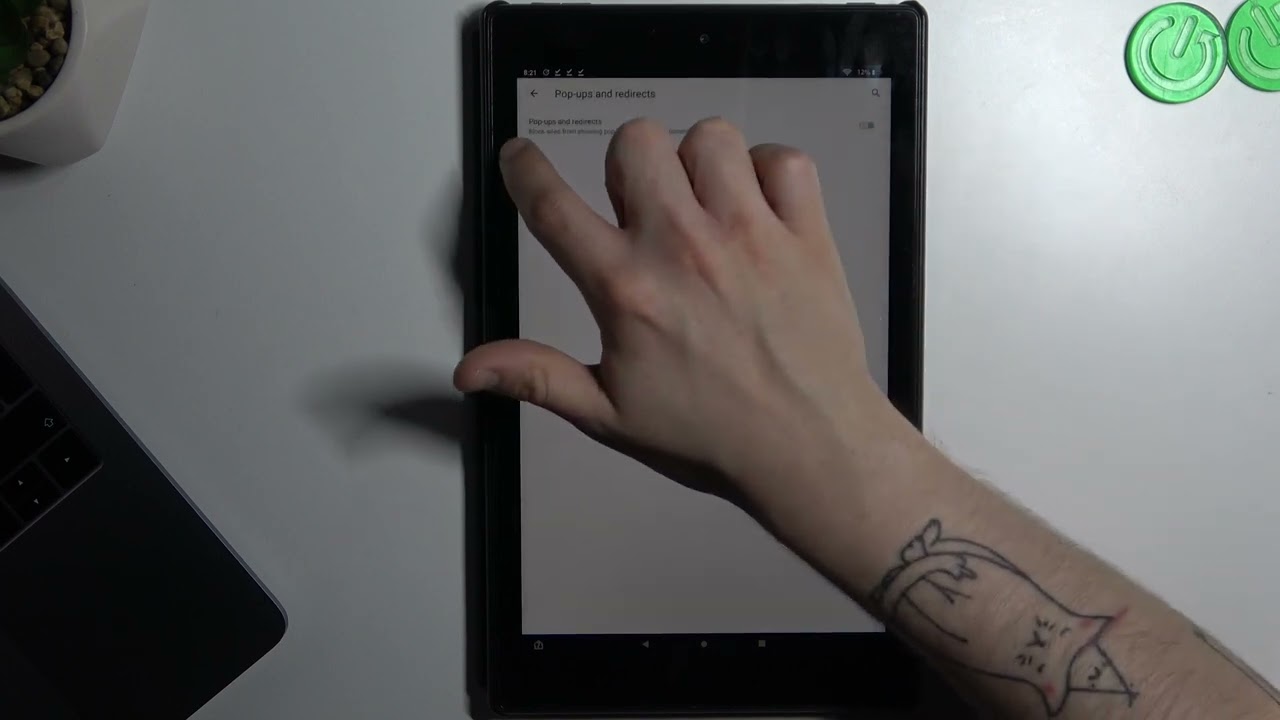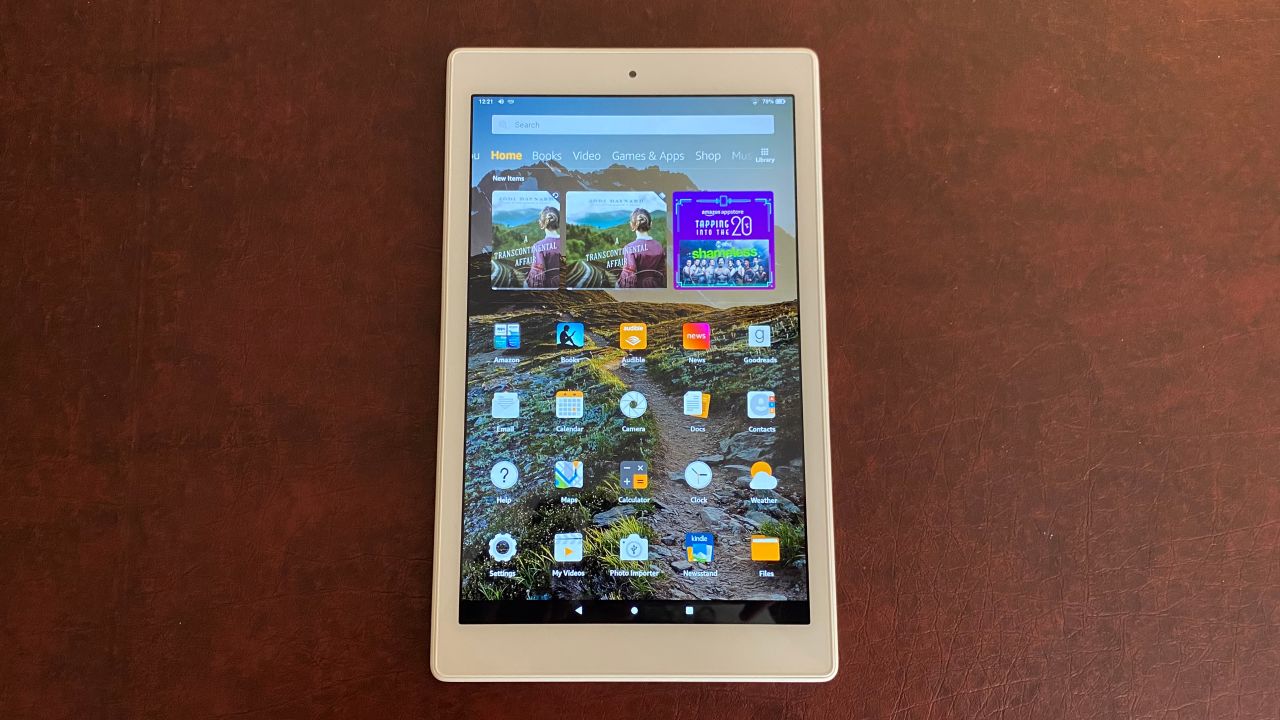
To approve downloads on a Fire Tablet, you use the Amazon Parent Dashboard to review and grant permission for apps and content your child requests. This system lets you manage what your child can download without handing over full control of the device.
Enable parental controls on the Fire Tablet
Before you can manage download requests, parental controls must be active on the tablet. This step locks down the device so that only you can approve purchases and content.
- Swipe down from the top of the screen to open Quick Settings.
- Tap the Settings icon (gear icon).
- Tap Parental Controls.
- Toggle the switch to On.
- Enter and confirm a password that is different from your lock screen password.
When parental controls are active, a lock icon appears at the top of the screen. This allows you to restrict access to shopping and downloading content, and you can block specific content types like Apps and Games, Books, or Music by going to the Amazon Content and Apps menu under Parental Controls and selecting Blocked for each category.
Set up download requests in the Amazon Parent Dashboard
The Amazon Parent Dashboard is a free web-based or app-based control center that lets you manage up to 4 child profiles across compatible Amazon devices, including Fire tablets. To enable your child to send download requests for your approval, follow these steps:
- Go to the Amazon Parent Dashboard.
- Select the child profile you wish to manage.
- Navigate to the Content tab.
- Select Store Access (or In-App Purchasing and Store Access).
- Toggle In-App Purchase Requests and/or Store Access to On.
Alternatively, on the Parent Dashboard, select the child profile, click the gear icon (Settings), and select In-App Purchasing and Store Access. Enabling Expanded selection allows kids to see and request access to apps and games that may not be specifically intended for kids, such as Netflix, Zoom, or Minecraft, while still excluding mature and adult content. Note that in-app purchases always require parental approval, even when enabled.
How your child requests an app or content
Once Store Access is turned on, your child can browse the Amazon Appstore on their Fire Tablet. When they find an app, video, or book they want, they can send a request directly from the store. After you approve the request through the Parent Dashboard, the content is added to the child's library. The child then receives a notification on their device's Quick Settings tray. Tapping this notification takes them directly to the download page. Content can also be downloaded from the app overview or the Other Stuff folder on the child's home screen after approval.
How to approve or deny a download request
When your child requests a download, you receive a notification by email or text message to the parent's account. This notification includes a link that directs you to the Parent Dashboard for review. From there, you can manually approve or deny the specific video, ebook, or app download request. Once approved, the content becomes available for your child to download and use.
Manage Amazon Kids+ content and age filters
For content within an Amazon Kids+ subscription, there is no single master setting to approve every download. Instead, control is managed through age filters and individually blocking titles. To adjust these settings, navigate to the child profile on the Parent Dashboard, select Settings (gear icon), and then select Add Content. Choose the desired content category using the tabs above the list of content, and add or remove content by toggling the switch next to each item. You can override age-appropriate suggestions and grant access to any content you own. Alternatively, on the Fire tablet, go to Settings > Profiles & Family Library, choose the child's profile, then tap Add Content > Add Books, Videos, And Apps.
Block in-app purchases on the device
As an additional security step, you can block in-app purchases directly on the Fire Tablet to prevent accidental charges. Go to Settings > Apps & Games > Amazon Application Settings > Appstore > In-App Purchasing and uncheck Allow In-App Purchases. This disables the ability to make purchases within apps, giving you extra control over spending.
Knowing how to use the Fire tablet with parental controls ensures your child can only access content you approve. To download apps on kids Fire tablet, you must first enable the request system through the Parent Dashboard. If you ever need to turn off parental controls on Amazon Fire tablet, return to Settings > Parental Controls and toggle the switch off using your password. To block apps on Amazon Fire tablet, use the Parent Dashboard to remove individual titles or adjust age filters. If you forget your password, you can reset parental controls password on Amazon Fire tablet by tapping the Forgot Password link on the parental controls screen and following the prompts sent to your Amazon account email.