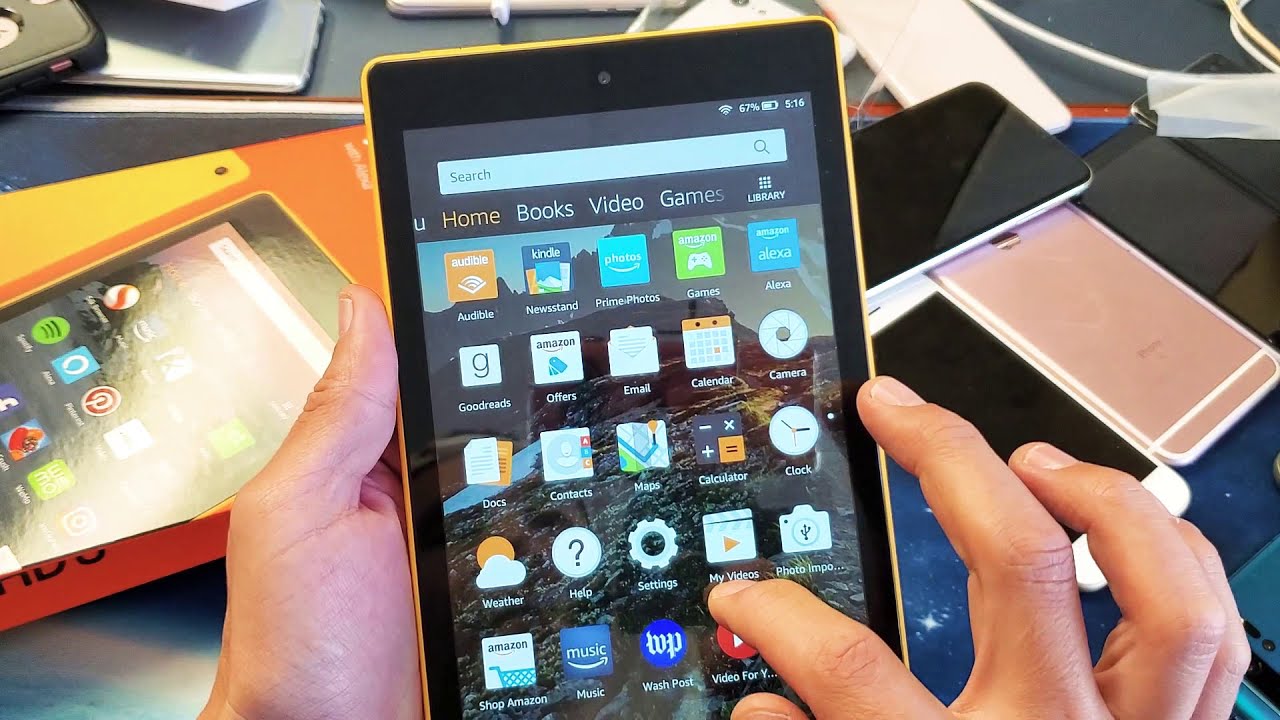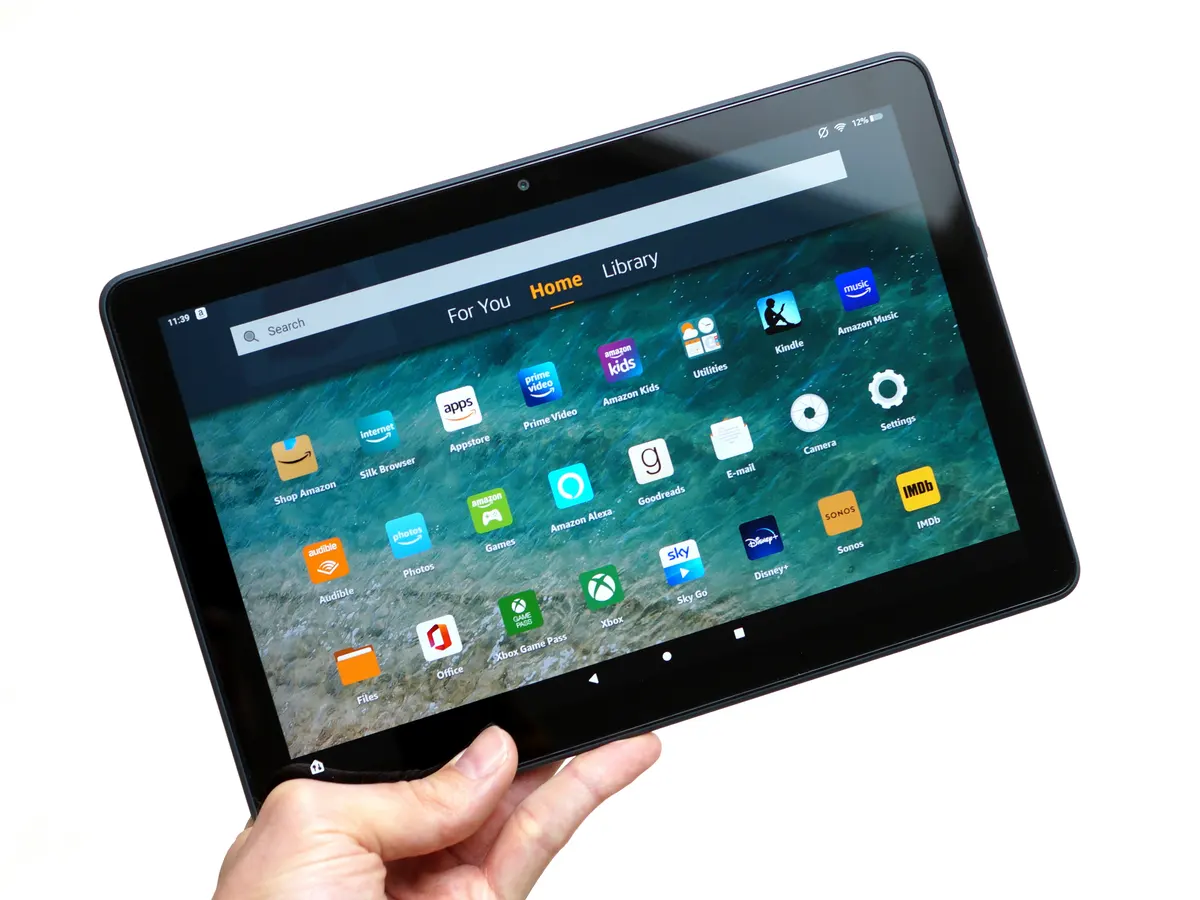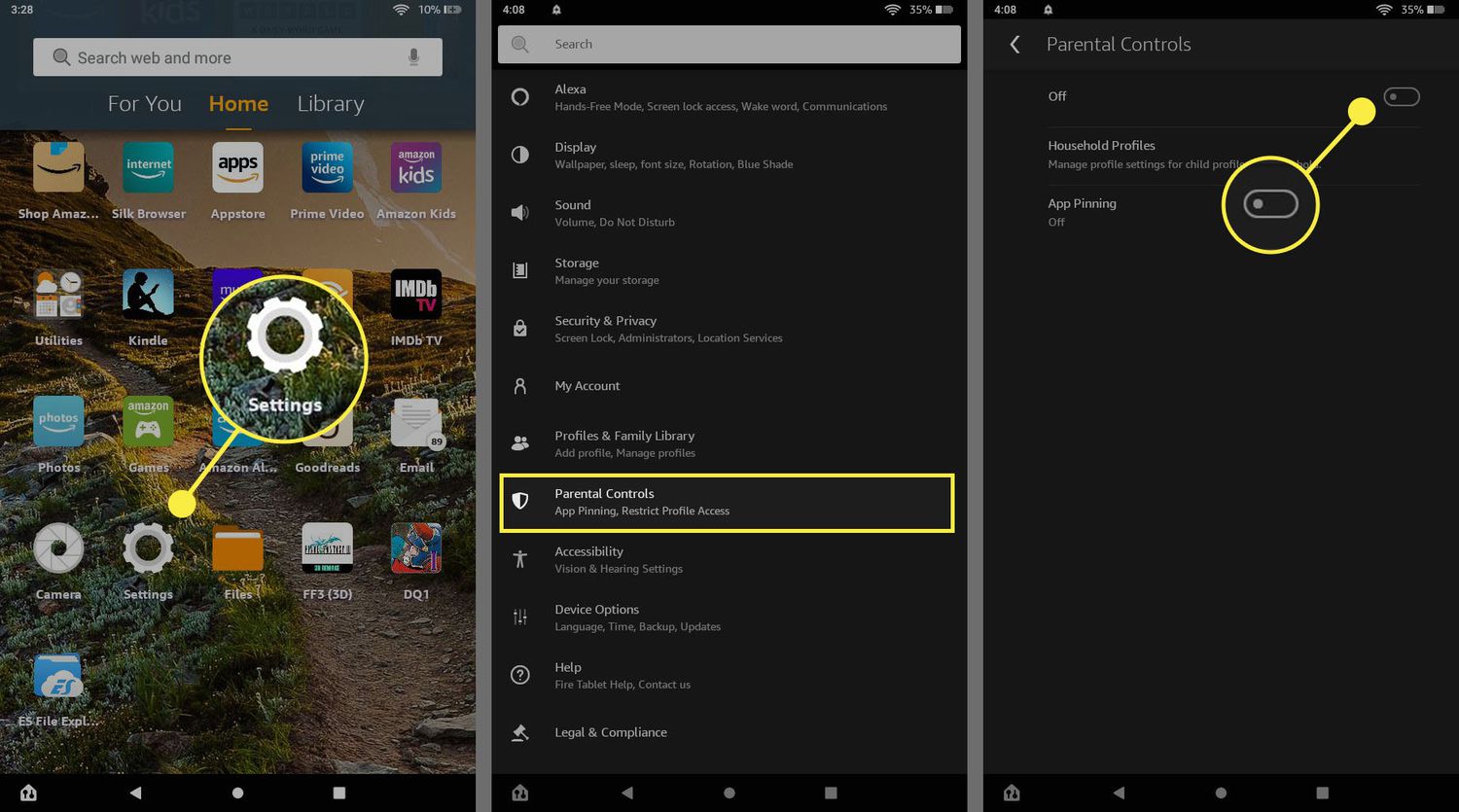
To block apps on an Amazon Fire tablet, you have two primary methods: enabling Parental Controls on your own adult profile or managing content within an Amazon Kids child profile. Each approach offers different levels of control, so you can choose the one that best fits how your family uses the device.
Method 1: Block apps with parental controls
Using Parental Controls on your adult profile lets you restrict access to specific apps or entire categories of content across the tablet. This method is ideal if you share the device with your child but don't use a dedicated child profile.
- Swipe down from the top of the screen and tap the Settings gear icon.
- Tap Parental Controls, then toggle the switch to On.
- Create a password when prompted. Note that this password is distinct from your device's lock screen PIN.
- Once enabled, you can block entire categories by tapping Amazon Content and Apps and toggling off categories like Apps and Games.
- To block individual apps, tap Manage Content & Privacy, then select Apps & Games. From there, you can manually choose which apps to restrict.
After you save your changes, the blocked apps will no longer be accessible on the tablet until you reverse the steps. This method is particularly useful if you want to quickly restrict a single app without setting up a full child profile.
Method 2: Block apps in an Amazon Kids child profile
If your child uses an Amazon Kids profile, you have granular control over every app they can see and launch. This method is best for parents who want to approve each app individually and manage content from a central dashboard.
- Open the Amazon Parent Dashboard on the web or through the Amazon Kids app on your phone.
- Select your child's profile from the list.
- Under the Apps, Games, and Videos sections, you can manually approve or restrict specific items. Toggle an app off to block it from appearing on your child's tablet.
- To remove unwanted Amazon Kids+ items, go to Settings in your own profile, select Profiles & Family Library, choose your child's name, tap Remove Content under Manage Your Child's Content, then select Remove Unwanted Amazon Kids+ Items and search for the apps you want to remove.
- You can also toggle In-App Purchasing and Store Access to Off from the Parent Dashboard to prevent accidental purchases or downloads.
Remember that Amazon Kids age filters may not apply to third-party apps, which might have their own separate filtering settings. Always check the Parent Dashboard regularly to ensure only approved apps are available.
How to remove blocked apps and manage purchases
Unblocking apps is straightforward for both methods. If you used Parental Controls, simply reverse the steps: go back to Settings > Parental Controls > Manage Content & Privacy > Apps & Games, and toggle the blocked app back on. For Amazon Kids profiles, return to the Parent Dashboard and toggle the app back to Approved.
To prevent unauthorized downloads, enable the Request to Buy feature in the Amazon Parent Dashboard. This requires your approval before any app can be downloaded to your child's profile. It adds an extra layer of security beyond simply blocking existing apps.
What to do if you forget your parental controls password
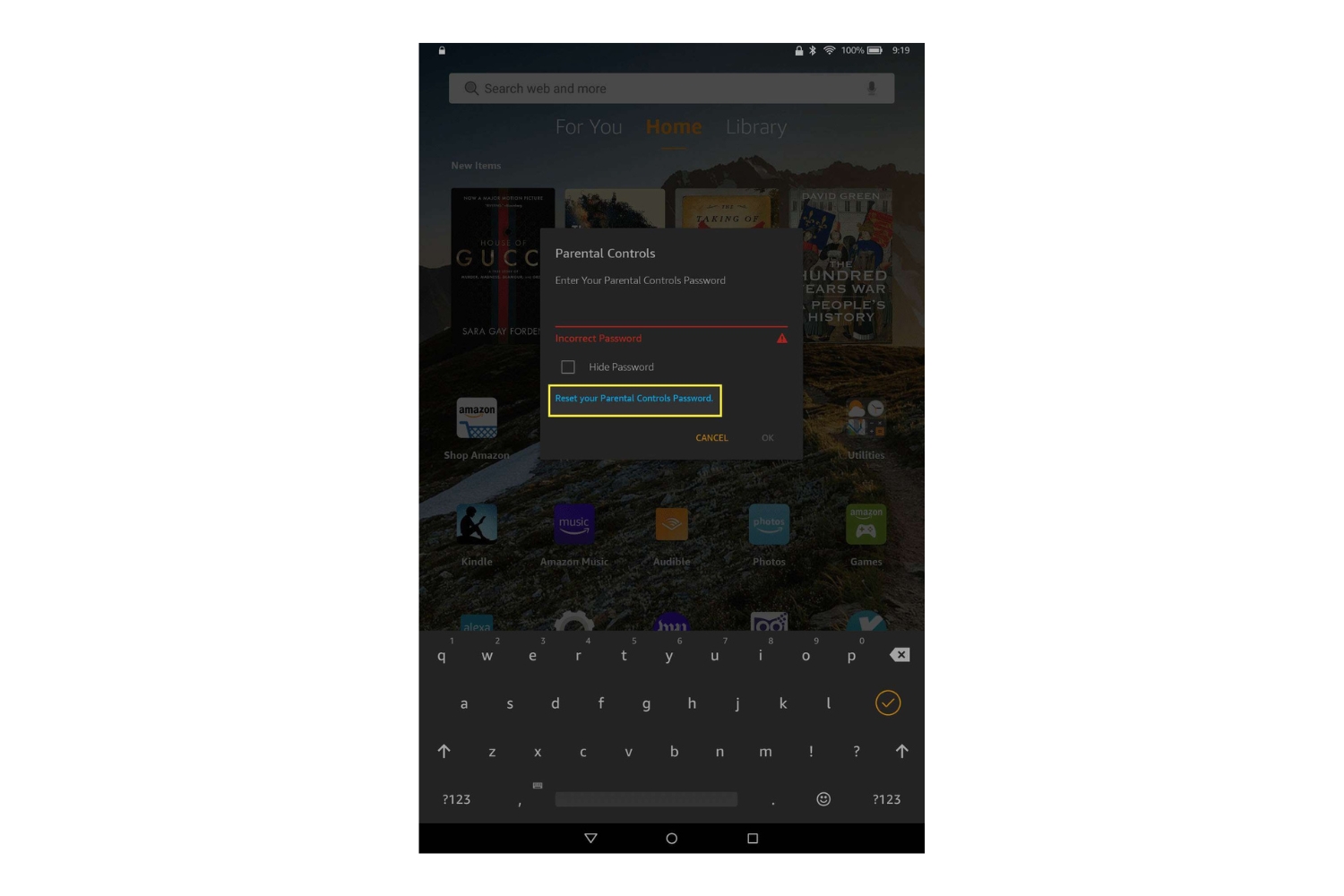
If you forget the password you set for Parental Controls, there is no recovery option available on the device itself. The password is separate from the lock screen PIN, so standard password reset methods won't work. In most cases, you will need to perform a factory reset to regain full access. If you need help unlocking the device, see How Do I Unlock My Amazon Tablet; if you need to disable the feature entirely, see How To Turn Off Parental Controls On Amazon Fire Tablet. Always write down your Parental Controls password and store it somewhere safe to avoid this situation.
\nRelated reading: How To Disable Amazon Apps On Fire Tablet.