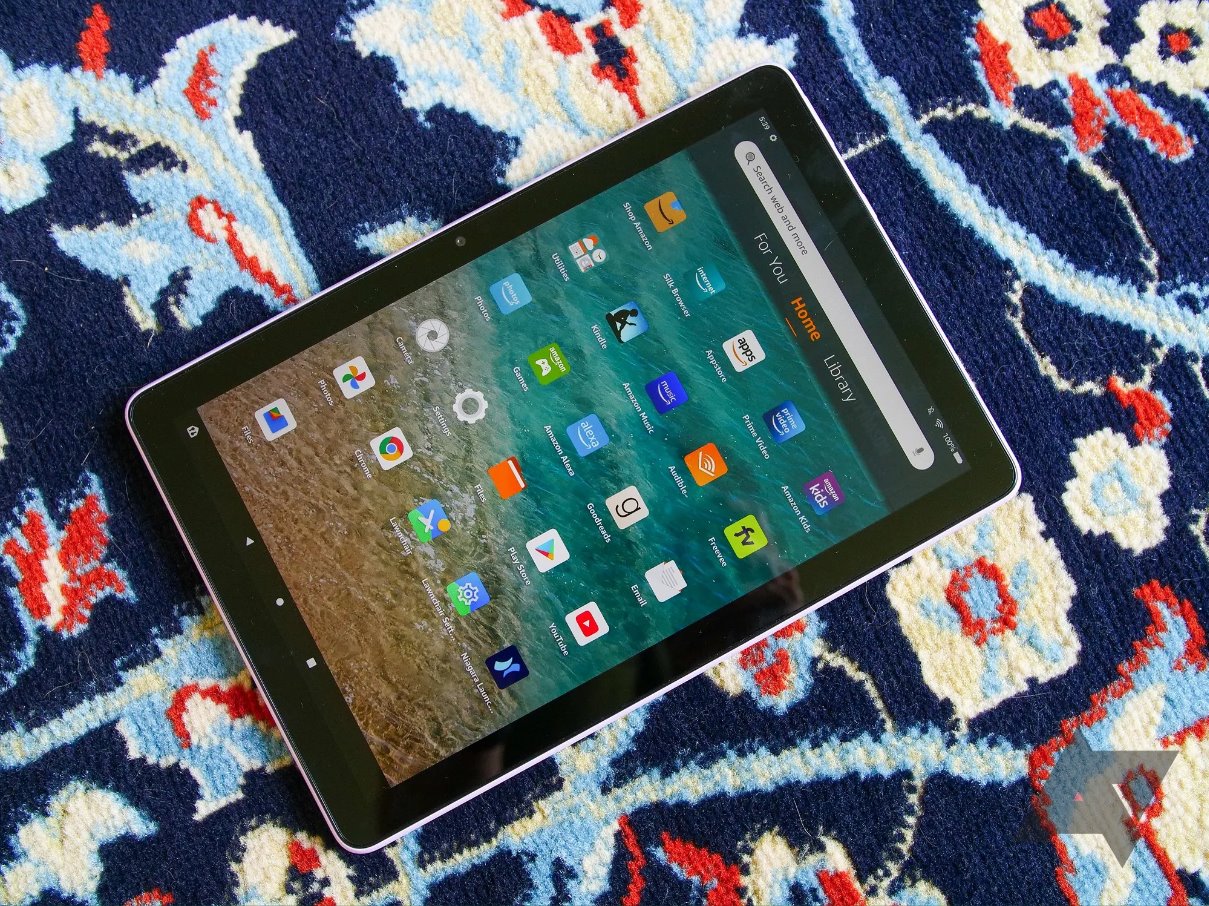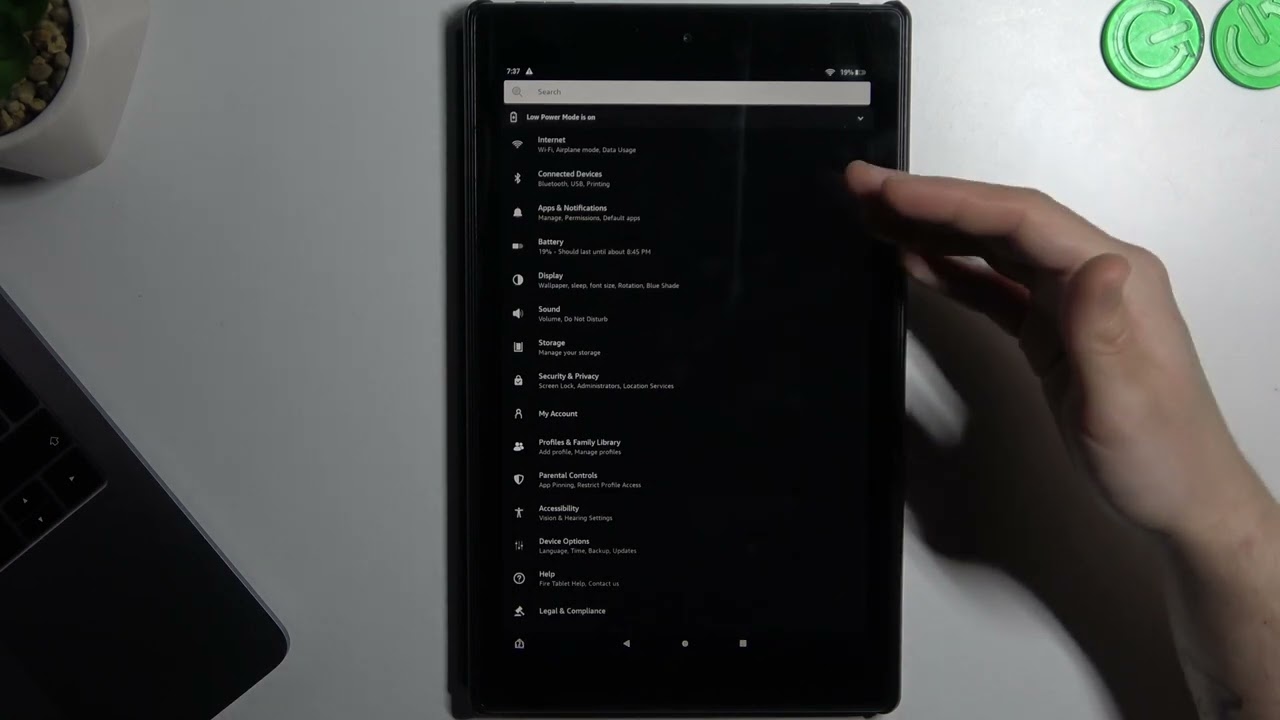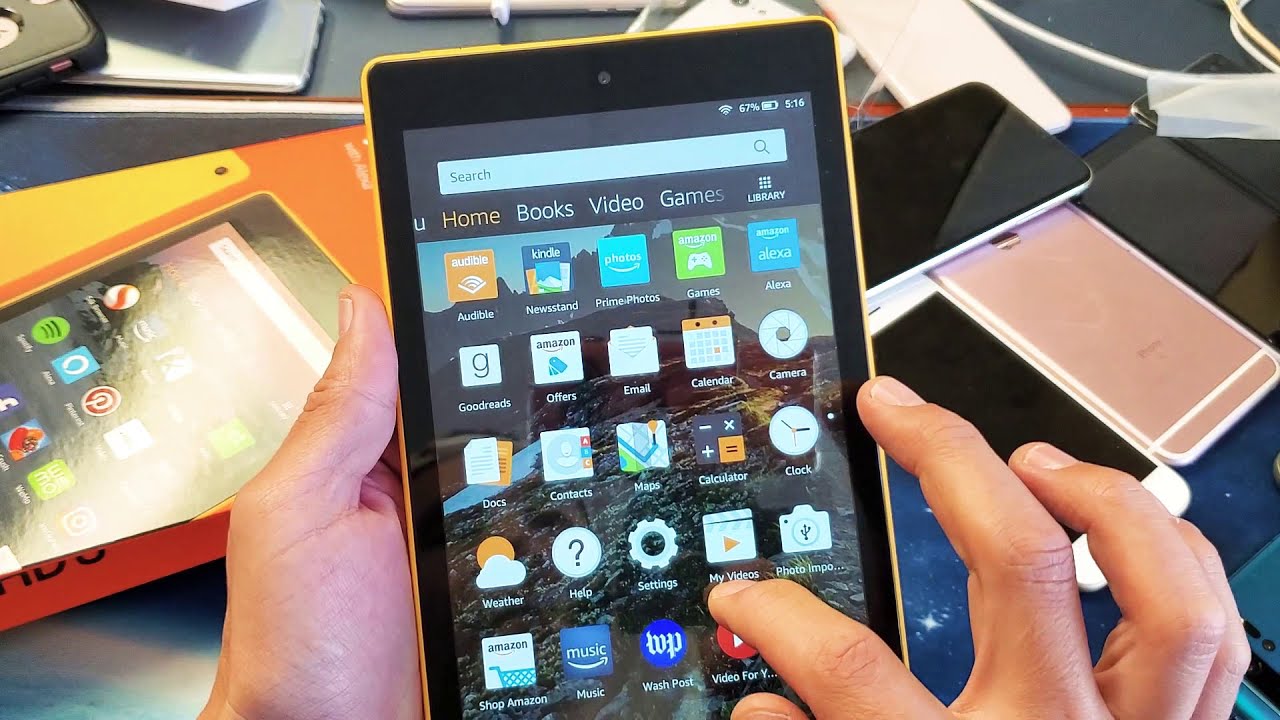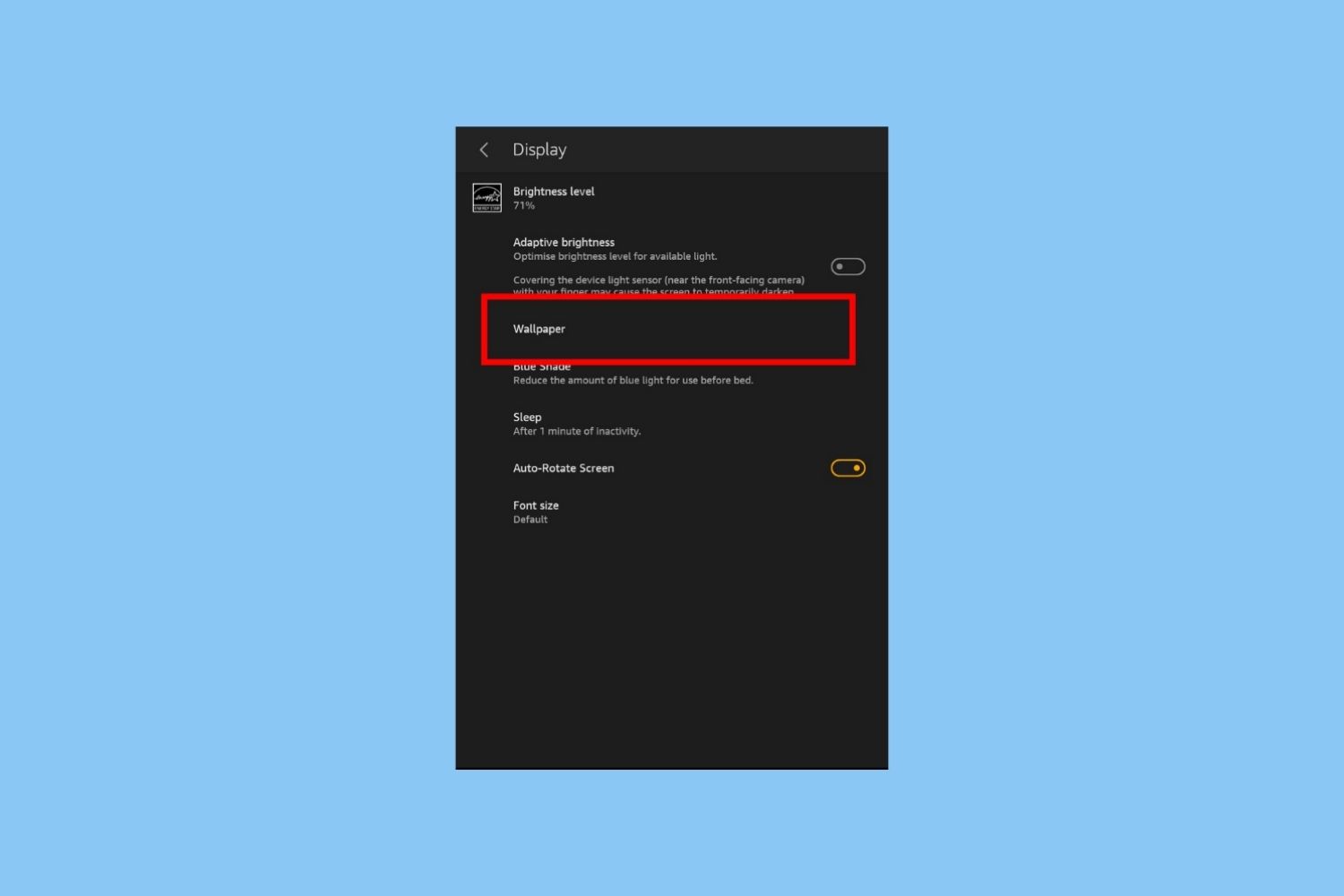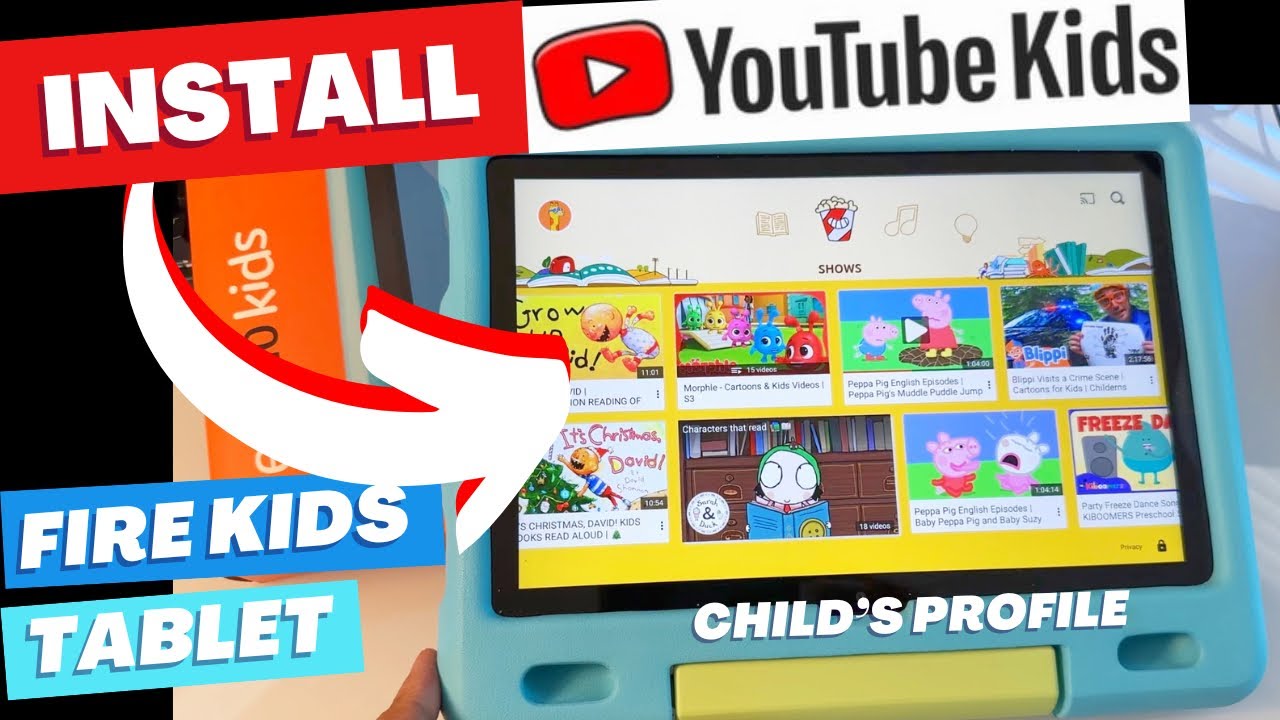
To get YouTube Kids on an Amazon Fire tablet, you don’t need to hunt for an APK or sideload anything, the official app isn’t in the Amazon Appstore, but you can safely add the YouTube Kids web experience to a child’s profile using the built-in Silk browser and Amazon’s own parental controls. This method works entirely within Fire OS, keeps the child inside a managed profile, and gives you the same age-filtered, curated content without compromising device security.
How to get YouTube Kids on Amazon Fire tablet: the real way
The YouTube Kids app is not available for download from the Amazon Appstore on Fire tablets. That’s a store policy decision, not a technical limitation. Instead of searching for an unofficial APK, which can introduce security risks or break with Fire OS updates, you can add the YouTube Kids website to a child’s profile through the Amazon Kids app. This approach uses the tablet’s own Silk browser, which you can share to the child profile, and then configure YouTube Kids’ parental controls inside the browser session. It’s the only method Amazon supports for this purpose, and it keeps everything under the parent’s PIN-protected supervision. Once you have YouTube working, you can also download YouTube videos on Amazon Fire tablet for offline viewing during road trips. The same sideloading workaround also lets you get Pokemon go on Amazon Fire tablet for older kids who want to play outdoors.
Why the YouTube Kids app isn’t in the Amazon Appstore
Amazon’s Appstore curates apps that meet its own content and policy standards, and YouTube Kids has never been approved for inclusion there. This isn’t a bug or an oversight, it’s a deliberate store restriction. Many parents search for “YouTube Kids” in the Appstore, find nothing, and then assume they need to sideload an APK from a third-party website. That path is risky: unofficial APKs can contain malware, may not receive updates, and can conflict with Fire OS parental controls. The browser-based method avoids all of that because it uses a pre-installed, Amazon-supported app (Silk) and the official YouTube Kids website, which is designed to work on any modern browser.
What you need before you start
Before you begin, confirm your Fire tablet model is supported. The browser method works on any Fire tablet that runs Fire OS 5 or later, including Fire 7 (9th and 10th generations), Fire HD 8 (6th, 7th, 8th, 10th, and 12th generations), Fire HD 10 (5th, 7th, 9th, 11th, and 13th generations), and Fire HD 8 Plus (10th generation). If your tablet is older than Fire OS 5, the Amazon Kids app and Silk browser may not function correctly, and you won’t be able to share content to a child profile. You’ll also need the parent profile PIN or password, because every change to a child’s content library requires parent authentication.
Add YouTube Kids via the web browser to a child profile
This is the core process. You’ll be sharing the Silk browser (or a direct YouTube Kids web link) into the child’s Amazon Kids profile. Follow these steps from the parent profile:
- Open the Amazon Kids app on the Fire tablet. If you don’t see it, swipe down from the top and tap the gear icon, then select “Child’s Profile Settings.”
- Tap “Manage Content,” then select “Amazon Content.”
- Look for the tab labeled “Web” or “Apps & Games” (depending on your Fire OS version). You want the section that lists web links or browsers.
- Select the Silk browser from the list. If a specific YouTube Kids web link appears as an option, choose that instead, it will open directly to the YouTube Kids site.
- Enter your device PIN or password when prompted. This confirms you’re the parent and authorizes the content share.
- Once shared, the Silk browser (or the YouTube Kids link) will appear on the child’s profile home screen. The child can tap it to open YouTube Kids in a browser window.
After sharing, you can also pin the YouTube Kids website as a bookmark inside Silk for faster access. But the key is that the browser itself is now available to the child, and you’ve already set up the age filters inside YouTube Kids (see below).
Alternative method: share content from within the child’s profile
If you’re already inside the child’s profile, for example, you just finished setting up a new game, you can share the browser without leaving that view. Swipe down from the top of the screen and tap the parent overlay menu (the small icon that looks like a person or a gear, depending on your Fire OS version). From there, tap “Manage Content,” then select the option to share content from your library. Choose the Silk browser or the YouTube Kids web link, enter your PIN, and it’s added to the child profile immediately. This shortcut is handy when you’re mid-session and don’t want to switch back to the parent profile.
Set up YouTube Kids parental controls and important limits
Once the browser is shared, the child can open YouTube Kids. The first time they do, you’ll need to configure the in-app parental controls. Tap the lock icon in the corner of the YouTube Kids screen, enter a passcode you create (this is separate from the Fire tablet PIN), and choose the age group: Preschool (4 and under), Younger (5-7), or Older (8-12). You can also turn off search to limit what the child can browse. These settings are stored inside YouTube Kids itself, not in Amazon Kids, so they apply only to the browser session.
Here’s the crucial caveat: Amazon cannot block external links or ads that appear inside the YouTube Kids web experience. Even with web access disabled in the child profile, the browser can still navigate to embedded ads or outbound links from YouTube Kids content. That means you should periodically check the child’s viewing history and revisit the YouTube Kids parental settings as your child grows. The Fire tablet’s own parental controls will not filter what happens inside the browser window, so your best defense is YouTube Kids’ built-in age filters and your own supervision. This isn’t a flaw in the workaround, it’s a limitation of any browser-based approach, and it’s why you should never disable YouTube Kids’ own passcode or search controls.
For the wider topic, see use the Fire tablet.