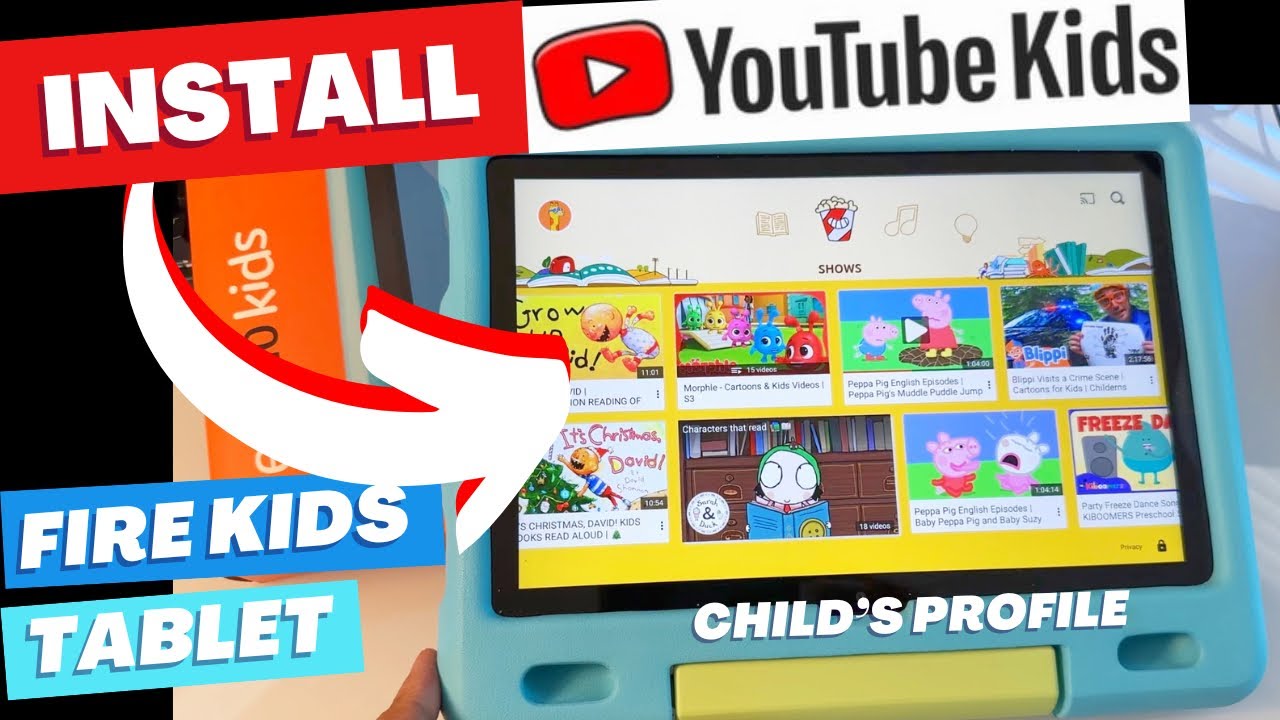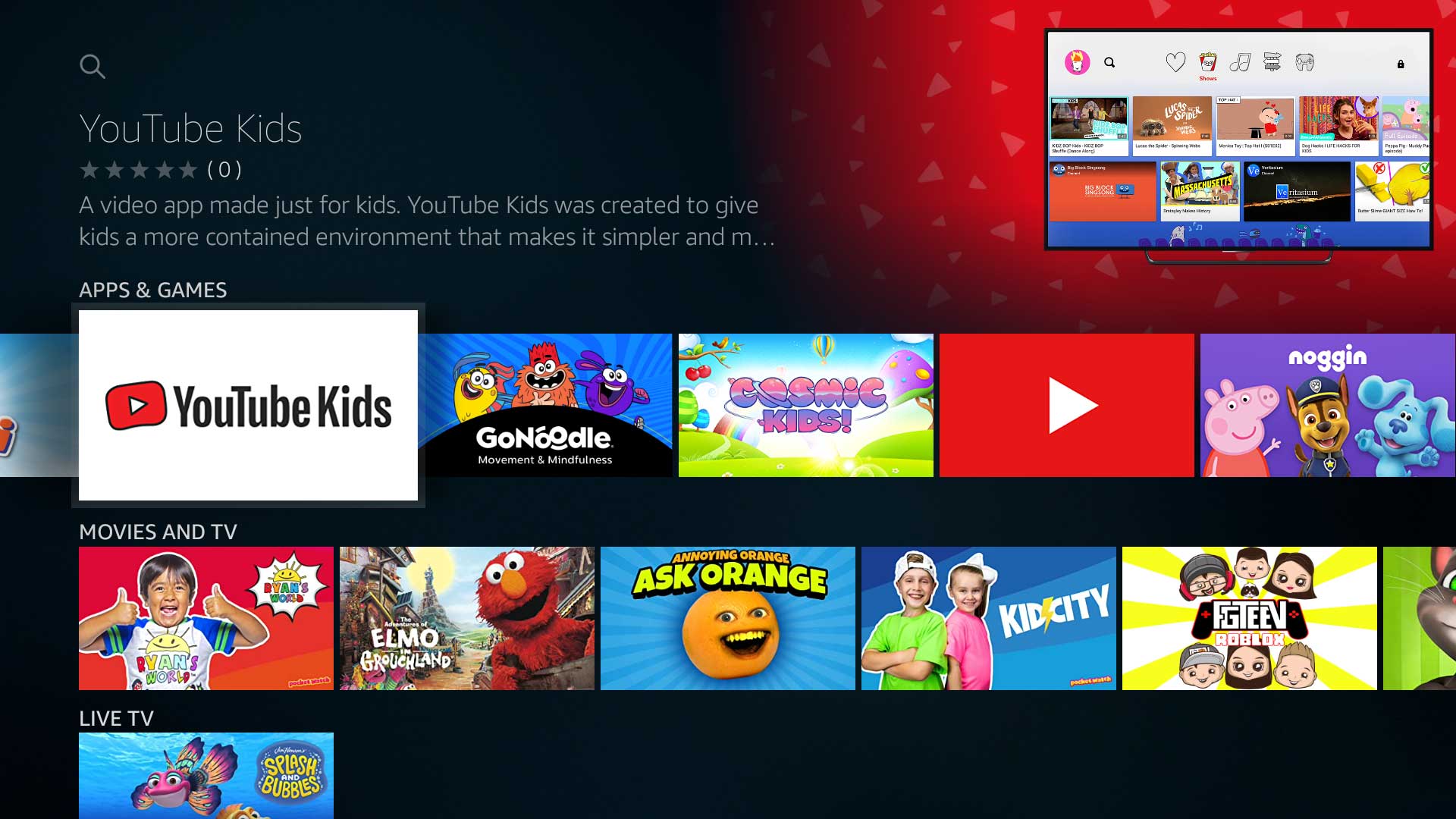
To install YouTube Kids on Amazon Fire, you need to sideload the Google Play Store because the official app is not available in the Amazon Appstore for Fire tablets. This step-by-step guide walks you through the entire process, from enabling unknown sources to adding the app to your child’s profile, so your little ones can watch age-appropriate videos safely.
Why you need to install YouTube Kids on Amazon Fire (and why it's tricky)
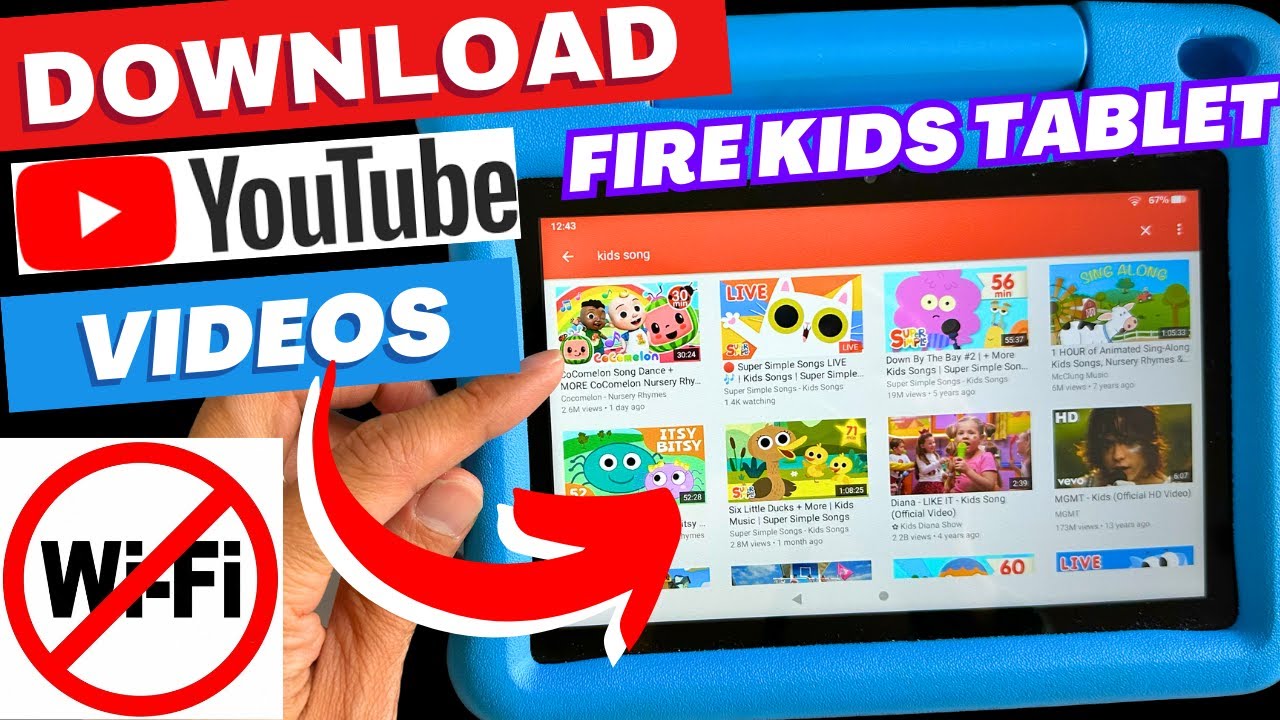
Amazon Fire tablets run on Fire OS, which uses the Amazon Appstore instead of Google Play. The official YouTube Kids app is generally not available directly from the Amazon Appstore for Fire tablets, so a simple search will come up empty. That’s why the most reliable method is to install the Google Play Store onto your Fire tablet first, then download YouTube Kids from there. This sideloading process involves installing a few Google APK files in a specific order. If you’d rather avoid it, you can use the Silk browser to access YouTube Kids’ website, or check the curated “Web Videos” section if you have Amazon Kids+, but those options are more limited than the full app. Once you have the Play Store working, you can also download YouTube videos on Amazon Fire tablet for offline viewing. If sideloading feels daunting, you can get YouTube kids on Amazon Fire tablet through a simpler setup that doesn't require the Play Store.
Before you start: Allow apps from unknown sources
To install the Google Play Store APKs, you must first enable the setting that permits apps from unknown sources. This is a one-time toggle that opens the door for sideloading.
- Open the Settings app on your Fire tablet.
- Tap “Security & Privacy” (or “Security” on some models).
- Confirm the warning prompt that appears.
Once enabled, your Fire tablet will allow you to install APK files from the Silk browser. This is the essential prerequisite for the entire installation process.
Download and install the 4 Google Play Store APKs
You need to install four specific Google APK files in this exact order: Google Account Manager, Google Services Framework, Google Play Services, and Google Play Store. Installing them out of order can cause errors or prevent the Play Store from working. Use the Silk browser to download each file.
- Open the Silk browser on your Fire tablet.
- Search for the latest APK of “Google Account Manager” and download it.
- Tap the downloaded file to install it, then tap “Install” when prompted.
- Repeat this process for “Google Services Framework,” then “Google Play Services,” and finally “Google Play Store.”
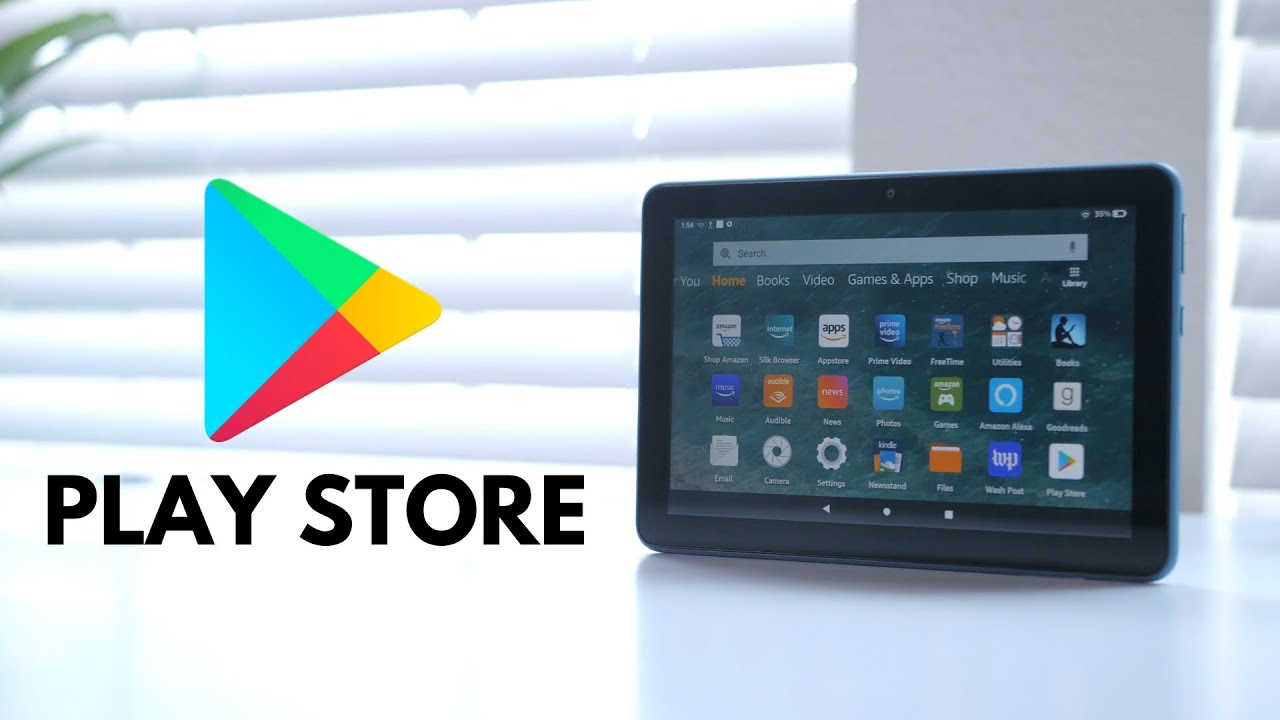
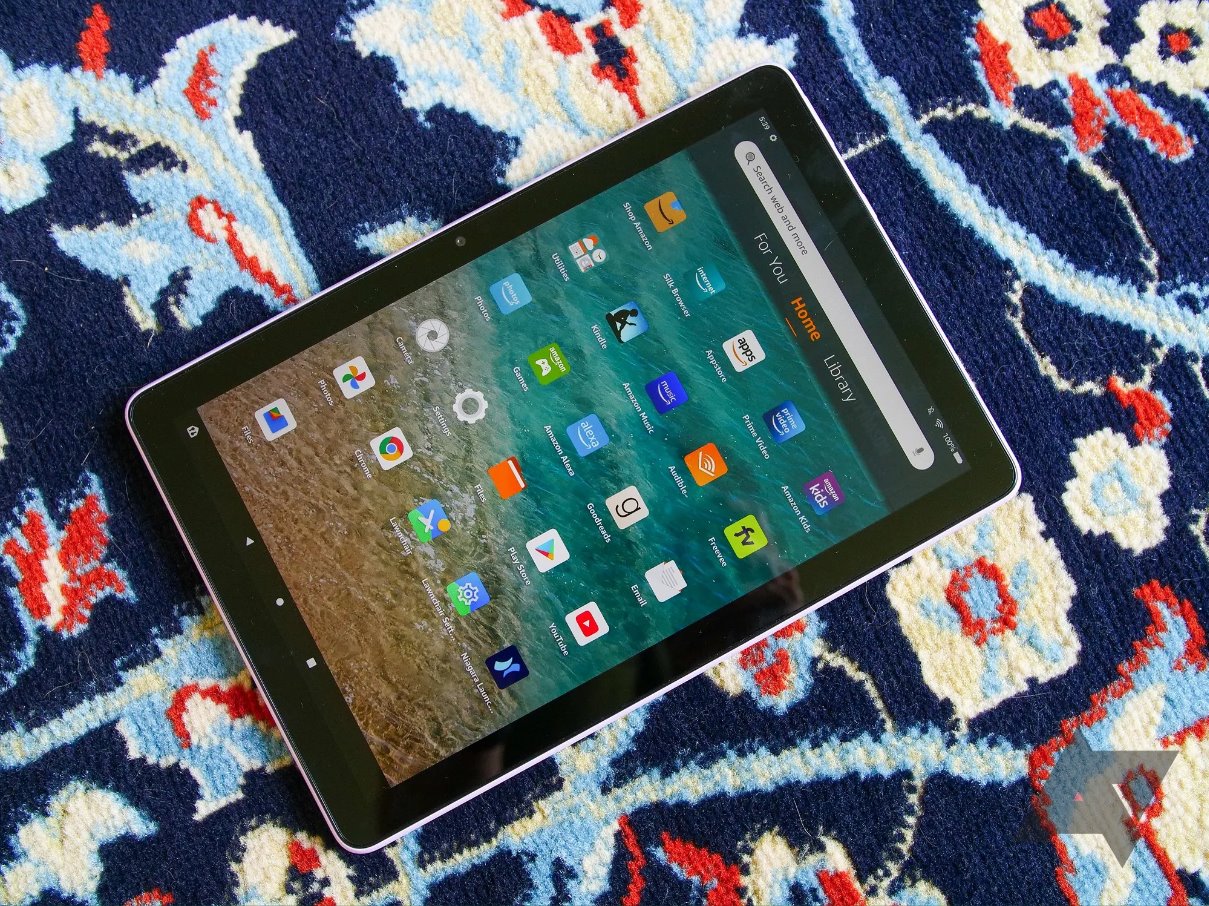
After installing all four APKs, you’ll see the Google Play Store icon appear on your Fire tablet’s home screen or app library. Don’t open it yet, you’ll need to sign in first, which is the next step.
Sign in to the Google Play Store and get YouTube Kids
Now that the Play Store is installed, you can sign in with a Google account and download YouTube Kids just like you would on any Android device. This is where the actual app installation happens.
- Open the Google Play Store app from your Fire tablet.
- Sign in with your Google account credentials (email and password).
- Accept the Google Play Terms of Service when prompted.
- Tap the search bar at the top and type “YouTube Kids.”
- Select the official YouTube Kids app from the results.
- Tap “Install” and wait for the download to finish.
Once installed, YouTube Kids will appear in your app library. However, it’s only available on the adult profile at this point. To let your child access it, you need to share it with their Amazon Kids profile.
How to add YouTube Kids to your child's Amazon Kids profile
Amazon Fire tablets have a dedicated Kids mode that restricts content to approved apps. After installing YouTube Kids on the adult profile, you must manually share it with your child’s profile so it shows up in their launcher.
- Open the Amazon Kids app on your Fire tablet.
- Select your child’s profile from the list.
- Tap “Manage Content” (or “Content & Apps” on newer versions).
- Locate YouTube Kids in your library and tap the share icon next to it.
After sharing, YouTube Kids will appear on your child’s home screen inside Amazon Kids. They can now open it directly, and you can manage it from the parent dashboard just like any other approved app.
Alternative: Use YouTube Kids in the Silk browser or Amazon Kids+
If sideloading feels too technical or you run into issues, you can still let your child watch YouTube Kids without installing the app. Open the Silk browser and navigate to the YouTube Kids website. Your child can browse and watch videos directly in the browser, though the experience is less polished and lacks some app features like offline downloads. For Amazon Kids+ subscribers, the “Web Videos” category inside a child profile offers a curated version of YouTube Kids videos. This is simpler because it requires no sideloading, but the selection is limited to what Amazon has vetted, so it may not include every video your child wants.
Set up parental controls and customize YouTube Kids safely
Once YouTube Kids is installed and shared, the final step is configuring the in-app parental controls. These settings determine what your child can watch, whether they can search, and how long they can use the app. Open YouTube Kids on your child’s profile and tap the profile icon, then select “Settings” and enter the parental passcode you create.
Inside parental controls, you can choose a content level, Preschool, Younger, or Older, based on your child’s age. You can also toggle the search feature on or off. Disabling search restricts your child to only the videos YouTube Kids recommends, which is safer for younger viewers. The timer feature lets you set a daily limit, and you can block specific channels or videos by selecting them and choosing “Block.” You can also clear watch history and adjust notification settings from this menu.
Beyond the built-in controls, actively engage with your child’s viewing habits. Watch videos together when you can, ask questions about what they’re seeing, and periodically review their watch history. YouTube Kids’ algorithms are designed to filter content, but no filter is perfect. Stay involved by checking recommended channels and blocking anything that doesn’t match your family’s values. With these settings in place, your child can enjoy YouTube Kids on your Fire tablet safely, and you can have peace of mind knowing you’ve customized the experience to fit your household.
Once you're done, there’s plenty more to explore with use the Fire tablet.