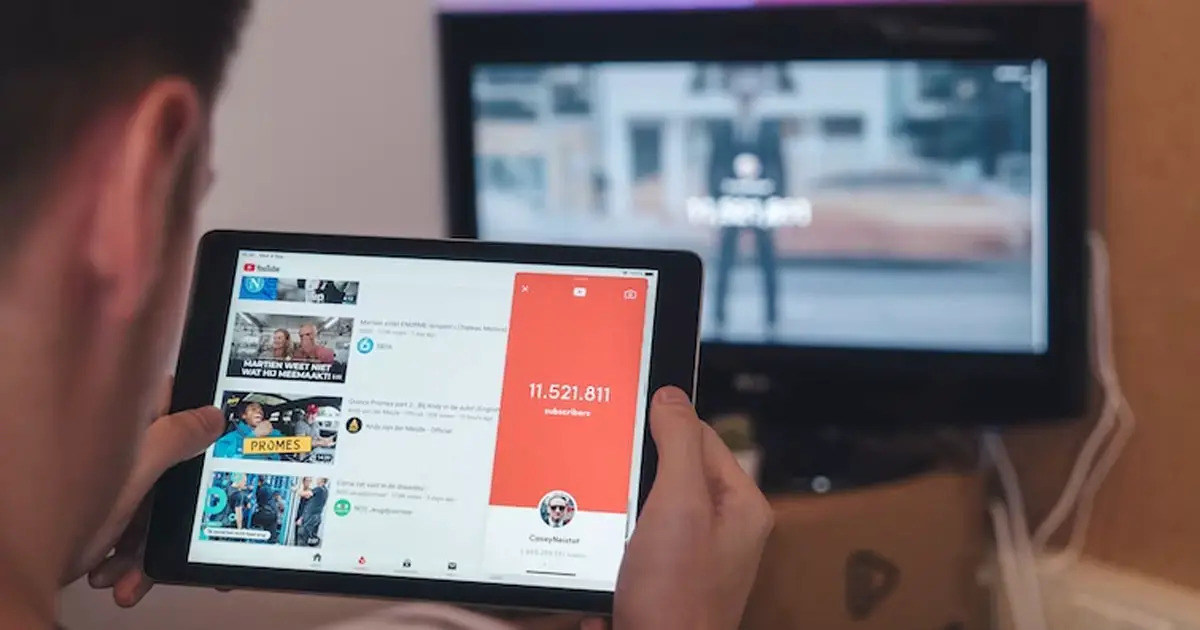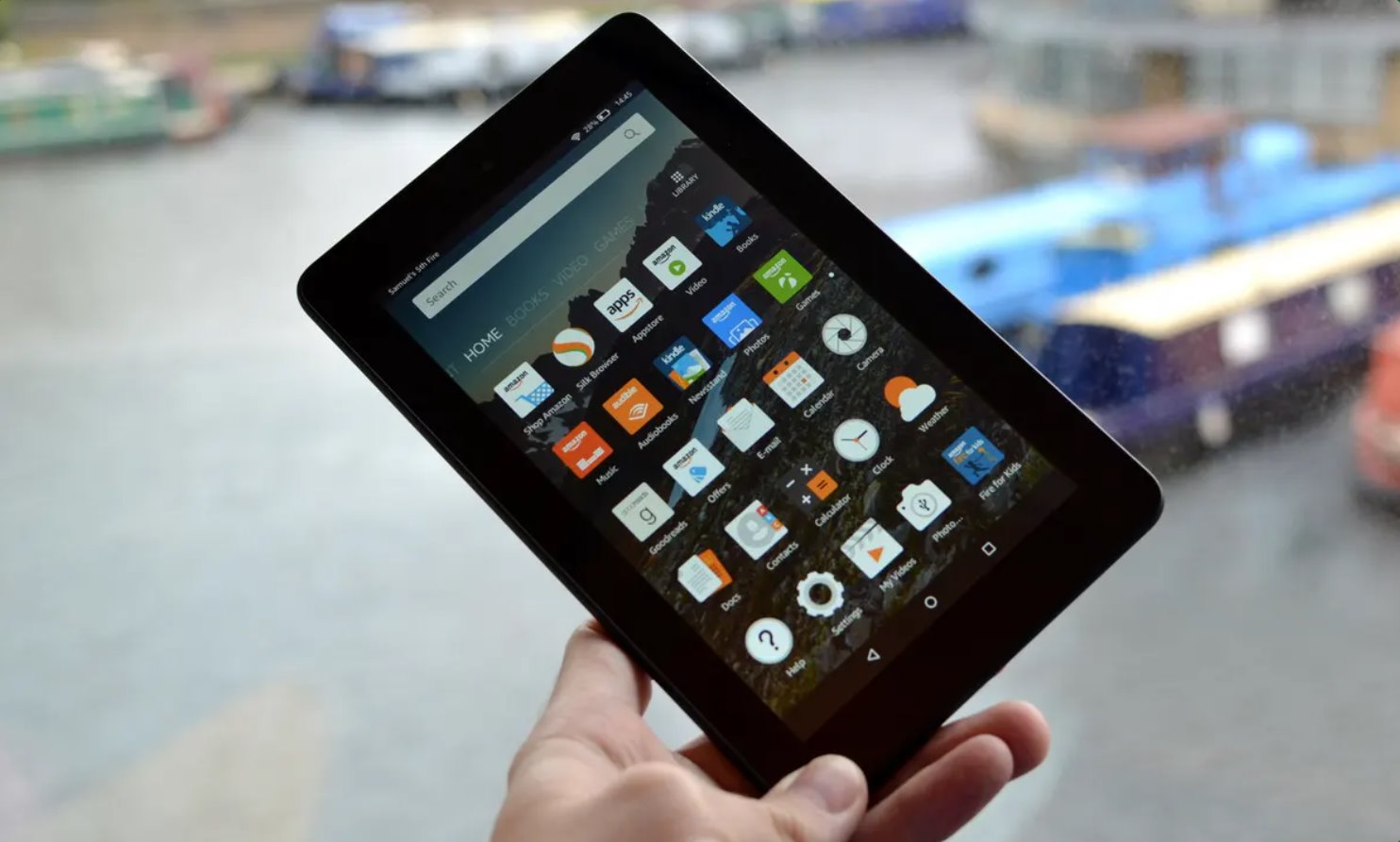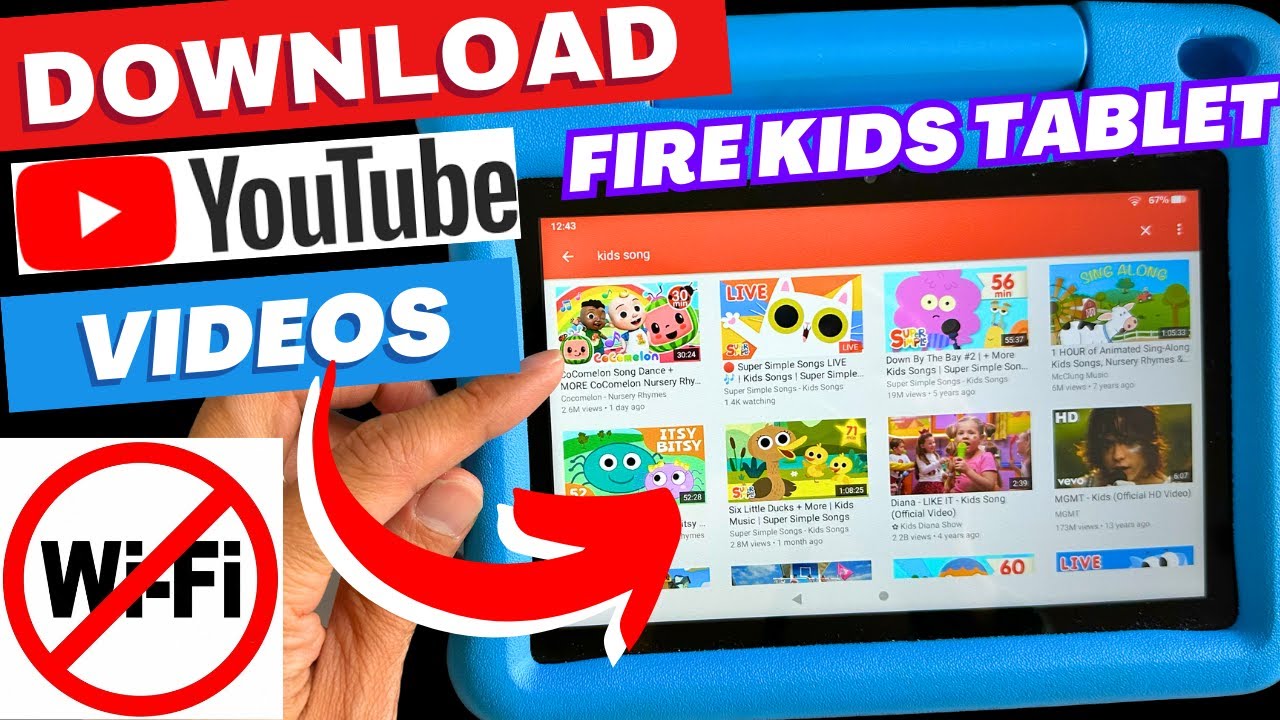
To download YouTube videos on an Amazon Fire Tablet, you need to use a workaround because the official Amazon Appstore's YouTube app is a limited web wrapper that does not support offline downloads. The most reliable methods involve either sideloading the Google Play Store to access the full YouTube app with Premium, or downloading videos on a computer and transferring them to your tablet.
Why you can't download YouTube videos on Amazon Fire tablet from the Appstore
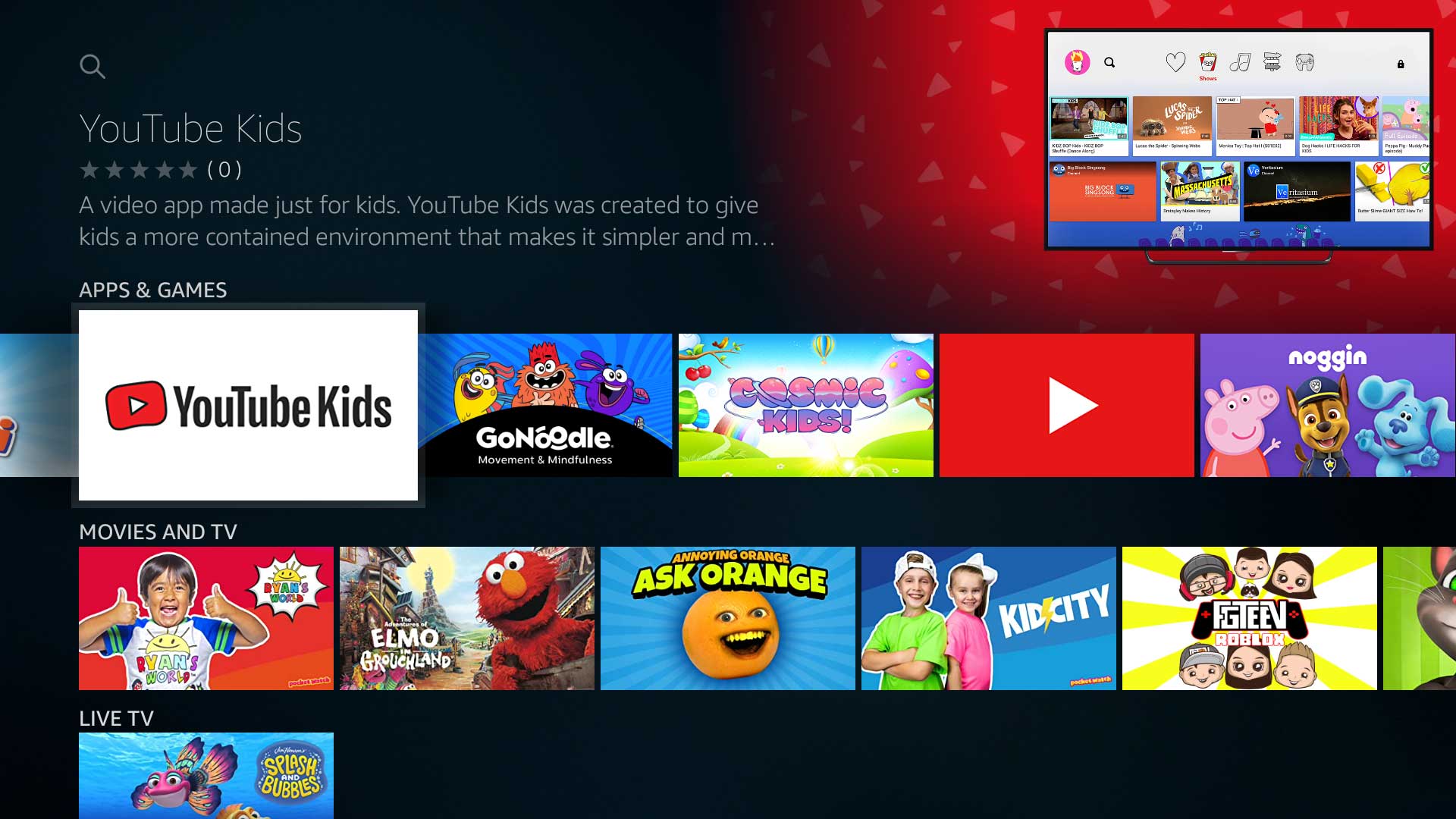
The YouTube app available directly from the Amazon Appstore is often a web wrapper or a bookmark to the mobile-optimized YouTube website, rather than the full native Android application. This Amazon Appstore version of the YouTube app may not support all features, including the ability to download videos for offline viewing. Even if you subscribe to YouTube Premium, the download functionality may not work as expected or be available within the YouTube app obtained from the Amazon Appstore. This limitation forces users to seek alternative methods to save videos for offline playback.
Method 1: Sideload the Google Play Store and use YouTube Premium
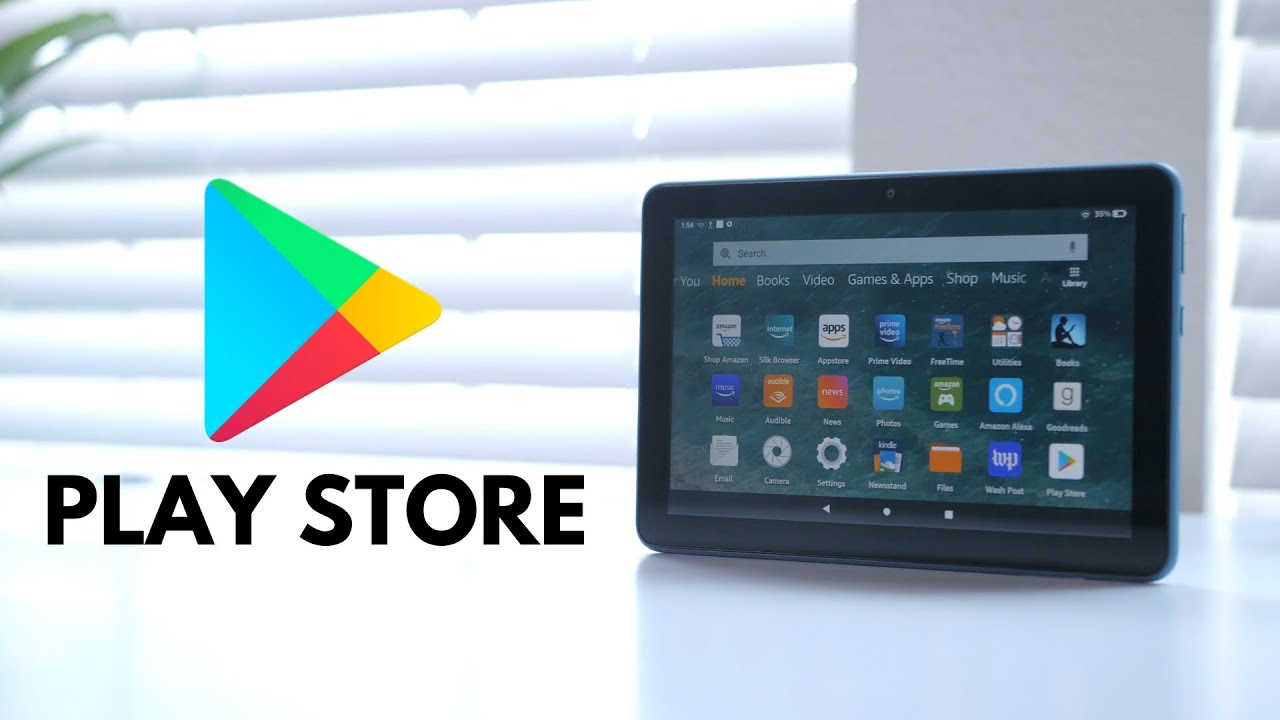
To gain access to the full, native YouTube app with its complete features, including YouTube Premium downloads, you typically need to sideload the Google Play Store onto your Amazon Fire Tablet. This process allows you to install the genuine YouTube application from Google, where YouTube Premium's offline download feature works correctly. Note that videos downloaded via YouTube Premium are stored within the YouTube app itself and are not saved as standard video files in the device's general gallery or external storage. To use the Fire tablet for offline viewing, you simply open the YouTube app, tap your profile picture, and select "Downloads" to access your saved content. You can apply the same sideloading method to download among us on Amazon Fire tablet for offline play sessions.
To download Google Play Store on a Fire tablet, you will need to enable "Apps from Unknown Sources" in the device's settings, then download and install the necessary APK files from a trusted source. Once the Play Store is installed, you can sign in with your Google account, download the official YouTube app, and subscribe to YouTube Premium to legally download videos for offline playback.
Method 2: Download on a computer and transfer to your Fire tablet
If you prefer to save YouTube videos as standard video files that you can manage freely, download them to a computer using third-party desktop software such as 4K Video Downloader, ClipGrab, WinX/MacX Video Converter, or TubeFetcher. These programs allow you to paste a video URL and choose your desired format and quality. After downloading videos to a computer, they can be transferred to an Amazon Fire Tablet by connecting the tablet via a USB cable and selecting "File Transfer" or "Media Transfer Protocol (MTP)" mode. Alternatively, videos downloaded to a computer can also be uploaded to a cloud storage service and then downloaded to the Fire Tablet from within the cloud app.
Transfer via USB cable
- Connect your Fire Tablet to your computer using a USB cable.
- On the tablet, swipe down from the top to open notifications, tap the USB connection notification, and select "File Transfer" or "Media Transfer Protocol (MTP)" mode.
Transfer via cloud storage
- Upload the downloaded video files from your computer to a cloud storage service like Google Drive, Dropbox, or OneDrive.
- On your Fire Tablet, install the corresponding cloud storage app from the Amazon Appstore.
- Open the app, locate the video file, and download it to your tablet's local storage.
How to watch your downloaded videos offline
For videos transferred as standard files, use a media player like VLC Media Player, which you can install from the Amazon Appstore. Open VLC, navigate to the folder where you saved the videos, and tap the file to play it. VLC supports a wide range of formats, ensuring compatibility with most downloaded files. If you used Method 1 with YouTube Premium, simply open the native YouTube app, tap your profile icon, and select "Downloads" to watch your saved videos directly within the app.
Important notes on copyright and storage
Downloading videos without the permission of the content creator may violate YouTube's terms of service. Only download videos that are free to share or for which you have explicit permission, and respect copyright laws. Additionally, manage the Fire Tablet's limited storage space by regularly reviewing your downloaded files. Higher quality videos consume more memory, so consider deleting watched content or transferring files to a computer or cloud service to free up space for new downloads.