The Verizon streaming device connection is a feature of your Fios TV service that lets you watch your live TV channels, On Demand titles, and DVR recordings through the Fios TV Home app on your own compatible streaming devices. Instead of being limited to the set-top boxes in your home, you can use an Apple TV, Fire TV, or Verizon Stream TV device to access your Fios TV subscription on any TV in your house, as long as you meet the equipment and package requirements.
What is the Verizon streaming device connection?
The Verizon streaming device connection is not a separate bundle or a physical product you buy. It is a capability built into your Fios TV service that unlocks the Fios TV Home app on personal streaming hardware you already own. This feature is designed to replace the need for an additional set-top box in a second or third room. Once enabled, your compatible streaming device acts like another Fios TV receiver, giving you access to your full channel lineup and recorded content through the app interface.
To be clear, this is different from Verizon’s own Stream TV hardware (like the Stream TV Soundbar or the Stream TV device), which is a separate product for streaming apps such as Netflix and Disney+. The streaming device connection specifically refers to using the Fios TV Home app on third-party or Verizon-branded streaming players to mirror your Fios TV experience.
How the Fios TV Home app streaming works
The Fios TV Home app streams your Fios TV content over your home network, not through the public internet. This means the app needs to communicate with your existing Fios set-top box and router to verify your subscription and pull the live TV signal or DVR recording. There are three non-negotiable technical requirements for this to work:
- You must have an eligible Fios TV package (specifically “The Most Fios TV” plan, or a trial on other plans).
- You must have at least one installed Verizon Media Server, Fios TV+, or Fios TV One set-top box connected to your home network.
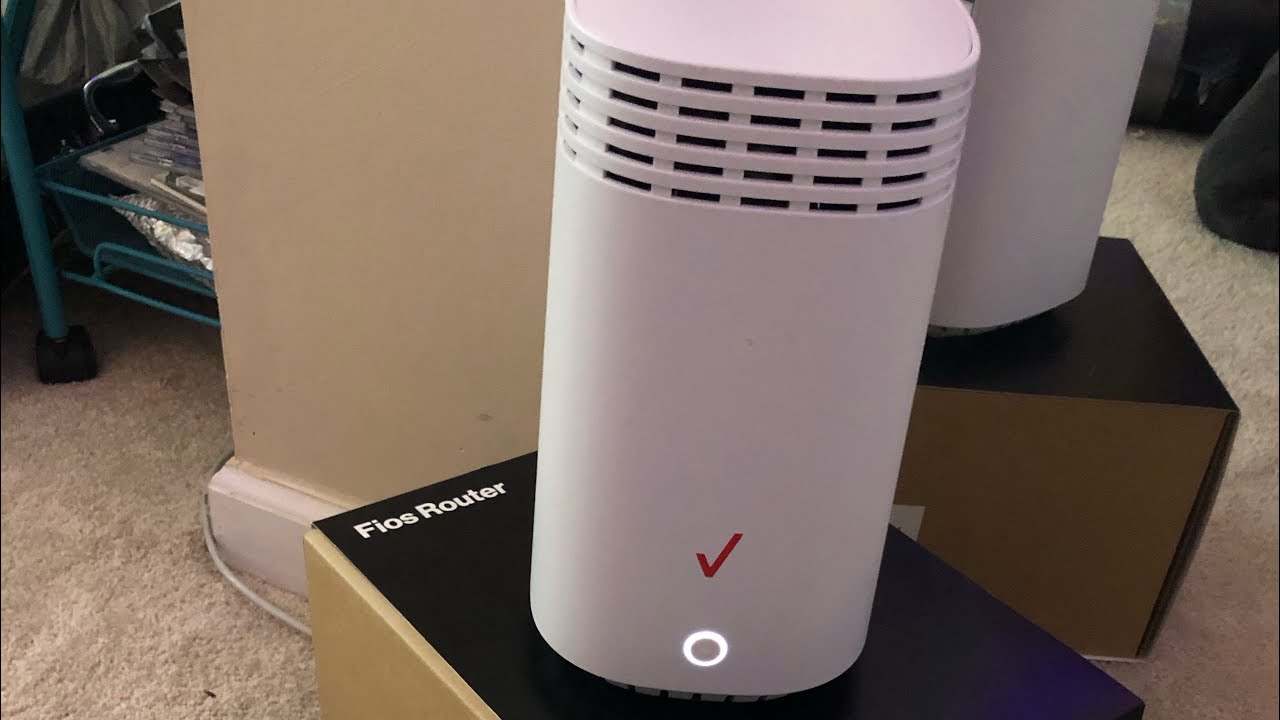
- You must be using a Fios Quantum Gateway Router or a Fios Router, a non-Verizon router will not allow full channel access or DVR streaming through the app.
Once these conditions are met, the app creates a secure connection between your streaming device and your set-top box. The app does not stream from Verizon’s cloud; it streams from your own hardware. This is why the set-top box must always be powered on and connected to your router. The system also enforces a strict limit of two simultaneous streams through the Fios TV Home app at any given time. If you try to open a third stream on another device, you will receive an error message until one of the active streams is closed.
Compatible streaming devices for Fios TV
Verizon explicitly supports the Fios TV Home app on a limited set of streaming hardware. You cannot use just any device. The compatible models are:
- Apple TV: Apple TV HD and Apple TV 4K (all generations that run tvOS 12 or later).
- Amazon Fire TV: Fire TV Stick (2nd Gen and later), Fire TV Stick 4K, Fire TV Stick 4K Max, and Fire TV Cube (2nd Gen and later).
- Verizon Stream TV: The Verizon Stream TV device and the Stream TV Soundbar models (these run the Fios TV Home app natively).
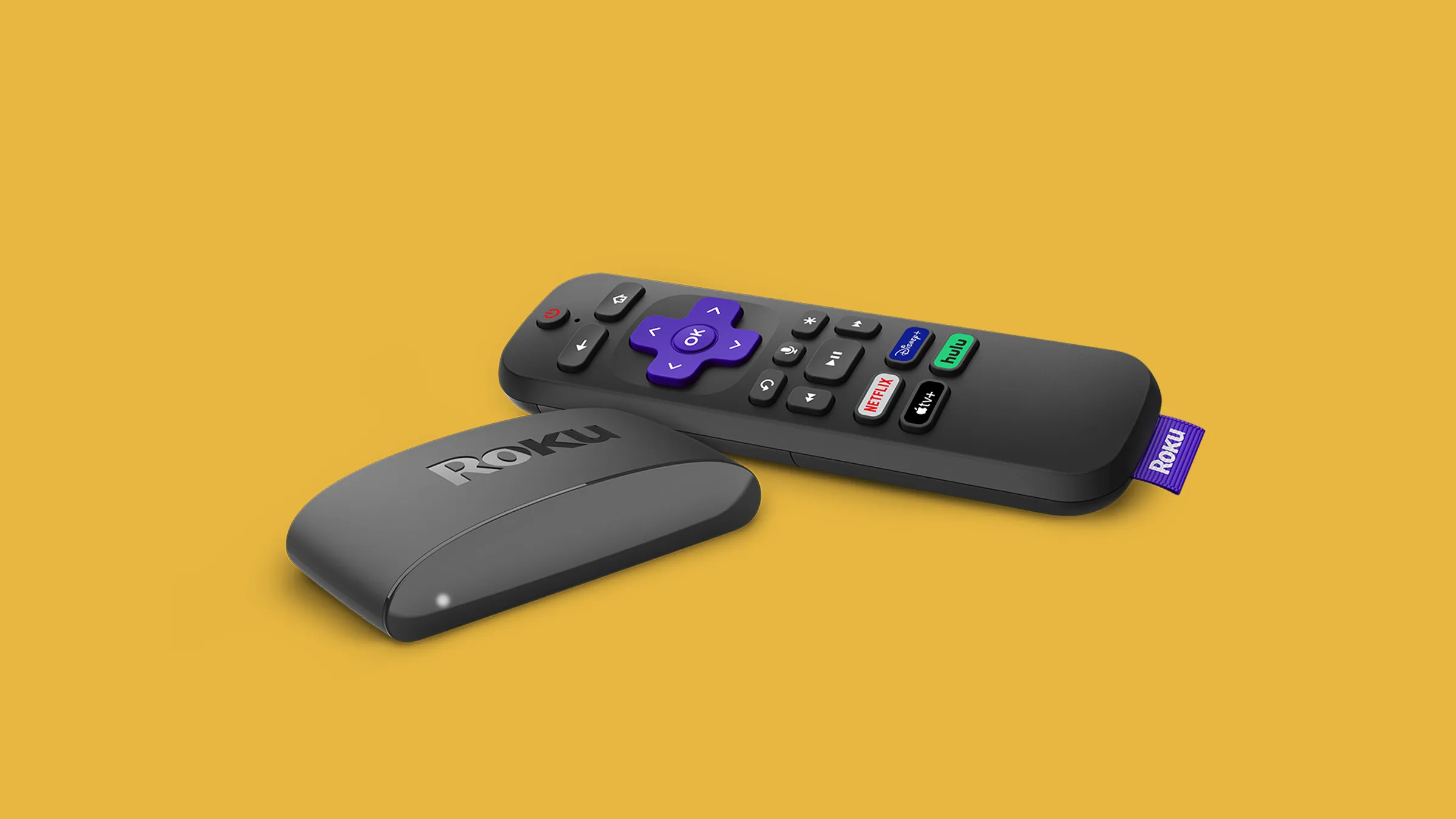
Notably, Roku devices and Google Chromecast are not supported for the Fios TV Home app. If you try to sideload the app or cast from your phone to a Chromecast, it will not work. Verizon has not announced plans to add Roku or Chromecast support, so if you want to use this feature, you must choose one of the three approved platforms above.
What you can watch with the streaming device connection
When you open the Fios TV Home app on a compatible device, you get nearly the same experience as sitting in front of your main set-top box. The app provides access to:
- Live TV channels: Your entire Fios TV channel lineup, including local broadcast channels, cable networks, sports packages, and premium channels (like HBO or Showtime) if you subscribe to them.
- On Demand content: The full Fios On Demand library, including movies, TV show episodes, and kids’ content. This is the same catalog available on your set-top box.
- DVR recordings: If you have Multi-Room DVR service, you can watch any recorded program from your main DVR on your streaming device. This includes recordings from any room, not just the room where the DVR is located.
One important limitation: the app does not support 4K streaming on most channels. Live TV and DVR playback are typically delivered in 1080p or 720p, depending on the source. On Demand content may offer 4K for select titles, but this is rare and depends on the specific program.
Streaming device connection vs. Verizon streaming perks
People often confuse the streaming device connection with Verizon’s separate streaming perks that bundle Netflix, Disney+, or Max with your mobile or home internet plan. These are two entirely different things:
- Streaming device connection (Fios TV Home app): This is exclusively for Fios TV subscribers. It lets you watch your own Fios TV channels and DVR recordings on your own hardware. It does not add any new streaming services to your account.
- Verizon streaming perks: These are discounts or free subscriptions to third-party services like Netflix, Disney+, or Max. They are tied to your Verizon mobile plan (Unlimited Ultimate, Plus, or Welcome) or your Fios Home Internet / 5G Home Internet plan. These perks have nothing to do with the Fios TV Home app and work independently of your TV package.
In short, the streaming device connection is about accessing what you already pay for on different screens. The streaming perks are about getting additional subscriptions at a reduced price or for free. You can have both, but they are separate features with separate eligibility requirements.
How to get the streaming device connection on your account
The Fios TV Home app streaming feature is not something you purchase or add as a standalone service. It is automatically included if you have the right Fios TV package. Specifically:
- “The Most Fios TV” package: This top-tier package includes the streaming device connection as a permanent, built-in feature. You do not need to request it or pay extra.
- Other Fios TV plans: If you have a lower-tier package (like Fios TV Popular or Fios TV Ultimate), you can get a two-month free trial of the streaming device connection. After the trial ends, you would need to upgrade to “The Most Fios TV” to keep it permanently.
To check whether your account is eligible, log in to your Verizon account online or in the My Verizon app. Navigate to your Fios TV plan details. If you see “Streaming Device Connection” or “Fios TV Home App” listed as an included feature, you are already set up. If you do not see it, you can either start the two-month trial (if offered) or contact Verizon customer service to confirm your eligibility. There is no separate activation code or installation required, once your account is flagged as eligible and you meet the router and set-top box requirements, you simply download the Fios TV Home app from your device’s app store and sign in with your Verizon credentials.
Frequently asked questions
Do I need a Verizon router to use the Fios TV Home app?
Yes. The app requires a Fios Quantum Gateway Router or a Fios Router. Non-Verizon routers will not allow the app to access all channels or stream DVR recordings. If you use your own router, you will need to switch back to a Verizon router or set up your network so that the Fios router is the primary gateway.
Can I use the streaming device connection without a set-top box?
No. The app relies on that set-top box to authenticate your subscription and stream the content. You cannot use only personal streaming devices with no set-top box at all.
Why is my Fios TV Home app buffering or not loading channels?
First, verify that your set-top box is powered on and connected to your router via Ethernet or MoCA. Then check that your streaming device is on the same network as your Fios router. If you are using a mesh Wi-Fi system, make sure the streaming device is connected to the Fios router’s network, not a separate guest network. Also confirm that you are not exceeding the two-stream limit. If the problem persists, restart both your router and your streaming device, then reopen the app.
If you have a non-Verizon router, you may experience limited channel access or DVR playback failures. In that case, the only fix is to switch to a Verizon router. For all other issues, Verizon’s technical support can remotely check your set-top box and router status to identify the problem.
\nRelated reading: Why Is HBO Max Taking So Long To Load, How Do I Know If My TV Has Built-In Chromecast, and How To Watch Love Island Uk.