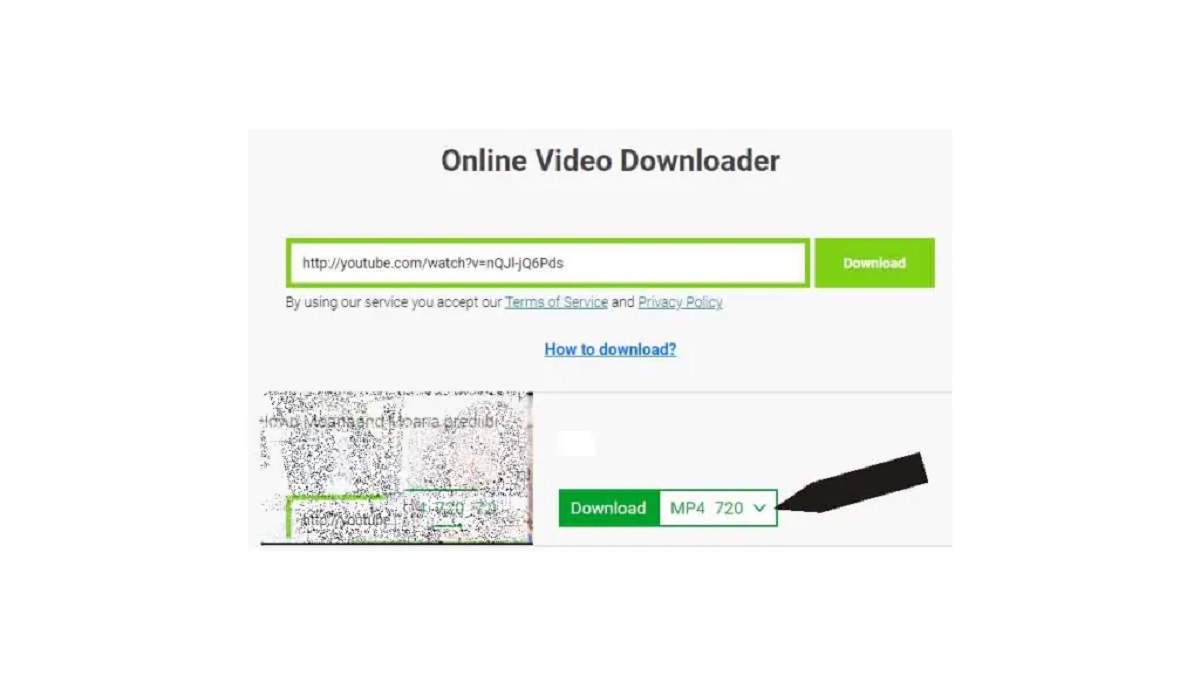
To download YouTube videos in 1080p, the only official method is through a YouTube Premium subscription, which enables high-definition offline viewing directly within the app. For users without Premium, various third-party tools exist, though they carry legal and security risks that must be carefully considered before attempting to download YouTube videos in 1080p.
The official way to download YouTube videos in 1080p
YouTube Premium is the sole authorized method to download videos in 1080p resolution. This feature requires an active subscription and works across devices. The video you wish to download must originally be available on YouTube in 1080p quality for this option to be present.
- Open the YouTube app on your mobile device or visit YouTube.com on your computer and sign in to your Premium account.
- Navigate to the video you want to save and tap or click the "Download" button located below the video player.
- In the download quality settings, select "1080p" from the available options. After setting this preference, any video you choose to download will be saved in 1080p, provided the original video supports that resolution.
- The downloaded video will appear in your "Downloads" library within the YouTube app for offline playback.
To download videos from YouTube Premium on PC, follow the same steps using the YouTube website in a browser, ensuring you are logged into your Premium account.
Important disclaimer on downloading videos
Downloading copyrighted YouTube content without permission violates YouTube's terms of service and copyright laws in many jurisdictions. Third-party tools may expose your device to malware, intrusive ads, or data theft. This information is provided for educational purposes only. Always respect creator rights and obtain proper permissions before downloading any material. Supporting creators by watching on the official platform helps them earn revenue through advertising.
Alternative method 1: third-party websites
Third-party websites like SaveFrom.net or Y2Mate offer a simple way to download YouTube videos online without any software. These sites require no installation and work directly in your browser.
- Copy the URL of the YouTube video you want to download.
- Open a new browser tab and navigate to a reputable third-party download site.
- Paste the video URL into the designated field on the website.
- Select "1080p" from the quality options presented, then click the download button.
- Save the video file to your computer when prompted.
Be aware that these sites often contain pop-up ads and may track your activity. Only use well-known services to minimize risk.
Alternative method 2: browser extensions
Browser extensions integrate directly into your browser and add a download button to YouTube video pages. This method streamlines the process without requiring you to visit external websites.
- Open your browser's extension store (Chrome Web Store, Firefox Add-ons, etc.) and search for a reputable YouTube downloader extension.
- Install the extension and grant the necessary permissions.
- Restart your browser if required, then navigate to the YouTube video you want to save.
- Click the extension icon near the address bar and select "1080p" from the download options.
- Choose where to save the file on your computer.
Exercise caution when installing extensions, as some may contain malware or adware. Stick to highly-rated extensions from trusted developers.
Alternative method 3: desktop downloading software
Dedicated software like 4K Video Downloader provides more advanced features, including batch downloading, playlist support, and format conversion. For users who need robust functionality, this is the ultimate guide on how to download videos from YouTube.
- Download and install a trusted video downloading program from its official website.
- Launch the software and copy the YouTube video URL to your clipboard.
- In the settings, choose "1080p" as the quality and select your preferred output format.
- Click "Download" and wait for the process to complete. The file will be saved to your designated folder.
Some software may limit features in free versions or require a paid upgrade for full functionality.
Alternative method 4: online conversion tools
Online conversion tools allow you to download videos and optionally convert them to different formats like MP4 or MP3. These tools are among the 15 best online video downloaders you should be using now for their versatility.
- Open a browser and go to a reputable online converter site.
- Copy the YouTube video URL and paste it into the converter's input field.
- Select "1080p" as the output quality and choose your desired file format.
- Click "Convert" or "Start" and wait for processing to complete.
- Click the download link that appears to save the file to your device.
Not all converters support 1080p, and processing times can vary based on video length and server load.
Alternative method 5: mobile apps
Apps like TubeMate or Snaptube enable direct downloading of YouTube videos to Android or iOS devices. These apps provide a mobile-optimized interface for downloading on the go.
- Download a reputable video downloader app from your device's app store or the developer's website.
- Open the app and search for the YouTube video you want to save.
- Tap the download button within the app and select "1080p" from the quality options.
- Choose a save location on your device and confirm the download.
- Access the downloaded video from your device's gallery or the app's library.
Some apps may display ads or require in-app purchases to unlock certain features. iOS users may face additional restrictions due to Apple's app store policies.
Final thoughts on downloading YouTube videos in 1080p
YouTube Premium remains the safest and most reliable method for downloading videos in 1080p, fully respecting creator rights and platform terms. Third-party alternatives carry inherent risks including malware, legal liability, and potential account suspension. Always prioritize supporting content creators through official channels, and only use alternative methods for content you have explicit permission to download. The choice of method depends on your specific needs, but respecting intellectual property should always guide your decision.


![Top 4 Ways to Download YouTube Videos [For PC/Mac/Android/iOS]](https://robots.net/wp-content/uploads/2023/12/How-to-download-YouTube-videos.png)