The Fire OS tag collects articles written for owners of Amazon Fire tablets, whether they are new users setting up a device for the first time or more experienced owners looking to customize and manage their hardware. The content is aimed at everyday consumers who want practical, step-by-step guidance for common tasks, with a strong emphasis on making the tablet work for them without getting bogged down in technical jargon.
A clear theme running through these articles is basic device mastery and personalization. This includes how to navigate the interface, change the wallpaper, find hidden apps, and manage files through the File Manager. A second theme centers on expanding the tablet’s capabilities beyond the default Amazon ecosystem. Here, readers will find guidance on adding popular services like Netflix and YouTube Kids, as well as instructions for installing the Google Play Store to broaden app availability. A third, more cautious theme addresses security and maintenance, covering how to disable pre-installed Amazon apps, stop unwanted ads, and understand the implications of jailbreaking a Fire tablet, specifically whether it stops working after a system update. For those considering a new device or a memory upgrade, the tag also answers practical questions about SD card compatibility and what an Amazon Fire tablet actually is.
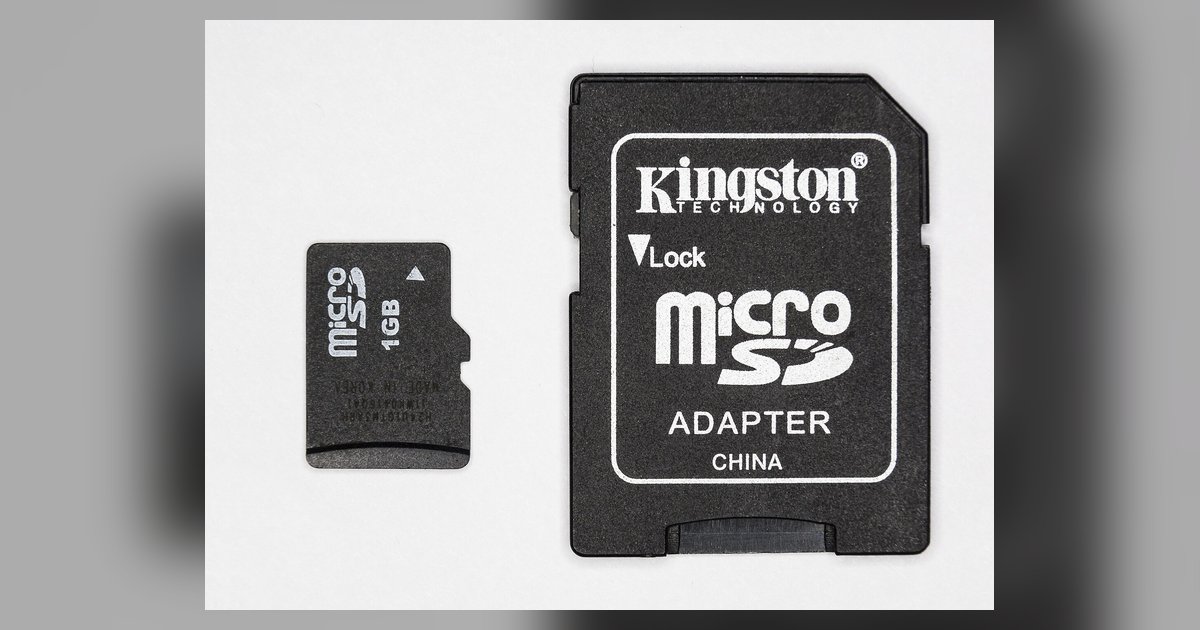
Most modern Fire tablets support microSD cards up to 1TB, but older models max out at 128GB or 256GB. Always buy a UHS-I or Class 10 card for acceptable performance....
Yes, a forced firmware update can partially or completely break a jailbreak by overwriting modified system files and patching exploits, but the severity depends on the update version and what...
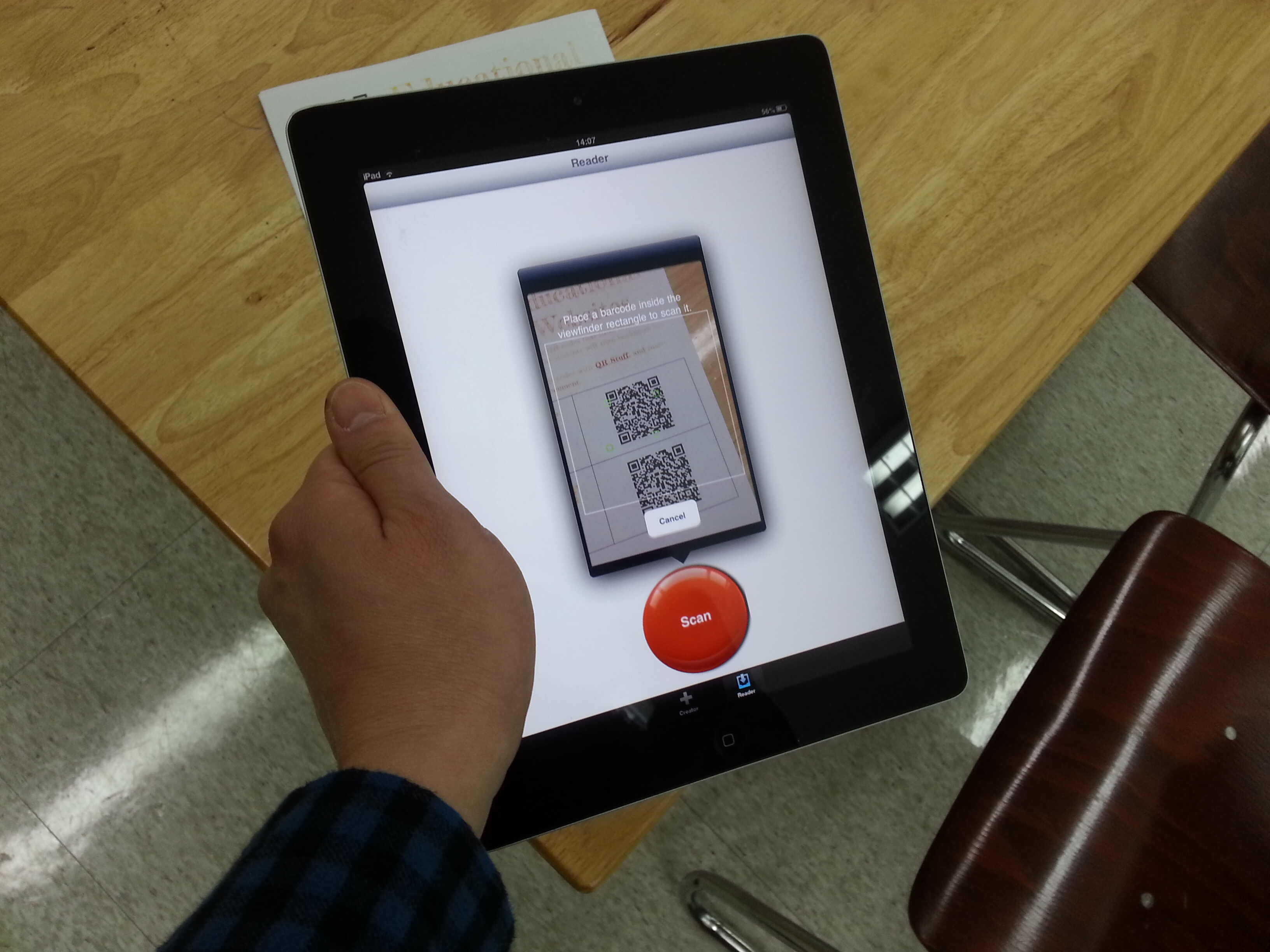
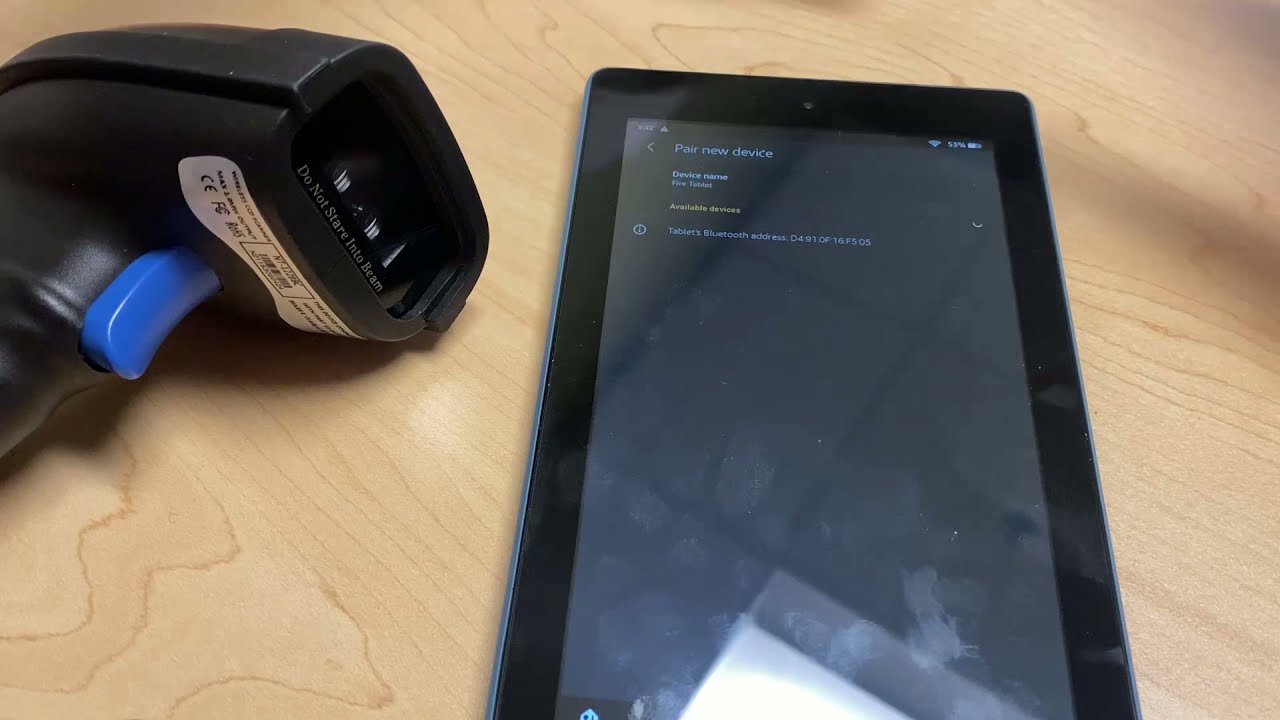
To scan a QR code on an Amazon Fire Tablet, you must install a dedicated app from the Amazon Appstore because the device does not include a native QR scanner....
To stop ads on Amazon Fire tablet, you must first identify the type of ad you're dealing with, because the fix for lock-screen offers is completely different from the fix...
To find hidden apps on your Amazon Fire tablet, start by tapping the Apps icon on your home screen to open the app drawer, then tap "See all # apps"...
To disable Amazon apps on a Fire tablet, you must hide them from your home screen or block them with Parental Controls, because the pre-installed apps are embedded in Fire...
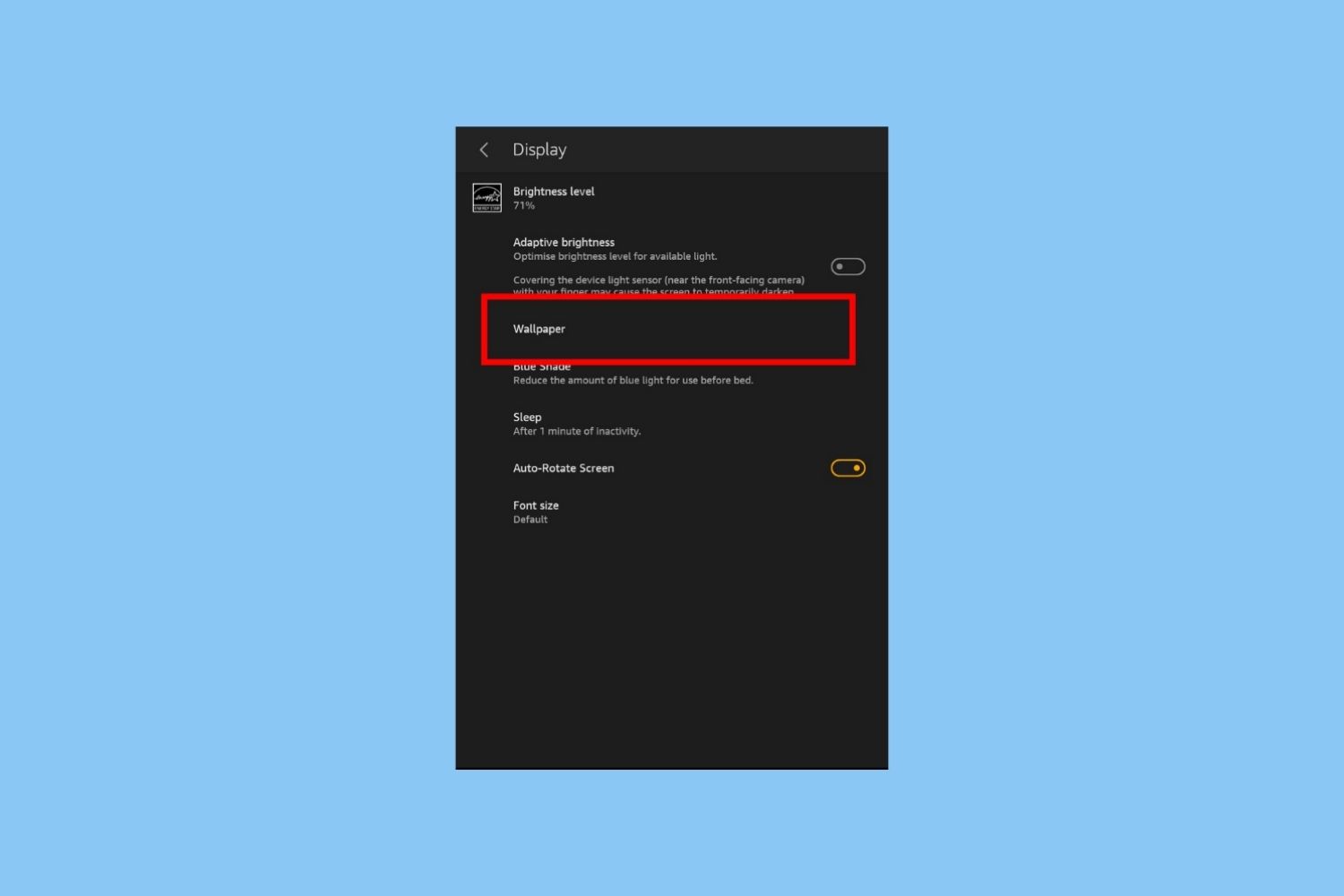
To change wallpaper on Amazon Fire tablet, open Settings by swiping down from the top of the screen and tapping the gear icon, then select Display and tap Wallpaper. From...
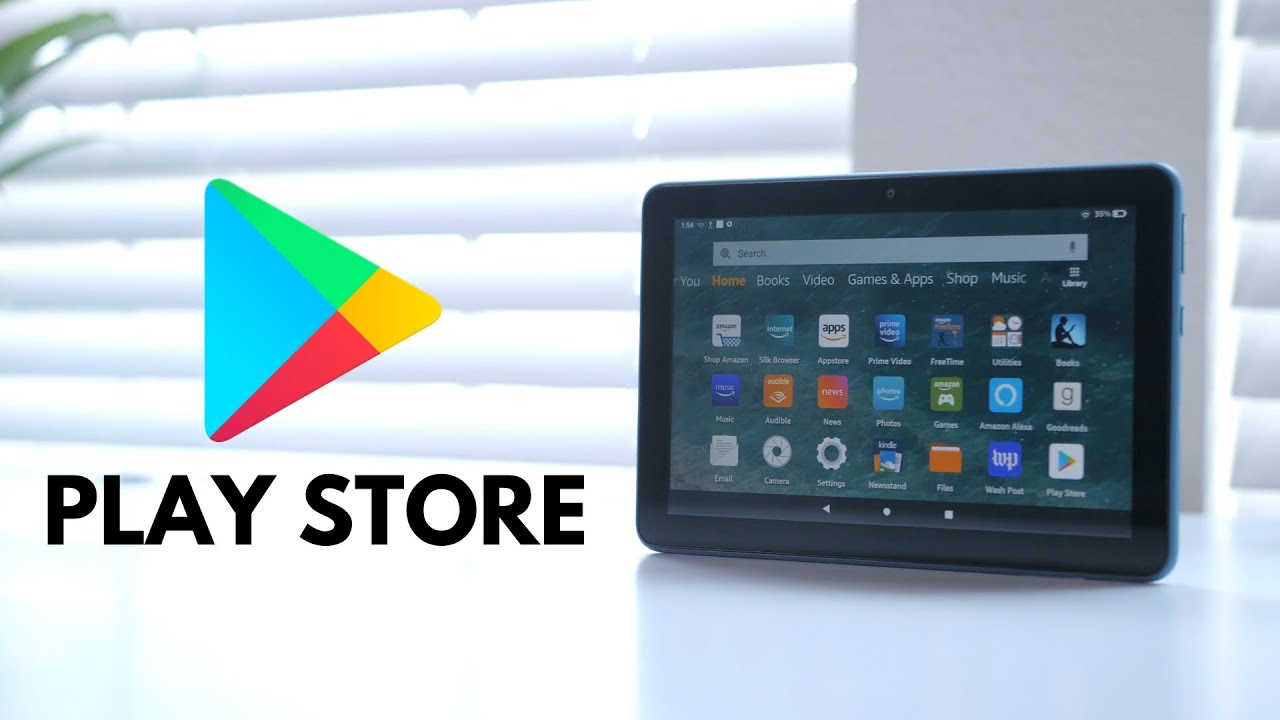
To install Google Play Store on Fire tablet, you need to sideload four specific APK files in a precise order using the Silk Browser. This process bypasses the Amazon Appstore...
To scan a QR code on an Amazon Fire tablet, you have two main options: use the built-in Camera app if your tablet runs Fire OS 7 or newer, or...
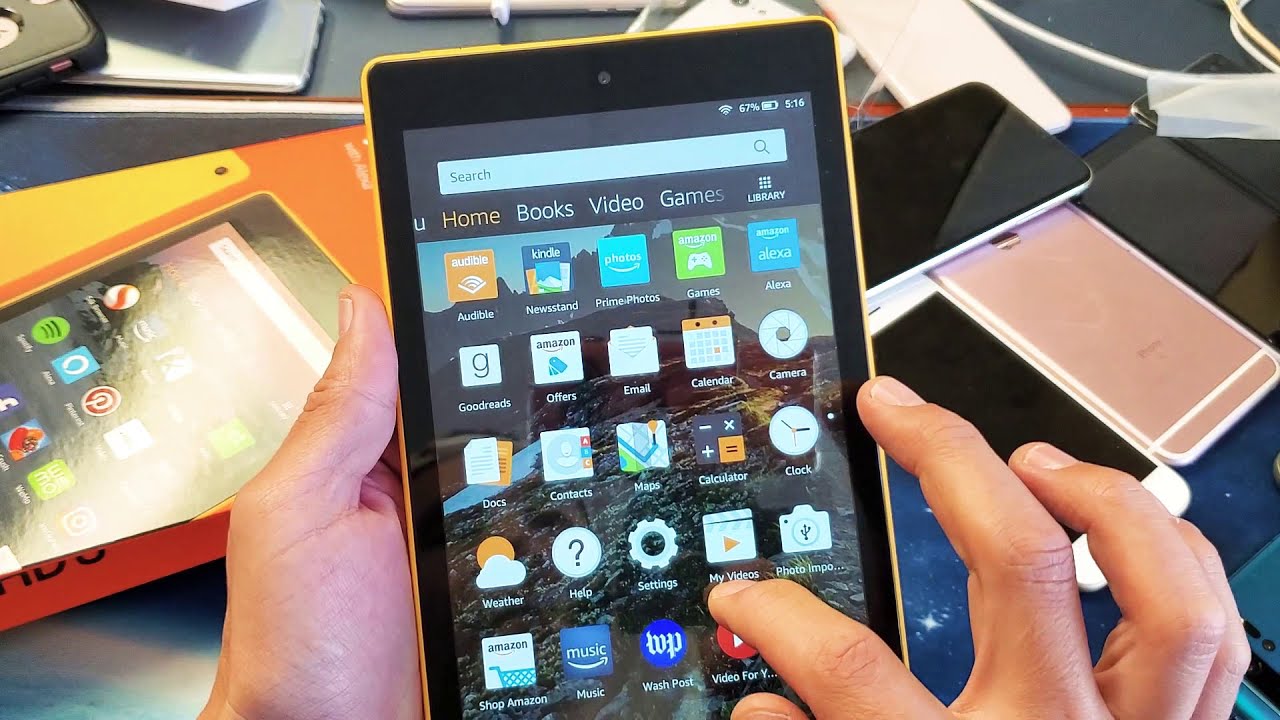
First things to know when you use the Fire Tablet Before you use the Fire Tablet for anything else, take a moment to understand what you are holding. An Amazon...
To delete files on an Amazon Fire tablet, you need to use one of the tablet's built-in methods because Fire OS does not include a standard Android "File Manager" app....
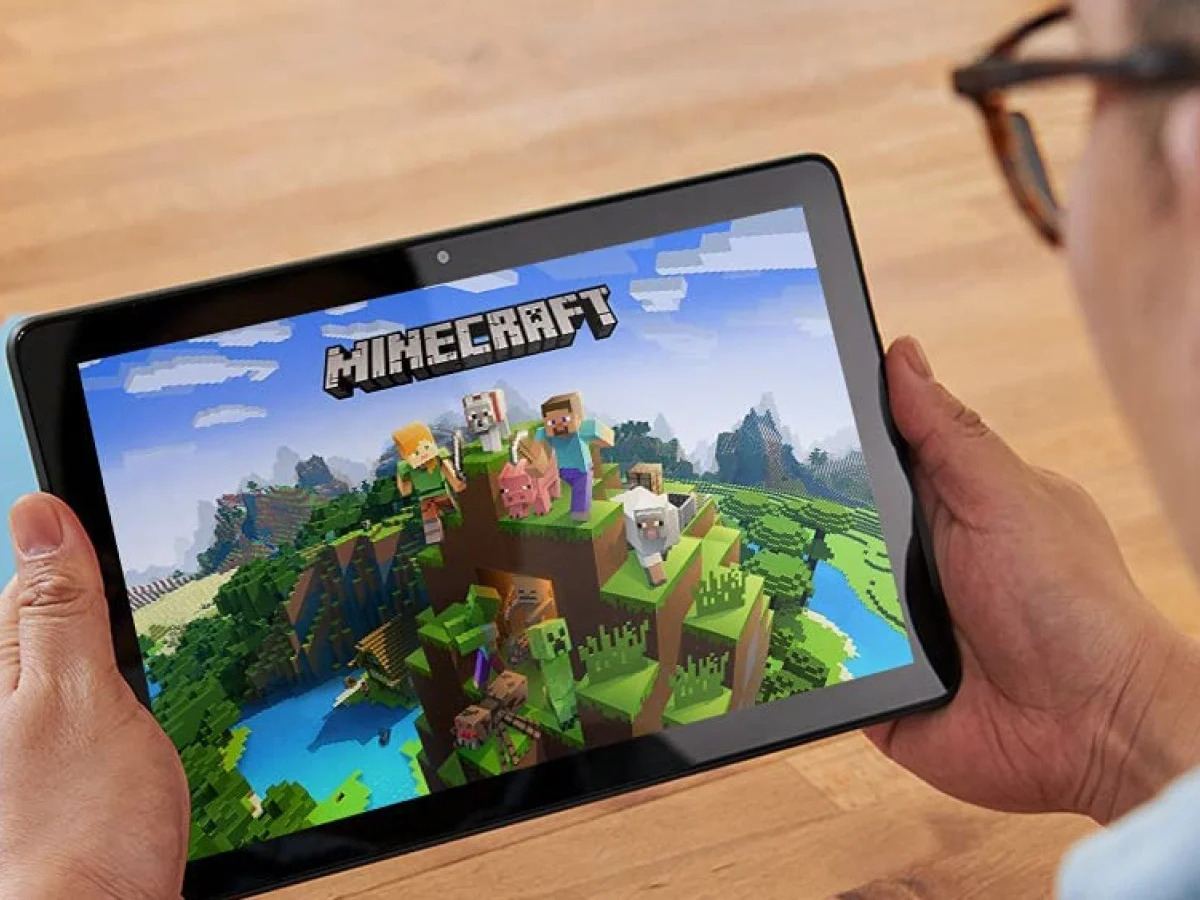
To play Minecraft on your Amazon Fire tablet, you must download the standard Minecraft game directly from the official Amazon Appstore, though you can get Minecraft for free on tablet...