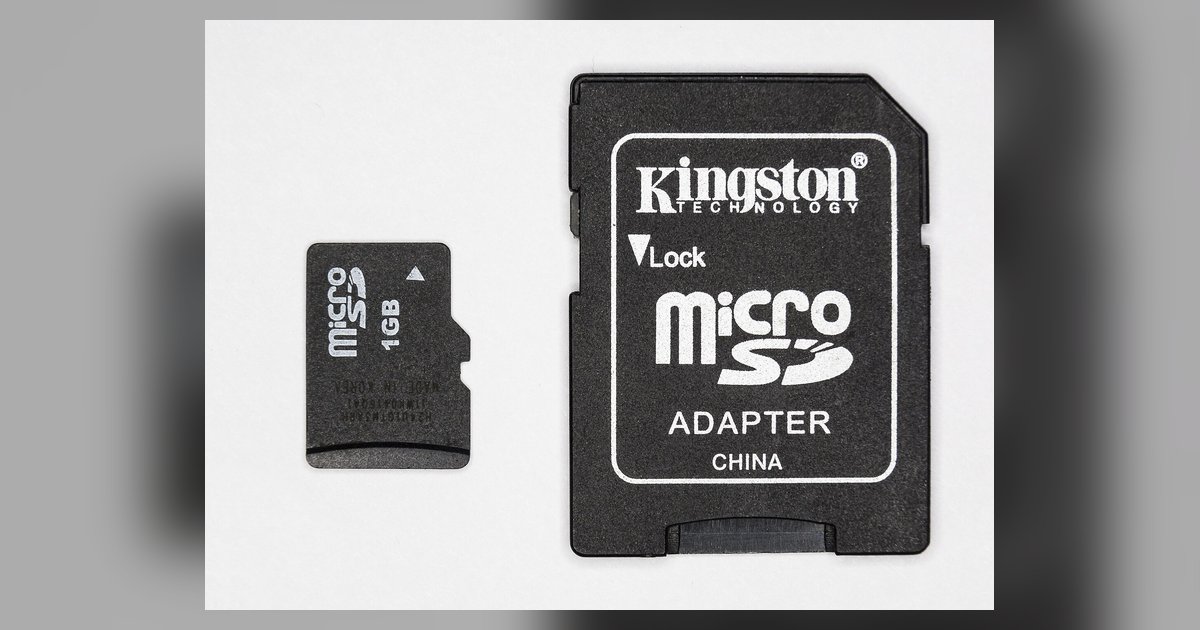
Most modern Fire tablets support microSD cards up to 1TB, but older models max out at 128GB or 256GB. Always buy a UHS-I or Class 10 card for acceptable performance.
Maximum fire tablet sd card capacity by model
For the 7th generation (2017) and older Fire tablets, including the Fire 7 (5th gen), Fire HD 8 (6th gen), and Fire HD 10 (7th gen), the maximum microSD card size may be lower than current models. The 9th generation (2019) Fire HD 8 and Fire HD 10 increased that limit. Starting with the 11th generation (2021) Fire HD 10 and the 12th generation (2022) Fire 7, Fire HD 8, and Fire HD 10 Plus, Amazon supports cards up to 1TB on some models. The 13th generation (2023) Fire HD 8 and Fire HD 10 also accept high-capacity cards. If your tablet runs Fire OS 7 or newer, you can safely use a high-capacity card. Always check the model number on the back of the device (e.g., “2021” or “2023”) to be certain.
The speed class you actually need
A UHS-I or Class 10 card is mandatory. Fire tablets use the card for app space and video playback, both of which require sustained write speeds of at least 10 MB/s. If you accidentally insert an older Class 4 card, your tablet will show a “slow card” warning in the notification bar. Apps may crash when loading, and video playback will stutter or fail entirely. To safely add storage to Amazon Fire tablet, purchase a card marked with a “U1” symbol or “Class 10” label. Avoid “U3” or “V30” unless you plan to record 4K video, as those are overkill for a Fire tablet’s hardware. You can test your current card’s speed by checking storage settings. If you see a slow storage warning, the card is too slow for apps, and you can free up space by managing Fire Tablet storage.
When the card slot is useless for expansion
Many Fire tablet owners make the mistake of buying a massive card only to find the device restricts it to media files. This is the only tablet line where Amazon’s own documentation confirms the SD slot is media-only on most generations. Many Fire tablets support “adoptable storage”, the feature that lets you move apps to the SD card, including models running Fire OS 6, 7, and 8. On older models, you can only store photos, videos, music, and documents on the card. To check your model, open Settings > Storage and look for SD card options. If the card appears but you cannot select an internal storage formatting option, your tablet lacks adoptable storage. To remove an SD card from a Fire tablet, always unmount it first via storage settings to prevent data corruption. If your space is full and apps cannot be moved, you must clear storage on an Amazon Fire tablet by deleting cached data in app settings. For accidental deletions, you can find deleted photos on an Amazon Fire tablet by checking the “Recently Deleted” folder in the Photos app. That folder retains images for 30 days before permanent removal.