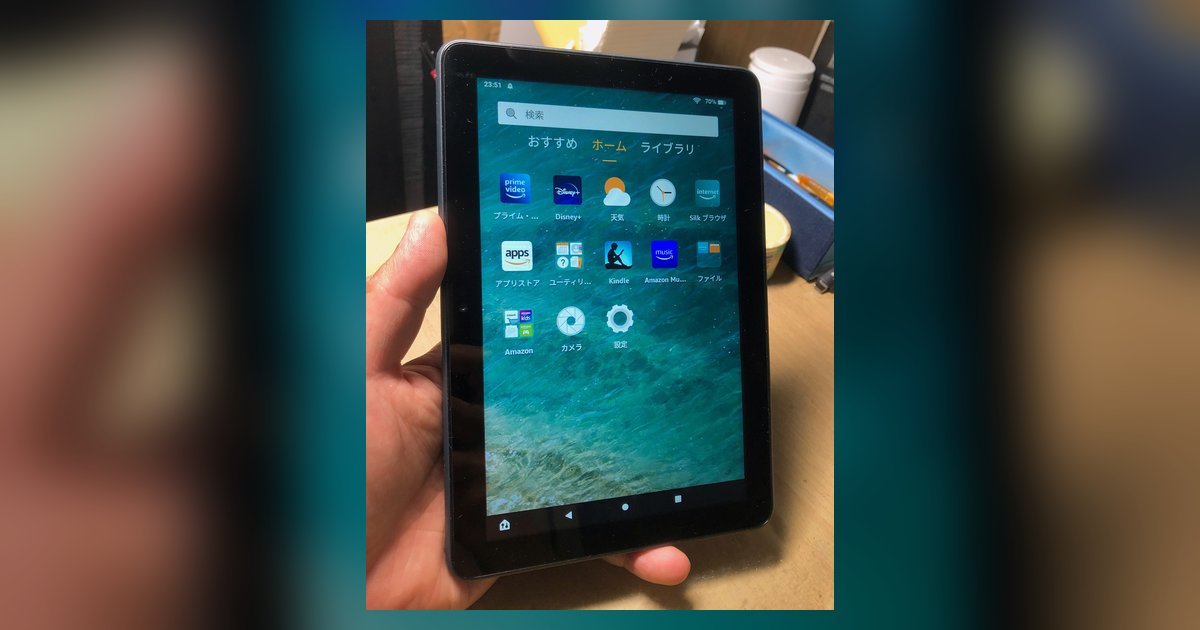
Personalize your display and customize fire tablet wallpaper
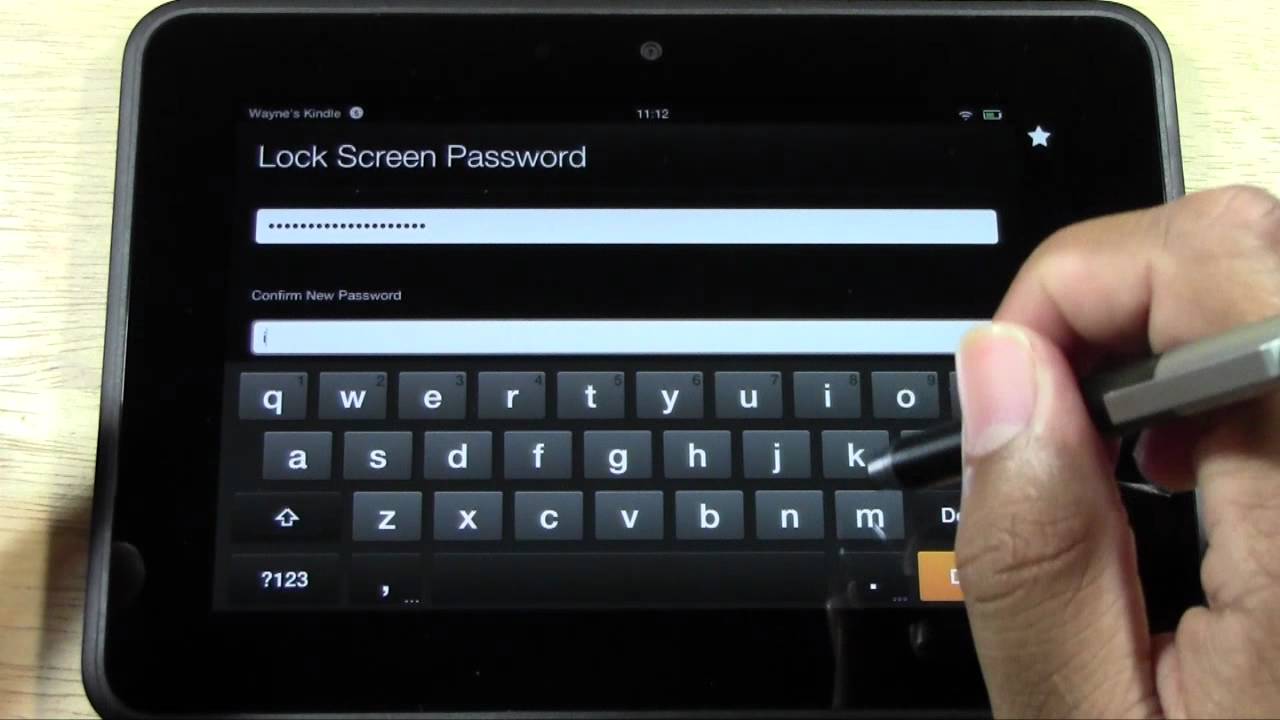
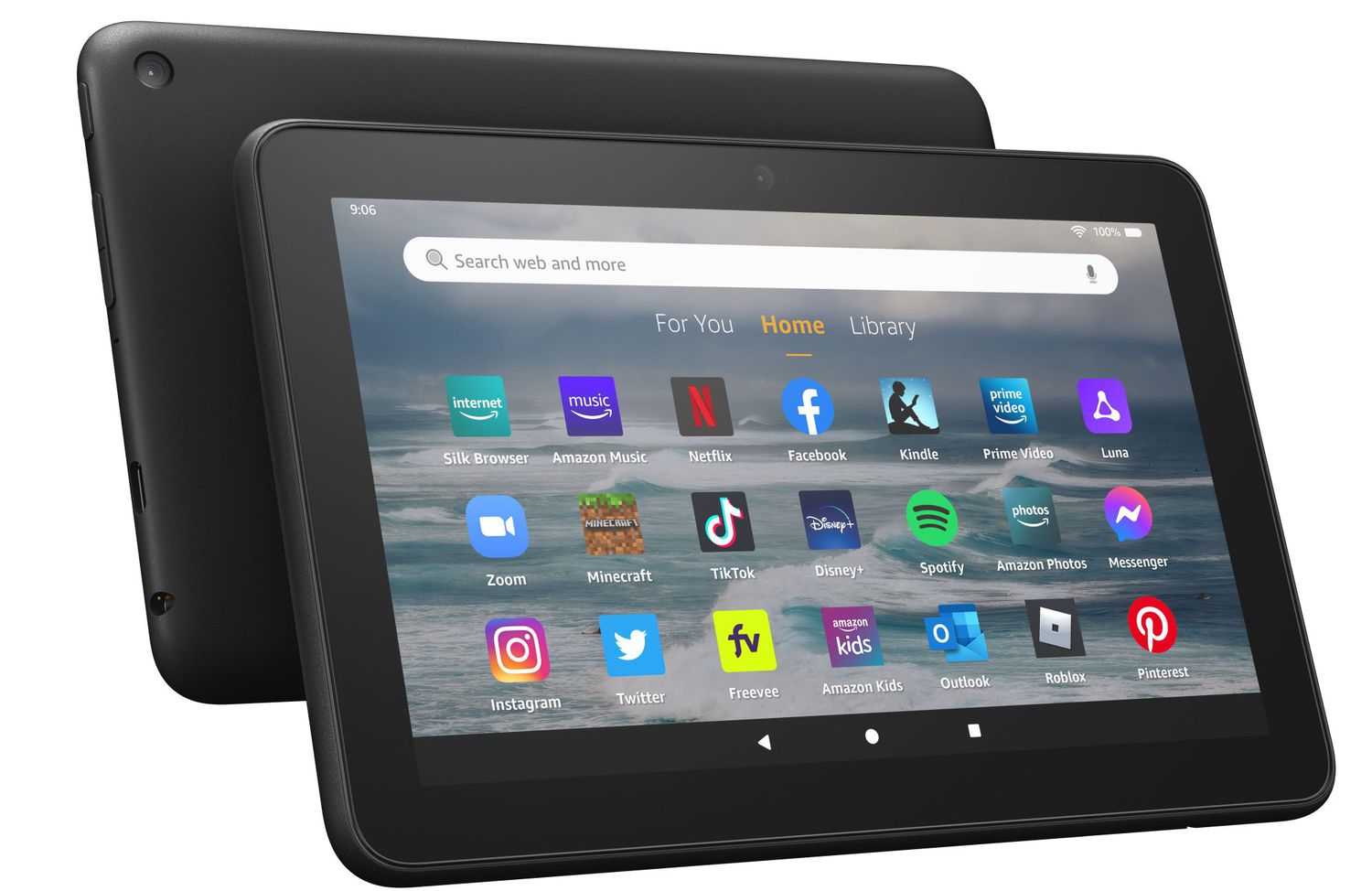
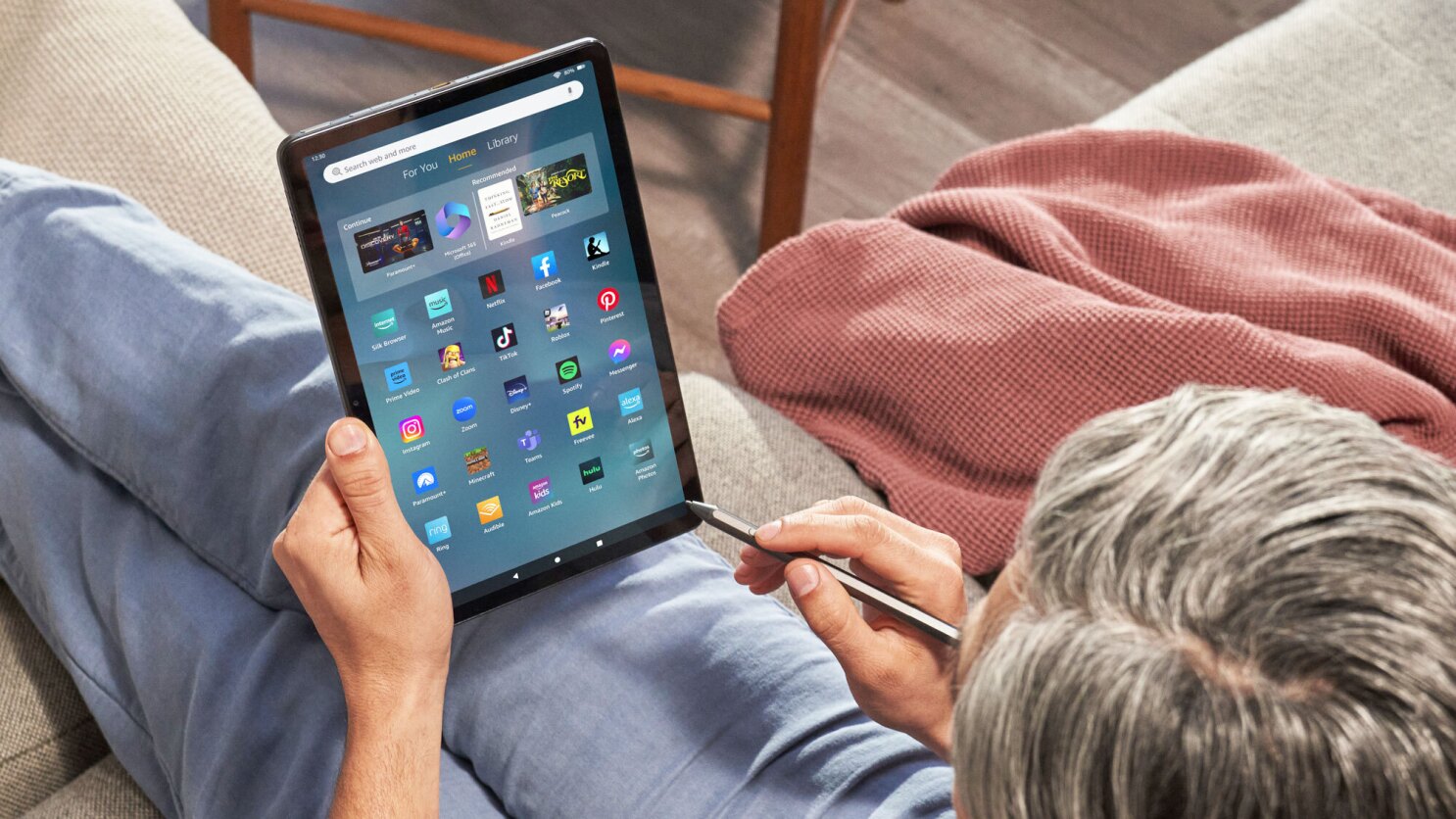
To customize Fire tablet screens, start by opening the Settings app and tapping Display. From there, you can choose a new wallpaper for the home screen. Select a photo from your gallery or one of the built-in options. If you want to change lock screen on Fire tablet, the same menu lets you pick a different image for that locked state. Just tap the lock screen preview and confirm your selection. This step is separate from adjusting the home screen. You can have a different photo on each. To change the wallpaper on Amazon Fire tablet for either screen, you can also use the Settings menu. Then tap the wallpaper icon that appears. Once you've set your images, consider how app pinning changes the visual behavior. When you pin an app, the tablet locks the current screen and also stops that app's background processes. This is a distinct behavior from the standard task switcher, which normally keeps recent apps suspended. A pinned app won't refresh or update until you unpin it. This can be useful for showing a static map or recipe without interruptions. For the lock screen, you can also enable or disable notifications shown there. This gives you control over what appears before you enter the device.
Navigate and manage open apps
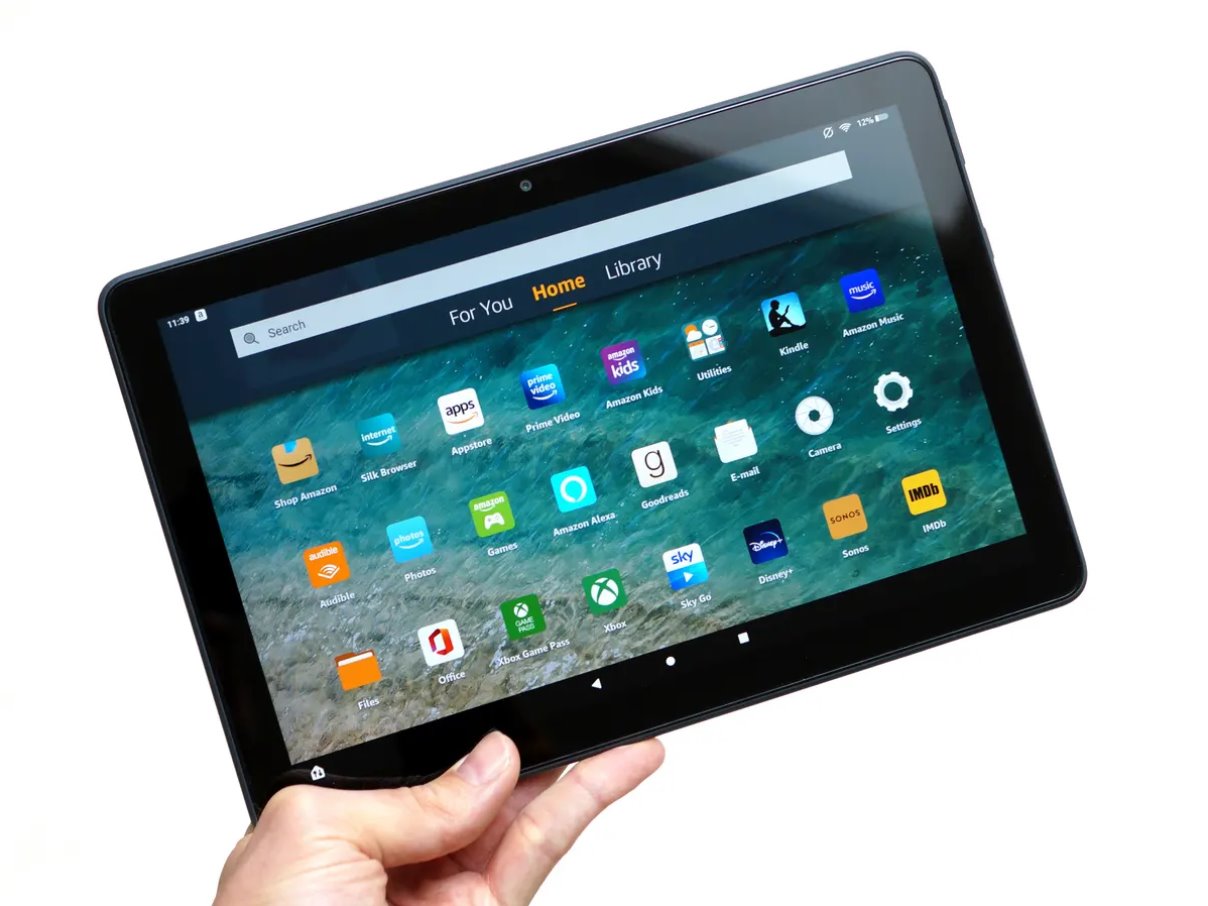
Moving between screens and managing your open applications is central to making your Fire tablet feel responsive rather than sluggish. To leave any app and return to your library or settings, you can press the circle-shaped Home button at the bottom of the screen. This is the quickest way to get to home screen on Fire tablet without closing the app entirely. For a more granular view of what is running, swipe up from the bottom of the display and pause. This opens the task switcher on Fire tablet, which shows a horizontally scrolling carousel of your most recently used apps. Swipe left or right to browse them, then tap any card to jump back into that app exactly where you left off. If you notice that list is empty or missing apps you just used, you may be encountering a known glitch where the fire tablet task switcher not showing recent apps occurs. This usually happens after a long session or when too many apps are cached, and a simple restart of the tablet often clears it. To close an app entirely, swipe its card upward off the screen in the task switcher. This stops it from consuming memory. Remember that unlike the standard task switcher, which keeps recent apps suspended in the background, the app pinning feature (accessible from the settings menu) completely halts background activity for the pinned app, so use pinning only when you need to lock a single app without any background processes. The Fire's task switcher carousel surfaces your recently used apps.
Lock an app to the screen
To lock a single app so it fills the screen and cannot be accidentally closed, you first need to enable App Pinning in the Security settings under Parental Controls. Once activated, open the app you want to restrict. Tap the Task Switcher (square icon) on the bottom navigation bar, press and hold the app's card, then tap the pin icon. This is how you pin an app on Fire tablet. It prevents anyone from switching away without entering your PIN. However, the behavior matters more than the lock itself: pinning an app on fire tablet stop background app activity entirely. This differs from the standard multitasking view where apps remain suspended in memory. The pinned app becomes the only process the processor cares about. This can improve its responsiveness but also means switching away will force a cold restart of that app later. For games or video streaming, this trade-off is usually worth it because the app gets full hardware priority. For a note-taking or recipe app, the forced stop might be frustrating if you frequently need to check other information. Test it with your most-used app to see if the performance gain outweighs the inconvenience of losing its cached state. This is how you pin an app on Fire tablet, a feature that gives you control over what appears before you access the device.