What pinning an app on a Fire tablet really means
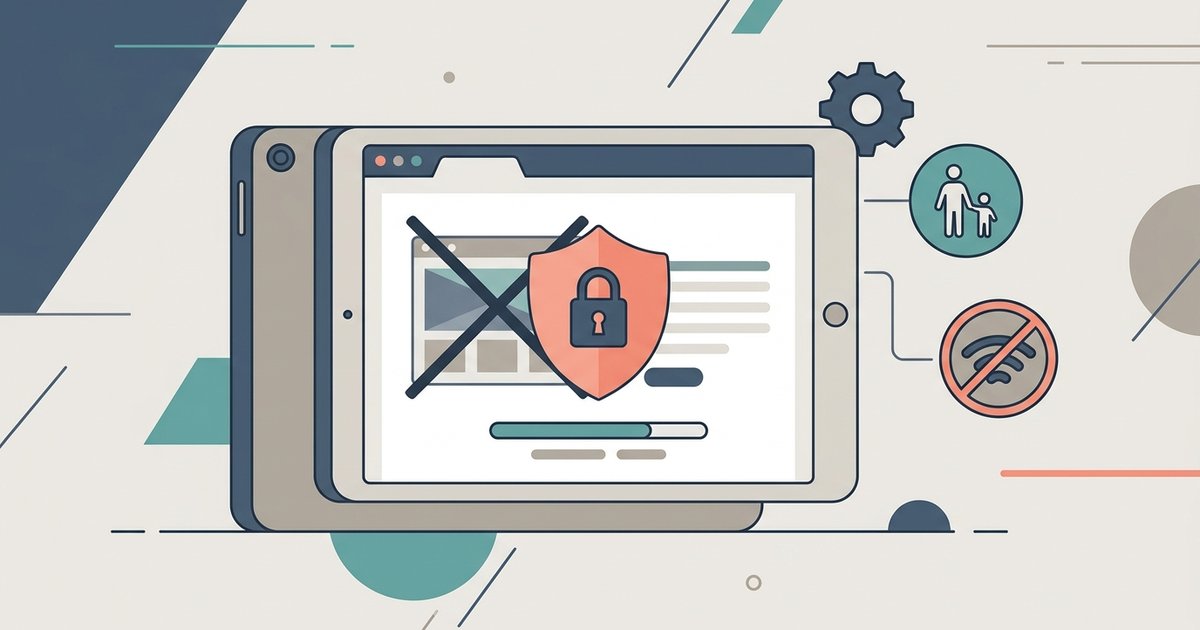
Pinning an app on a Fire tablet locks the screen to a single running app so no one can exit it or open anything else. This is a parental control or focused-use feature, not a home-screen shortcut, and it is completely different from adding an icon to your launcher. When you pin an app, the tablet stays inside that app until you use the specific unpin gesture, which makes it ideal for toddlers, shared devices, or distraction-free work sessions. If you need to know whether pinning an app on fire tablet stop background app activity, it helps to understand how the feature handles other processes.
Enable App Pinning in the Adult Profile settings
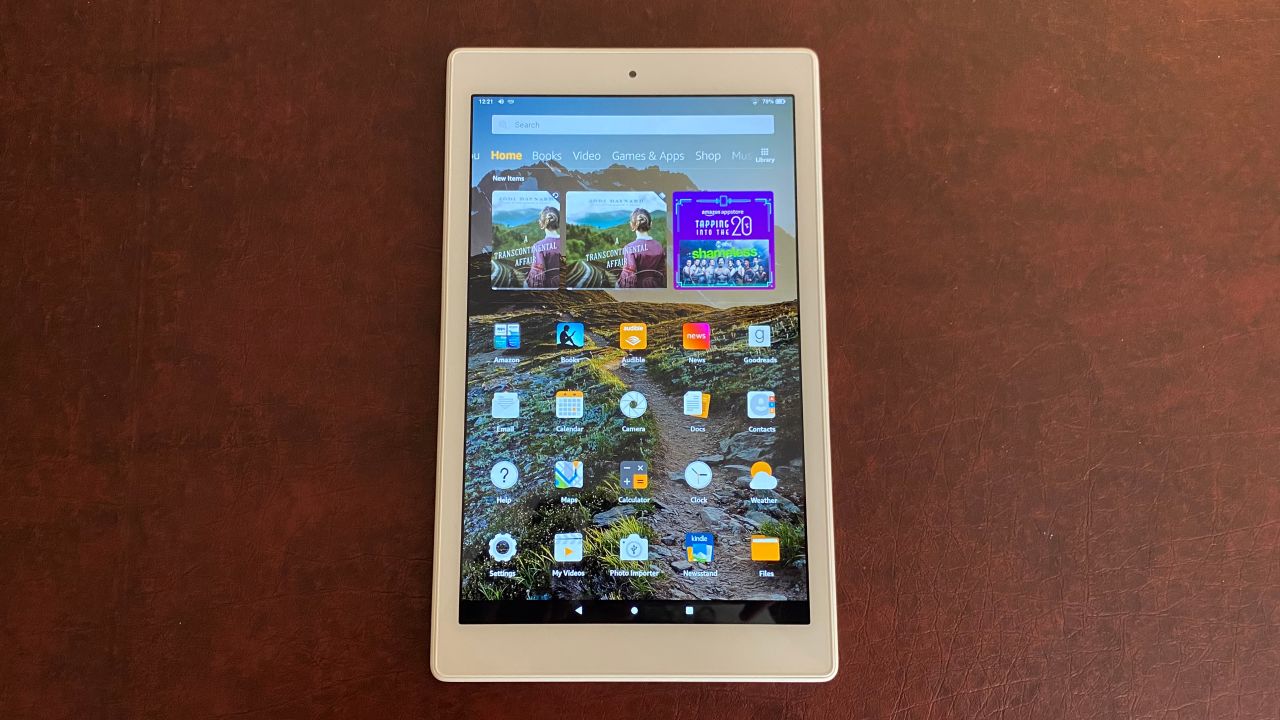
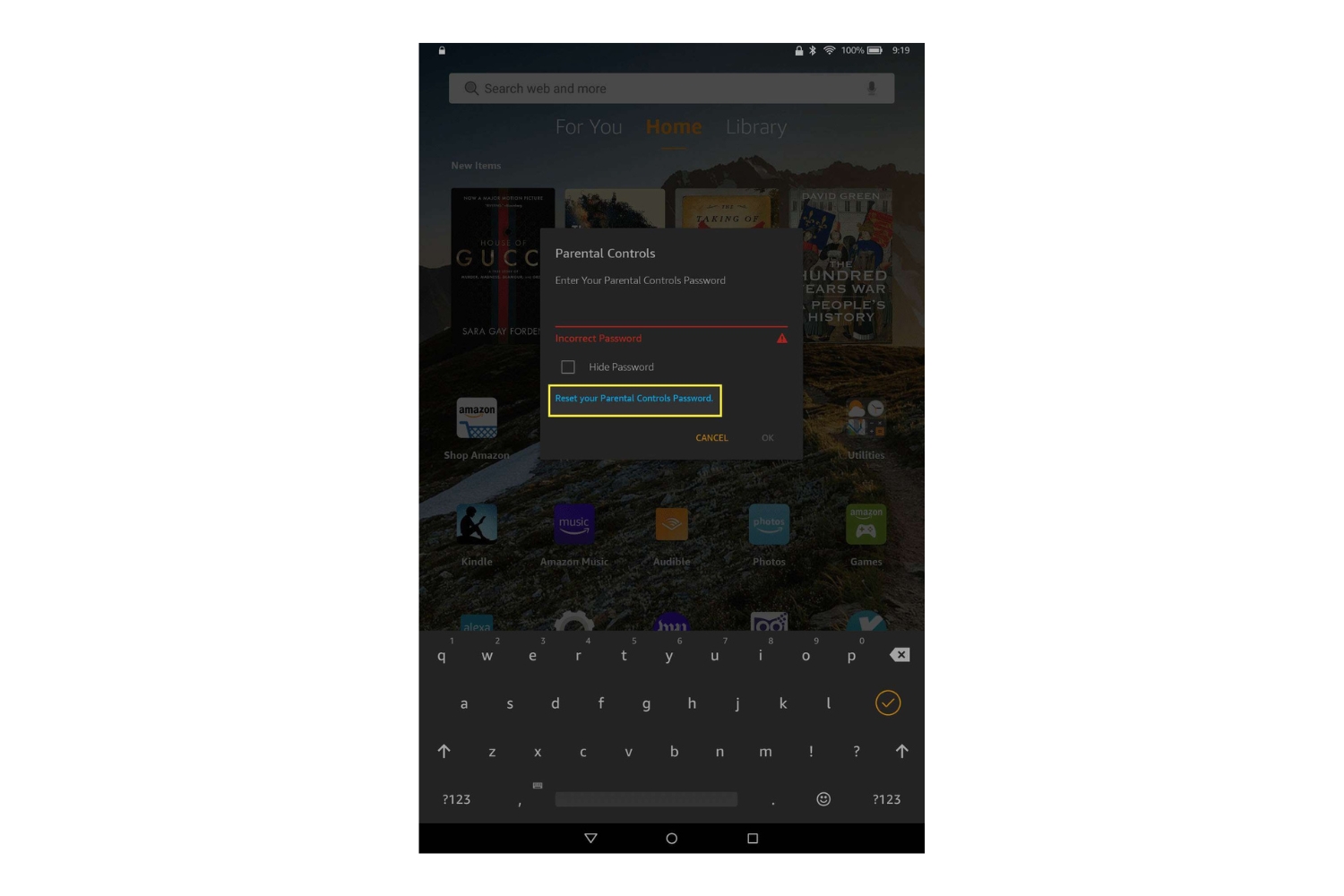
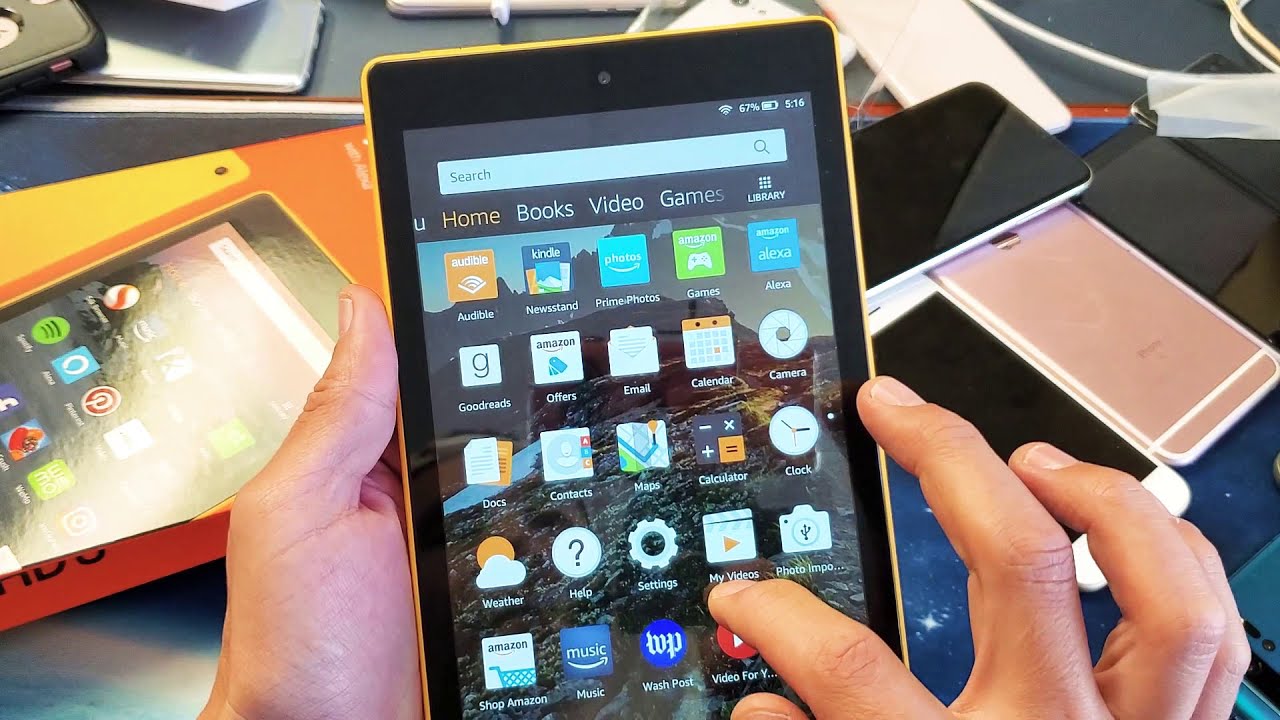
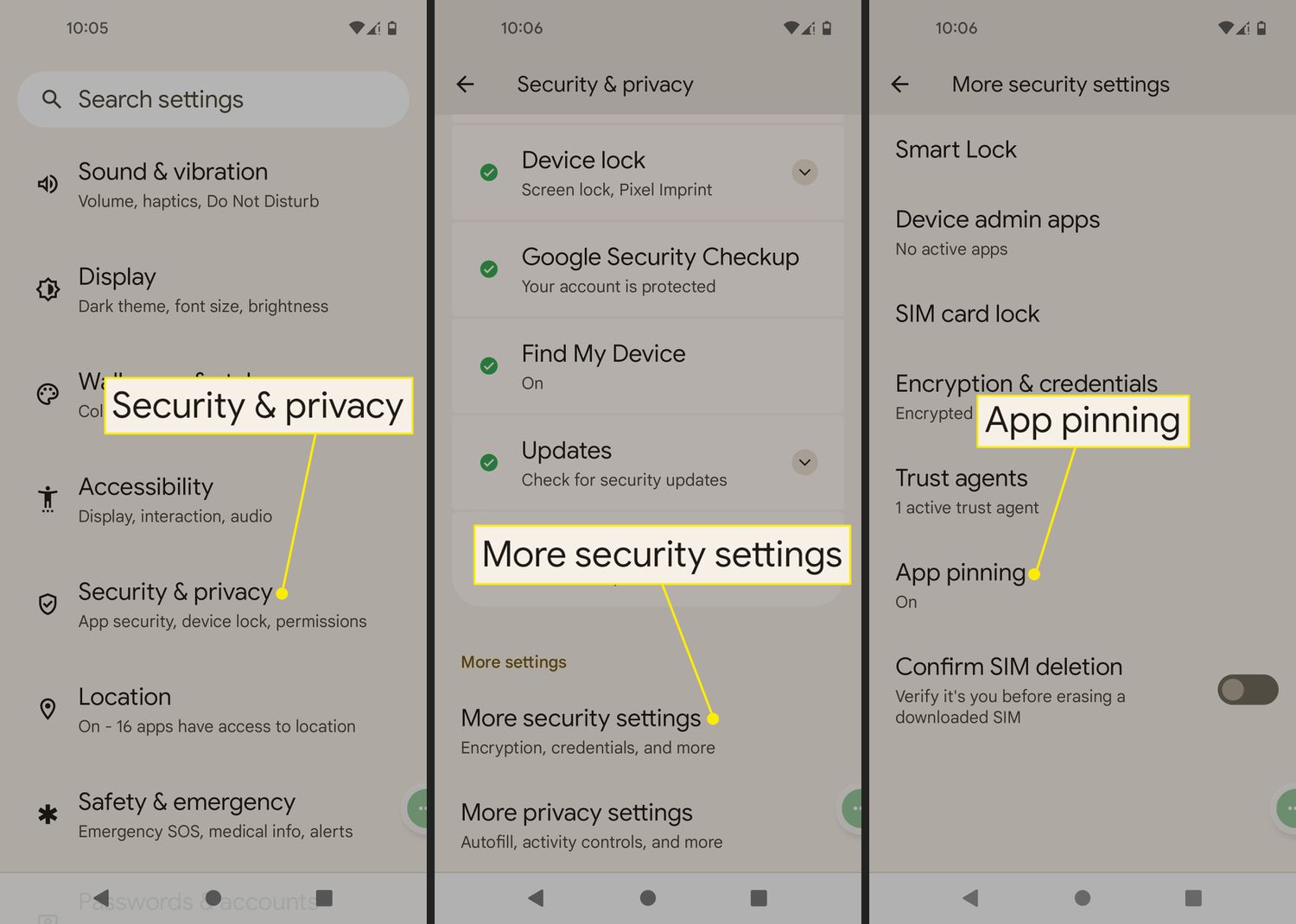
Before you can pin anything, you need to turn on the feature in the Adult Profile. Start from the home screen and open Settings. Scroll to Parental Controls and slide the toggle to On, the slider will turn orange. If you have not set a parental controls password yet, you will be prompted to create one. After that, tap App Pinning inside the Parental Controls menu and slide its toggle to On. You will also see an optional Disable Touch setting here; enable it if you want the pinned app to ignore accidental taps or swipes, which is useful for videos or games where a child might bump the screen.
Pin an app using the Task Switcher
Once App Pinning is enabled, open the app you want to lock. Then tap the square Task Switcher button on the bottom navigation bar, this shows all recently opened apps as cards. If you need help locating this button, see the task switcher on Fire tablet. Find the card for your current app, press and hold it until a menu appears, and tap the pushpin icon. On some Fire OS versions, you may see a caret symbol (^) instead; tap that, then choose Pin. The app will now stay on screen, and the tablet will not respond to the home button or gestures that would normally exit the app.
How to unpin an app
To exit pinned mode, press and hold the Back button (triangle) and the Task Switcher button (square) simultaneously for about two seconds. This is the only way to unpin, there is no on-screen button or menu option. After you release both buttons, the tablet returns to normal navigation, and you can switch apps or go home. If you enabled Disable Touch, you may need to press those two buttons twice or hold them slightly longer, because the touchscreen is ignoring input while pinned.
App Pinning on Child Profiles and older tablets
App Pinning is primarily an Adult Profile feature, but newer tablets support it in Child Profiles too. On 12th generation (2022 and later) Fire tablets, open the Child Profile settings, go to General Settings, and find App Pinning Preferences, you can turn it on there for each child profile. Older Child Profiles do not have a Task Switcher button at all, so App Pinning is unavailable on those devices. Additionally, some older Fire HD 10 models (5th generation) running Fire OS 5.7.0.0 may not show the App Pinning option even in the Adult Profile settings, so check your device generation if you cannot find it.
Choose a strong PIN to keep the feature secure
Because unpinning requires the Back and Task Switcher buttons, a child could accidentally exit pinned mode if they press those buttons together. This PIN is what protects the App Pinning settings from being changed, and it also stops anyone from unpinning the app and accessing other tablet areas. A random four-to-six digit code that you do not share with your child is enough to keep the feature secure, and it also helps when you are using the tablet for focused work or secure sharing with someone else. When you need to unpin, you will still use the button gesture, but the PIN ensures that only you can disable App Pinning or change its settings in the future.
For the wider topic, see customising a Fire Tablet screen.