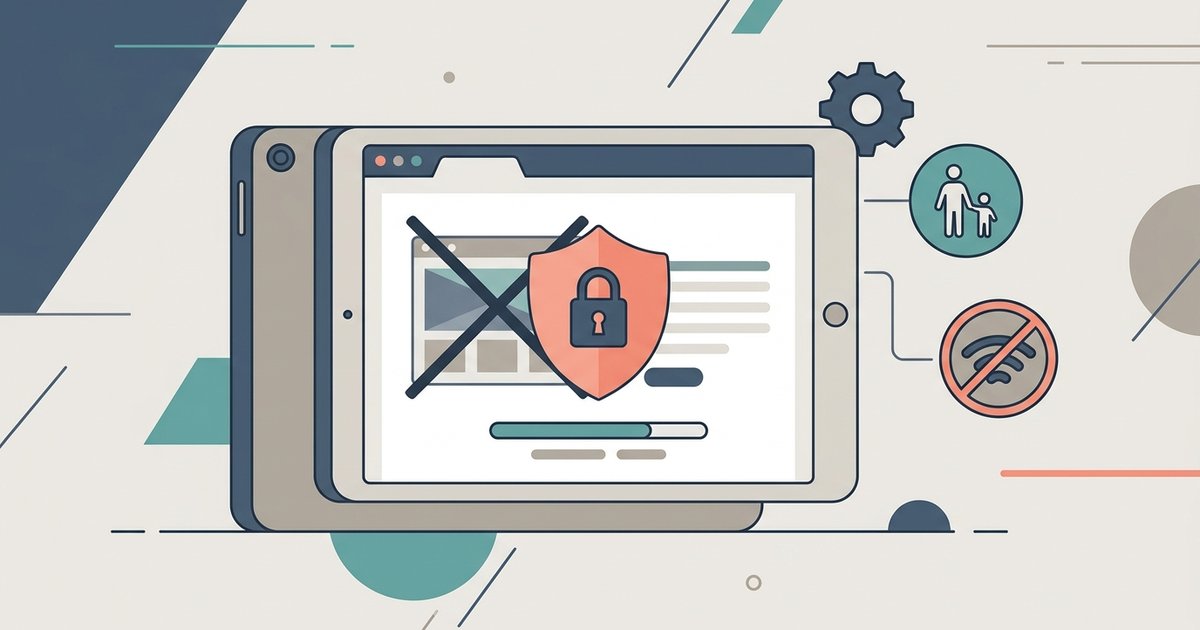
You can block adult content by changing your device's private DNS to a family-safe provider like CleanBrowsing or AdGuard DNS, which filters explicit sites at the network level without installing an app. This works on any Android tablet, iPad, or Fire tablet and doesn't require Google Family Link.
Use a private DNS filter to block adult content
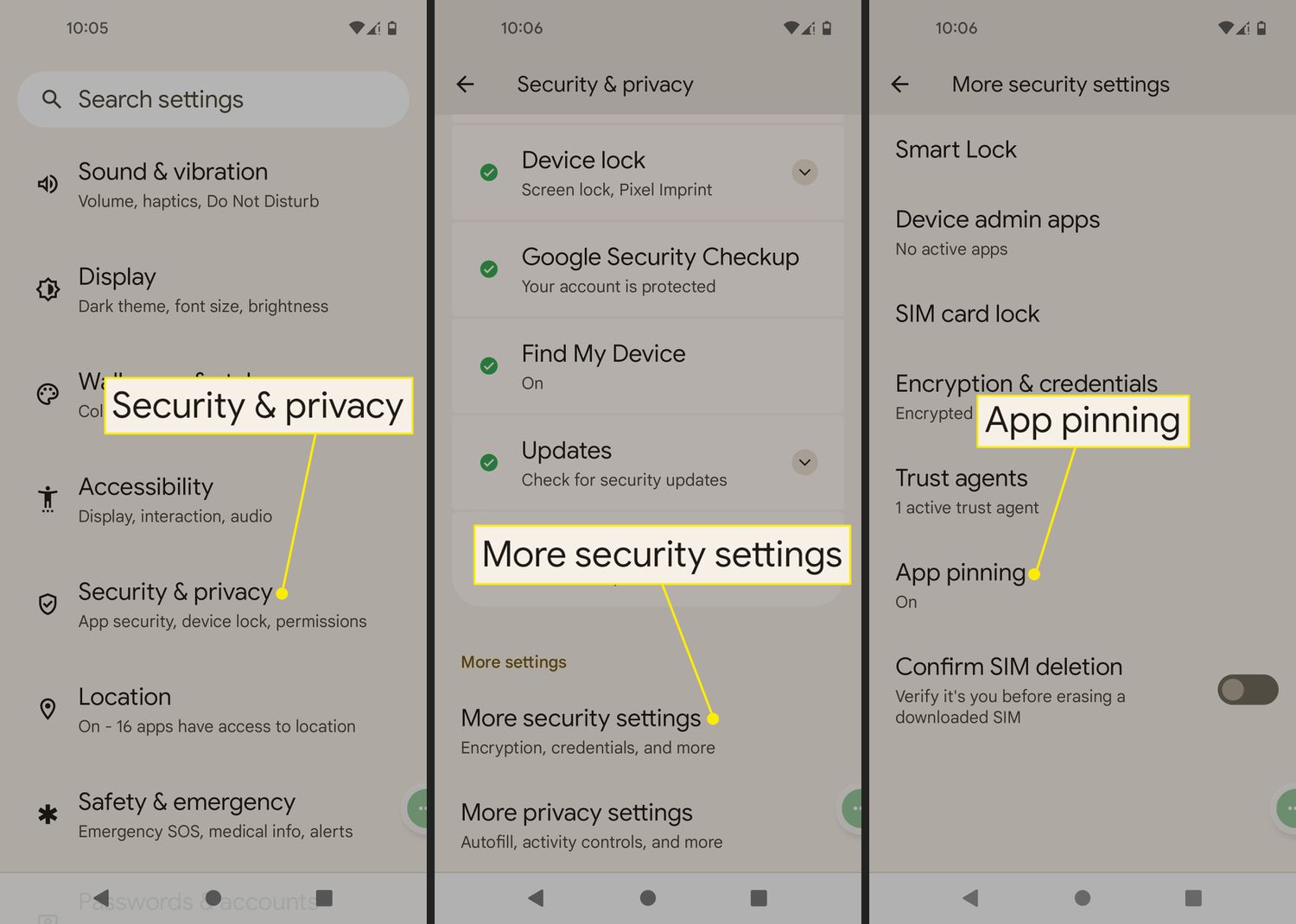
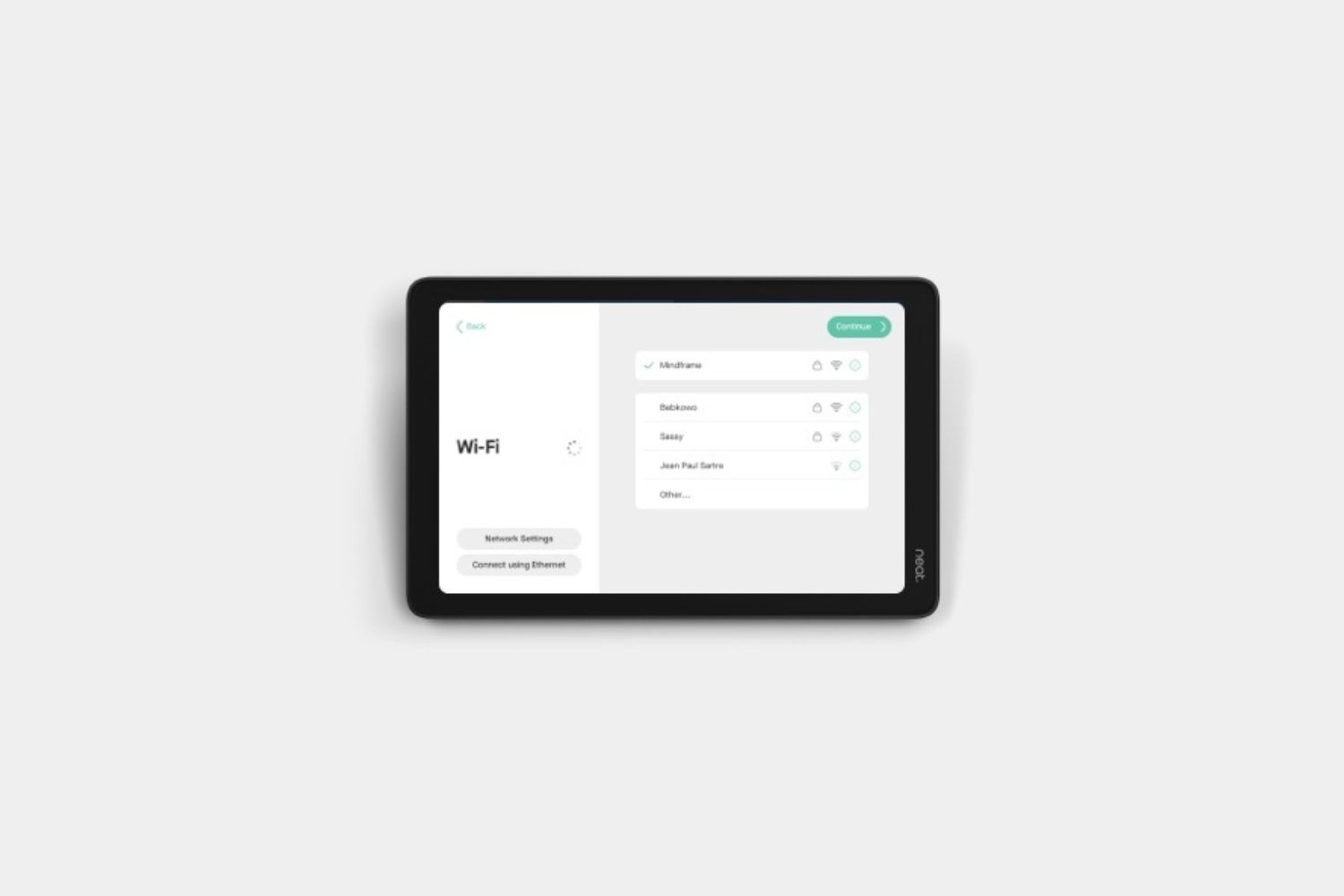
To block porn on a tablet, start by opening the device’s Wi‑Fi configuration. On Android tablets, go to Settings > Network & Internet > Advanced > Private DNS. Select “Private DNS provider hostname.” Then enter family-filter-dns.cleanbrowsing.org or dns.adguard.com. Tap Save. On an iPad, you can configure DNS by installing a configuration profile through Settings > General > VPN & Device Management, or by using a third-party app. Enter the same hostname. For Fire tablets, open Settings > Wi‑Fi and long‑press your network. Select “Modify Network” and check “Advanced Options.” Set IP to “Static.” Replace the DNS fields with 185.228.168.168 and 185.228.169.168, the CleanBrowsing family IPs. This filters all traffic on the device, blocking adult sites, malware, and many ads without any app. If you also want to restrict specific streaming channels, you can block apps on Roku TV to complement these network-level controls.
Set up screen time and content restrictions on iPad
If you want to bypass Google's family link and rely on Apple’s built‑in controls, use Screen Time. On the iPad, go to Settings > Screen Time > Turn On Screen Time. Tap “Use Screen Time Passcode” and set a code only you know. Next, tap “Content & Privacy Restrictions” and toggle it on. Under “Content Restrictions,” choose “Web Content” and select “Limit Adult Websites.” Safari will then automatically block known adult domains. You can add specific allowed or blocked sites under “Always Allow” and “Never Allow.” To prevent the child from changing these restrictions, ensure you have set a Screen Time Passcode that only you know. This method works entirely without Family Link and gives you granular control over browser access.
When the DNS trick fails and sites still load
A private DNS filter can fail if the browser uses its own secure DNS (DoH) that ignores your device‑level configuration. For example, Chrome on Android can bypass the filter by default. To close this loophole, go to Chrome’s options and search for “Secure DNS.” Set it to “Use your current service provider” instead of “Choose another provider.” On iPad, Safari respects the DNS profile, but third‑party browsers like Firefox may not. You can either delete those browsers or set Screen Time to block all browsers except Safari. If you need to turn off parental controls temporarily for legitimate reasons, you can reverse the DNS setting by switching back to “Automatic” or removing the profile. Re‑apply it when supervision resumes. For an extra layer, consider pairing the DNS filter with a dedicated browser app like “Kids Browser” that forces its own filtering. This combination ensures that even if the DNS is bypassed, the browser itself still blocks adult content. No single method is foolproof, but DNS plus browser guard covers the vast majority of attempts to access explicit material. This is separate from tablet filtering but useful for a unified home approach.
Unlike a standard app, a private DNS filter enforces content blocking at the network level, so it cannot be uninstalled or closed by the person using the tablet. For a deeper understanding of managing digital boundaries, setting up parental controls is just the beginning, our broader guide on Parental Controls: Setting Them Up and Turning Them Off covers everything from initial configuration to safely adjusting or removing restrictions as needed.