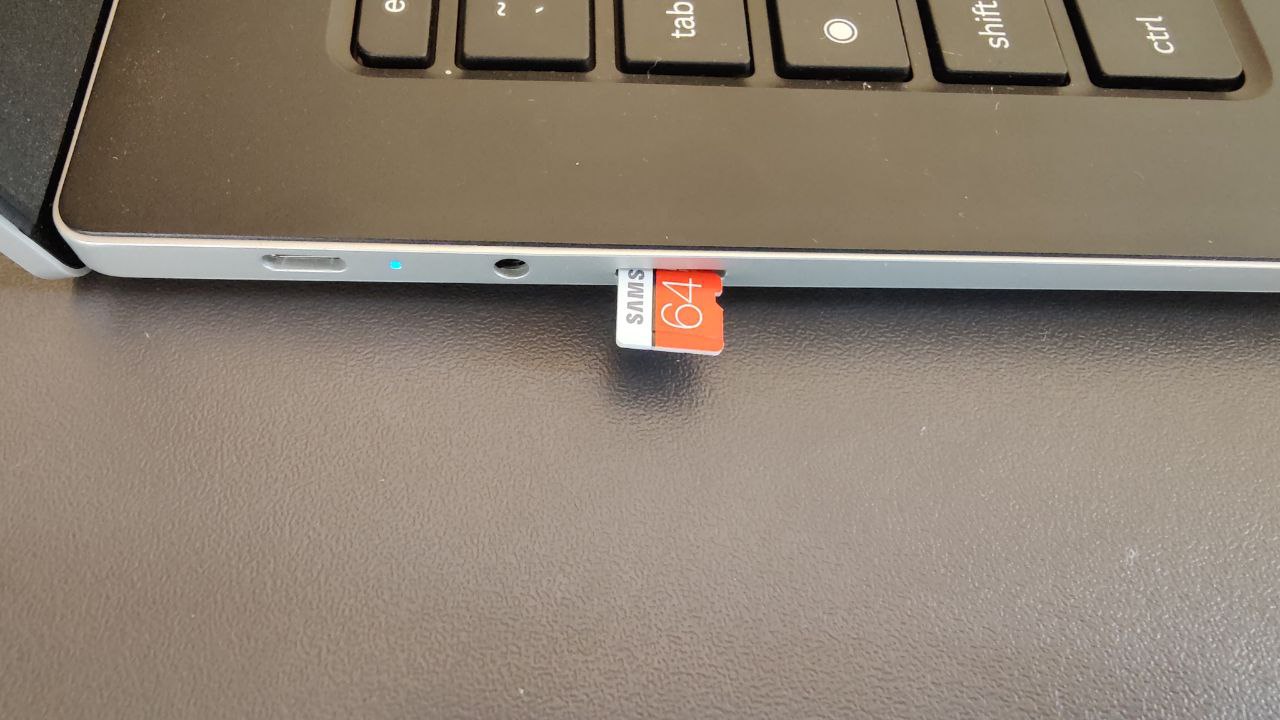
To access an SD card on Chromebook, insert the card into the slot and open the Files app. This process lets you view, manage, and transfer files to expand your Chromebook's limited built-in storage.
Before you start: Does your Chromebook have an SD card slot?
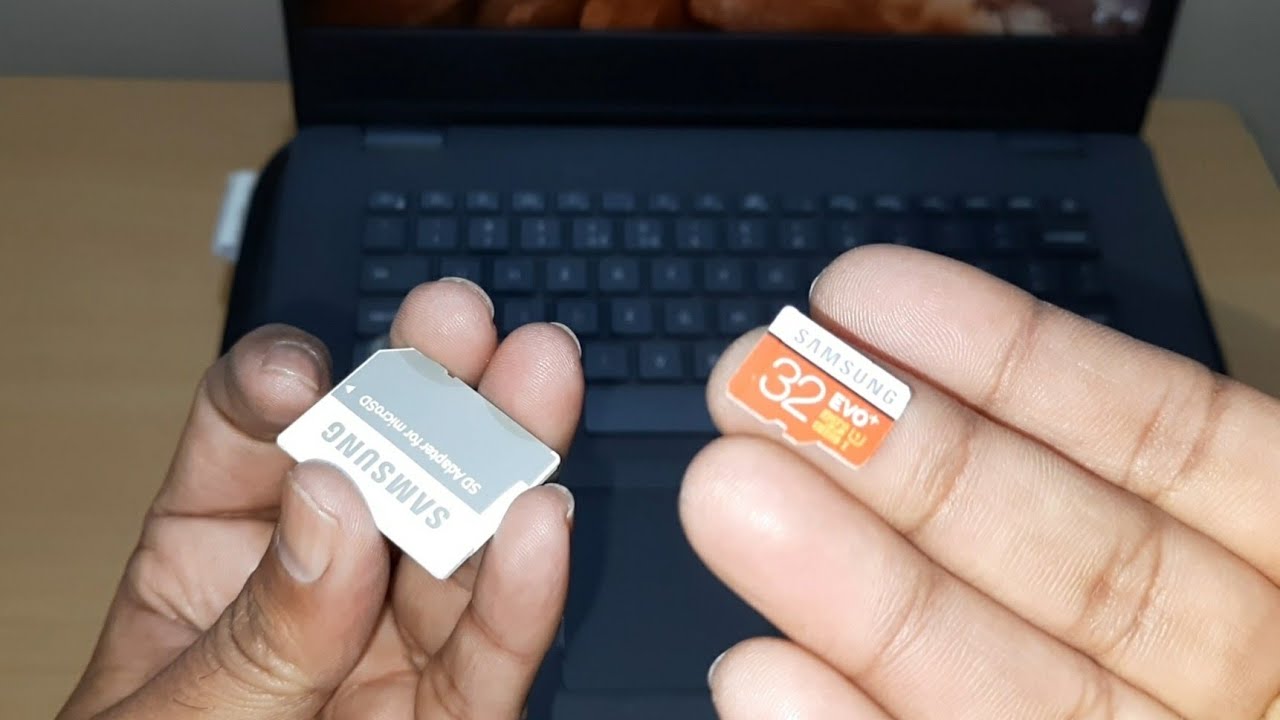
Not every Chromebook model includes an SD card slot. Check your device's specifications to see if a built-in slot is present. Newer or compact Chromebook models sometimes omit the SD card slot to save space. Some Chromebooks may only have USB ports, requiring a USB SD card reader or adapter for SD card access.
How to access SD card on Chromebook by inserting it
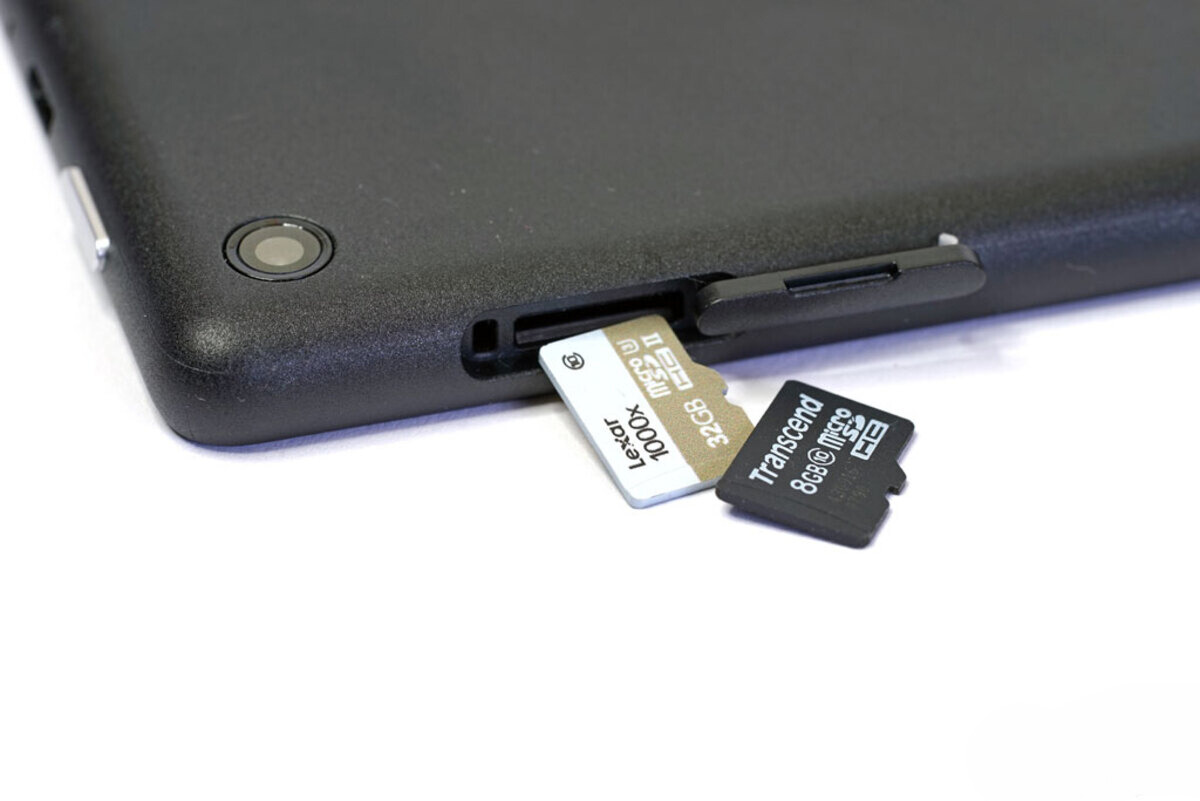
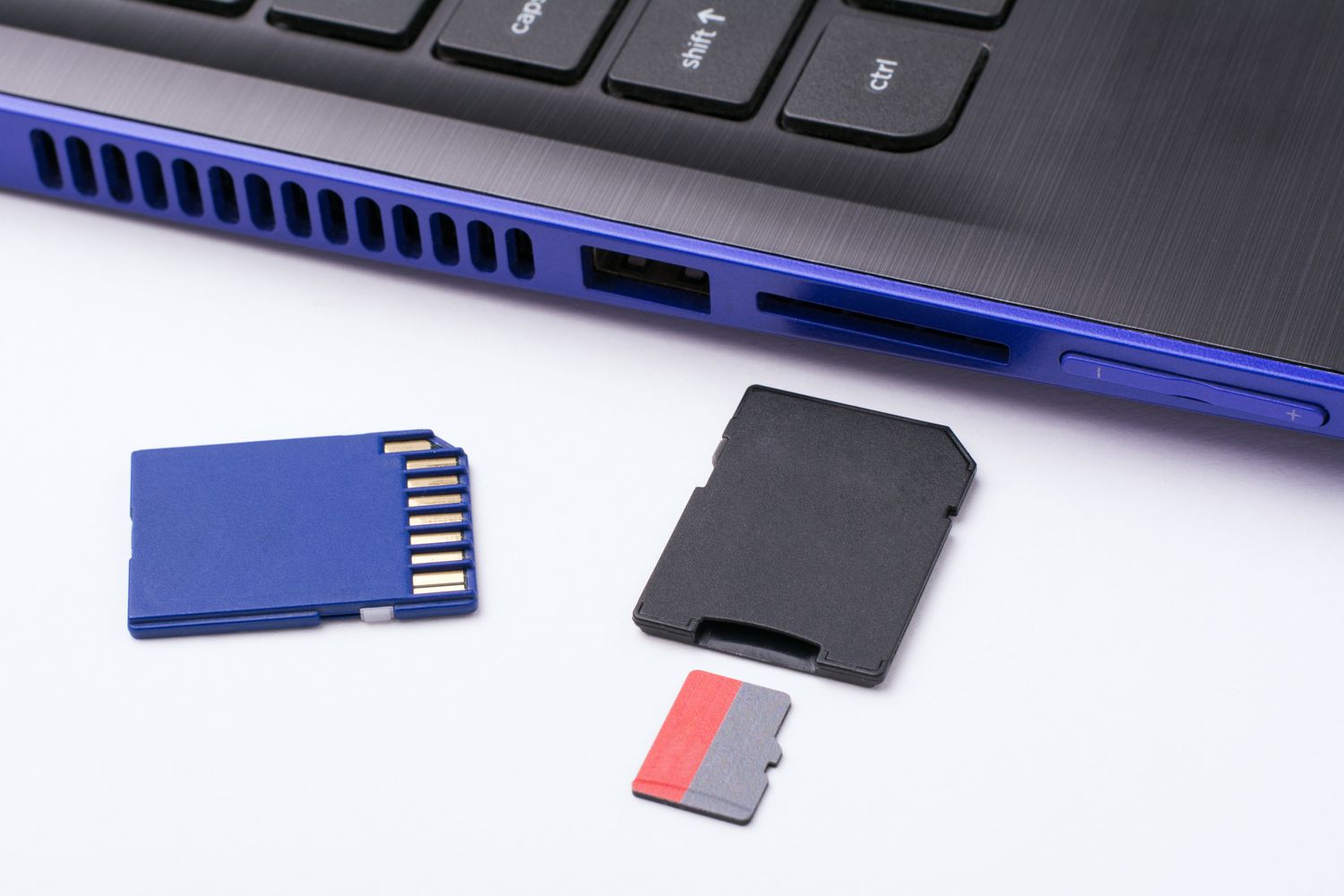
Locate the SD card slot on your Chromebook, usually on the side or back of the device and labeled with an SD card icon. Gently push the SD card into the slot until you hear a click or feel it securely in place. Ensure the card is properly oriented, the metal contacts should face toward the Chromebook, and not protruding from the slot.
Open the Files app to view your SD card
Launch the Files app from your app launcher. Look for your SD card listed in the left sidebar under 'External Storage'. Click on the SD card to view its contents.
Manage and transfer files to and from the SD card
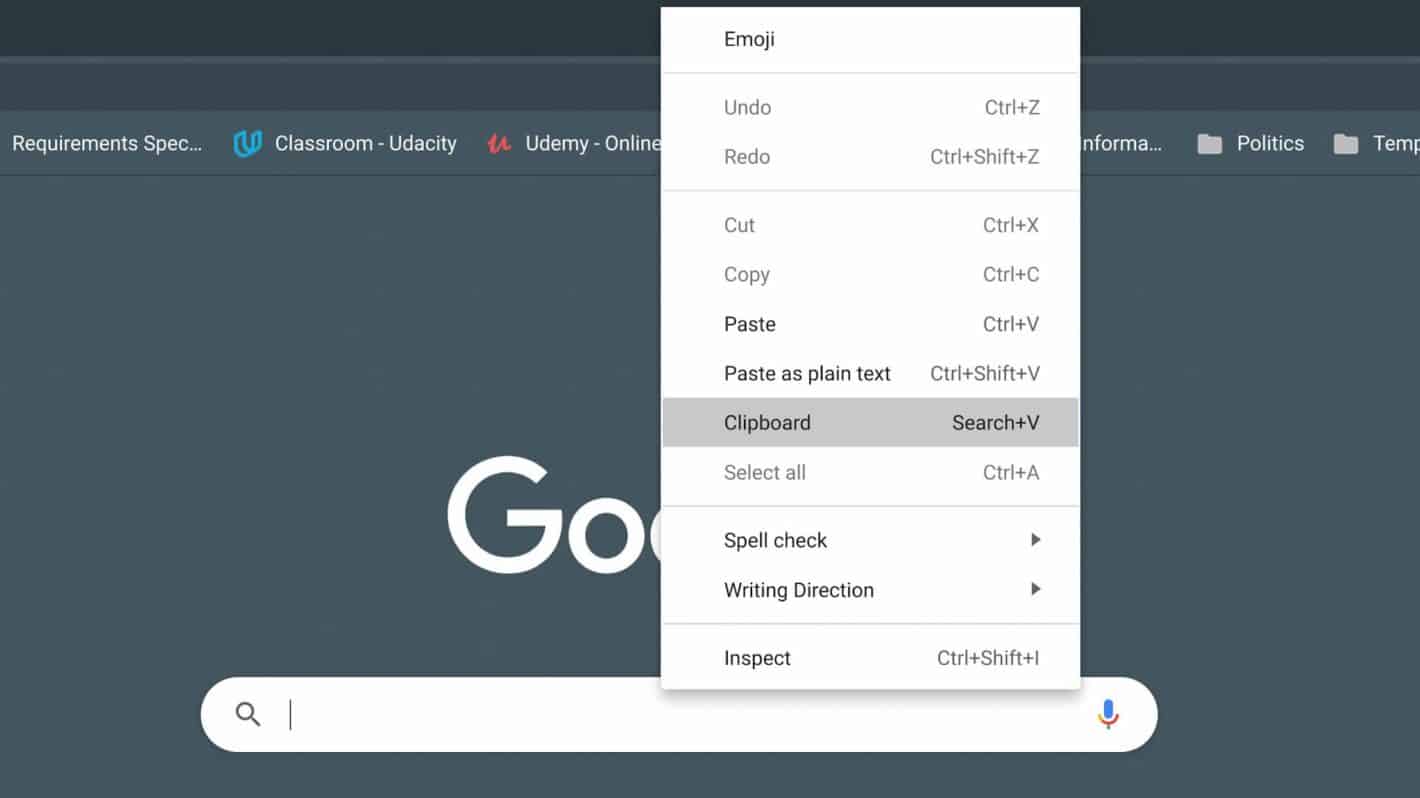
Click on the SD card to view, move, or copy files as needed. To transfer files, select the files you want to move, copy them (using the right-click menu or keyboard shortcut), navigate to the destination folder on the SD card or internal storage, and paste them. For example, if you need more space to get sims 4 on Chromebook, you can move game files to the SD card to free up internal storage. You can also create new folders on the SD card to organize your files.
How to safely eject the SD card
In the Files app, click the eject icon next to the SD card's name in the sidebar. Wait for the safe removal notification before physically removing the card from the slot. This prevents data loss or damage to the SD card.
Troubleshooting: SD card not showing up on Chromebook
If the SD card is not visible, try removing and reinserting it. Restarting your Chromebook may also resolve issues with the card not appearing. If problems persist, the card may need formatting. SD cards may need to be formatted to FAT32 or exFAT for Chrome OS compatibility. To format an SD card, insert it into the Chromebook, open the Files app, and in the sidebar click on the SD card device. Click the three-dot menu in the top-right corner of the Files app, or right-click on the SD card in the sidebar, then select the "Format device" or "Format media" option. FAT32 is generally recommended for formatting as it ensures compatibility with Windows, macOS, Linux, and Android for both reading and writing files. Reformatting an SD card can help solve errors and potentially improve read and write times. Also check your Chromebook's manual or online specifications for the maximum supported SD card capacity.
\nRelated reading: How To Download Movies Onto SD Card.