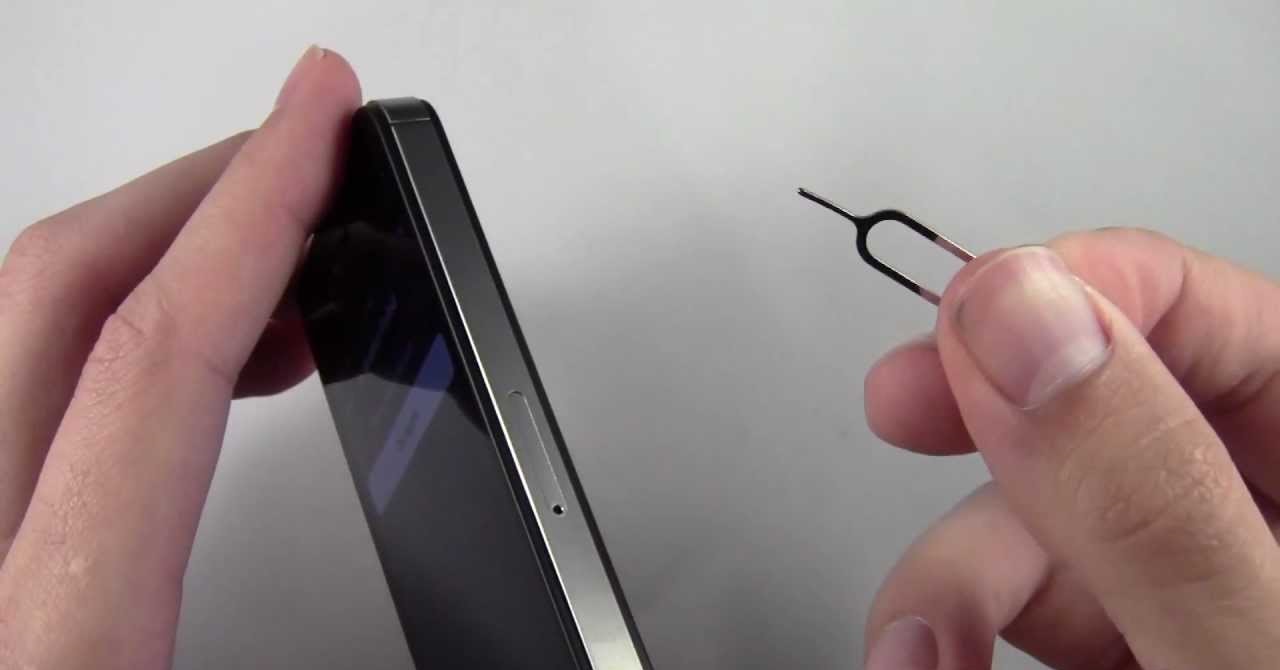
To remove an SD card from an iPhone, you are actually disconnecting an external SD card reader adapter, since iPhones do not have a built-in SD card slot. The process is simple: safely eject the card from the Files app, then physically unplug the adapter from your iPhone’s Lightning or USB-C port.
How to remove an SD card from an iPhone adapter
iPhones have never included a physical SD card slot, so the only way to use an SD card is through a compatible adapter. For Lightning iPhones, you need the Lightning to SD Card Camera Reader, the Lightning to USB Camera Adapter, or the Lightning to USB 3 Camera Adapter. For USB-C iPhones (iPhone 15 and newer), you can plug an SD card reader directly into the USB-C port, or use a USB-C to SD Card Camera Reader. To remove the SD card from the adapter, first make sure the iPhone is not actively reading or writing data, then gently pull the adapter out of the iPhone’s port, and slide the SD card out of the reader slot.
Importing photos from the SD card to your iPhone first
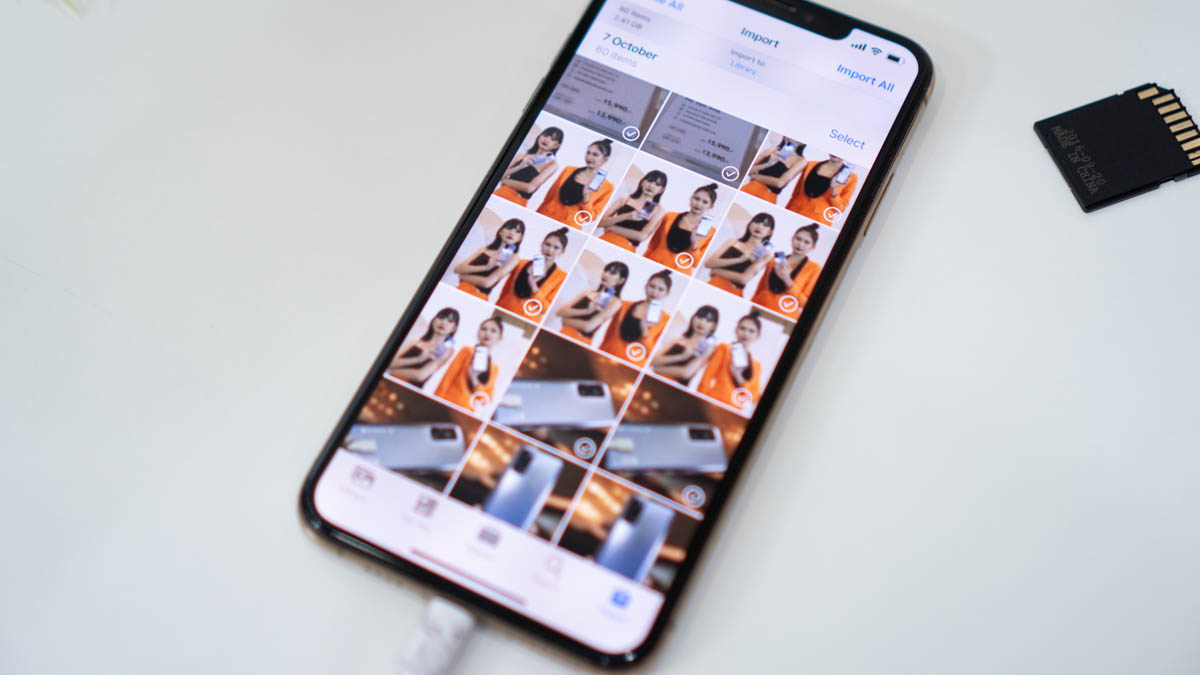
Before you remove the SD card, import your photos and videos so nothing is lost. Here’s how to do it through the Photos app:
- Connect the SD card reader to your iPhone and insert the SD card.
- Open the Photos app; an Import tab should appear automatically.
- Select the photos and videos you want to import, or tap Import All.
- Wait for the import to complete, then choose to delete or keep the items on the SD card.
- Once the import finishes, you can safely disconnect the adapter.
This ensures your media is saved to the iPhone’s internal storage before you remove the card, so you don’t risk losing any files during the disconnection process.
Accessing SD card files with the Files app
The Files app lets you browse, copy, or export files from the SD card reader directly. To access the card, open the Files app and tap the external drive name under Locations. You can preview documents, copy files to the iPhone’s On My iPhone folder, or export them to another app. When you’re done, tap the eject icon next to the external drive name in Locations before physically pulling out the adapter. This step is critical because it tells iOS to stop reading the card, preventing data corruption.
Power and formatting requirements for SD card readers
Your SD card must be formatted as APFS, APFS (encrypted), macOS Extended (HFS+), exFAT, or FAT32, and it must have a single data partition to work with an iPhone. If the card isn’t recognized, reformat it on a computer using one of those formats. External hard drives connected via SD card readers often require external power; for USB-C iPhones, use a powered USB hub, and for Lightning iPhones, connect the Lightning to USB 3 Camera Adapter to a USB power adapter. Without sufficient power, the reader may not mount the card, so check your power source if nothing appears in the Files app.
What to try if the adapter is physically stuck
If the Lightning or USB-C connector won’t detach from your iPhone, do not yank it. First, power off the iPhone by holding the side button and either volume button until the slider appears, then slide to power off. Gently rock the adapter side-to-side while pulling straight out; avoid twisting, which can damage the port. If it remains stuck, use a plastic spudger or the edge of a credit card to carefully pry between the adapter and the iPhone housing. Never use metal tools, as they can short-circuit the port. If the connector still won’t budge, visit an Apple Store or authorized repair provider rather than forcing it.
Transferring without an SD card reader: cloud and direct cable methods
If you don’t have an SD card reader, you can transfer files using iCloud Photos, AirDrop, or a direct USB cable to a Mac or PC. To use iCloud Photos, enable iCloud Photos in Settings, and your images will sync across devices. AirDrop works wirelessly between Apple devices; select the photos, tap Share, and choose AirDrop. For a wired connection, plug your iPhone into a Mac or PC with a USB cable, then use the Photos app on Mac or the Windows Photos app to import. You can also use cloud services like Google Drive or Dropbox to upload files from the iPhone and download them elsewhere. For large files, consider a wireless storage device like the SanDisk Extreme Portable SSD, which connects over Wi-Fi and works with the Files app without any adapter, learn how to use SanDisk extreme portable SSD with iPhone for a seamless setup. If you need to get footage from a camera’s card onto your phone first, you can transfer video from sd card to iPhone before using any of these options. These methods bypass the need for an SD card reader entirely, giving you flexibility when transferring data to or from your iPhone.
\nRelated reading: How To Access SD Card On Chromebook.