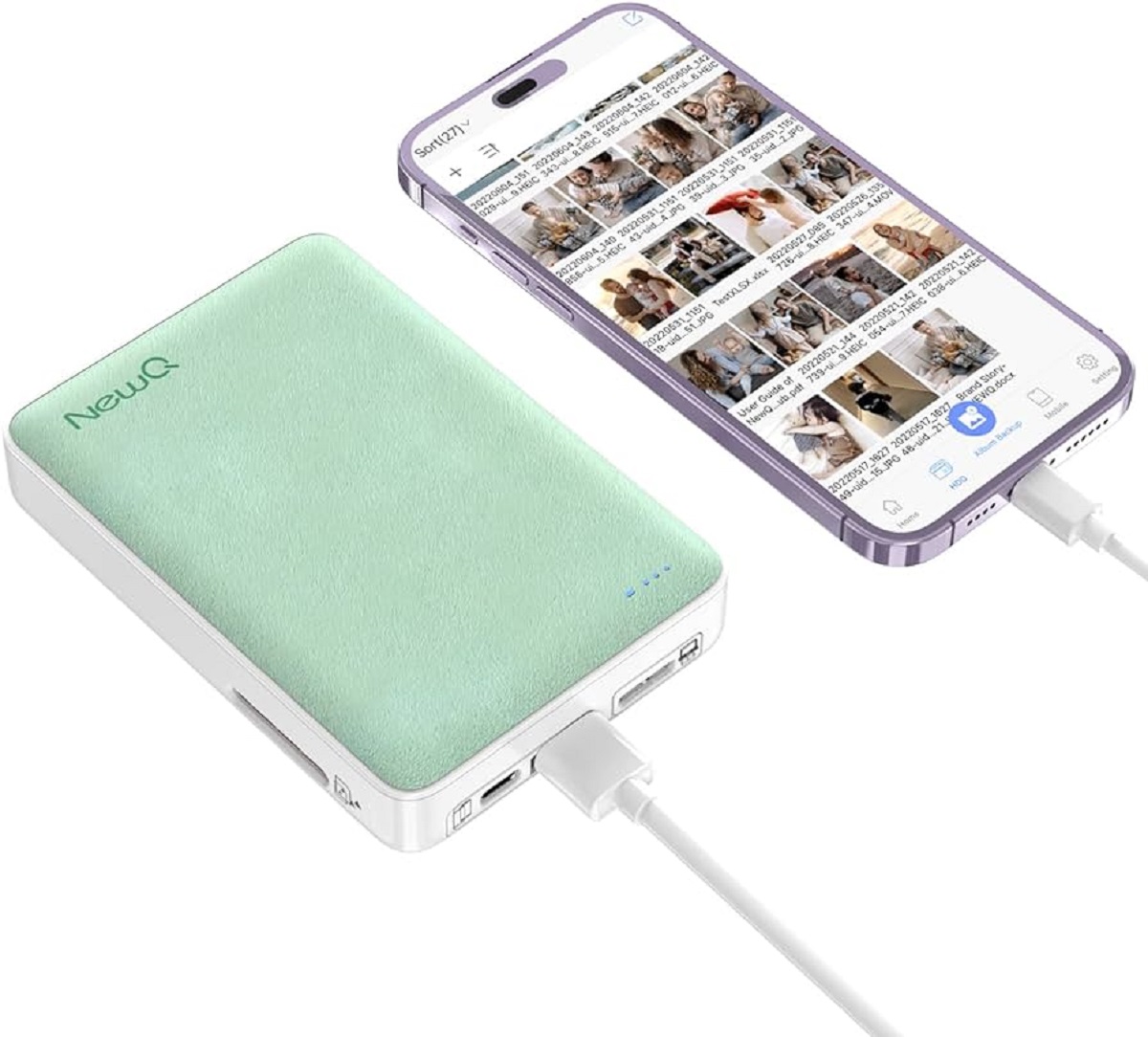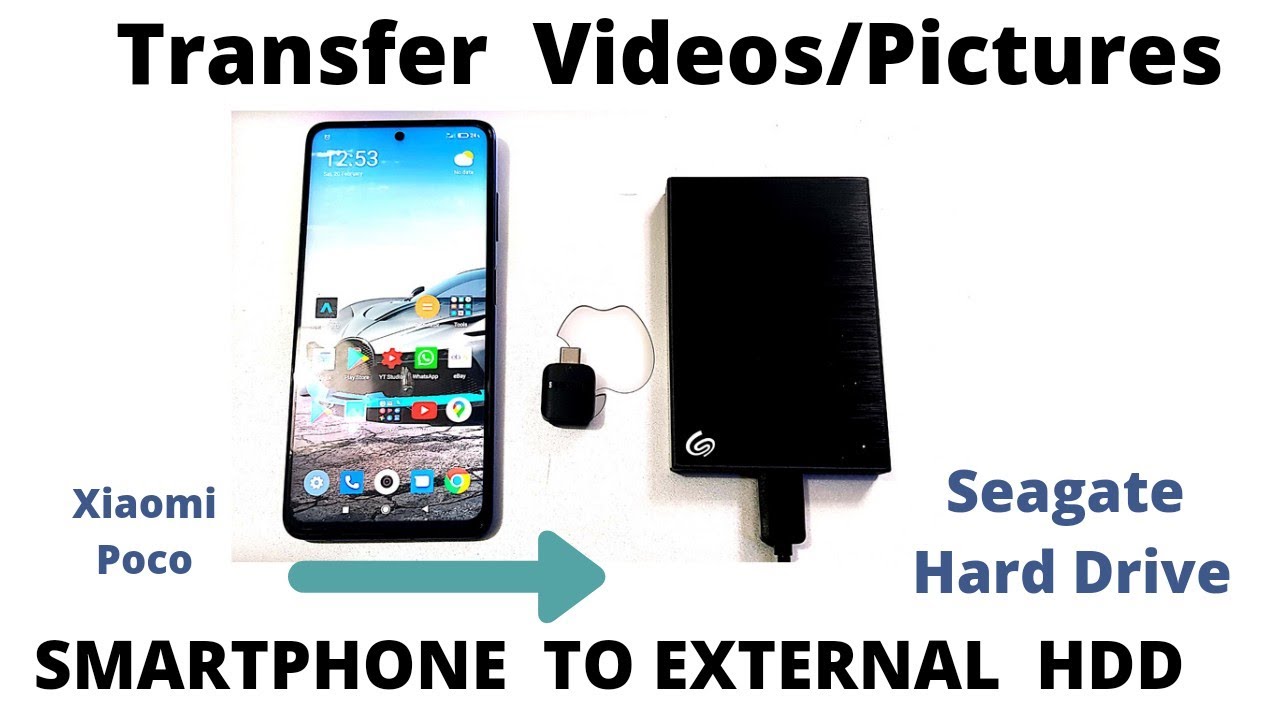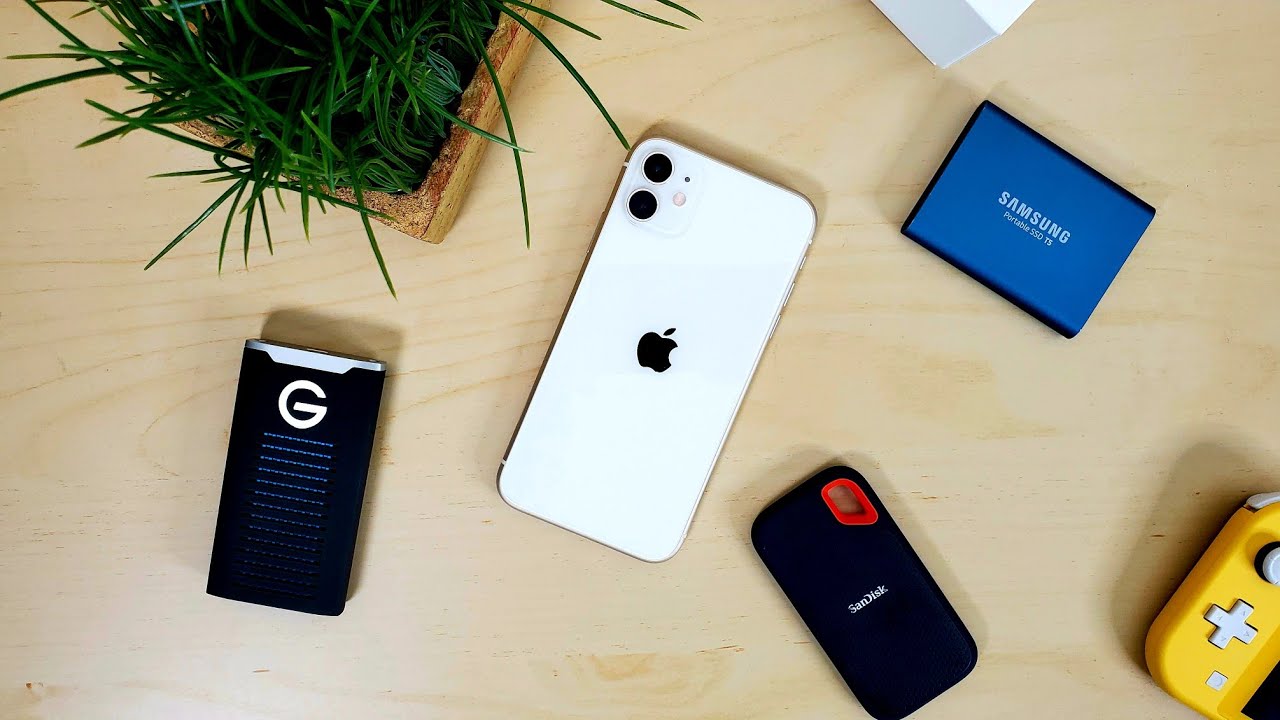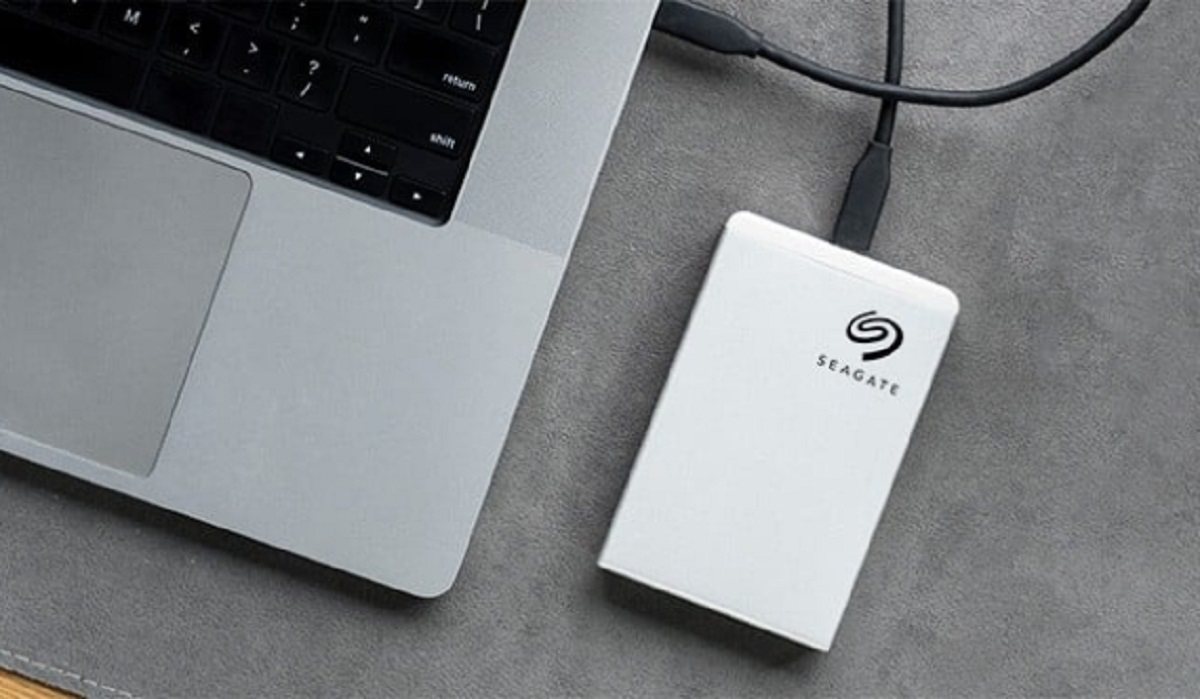
To transfer photos from iPhone to Seagate external hard drive, connect the drive to your iPhone and use the built-in Photos app to save your images directly. This frees up storage on your phone while keeping your memories safely backed up on a reliable external drive.
What you need to transfer photos from iPhone to Seagate external hard drive
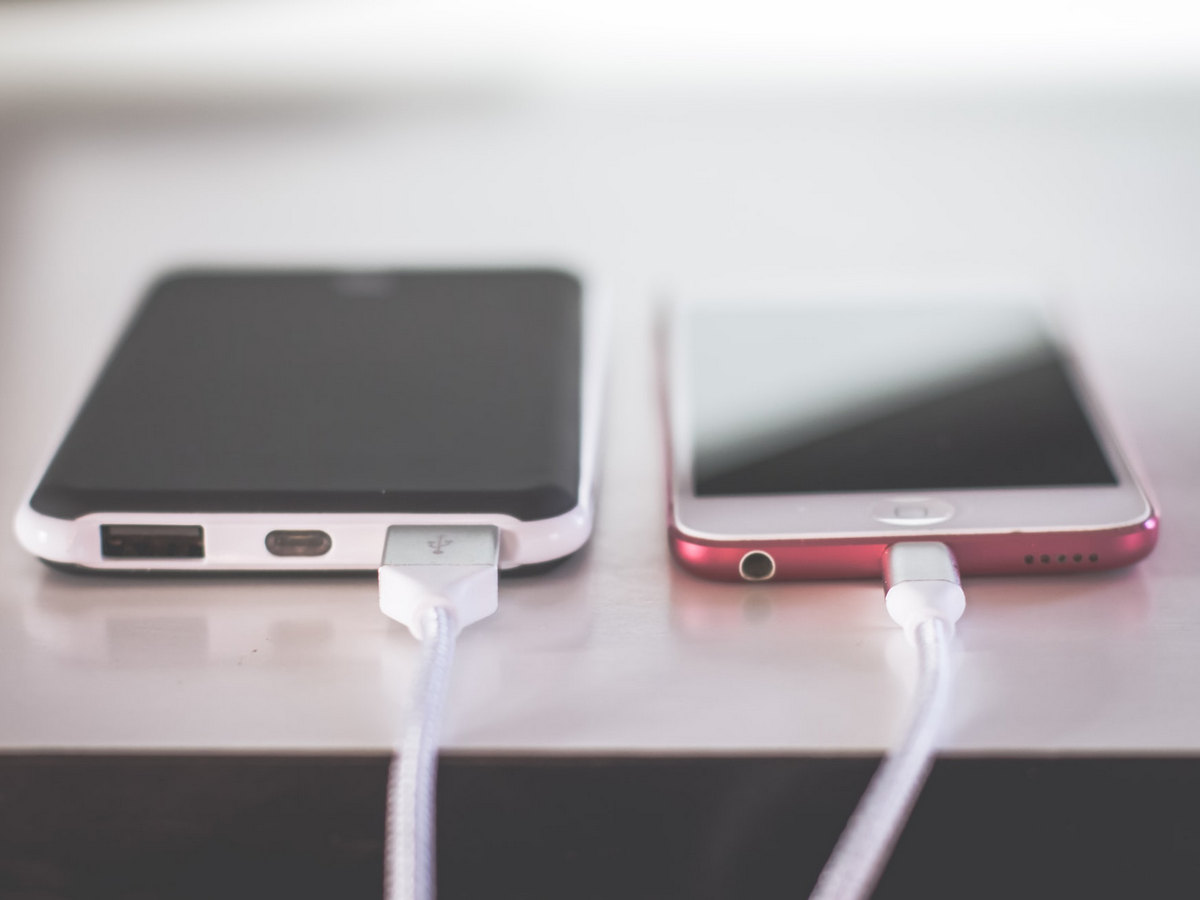
Newer iPhones with a USB-C port (iPhone 15, 15 Plus, 15 Pro, 15 Pro Max and later) can connect directly to Seagate external drives that also have a USB-C port. For iPhones with a Lightning connector, you need a Lightning to USB 3 Camera Adapter, which is sold separately, to connect an external hard drive. External hard drives often require an external power source when connected directly to an iPhone. If your iPhone has USB-C, use a powered USB hub. If it has Lightning, use the Lightning to USB 3 Camera Adapter connected to a USB power adapter. The external drive must be formatted as APFS, APFS (encrypted), macOS Extended (HFS+), exFAT (FAT64), FAT32, or FAT to be compatible with iPhone direct connection.
How to transfer photos directly from iPhone to Seagate drive
This method lets you transfer pictures to a Seagate external hard drive without needing a computer, keeping the process quick and portable.
- Connect the Seagate external hard drive to your iPhone using the appropriate cable or adapter.
- Open the Photos app on your iPhone.
- Select the desired photos and videos by tapping on them.
- Tap the Share icon (a square box with an upward arrow).
- Choose "Save to Files" from the sharing options.
- Under Locations, select your Seagate external hard drive.
- Tap "Save" to begin the transfer.
The selected photos will copy directly to the drive. Keep your iPhone connected to a power source during the transfer to avoid interruptions.
Transfer photos using a Windows PC
If you prefer to use a computer as an intermediary, this method lets you transfer your photos to an external hard drive using a familiar desktop workflow.
- Connect your iPhone to a Windows PC using a USB cable.
- Connect the Seagate external hard drive to the same Windows PC.
- Open the Photos app on your Windows PC.
- Click "Import" and choose "From a USB device."
- Select your iPhone from the list of devices.
- Choose the photos you want to import.
- Select your Seagate external hard drive as the save location.
- Click "Import" to transfer the photos.
This method works well if you already have your computer set up and want to manage your photo library on a larger screen.
What to do if iCloud Photos is enabled
If iCloud Photos is enabled and "Optimize iPhone Storage" is active, full-resolution photos may not be stored locally on your device. Before you can successfully move files from iCloud to external hard drive, those photos need to be downloaded from iCloud first. When using a Windows PC to transfer, the Photos app will handle this download automatically as part of the import process. For direct iPhone-to-drive transfers, ensure each photo has fully downloaded to your device before selecting it for transfer. You can check this by looking for a cloud icon next to the photo in the Photos app, if present, the photo is still stored only in iCloud and needs to be downloaded first.
Using a Seagate wireless drive
For compatible Seagate wireless storage devices, you can bypass cables entirely. Download the free Seagate Media app from the iOS App Store, connect your iPhone to the device's Wi-Fi network, and use the app to transfer your photos. This approach is especially useful if you want to organize Google photos or other media without being tethered to a physical connection. The wireless method works only with Seagate drives that specifically support wireless connectivity, so check your drive's specifications before relying on this option.