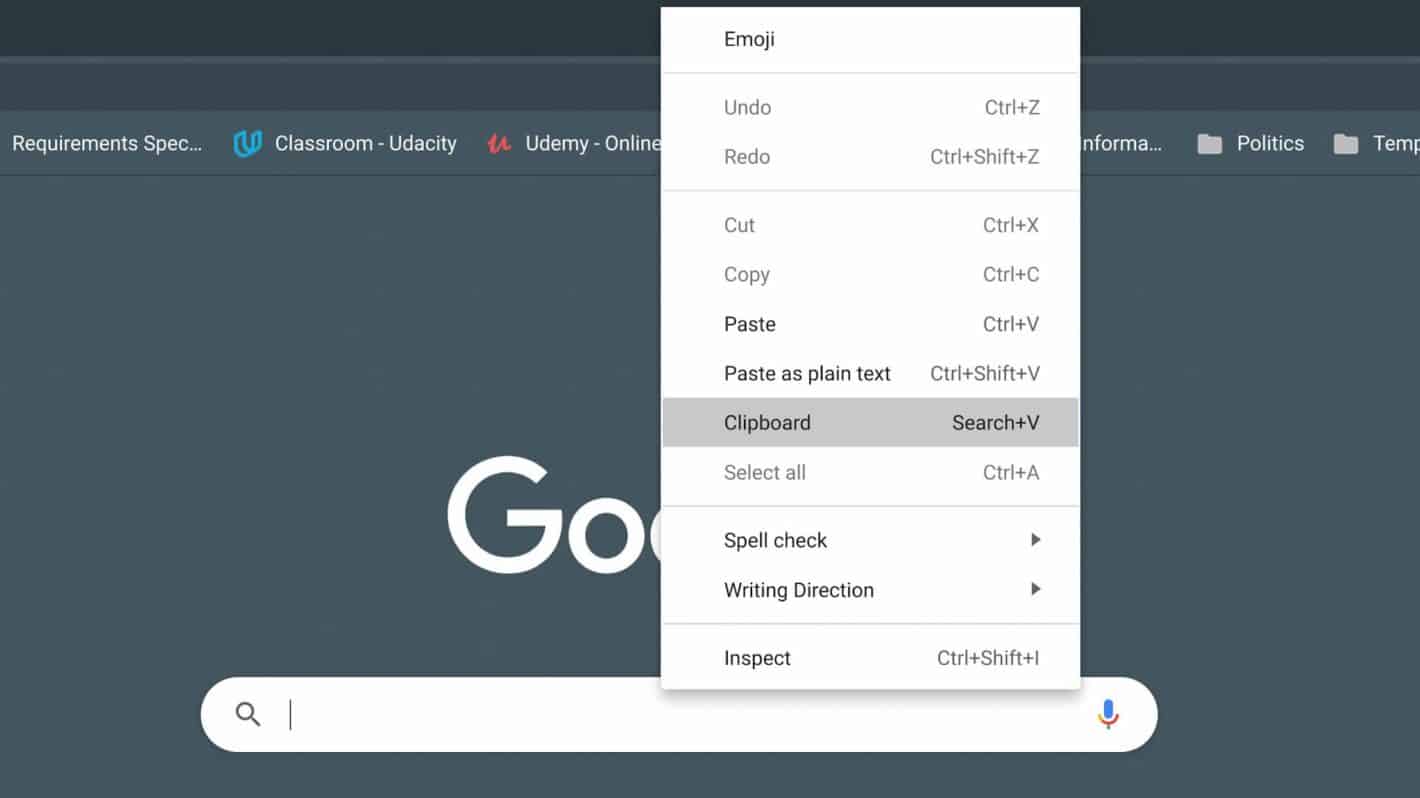
To access your Chromebook clipboard history, press the Search (or Launcher) key + V on your keyboard. This opens a small pop-up showing your five most recently copied items, letting you click any one to paste it instantly, no extra setup required.
How to open your Chromebook clipboard history
The built-in clipboard manager on Chrome OS is the fastest way to see what you’ve copied. Just hit the Search key (the one with the magnifying glass or launcher icon) and the V key at the same time. A small panel appears near your cursor, listing your last five copied text snippets or images in order.
To paste an item from that list, simply click on it. The selected item becomes your active clipboard content, and you can paste it anywhere with Ctrl + V or by right-clicking and choosing “Paste.” This is perfect when you’re copying multiple things in a row, like a phone number, an address, and a code snippet, and need to switch between them without going back to the source.
One important limitation to keep in mind: your Chromebook clipboard history is session-based. The moment you restart or shut down your Chromebook, that history is wiped clean. So if you copied something yesterday and haven’t restarted since, it’s still there, but after a reboot, only new copies will appear. This is by design, not a bug, and it’s a trade-off for the built-in tool’s simplicity.
How to get unlimited clipboard history on a Chromebook
If five items isn’t enough, or you’re tired of losing everything on reboot, you need a third-party extension. The built-in clipboard has no search, no pinning, and no persistence across restarts, so for serious clipboard work, an extension is the way to go.
Head to the Chrome Web Store and search for “Clipboard History Pro” (or a similar clipboard manager). Install it like any Chrome extension, click “Add to Chrome” and confirm the permissions. Once installed, you’ll see its icon near the top-right of your browser window.
Click that icon to open a full clipboard manager. Unlike the built-in tool, this extension keeps an unlimited history of everything you copy, even after you restart your Chromebook. You can scroll through past items, search for specific text, and pin frequently used snippets so they never get buried. To paste, just click any entry in the list, it copies to your clipboard, and you can drop it anywhere with Ctrl + V.
This is the solution when you’re juggling research, writing, or data entry and need to retrieve something you copied hours ago, or last week. The extension stores everything locally, so your privacy stays intact, and you can clear the history manually whenever you want.
Troubleshooting your Chromebook clipboard
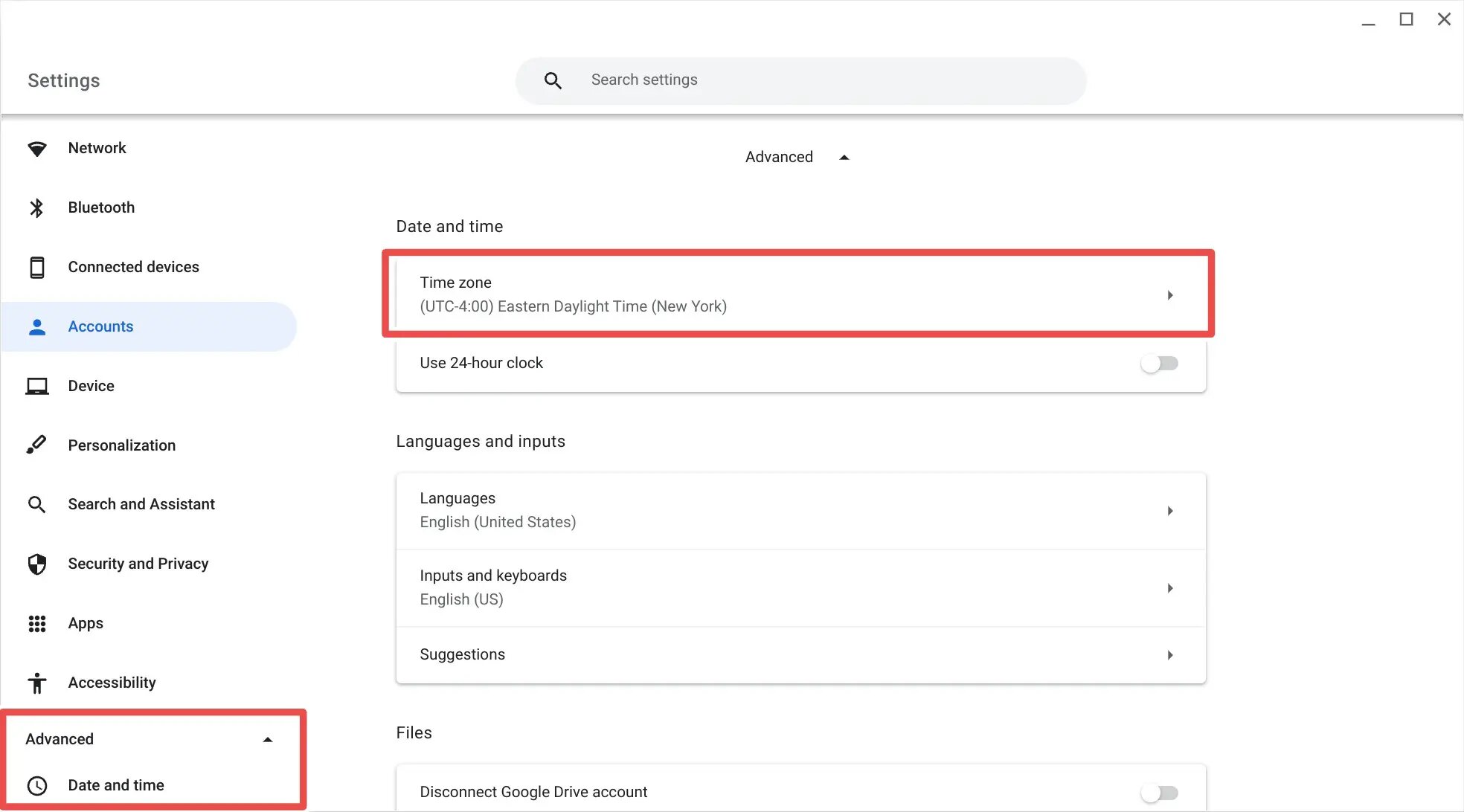
If the Search + V shortcut doesn’t open your clipboard history, the first thing to check is whether your Chromebook is up to date. Go to Settings > About Chrome OS and check for updates. Outdated systems sometimes lack the clipboard history feature, and a quick update usually fixes it.
If you’re already on the latest version, try restarting your Chromebook. A simple reboot clears temporary glitches and reinitializes the clipboard service. After it comes back up, copy something new (like this sentence) and press Search + V again, it should work.
Another common issue: the shortcut uses the Search key, not Ctrl or Alt. Press that plus V, not Ctrl + V.
Finally, remember that the history is session-based. If you just rebooted, the clipboard is empty, that’s normal. Copy a few items first, then try the shortcut. If you need history that survives restarts, install a clipboard extension like Clipboard History Pro, which keeps your data persistent across sessions.
\nRelated reading: How To Rotate Your Screen On Chromebook, How To Flip A Screen On A Chromebook, and How To Control Alt Delete On Chromebook.