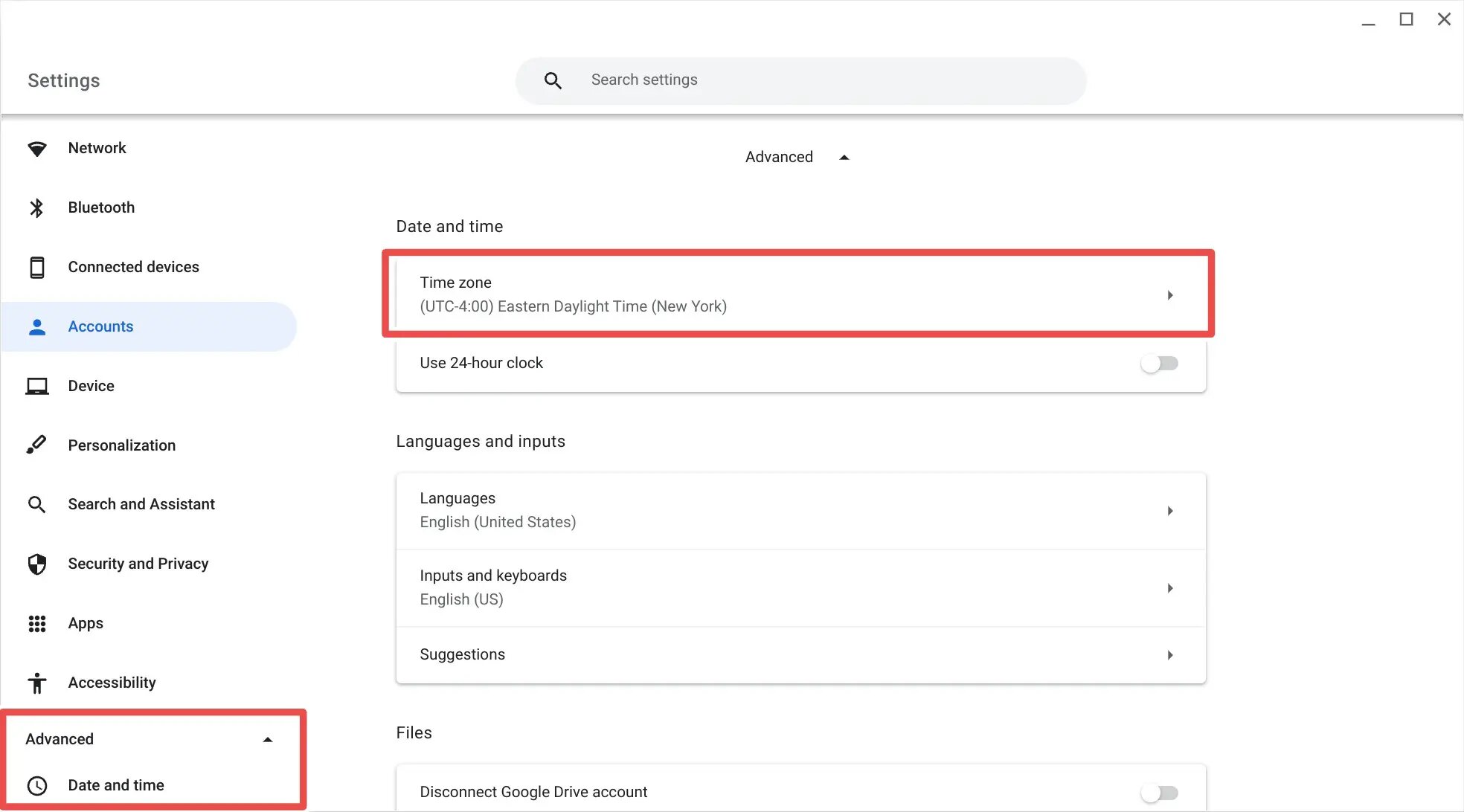
You can't unlock this yourself—only your admin can change it from the Google Admin console. Ask them to move your device to an organizational unit that has the 'Time zone' user setting allowed, or to set the correct time zone for your device manually.
What to tell your administrator for time zone unlock
When you contact your admin, give them the exact path to the policy so they don't waste time searching. In the Google Admin console, they must navigate to the Chrome device settings for Users & browsers. Then, under the User settings section, locate the setting labeled Time zone. This setting has four options. Your admin needs to select the option that allows users to decide their time zone and apply it to the organizational unit that contains your device. Once unlocked, you can change time zone on Chrome directly from your system settings.
Why your admin might say no
Administrators often lock time zone settings for legitimate reasons. The most common is exam security. If you could change the time zone, you could shift the system clock to bypass timed test deadlines or proctoring windows. Another reason is network authentication. Many school and corporate networks use time-sensitive certificates that break if the Chromebook's clock drifts more than a few minutes from the server's time. A district-wide policy lock is also typical. The IT department may require all devices in a specific OU to use a fixed time zone to simplify scheduling, log auditing, or compliance reporting. If your admin refuses, ask if they can at least set the correct time zone manually for your device rather than leaving it on a wrong default. It won't fix the system clock on a managed Chromebook, but you can still change the time on a Chromebook if the device is later unenrolled.
If the setting is allowed but still grayed out
Even if your admin enables user control for the time zone, the Chromebook may still block the change. This usually happens because of a conflicting device-level policy. Another common cause is a kiosk app or managed guest session policy that locks the clock. If you see the setting grayed out after your admin says they allowed it, ask them to check the device-level time zone policy. Also confirm that your device is in the correct OU. Sometimes a device falls into a parent OU that has a stricter policy. As a last resort, your admin can manually set the time zone for your device through the Admin console policy. This will force the correct clock regardless of user controls. The Chromebook requires admin intervention.
The Chromebook requires admin intervention because the system clock is locked by a managed policy that no end-user workaround can override. For more on changing the time and time zone, see our broader guide on How to Change the Time and Time Zone on Your Devices.