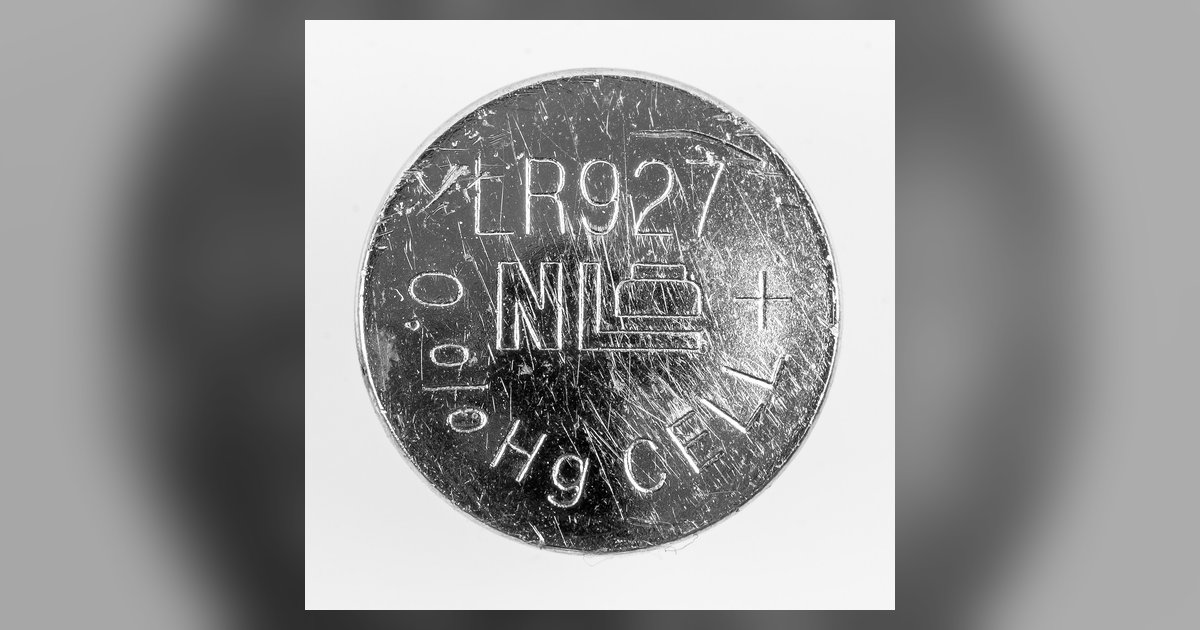
Your Chromebook's internal real-time clock (RTC) battery is dead or disconnected, so the device loses track of time whenever it loses main power. It will correct itself once you connect to Wi-Fi, but only if automatic time sync is enabled and working.
The CMOS battery causes the Chromebook clock reset
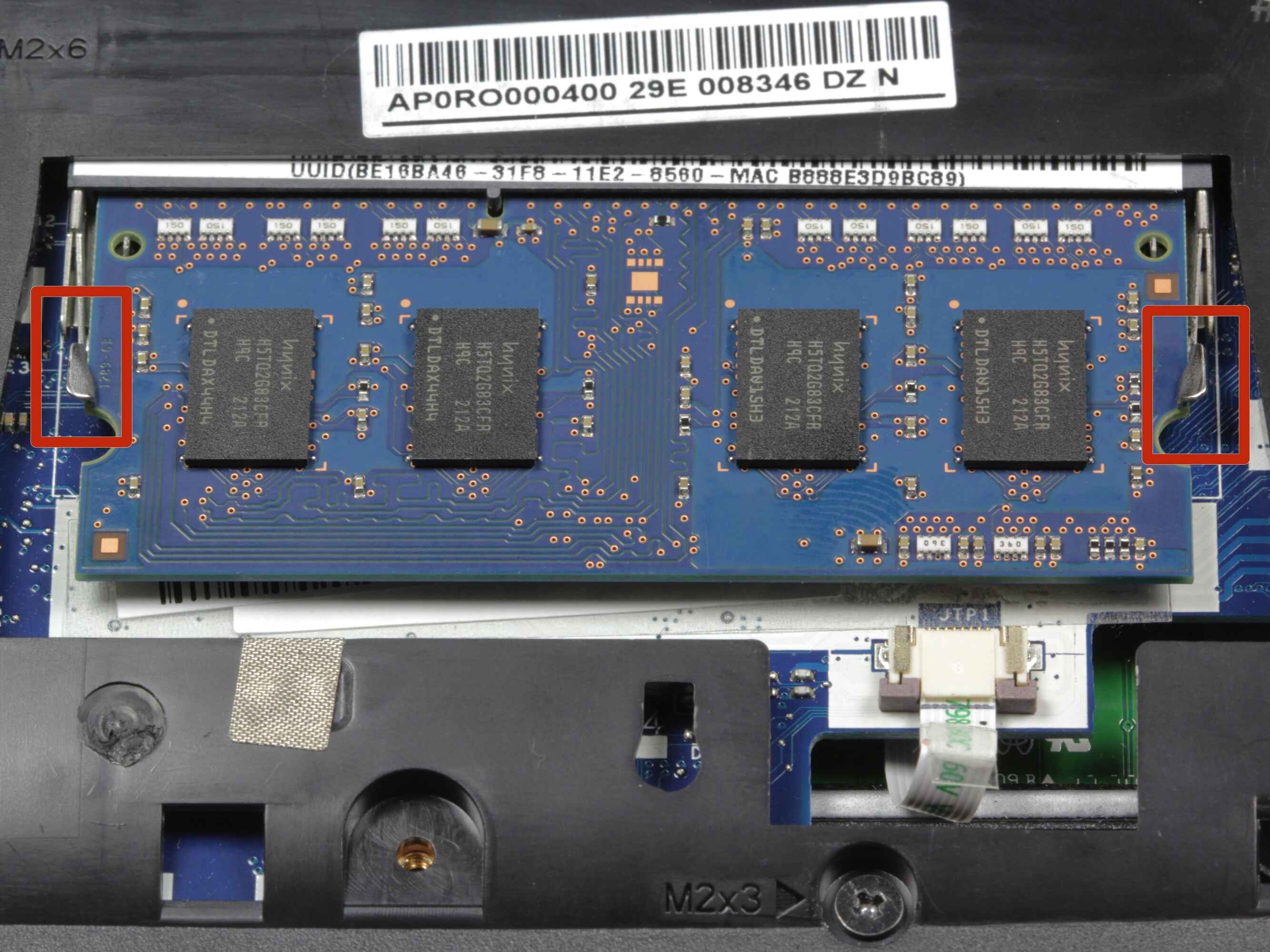
Inside your Chromebook, a small coin-cell power source (often a CR2032 or similar) runs the RTC chip that keeps the hardware clock alive even when the main pack is drained or the device is off. This is the same type of cell found in desktop PCs, called the CMOS component. Over time, typically after two to four years of use, this unit depletes naturally. When it dies, the hardware clock loses all stored time data the moment the Chromebook loses power. The operating system then boots with a default timestamp. The clock appears to reset after every shutdown. On some models, the cell is soldered to the motherboard and cannot be replaced without disassembly. On others, it sits in a user-serviceable socket.
Why manual setting does not stick
You may have tried to correct the time by opening the Settings app, navigating to 'System preferences,' and adjusting the time zone, but Chrome OS does not provide a direct manual hour and minute adjustment in Quick Settings. This action only overrides the software-level display, the time shown in Chrome OS. It does not write the corrected value back to the hardware RTC. The underlying chip still holds the old, wrong time. When you shut down and restart, the system reads the dead RTC again, and your manual change vanishes. This is why repeatedly trying to change the time on a Chromebook via the settings menu never solves the problem: you are painting over a hardware fault. The same limitation applies if you try to change browser timezone from within Chrome’s experimental flags or the system tray, and it's a common frustration across devices, much like needing a quick guide to resetting time and date on Fitbit when its synced clock drifts. The browser timezone is a software preference that also depends on a correct hardware clock to function reliably.
When the fix is not automatic
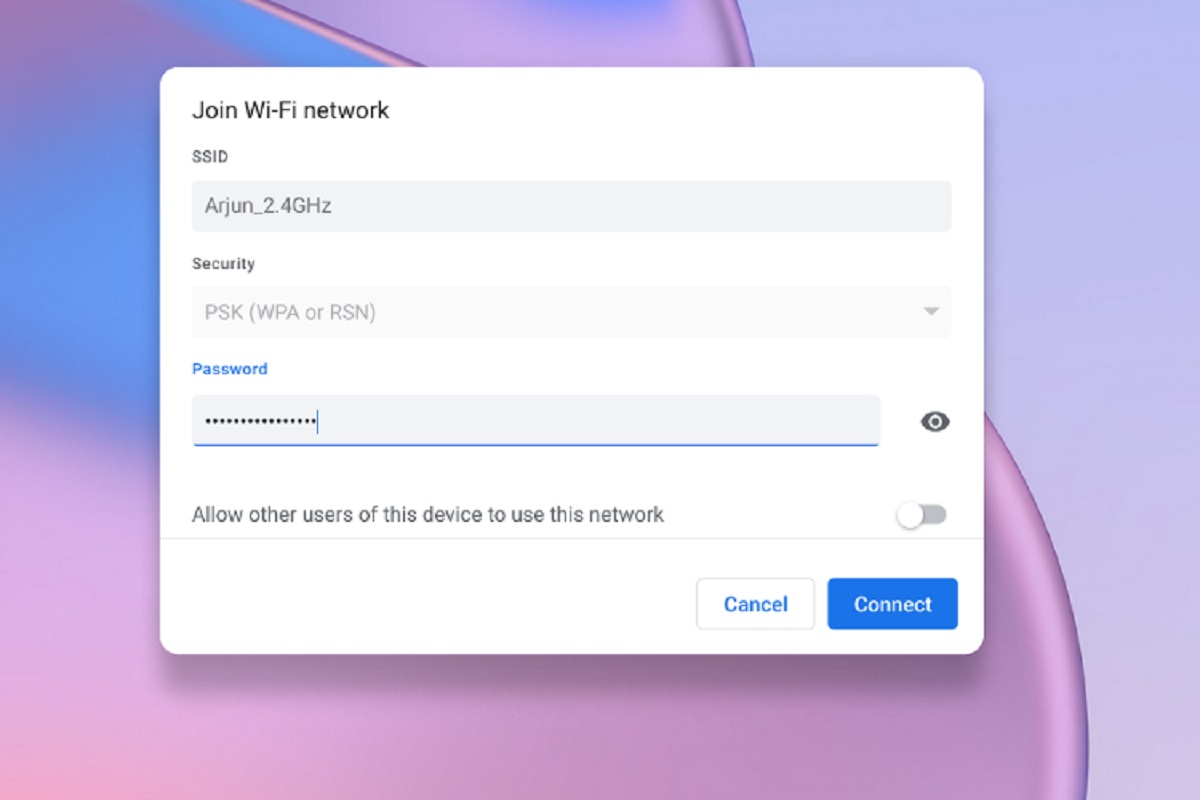
Normally, after booting, the Chromebook connects to Wi-Fi and queries a Network Time Protocol (NTP) server, typically time.google.com, to overwrite the incorrect hardware time. However, a severely wrong clock can break the TLS/SSL certificate validation that secure Wi-Fi connections require. A timestamp stuck on January 1, 2000 makes enterprise or captive-portal networks reject the connection. The certificates used to encrypt the handshake appear expired. This creates a loop: the clock is wrong, so Wi-Fi fails; Wi-Fi is needed to fix the clock. You might see an error like "Your clock is ahead" or "Connection is not private" in the browser. In this state, automatic sync cannot proceed, and the clock remains stuck after every restart. This is a certificate-based deadlock that prevents the network from rescuing the time.
Temporary workaround and permanent repair
To break the loop, connect to an open Wi-Fi network that does not require certificate validation, or temporarily set the time zone correctly via Settings > System preferences > Time zone so that automatic sync can proceed once a connection is established. Once the clock is close enough, secure Wi-Fi connections will work, and the automatic NTP sync can take over to set the clock precisely. This is only a temporary workaround. After the next shutdown without power, the clock will reset again. For a permanent fix, replace the dead CMOS cell. On models with a removable back panel, swap the coin cell yourself using a small screwdriver. On soldered designs, send the Chromebook to a repair shop or replace the motherboard. Before you attempt any disassembly, check your specific model’s service manual. Some Chromebooks use a rechargeable capacitor instead of a replaceable unit, which requires a different approach. That will not fix a dead RTC.
A dead RTC chip creates a certificate-based deadlock where a clock stuck on January 1, 2000 blocks the Wi-Fi connection that Chrome OS needs to fix the time automatically. For a broader look at adjusting these settings across different platforms, see our guide on changing the time and time zone.