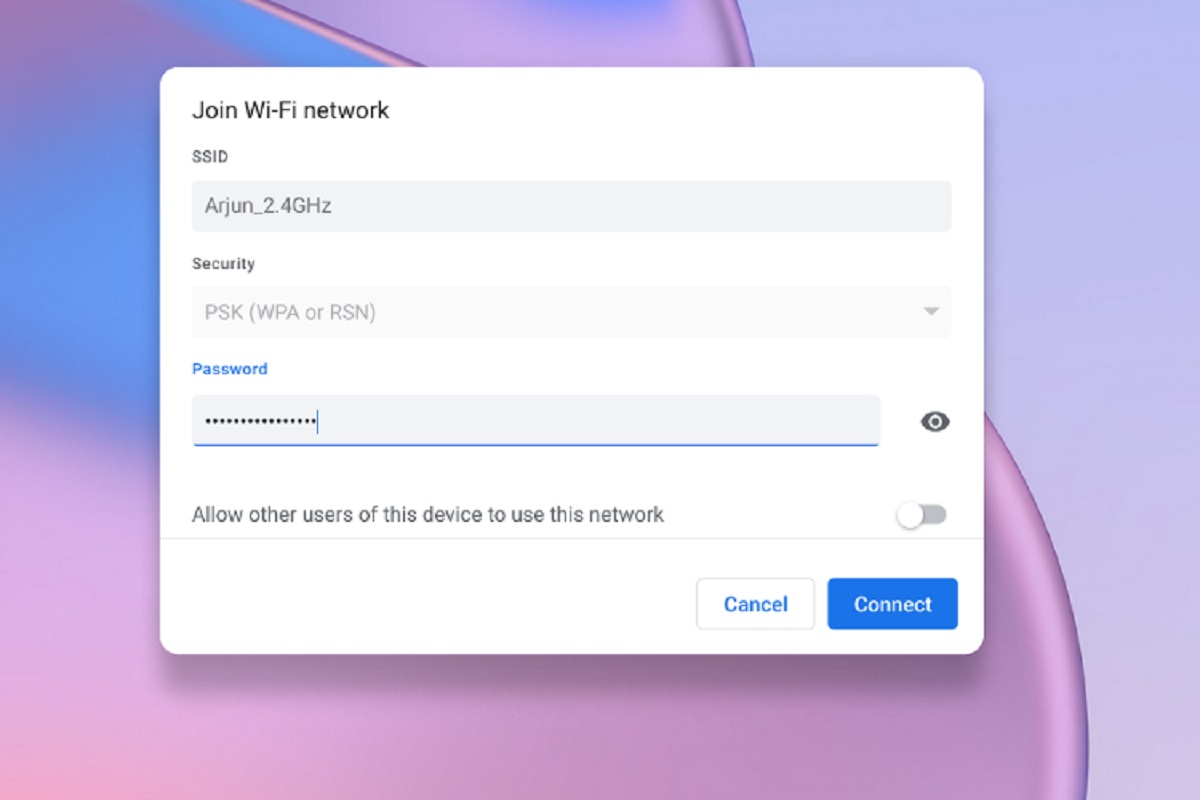
To find wifi password on Chromebook, you need to use a workaround because Chrome OS does not include a built-in option to view saved passwords in plain text. Unlike other operating systems, the network settings menu only lets you manage connections without revealing the security key.
Why you can't find wifi password on Chromebook in settings
Chrome OS intentionally hides saved Wi-Fi passwords from the standard settings interface. When you navigate to Settings, then Network, then Wi-Fi, and select a known network, there is no "Show password" toggle or similar option. This is a security design choice that prevents casual access to network credentials, even if you are the device owner. The workarounds below provide alternative ways to retrieve the password using Google services, router access, or a linked Android phone.
Find your wifi password using Google Password Manager
If your Chromebook syncs data with your Google account, your saved Wi-Fi passwords may be stored in Google Password Manager. This is the closest built-in method available on the device.
- Open the Chrome browser on your Chromebook.
- Go to passwords.google.com and sign in with the same Google account you use on the Chromebook.
- In the search bar, type the name of your Wi-Fi network (SSID).
- Find the entry for your Wi-Fi network and click the eye icon to reveal the password.
If the password does not appear in Password Manager, you can check the sync internals page at chrome://sync-internals in the browser's address bar. Note that this method only works if you previously chose to sync Wi-Fi passwords when setting up the Chromebook.
Check your router settings to find the wifi password
Accessing the router's admin panel from your Chromebook browser lets you view the current Wi-Fi password directly. This method works for any network you have administrative access to.
- Open a new browser tab on your Chromebook.
- Type your router's IP address into the address bar and press Enter.
- Enter the router's administrator username and password. If you never changed these, check the label on the router itself.
- Navigate to the wireless or Wi-Fi settings section.
- The password is displayed here, often with an option to show it in plain text.
This method requires you to know the router login credentials, but it does not depend on the Chromebook having previously connected to the network.
Use a connected Android phone to retrieve the password
This provides a simple way to get the password without touching the Chromebook settings.
- Go to Network & internet, then Wi-Fi.
- Tap the name of the connected Wi-Fi network.
- Select the Share option or the QR code icon. You may need to verify your identity with a PIN, pattern, or fingerprint.
- The password appears below the QR code in plain text, or you can scan the QR code with another device to connect automatically.
The phone and Chromebook must be signed into the same Google account for the network to appear in the phone's saved networks list.
What to do when none of these methods work
If you cannot retrieve the password through Google Password Manager, router settings, or an Android phone, consider these fallback options. Resetting the router to factory defaults will restore the default Wi-Fi password printed on the router label, but this disconnects all devices and requires reconfiguration. Contacting the network administrator is the best choice for workplace or shared networks where you lack administrative access. If your router has a WPS button, you can press it and then select the network on your Chromebook to connect without entering a password, though this does not reveal the password itself. You can also connect wifi without password by scanning a QR code from a device already on the network.
\nRelated reading: How To Add A Printer To A Chromebook and How To Factory Reset Samsung Chromebook Without Password.