The only legitimate way to remove enterprise enrollment Chromebook is through the Google Admin console, performed by an authorized administrator. Any method you attempt on the device itself, including a factory reset, will fail because the Chromebook is programmed to automatically re-enroll in the organization's domain as soon as it connects to Wi-Fi.
The truth about removing enterprise enrollment on a Chromebook without developer mode
There is no self-service method that will permanently remove enterprise enrollment from a Chromebook. Every reset, powerwash, or recovery USB installation you perform on the device will be undone the moment it connects to the internet. Attempting workarounds found in forums or videos will waste your time and may even trigger security locks that make the device unusable. The blunt truth is that you cannot bypass this system without the cooperation of the organization that enrolled it.
Why a powerwash or recovery USB will not work
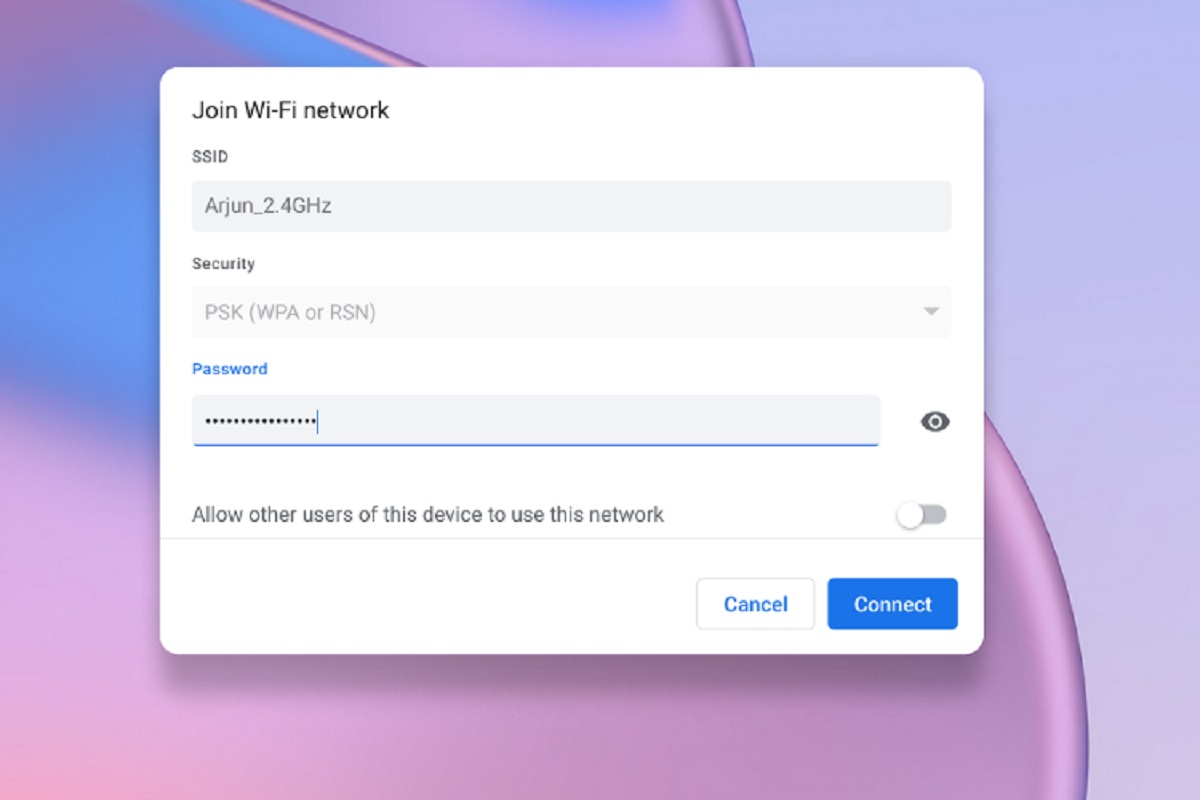
A powerwash, also known as a factory reset, erases all local user data and returns the Chromebook to its out-of-box state. However, when you go through the setup process after a powerwash and connect to Wi-Fi, the Chromebook automatically contacts the organization's Google Admin console. Because the device serial number is still registered in that console, the Chromebook instantly re-enrolls, and you are locked back into the managed environment. The same applies to using a recovery USB to reinstall Chrome OS. The operating system itself carries no enrollment data, but the hardware's firmware and the cloud-based management record ensure that re-enrollment is mandatory. Even if you turn on my Chromebook for the first time after a recovery, the forced re-enrollment will trigger as soon as you connect to a network.
The only real solution: contact your administrator to deprovision the device
The only official way to remove enterprise enrollment is for an administrator to deprovision the Chromebook from the Google Admin console. Here is exactly what you and your administrator must do.
What you should do
- Identify the organization that enrolled the Chromebook. This is usually a school, business, or other institution.
- Contact the administrator or IT department directly. Explain that you need the device deprovisioned so it can be used as a personal Chromebook.
- Provide the device's serial number, which you can find on a sticker on the bottom of the Chromebook or by typing
chrome://systemin the browser and looking for the "serial_number" entry.
What the administrator must do
- Log in to the Google Admin console with an account that has device management privileges.
- Navigate to "Devices" then "Chrome" then "Devices."
- Locate the specific Chromebook in the device list, using the serial number you provided.
- Select the Chromebook by checking the box next to it.
- Click "Deprovision selected devices" or open the "More Actions" menu and choose "Deprovision."
- When prompted, choose whether to factory reset the device and select a reason for deprovisioning.
- Confirm the action. Once deprovisioned, the Chromebook's serial number is removed from the organization's management list.
After the administrator completes these steps, you can reset an Acer Chromebook or any other model using a standard powerwash. This time, when you connect to Wi-Fi, the device will not re-enroll, and you will have full control.
What to do if you cannot contact the administrator
If you bought a second-hand Chromebook that is still enterprise-enrolled, you may be unable to reach the original administrator. In this situation, your options are limited. First, try to identify the organization from the enrollment screen, it often displays a domain name or school name. Search for that organization's contact information and explain your situation. Some organizations will deprovision devices that have been legitimately sold or retired. If that fails, your only practical recourse is to seek a refund from the seller. A Chromebook that remains enrolled is effectively a brick for personal use. Even if you factory reset a Samsung Chromebook without a password or attempt to delete Chrome OS entirely, the device will still be bound to the original organization's management. No amount of tinkering on your end will break that connection. If a refund is not possible, consider that the device may only be useful for parts or as a dedicated device that stays connected to the organization's network, which is likely not what you intended. If the device was originally from a school, you may be able to unenroll a school Chromebook without developer mode by contacting the district's IT department directly. Your best course of action is to never purchase a Chromebook without first confirming it is not enterprise-enrolled.
For the wider topic, see turn on my Chromebook.