The short answer
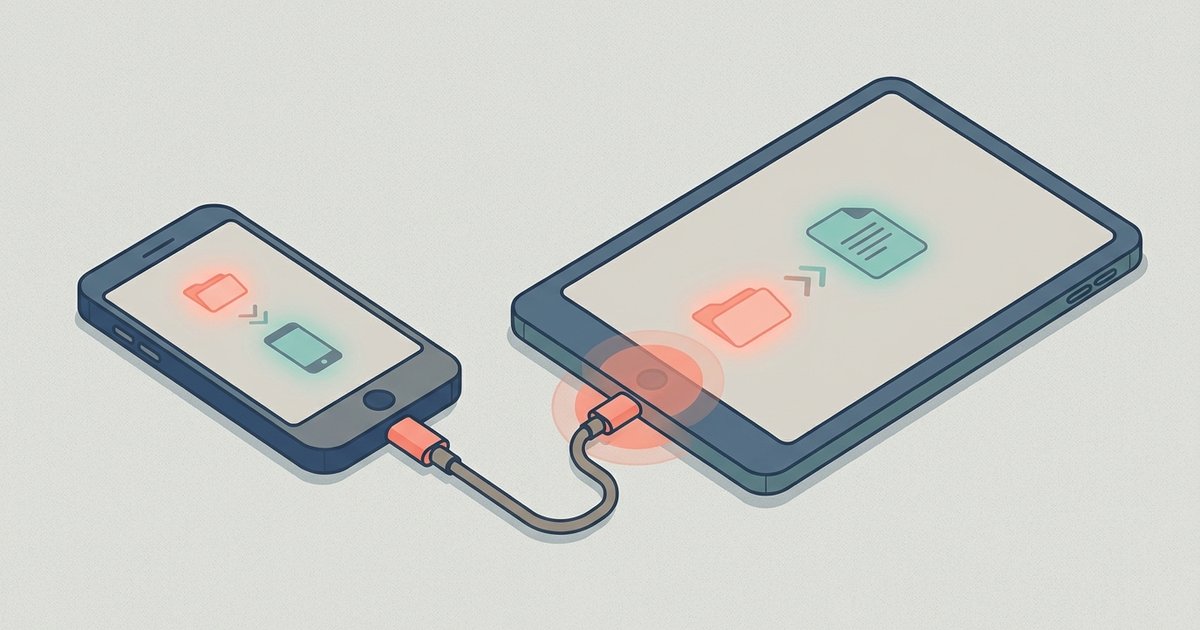
You can move files from your phone to your computer without a cable using cloud storage you already have, built-in wireless transfer tools, email, messaging apps, or a simple browser-based transfer page. The right method depends on file size, whether both devices are nearby, and what you already use.
Use the cloud storage you already have
If your phone and computer are signed into the same cloud account, transferring a file is just a matter of saving it in the right folder. You do not need to install anything new, and the file stays available for as long as you want.
On an iPhone, iCloud Drive is built in. Save a file to the Files app under iCloud Drive, and it appears on your Mac in the Finder sidebar. On a Windows PC, you can install iCloud for Windows or just use iCloud.com. Apple has a clear guide for using iCloud Drive across your devices.
On Android, Google Drive is already tied to your Google account. Open the file, tap Share, choose Drive, and it lands in your Drive. On your computer, go to drive.google.com or open the Drive folder if you have the desktop app installed. Google’s instructions for sharing files from Android with Google Drive walk through the steps.
Dropbox, OneDrive, and similar services work the same way. The key is that both devices must be signed into the same account. This method handles large files well, but upload and download speed depends on your internet connection.
Send files directly over local Wi-Fi
When both devices are on the same Wi-Fi network, you can transfer files without them ever touching the internet. This is fast, private, and does not eat into a mobile data plan.
On a Mac and iPhone, AirDrop is the simplest option. Open the file on your phone, tap the share icon, choose AirDrop, and select your Mac. The file lands in your Downloads folder. Both devices need Bluetooth and Wi-Fi turned on, and AirDrop set to receive from Contacts or Everyone. No cables, no setup, and it works for photos, videos, documents, and websites.
Windows and Android do not share a single built-in equivalent, but there are solid options. Google’s Nearby Share (now called Quick Share on many devices) lets you send files between Android phones and Chromebooks, and a Windows desktop app is available. Samsung devices have Quick Share built in. The phone and PC need to be on the same network and have Bluetooth enabled.
For a cross-platform approach that works with any combination, a tool like LocalSend or Snapdrop runs in a browser or as a lightweight app. Open the same website on both devices, and they find each other on the local network. Files transfer directly, encrypted, with no size limits beyond your available storage.
Email small files to yourself
For a single document, a photo, or a short PDF, email is still the quickest path. Attach the file on your phone, send it to your own email address, and open it on your computer. The limit is usually 25 MB per message, which rules out video and large photo batches. But for a receipt, a form, or a screenshot, it takes seconds and leaves a searchable copy in your inbox.
Use a messaging app you already have
Most messaging apps let you send files to yourself. WhatsApp has a “Message yourself” chat. Telegram has Saved Messages. Signal has Note to Self. Slack lets you create a private channel with just you in it. Send the file from your phone, then open the same app on your computer and download it.
This method works well for photos, short videos, and documents. Compression is the main downside: many messaging apps shrink images and videos by default. Check the app’s settings for an option to send files as “original quality” or “uncompressed” if that matters. File size limits vary by app, typically ranging from 100 MB to 2 GB.
Try a browser-based transfer tool
When you need to move a large file quickly and do not want to install anything or sign into an account, a browser-based transfer page is a practical choice. These tools work by uploading the file, generating a temporary link or QR code, and letting the other device download it.
ShareIt Online is one such tool. You open the page on your phone, select a file up to 3 GB, and it gives you a link and a QR code. On your computer, you either type the link or scan the QR code with your phone’s camera to download the file. No app, no sign-up, and the link expires on its own after a set time. The transfer happens through the browser, so it works across any phone and computer combination.
This approach is useful when you are on someone else’s computer, using a public machine, or helping a family member who does not share your cloud accounts. The file is not stored permanently, which is a privacy benefit if you are moving something sensitive. The trade-off is that the file must upload fully before the other device can download it, so a slow upload connection makes this less convenient than local Wi-Fi methods.
Under the hood, these tools rely on the browser’s ability to handle files programmatically. The technical foundation is the File API that modern browsers implement, which lets web pages read file data without needing a plugin. That is why the experience feels smooth: your browser already knows how to do the heavy lifting.
Connect over Bluetooth
Bluetooth is the fallback when Wi-Fi is not available. It is slower than every other method on this list, but it works offline and requires no network at all. On Windows, turn on Bluetooth, go to Bluetooth & devices settings, and choose Send or receive files via Bluetooth. On a Mac, enable Bluetooth and use the Bluetooth File Exchange app in the Utilities folder. On your phone, send the file via Bluetooth from the share menu. Pairing the two devices takes a moment the first time. After that, transfers are straightforward, though a large video can take many minutes.
What to do next
Pick the method that fits your situation right now. If both devices are on the same Wi-Fi, start with AirDrop or a local transfer tool for speed. If you already use Google Drive or iCloud, save the file there and it will be waiting on your computer. For a one-off large file on an unfamiliar computer, open a browser-based transfer page. The goal is to get the file where you need it without overcomplicating things.
Frequently asked questions
Why is my file transfer so slow over Wi-Fi?
Slow Wi-Fi transfers usually happen because the file is routing through the internet instead of staying local. Cloud storage uploads and downloads depend entirely on your internet connection speed. For fast local transfers, both devices must be on the same Wi-Fi network using a direct tool like AirDrop or a browser-based local option, which keeps data off the internet.
How do I send a large video without losing quality?
Use a method that does not compress files. Cloud storage, AirDrop, local Wi-Fi tools like LocalSend, and browser-based transfer pages all preserve original quality. Avoid messaging apps unless you confirm they have an option to send files as original or uncompressed, since most shrink videos and photos by default to save bandwidth.
Can I transfer files from my phone to a public computer safely?
Yes, a browser-based transfer page is the safest option for a public computer. It requires no sign-in, no app installation, and the file is not stored permanently. The generated link expires on its own. This keeps your file and account credentials off a machine you do not control, which is a privacy benefit when moving something sensitive.
What is the easiest way to send a file without installing anything?
Email yourself the file or use a browser-based transfer page. Email works instantly for files under 25 MB and leaves a searchable copy. For larger files up to 3 GB, open a transfer page on your phone, upload the file, and scan the QR code or type the link on your computer. Neither method requires installing software or signing into an account.
\nRelated reading: Can I Set Up A Wireless Printer Without A Computer Or Smartphone App, How To Transfer Files From Android Phone To Tablet, and Understanding Emoji Across Platforms Before You Hit Send.