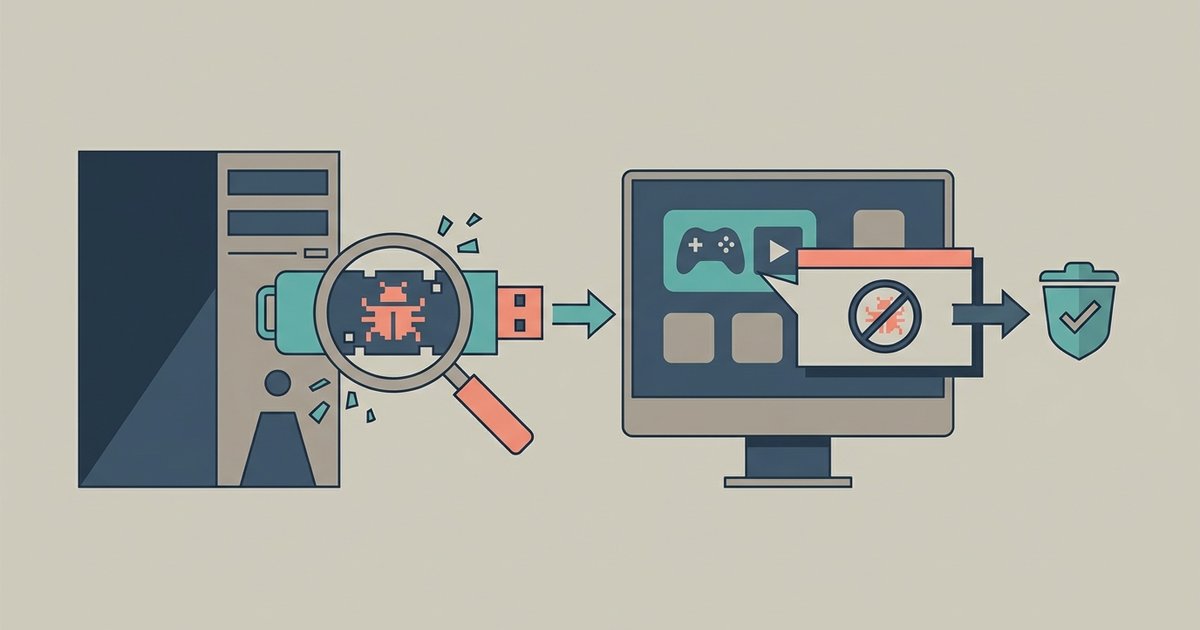
Download Malwarebytes or HitmanPro, reboot into Safe Mode, run a full scan, and then reset your browser settings to wipe the hijacker's profile.
Why uninstalling the game didn’t remove adware
The repack installer didn’t just place files in the game folder. It wrote a hidden scheduled task or a Windows service that checks in with a remote server every few hours. When you uninstalled the game, you only deleted the main executable and its data, the service remained active. That service re-downloads the adware payload, re-injects it into your browser, and spawns new pop-ups. This is why a quick antivirus scan also fails: the scanner sees the files, removes them, but the service immediately fetches a fresh copy. The adware isn’t a single file; it’s a chain of commands that regenerates itself. The same hidden persistence tricks can also secretly tell if a free game installer is running a crypto miner in the background.
Run a second-opinion scanner in safe mode
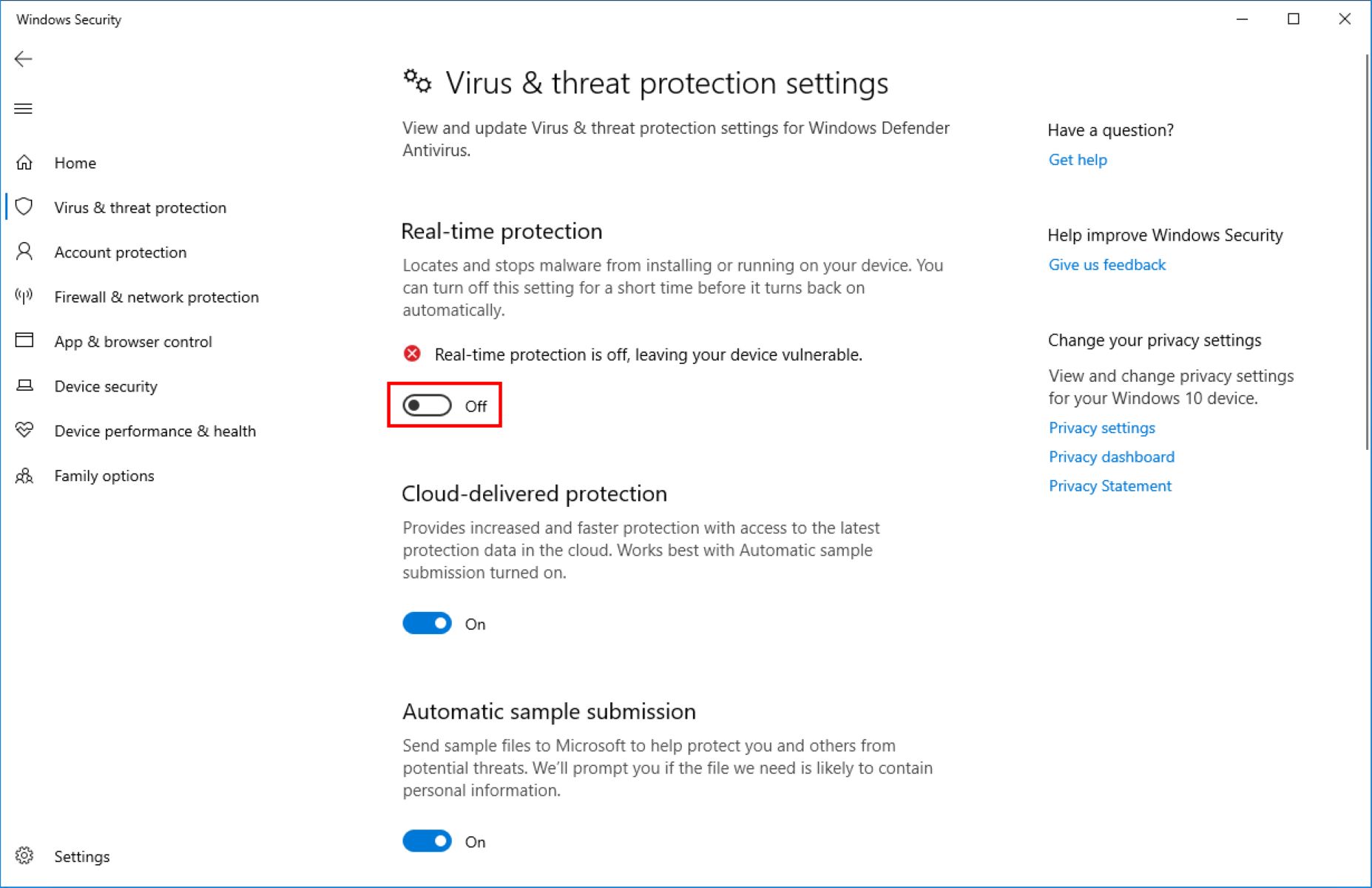
To break that chain, you need to boot into Safe Mode with Networking disabled. Restart your PC, press F8 or Shift+Restart during boot, and choose “Safe Mode” from the Advanced Options menu. Once you’re in Safe Mode, the adware’s service cannot start because Windows loads only essential drivers. Now download AdwCleaner or Malwarebytes from the official website, install them, and run a full scan. Run a full scan. These tools are designed to kill active processes that hide from standard antivirus engines. They will delete the scheduled task, remove the service entry, and quarantine any leftover registry keys. After the scan, reboot normally. The adware should no longer have a foothold to re-download itself.
Reset your browsers the hard way
Even after the scanner removes the service, your browser is still hijacked because the adware set malicious Group Policies and synced extensions. Simply changing the homepage or clearing cookies does nothing, the policy locks those settings. For Chrome, go to Settings > Reset settings and click “Restore settings to their original defaults.” For Firefox, go to about:support and click “Refresh Firefox.” For Edge, go to Settings > Reset settings and choose “Restore settings to their default values.” This removes all extensions, pinned tabs, and startup pages, including the hidden ones that the adware synced to your Google or Microsoft account. After the reset, do not sign into your browser profile until you’ve verified no pop-ups appear. If you see ads again, the adware may have left a rootkit.
When you should just reinstall Windows
If the pop-ups return after a Safe Mode scan and a full browser reset, you are likely dealing with an infostealer or a rootkit that the repack bundled alongside the adware. These threats embed themselves deep in the boot sector or in kernel memory, where no consumer scanner can reliably remove them. Manual removal in this case is a gamble, you might miss a hidden driver that logs your keystrokes. The only safe option is to back up your personal files to an external drive, scan those files first on a clean PC, then perform a full Windows reinstall from installation media. Do not use the “Reset this PC” feature; it preserves too many system files that the rootkit can hide inside. A clean wipe is the only way to guarantee the adware and its hidden payloads are gone. Remember, repacked games are the primary vector for these infections. If you want to download free games, you have to accept the risk, so stick to verified free game download sites for PC & consoles to avoid bundled malware. No repack is ever truly safe.