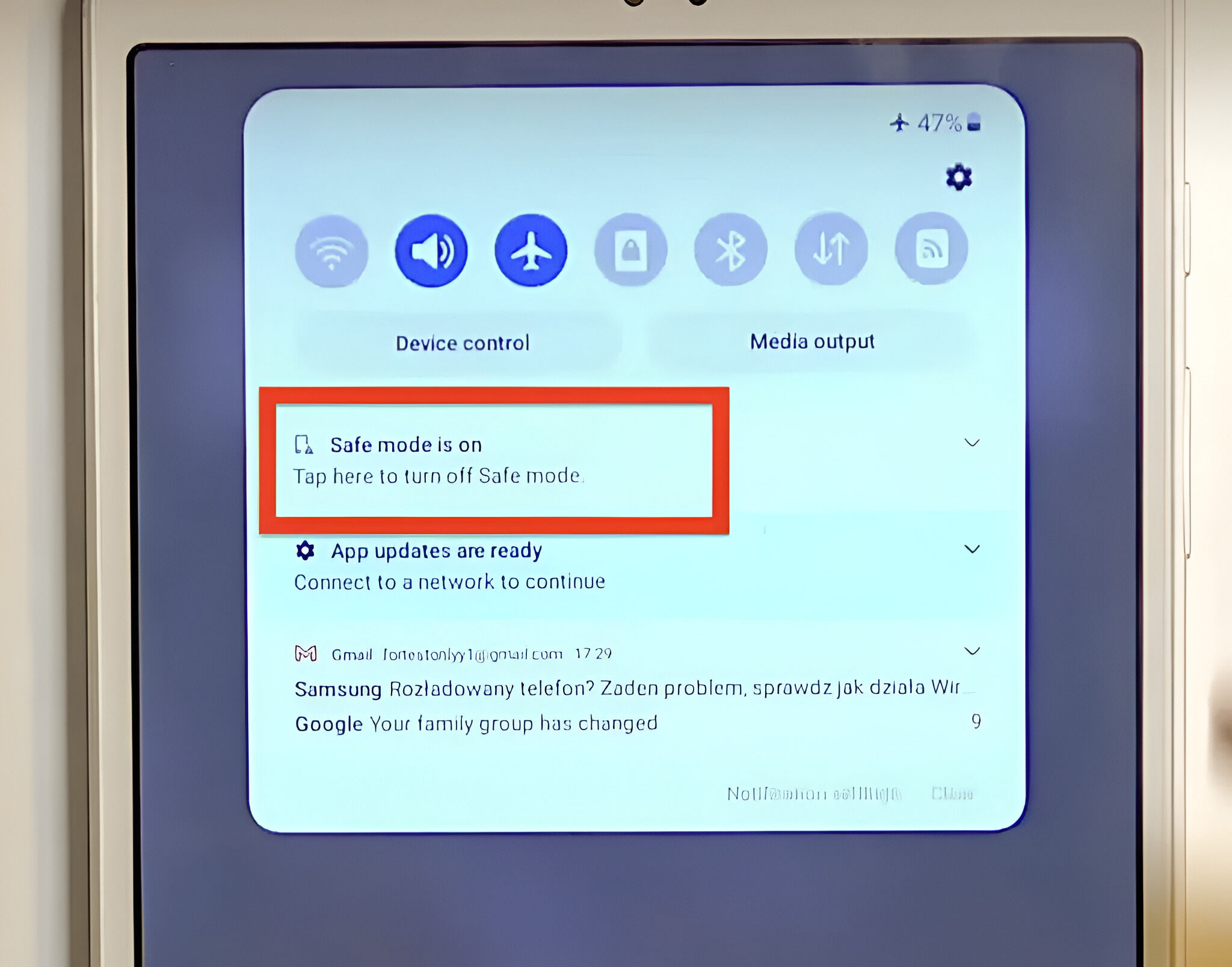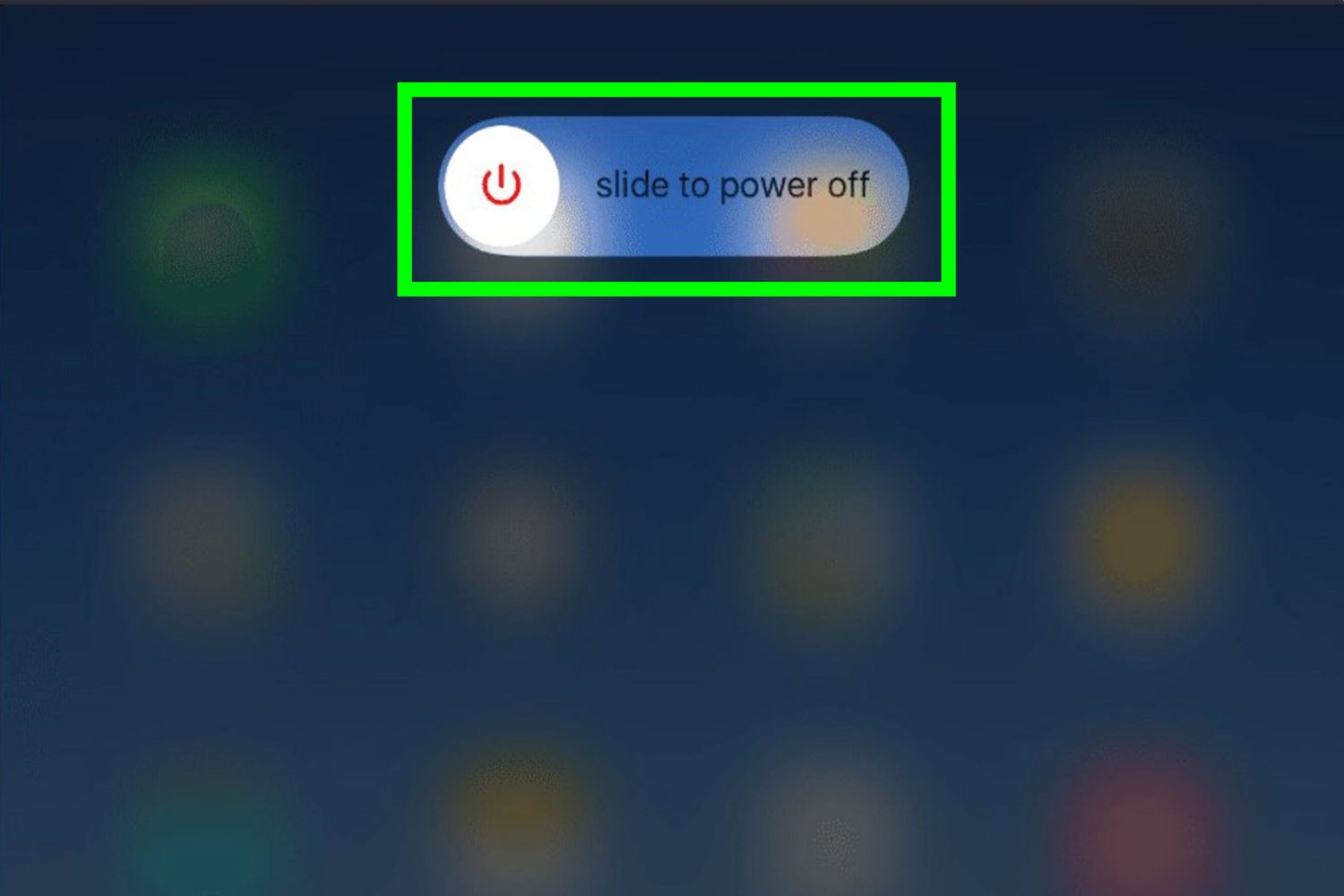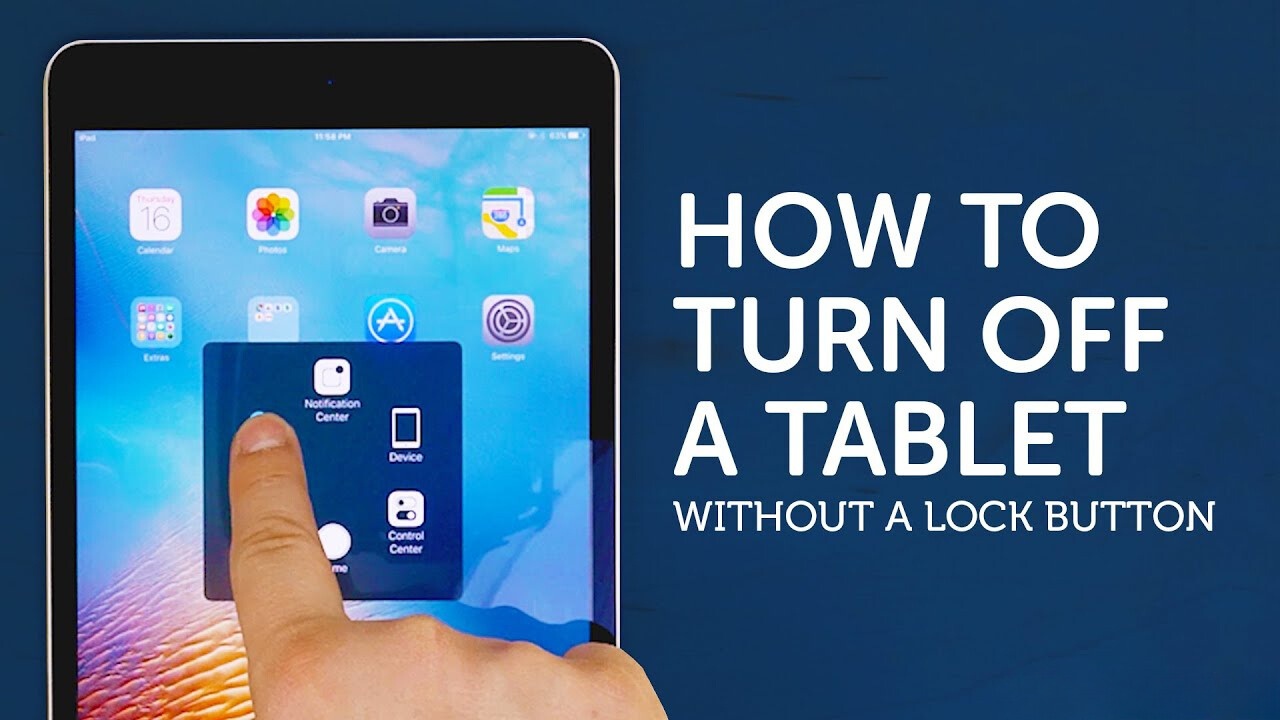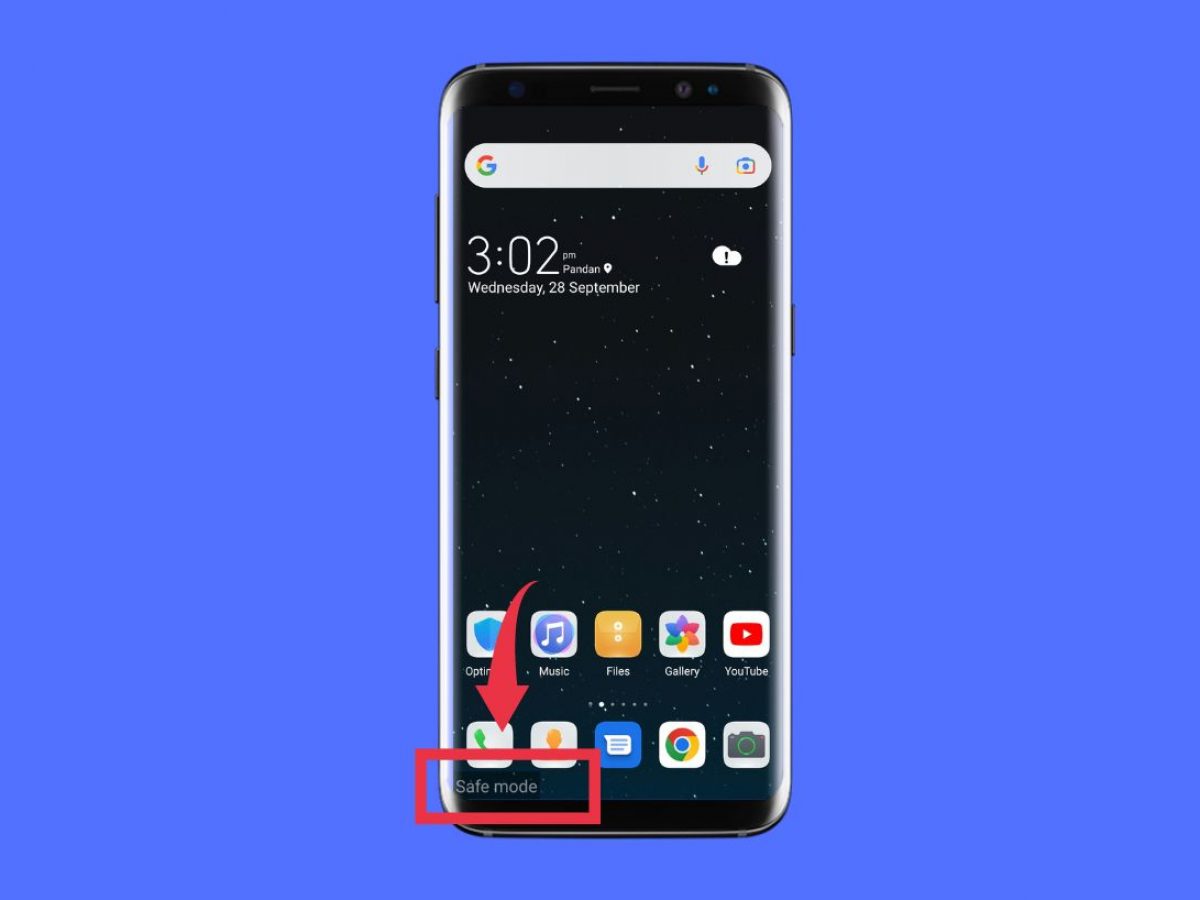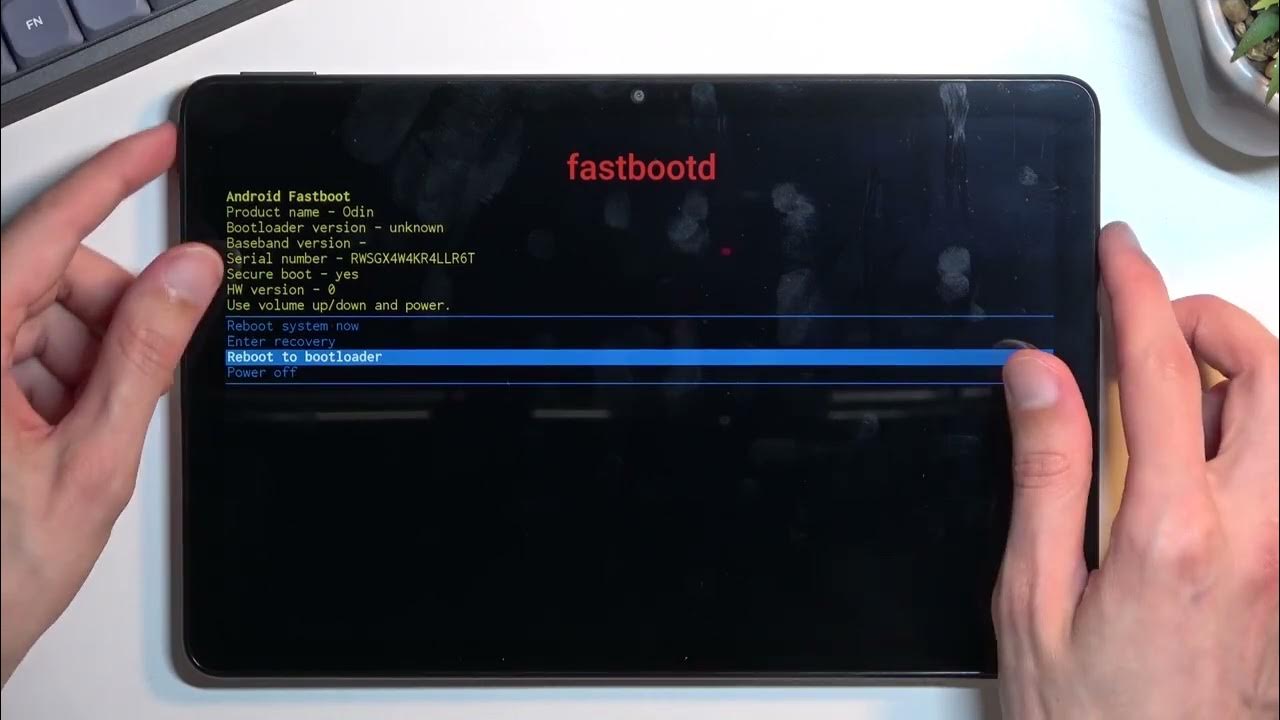
To exit fastboot mode on your tablet, press and hold the power button for about 10 to 15 seconds until the screen goes black and the device powers off completely. If a restart instead loads a restricted interface, you may need to get my tablet off safe mode, though Samsung users can also get Samsung Galaxy off safe mode for device-specific steps. Once it is off, press the power button again to turn it back on, and your tablet should boot into the normal Android operating system.
How to exit fastboot mode on your tablet
The simplest way to exit fastboot mode is to use the power button. This method works for most tablets because it forces the device to shut down, breaking the fastboot loop. Follow these steps:
- Press and hold the power button on your tablet.
- Keep holding it for about 10 to 15 seconds until the screen turns off.
- Release the power button and wait a few seconds.
- Press the power button again to turn the tablet back on.
If your tablet boots into Android normally, you have successfully exited fastboot mode. If it returns to fastboot, try holding the power button longer or repeating the process a couple of times. This is often the only step needed, so you can get your device working again without any extra tools.
Force a reboot using hardware keys
If the power button method does not work, you can force a reboot using specific hardware key combinations. This is useful when the power button alone fails to shut down the device, which can happen if the tablet is stuck in a deeper fastboot loop. The exact keys vary by manufacturer, but common combinations include Power + Volume Down or Power + Volume Up. Here is how to try it:
- Make sure your tablet is on and showing the fastboot screen.
- Press and hold the key combination for your device (for example, Power + Volume Down) simultaneously.
- Keep holding the keys until the screen goes black and the tablet powers off.
- Release the keys and wait a few seconds.
- Press the power button to turn the tablet back on.
If your tablet still boots into fastboot, try a different combination, such as Power + Volume Up or Power + Home + Volume Up/Down. You can consult your device manual for model-specific keys if you are unsure which combination to use. This method gives you a second chance to exit fastboot mode without needing a computer.
Use ADB commands to reboot from fastboot
For users who have USB debugging enabled and access to a computer, using ADB commands to reboot from fastboot is an advanced but reliable method. This approach is helpful when hardware keys do not work and you need a direct software command to force the device out of fastboot mode. ADB (Android Debug Bridge) lets you send a reboot instruction from your computer to the tablet. Follow these steps:
- Ensure ADB is installed on your computer (it is part of the Android SDK platform-tools).
- Connect your tablet to the computer using a USB cable.
- Open a command prompt or terminal window on your computer.
- Type
adb devicesand press Enter to confirm your tablet is detected. - Type
adb rebootand press Enter. - Wait for your tablet to reboot. It should exit fastboot mode and start Android normally.
This method works because the ADB command overrides the fastboot state and tells the device to boot into the operating system. It requires that your tablet is recognized by the computer, so make sure the USB connection is stable and drivers are up to date.
What to do if your tablet is still stuck
If your tablet remains in fastboot mode after trying all the methods above, you should consult your device manual for model-specific keys and look for related recovery articles for persistent issues. Different tablet brands have unique key combinations or recovery procedures that are not covered here. Checking the manual or the manufacturer’s support site will give you the exact steps for your model. If the problem continues, it may indicate a deeper software or hardware problem, such as a failed update or a faulty button, and professional repair might be necessary. The goal is to get your tablet back to normal use, and these resources provide the targeted help you need for your specific device.
\nRelated reading: How To Shut Down Tablet.