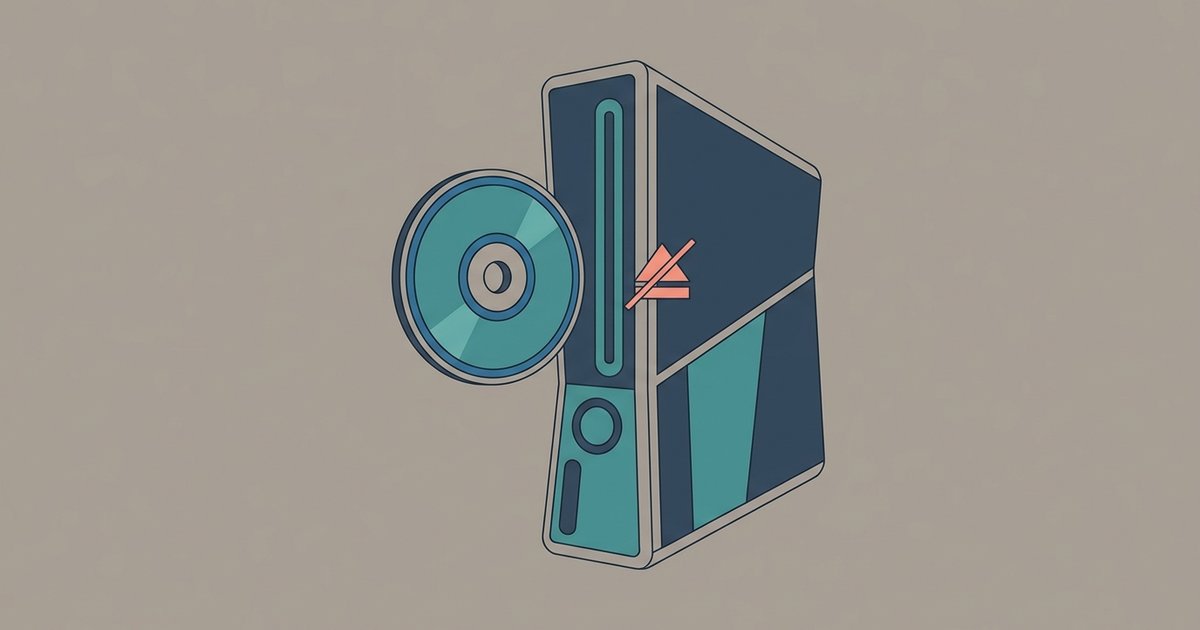
First, rebuild the database via Safe Mode to clear temporary system errors, then manually eject any stuck disc using the manual eject screw. If the drive still makes clicking noises or refuses to pull the disc in, the laser lens or rollers need physical cleaning or the drive has a hardware failure requiring repair.
The PS5 disc drive fix using safe mode database rebuild
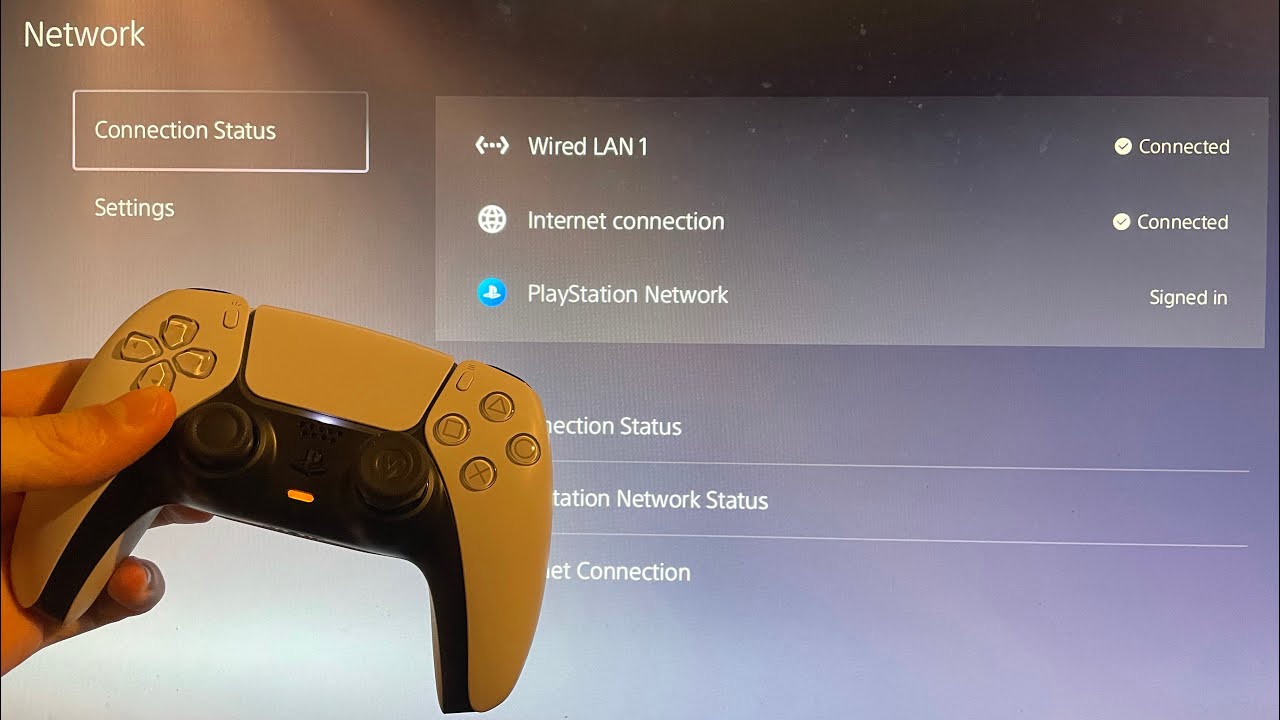
When your PlayStation enters Rest Mode with a disc inside or suffers a power loss, the system cache can become corrupted. The drive stops recognizing discs entirely even though the console turns on normally. Completely power off the console. Press and hold the power button until you hear a second beep (approximately 7 seconds for PS5, or two beeps for PS4). The second beep signals Safe Mode. Connect a controller via USB cable. Select "Clear Cache and Rebuild Database" (PS5) or "Rebuild Database" (PS4). Wait for the process to finish. This does not delete your games or saves. It forces the system to re-index all storage, which often restores disc drive communication. If your PlayStation won't connect to the internet after a database rebuild, a simple network settings reset in Safe Mode usually resolves that, but if the problem persists you may need to investigate why wont my PlayStation connect to the internet for deeper network troubleshooting.
Clearing a physical disc jam manually
If a disc is stuck inside and the motorized rollers refuse to eject it, never force the slot open. You risk damaging the laser assembly. On PS4, locate the manual eject screw hidden beneath a sticker on the bottom of the console (slim models) or on the left side of the base (original models). Insert a Phillips #1 screwdriver and turn it clockwise slowly. You will feel resistance as the disc releases. On PS5, consult official support for manual disc ejection procedures.
When cleaning the lens and rollers is the real fix
Wiping the disc is not enough. Dust accumulates on the internal laser lens and the rubber rollers that pull the disc in. Even if the disc spins, a dirty lens cannot read the data, producing an "unrecognized disc" error. Open the console top cover. Locate the laser assembly. Gently wipe it with a lint-free swab dipped in isopropyl alcohol. If internal components need cleaning or replacement, consult a professional repair service. For guidance on account issues after hardware work, you can contact PlayStation support to verify warranty status before opening the case.
Signs the drive has failed and you need support
If the drive makes a constant grinding noise without any disc movement, shows no power lights near the slot, or the laser emits no red glow when the console is on, no software or cleaning fix will work. These symptoms indicate a dead laser diode, a burned-out motor, or a failed drive daughterboard. A technician may need to repair or replace the entire drive assembly. Before spending money on repairs, you can contact PlayStation support to arrange an out-of-warranty repair or learn how to change PlayStation email for service correspondence.