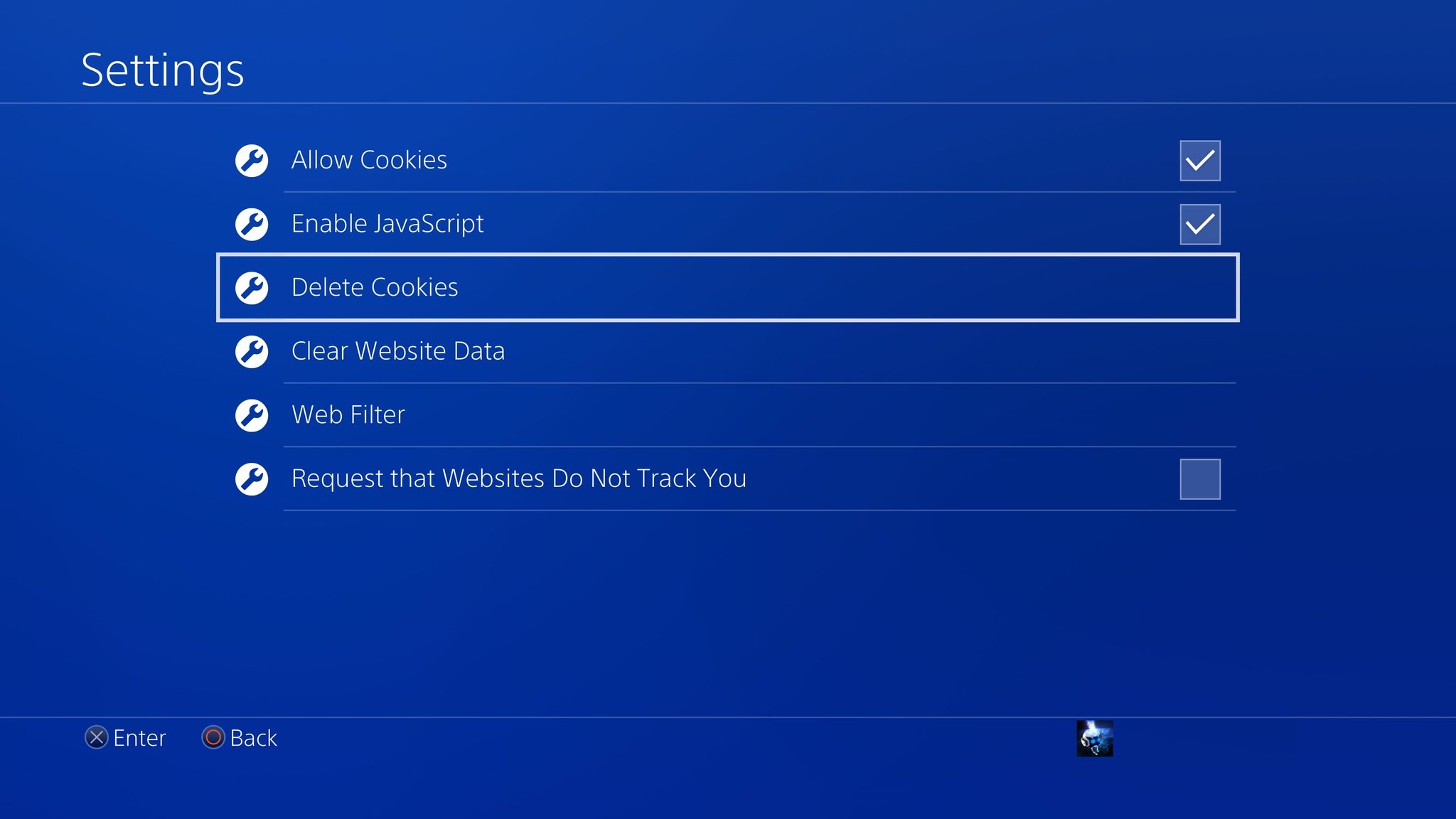
Rebuilding the database typically takes a few minutes, but it can take up to a few hours if your hard drive is severely corrupted or nearly full. The on-screen progress bar often gets stuck at a specific percentage, which is normal and does not mean the console is frozen.
Why PS4 rebuild database time varies so much
The duration depends directly on three factors. These are the physical size of your hard drive, the total number of files stored on it, and the extent of file system corruption. A 500GB drive that is half full with a few hundred game installs may scan relatively quickly, but exact times vary. A 2TB drive packed with 1.5TB of data can take significantly longer. That includes hundreds of small save files and DLC packages. If the file system has minor corruption, common after a power loss or a failed update, the database indexer must re-verify every folder entry, which adds time. Severe corruption forces the system to analyze damaged sectors sector by sector. This is why some users report two-hour rebuilds. The console is not measuring speed. It is counting every object stored on the partition, from system cache files to trophy data. This is also why you should never choose to “reset my PlayStation 4” from Safe Mode if you only need a database rebuild. The reset wipes everything, while the rebuild merely reorganizes the index.
The progress bar is not a clock
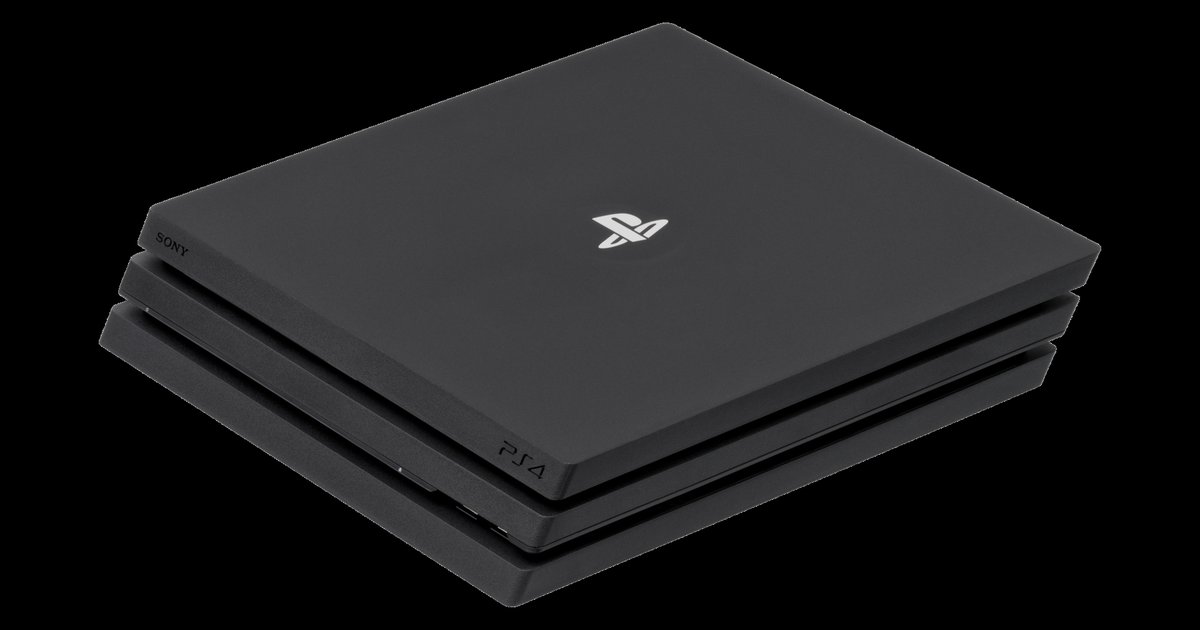
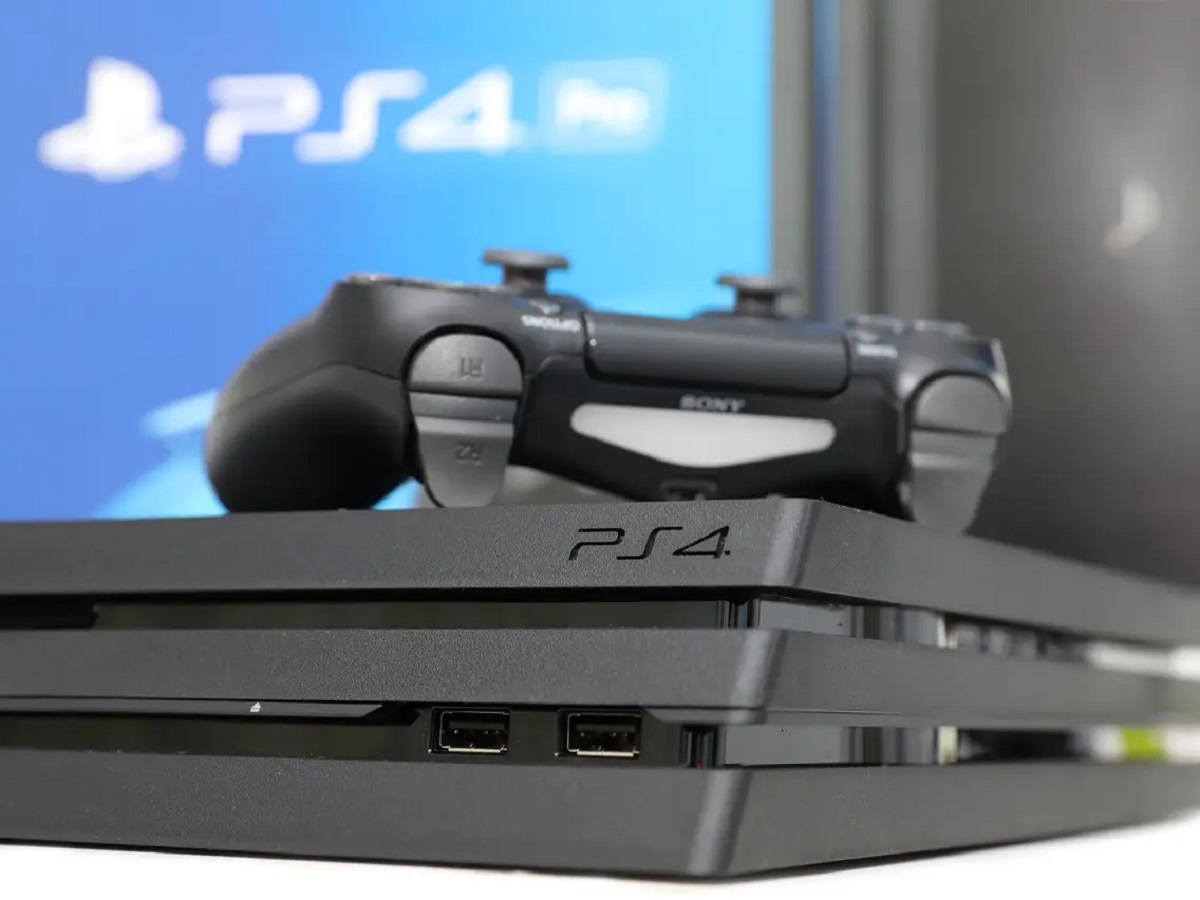
The most common panic moment happens when the progress bar sits still at a specific percentage for a long time. It then suddenly jumps to 80% and finishes. This is normal behavior because the rebuild process works in large batches. It reads a chunk of the drive, updates the index, then moves to the next chunk. During the read phase, the bar may not move at all for several minutes. If you pull the power cord during this wait, you risk corrupting the database further and forcing a full system software reinstall. Instead, leave the console untouched for at least one hour. If you are worried about a frozen screen, check the drive activity light on the front of the PS4. If it is flickering or blinking, the rebuild is still working. For a truly broken system that cannot even boot to Safe Mode, you may need to “factory reset a PlayStation 4” using the full initialization option. That is a last resort after the rebuild fails.
When it is actually stuck
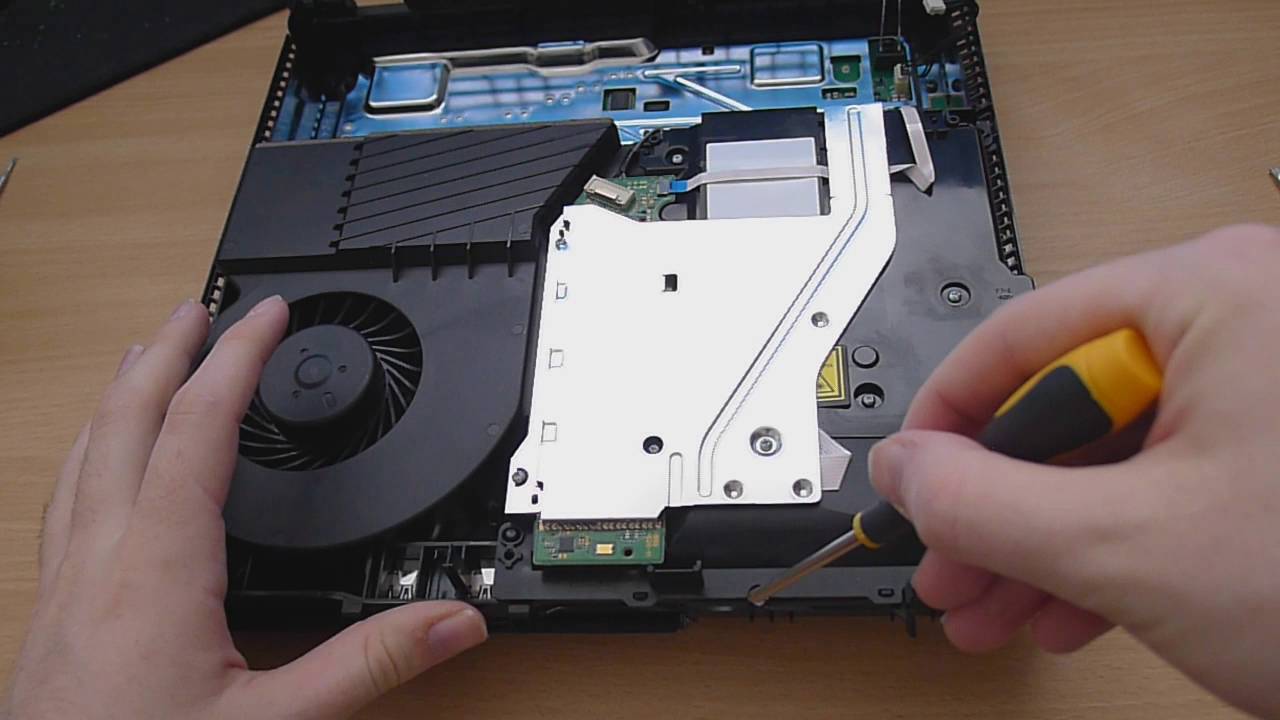
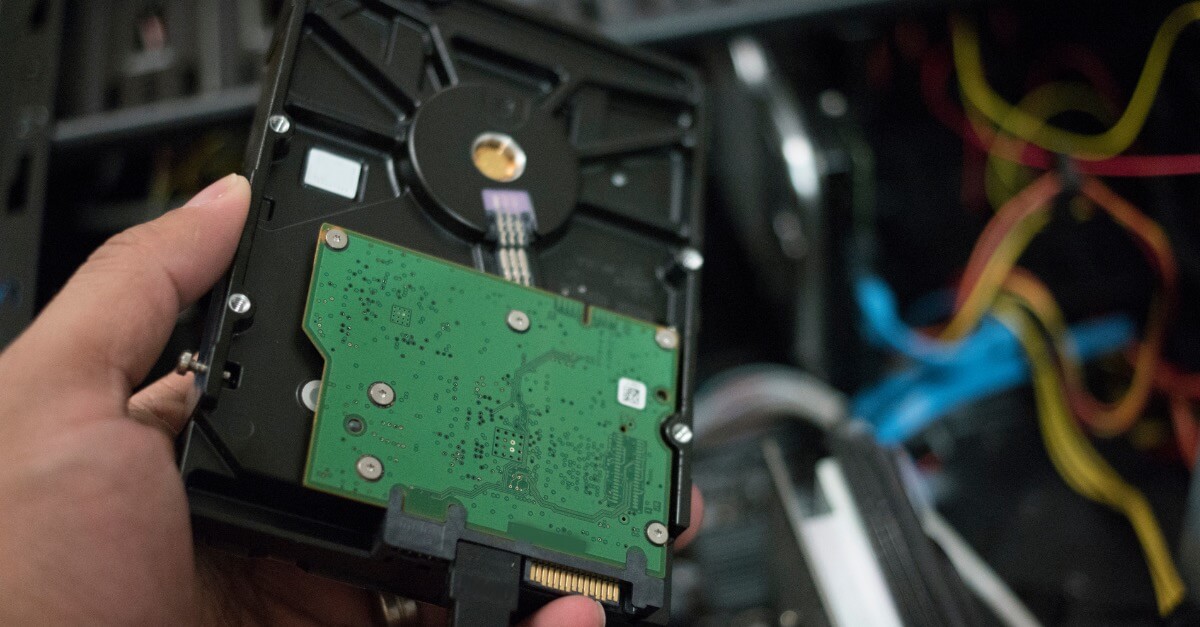
A normal rebuild should not take an excessively long time. The hard drive is likely physically failing if the progress bar has not moved for more than six hours or if it loops continuously, restarting from 0% after reaching 100%. In this case, the process cannot complete because the drive’s read/write heads are hitting bad sectors that the file system cannot bypass. You should power off the console by holding the power button until it beeps twice, which may take approximately seven seconds. Then boot back into Safe Mode and select the “Initialize PS4 (Reinstall System Software)” option. This will wipe the drive and install a fresh operating system. Before doing that, you will need to “download the update file for reinstallation from PlayStation.com” onto a USB drive formatted as FAT32 or exFAT. If the initialization also fails or takes an excessively long time, the drive may be dead. At that point, the only fix is to physically replace the storage device. That requires you to take apart your PlayStation 4 to access the hard drive bay. This process may void your warranty if the console is still under coverage; check your local consumer laws and warranty terms. Always back up your saves to the cloud or a USB drive before attempting any repair that involves removing the drive.
This is the only guide that maps exact Safe Mode rebuild durations to your specific drive size, file count, and corruption level so you know whether to wait, reinitialize, or replace the drive without guessing.