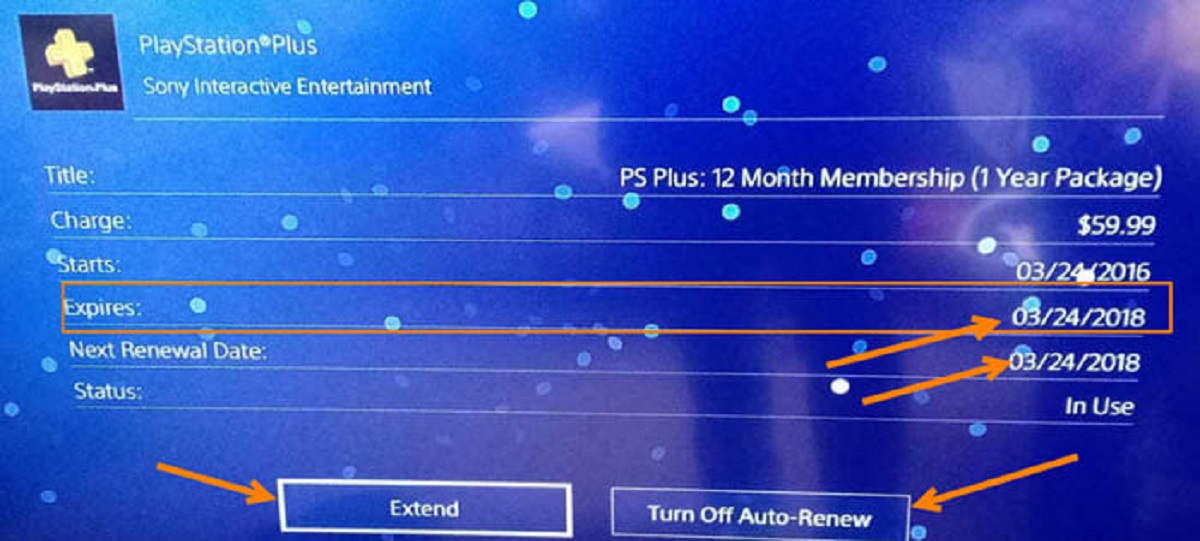
To check PlayStation Plus expiration, the quickest methods are through your PS5 console, PS4 console, the PlayStation Store, the PlayStation App, or a web browser on your computer. Regardless of which method you choose, the key fact to remember is that your benefits last until the end of the paid period, even if you cancel auto-renewal.
Check on a PS5 console
On your PS5, the most direct route to your subscription details takes you through the system settings. This is the fastest way to see the exact date without leaving your console’s main interface. You’ll want to check PlayStation plus expiration right from the Settings menu, as it shows all active subscriptions in one place.
- From the home screen, select the gear icon to open Settings.
- Go to Users and Accounts, then select Account.
- Choose Payment and Subscriptions, then select Subscriptions.
Here, you’ll see your PlayStation Plus membership listed with its current status and the exact expiration date. This is the verified path, so you can rely on it every time you need a quick answer.
Check on a PS4 console
If you’re still on a PS4, the process is just as straightforward, though the menu names differ slightly from the PS5. This method is ideal for those who want to stay entirely within the console’s system settings.
- From the PS4 home screen, go to Settings (the toolbox icon).
- Select Account Management, then Account Information.
- Choose PlayStation Subscriptions.
Your PlayStation Plus expiration date will appear on this screen, along with any other active subscriptions tied to your account. This is a direct, verified route that works across all PS4 models.
Check via the PlayStation Store
If you’re already browsing for games or deals, you can check your membership details without leaving the store. This method is handy because it puts your subscription info right next to the content you’re considering buying.
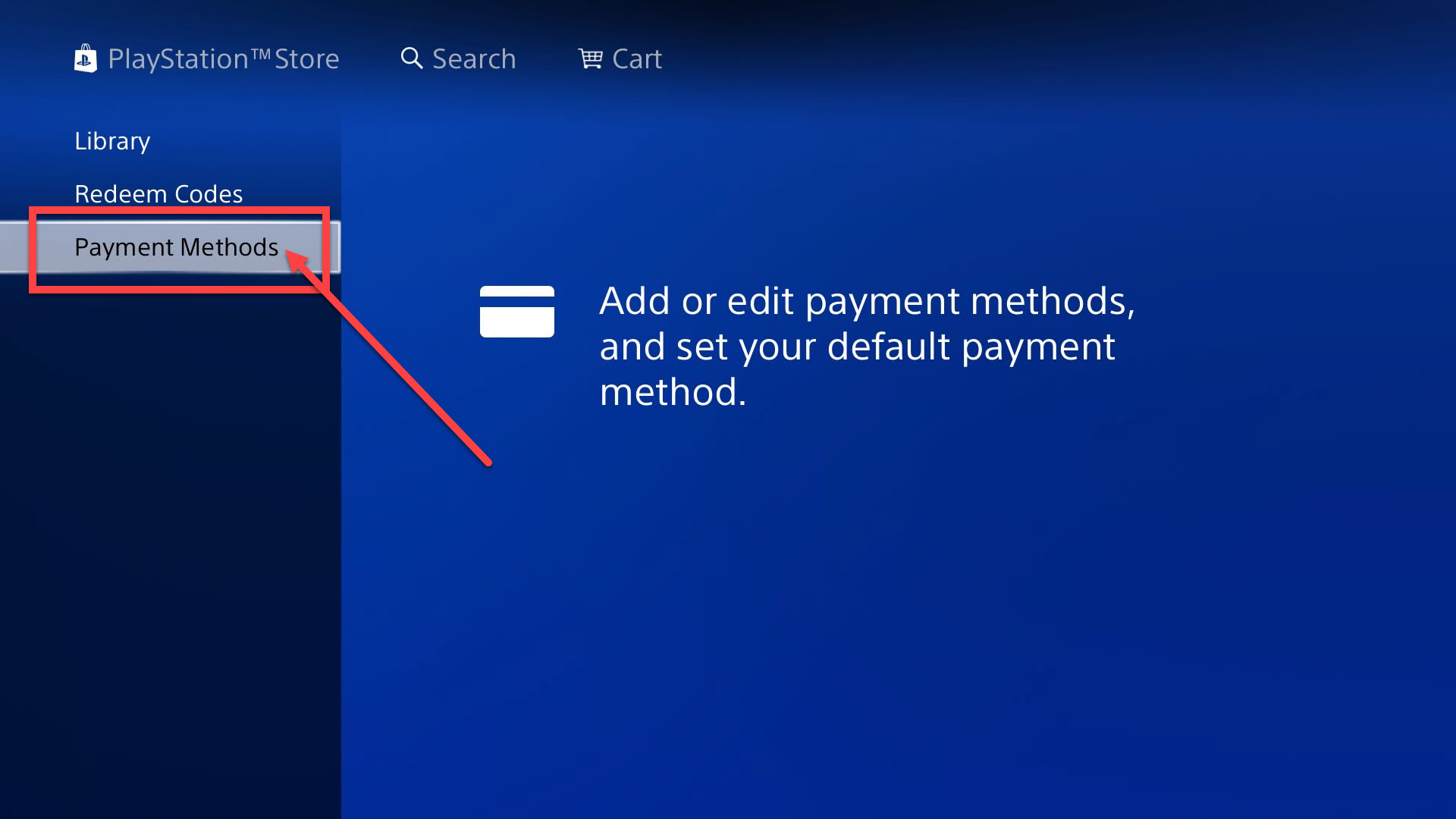
- From your console’s home screen, select the PlayStation Store icon (the shopping bag).
- Scroll down to the PlayStation Plus section on the left-hand sidebar.
- Select it to view your current membership details.
Your expiration date will be listed at the top of this page. This is particularly useful if you’re about to make a purchase and want to confirm whether your membership is still active to get exclusive discounts.
Check using the PlayStation App
When you’re away from your console, the PlayStation App on your mobile device is the fastest way to get the same information. This is perfect for a quick check while you’re out or in another room.
- Launch the PlayStation App and sign in to your account.
- Tap the PlayStation Plus tab at the bottom of the screen (or the Membership section in the main menu).
- Your membership details, including the expiration date, will be displayed at the top.
The app is kept in sync with your console, so you can trust the date you see here. It’s the most portable option for checking your subscription status on the go.
Check on a computer
If you prefer a larger screen or are already at your desk, checking via a web browser is just as effective. This method works on any device with internet access, making it a flexible fallback.
- Open a browser and go to PlayStation.com, then sign in with your account.
- Click on your profile avatar in the top-right corner and select Account Settings.
- In the left-hand menu, choose PlayStation Plus (or look under Subscriptions).
Your expiration date will be shown clearly on this page. This is also where you can review your billing history if you need to confirm when a payment was last processed.
What happens after the expiration date
Once your PlayStation Plus subscription reaches its expiration date, your benefits stop immediately, but only after the full paid period ends. If you cancel auto-renewal before that date, you’ll still have access to online multiplayer, free monthly games, and exclusive discounts until the final day of your current term. After that, you’ll lose access to those features, though any games you claimed for free through PlayStation Plus will become unavailable until you resubscribe. Your saved game data and trophies remain intact, so you can pick up right where you left off if you decide to renew. For those who are new to the service or considering a return, checking the free trial guide can help you understand what to expect before committing again.
\nRelated reading: How To Get Playstation Plus Free, How To Stream Playstation Games On Pc, and How To Play Gta 5 Online Ps4 Without Playstation Plus.