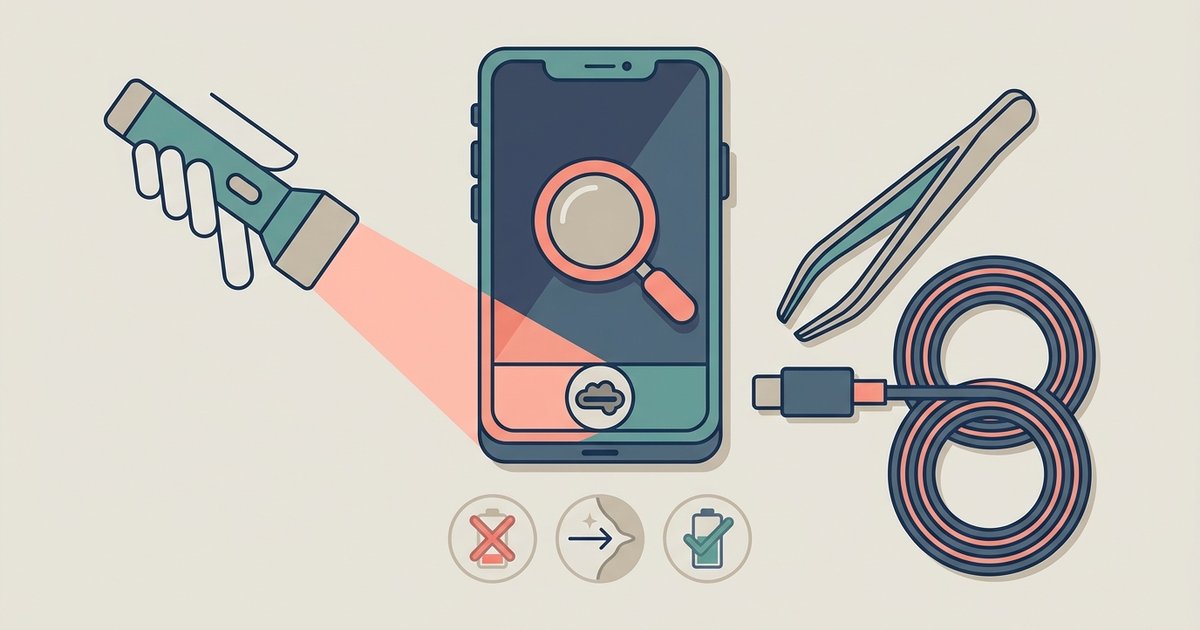
Clean the lint compacted inside your phone's charging port with a non-conductive wooden or plastic toothpick, then try again. If that fails, the port or battery has suffered hardware damage and needs professional repair.
Dig lint out of your charging port if your phone won't charge
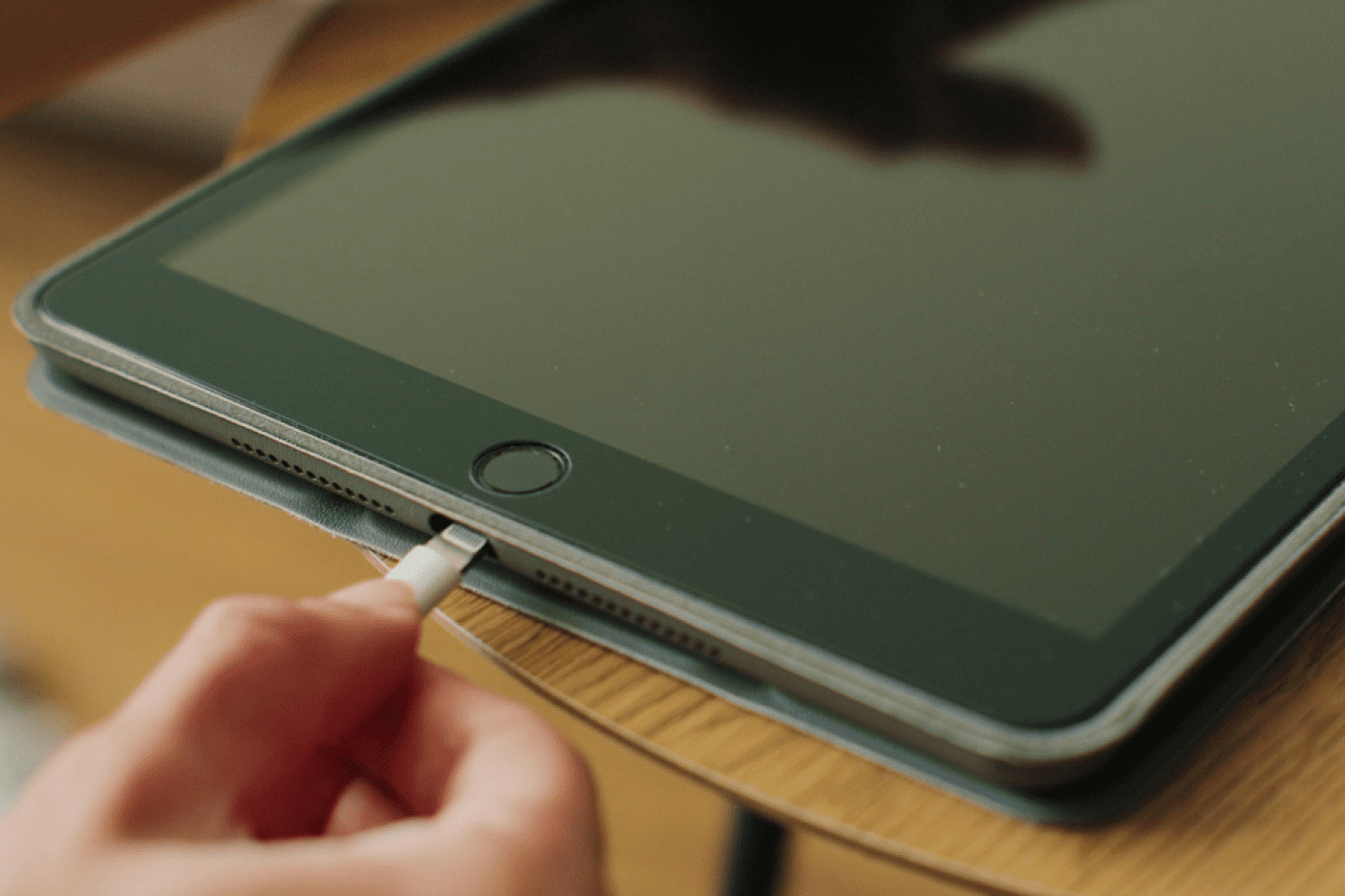
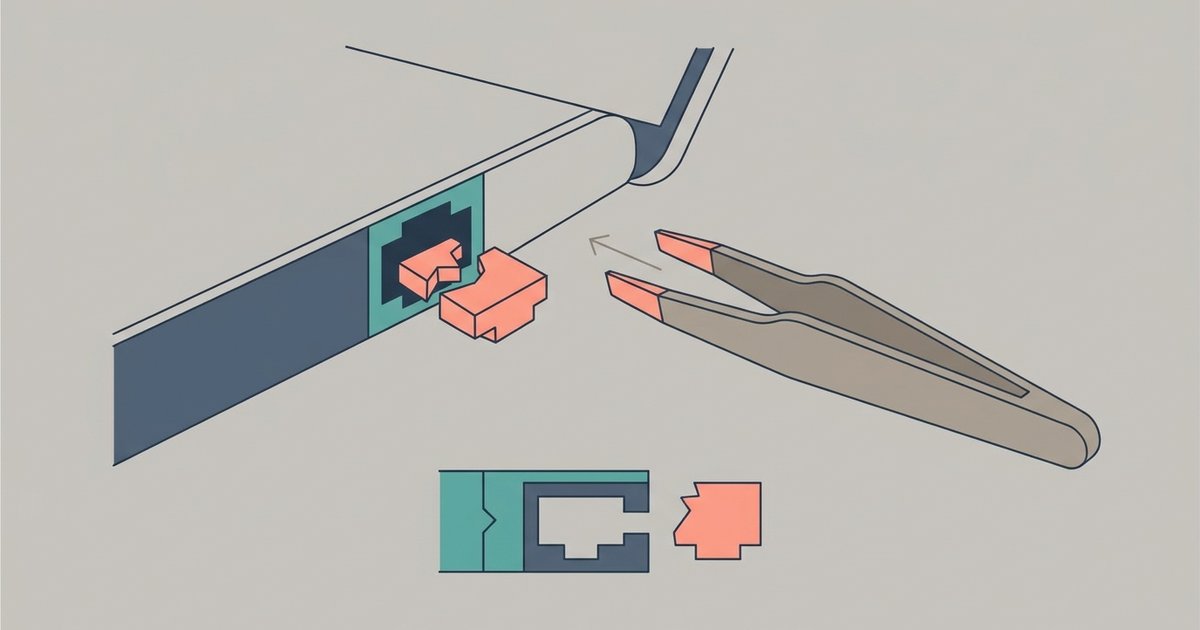
The power connector on your phone acts like a tiny vacuum cleaner for lint, dust, and denim fibers from your pockets. Over weeks, that debris gets tamped down by plugging and unplugging until it forms a hard, brownish plug that blocks the connector from seating fully. You cannot see it with a casual glance; the port’s interior is dark, and the compressed lint sits at the bottom, flush with the metal pins. To remove it safely, power off the phone completely. Use a wooden toothpick, never a metal paperclip, needle, or tweezers, because metal can short the port’s power pins and fry the power-delivery circuit. If you prefer plastic, the spudger from a phone repair kit works perfectly. Gently scrape the bottom of the port, working from side to side, and angle the toothpick upward to lever out the compacted material. You will likely see a surprising amount of grayish fuzz come out. After each pass, blow into the port (or use a can of compressed air held at an angle) to clear loose particles. Repeat until the toothpick slides freely to the full depth of the port without resistance. Then try your cable again. This process is the same whether you make a smartphone in a factory or fix one at home; the port’s geometry is universal across brands. If you own an iPhone, note that the difference between smartphone and iPhone in power connectors is mainly the connector shape (Lightning vs. USB-C), but the lint-removal method is identical.
This single step, removing the invisible, compressed pocket debris, fixes roughly 80% of “won’t charge” problems that survive a cable swap and a wiggle test.
When cleaning doesn't fix it
If you have cleaned the port thoroughly and the phone still shows no power icon, you have reached the limit of safe DIY intervention. The most common hardware failure is a bent or broken pin inside the port itself. When a cable is yanked sideways, the small metal contact fingers inside the port can bend, preventing electrical connection even though the plug fits. You will not see this damage without a magnifying glass, and attempting to straighten pins with a tool almost always breaks them off entirely. The second possibility is a failed power-management IC, the tiny chip on the motherboard that regulates energy from the cable to the battery. Symptoms include the phone showing a replenishment symbol but the battery percentage dropping, or the phone heating up near the bottom edge without refueling. The third failure mode is deep-discharge protection: if the battery voltage drops below a critical threshold (usually around 2.5 volts per cell), the battery’s internal protection circuit refuses to accept any current. Leaving a phone dead for months triggers this state, and no cable or cleaning will revive it. At this point, professional repair is necessary. A technician can replace the port assembly, reflow or replace the power IC, or jump-start a deep-discharged battery with a specialized bench supply. Do not try to force a cable in, use conductive glue, or heat the phone, those actions risk fire or permanent damage. If you are unsure how to proceed, you can test if the phone is alive at all by calling it; if the screen stays black despite a ringtone, the battery is likely dead but the logic board works, reinforcing the need for a battery swap. Before committing to a costly repair, you might measure smartphone screen size to confirm the device is worth the investment. To understand why these components fail, you might explore the broader topic of how to make a smartphone, from port assembly to power management design.