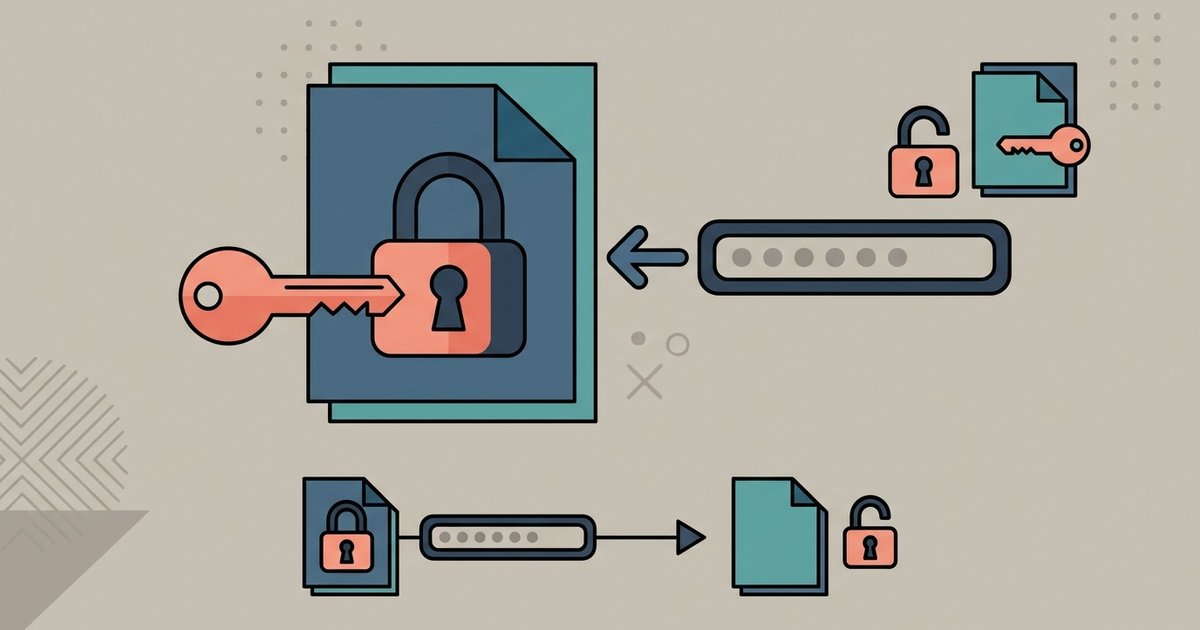
To password-protect a PDF, open it in a tool that can encrypt it, set a password and save a new copy. Anyone who opens that copy will be asked for the password first. To unlock a PDF, you open it with its password and save a copy without one. Unlocking is only for PDFs you own or already have the password for: a legitimate tool needs the password, and it is not a way into someone else's protected file.
Word, macOS Preview and online tools can all add a password. Before choosing one, it helps to know that PDFs have two different kinds.
The two kinds of PDF password
- Open password (also called a user password). Nobody can view the document without it. This is the one that protects confidential content.
- Permissions password (also called an owner password). The document opens normally, but printing, copying text or editing is restricted unless you enter this password. Permissions are a deterrent rather than strong protection, because anyone who can view a document can still photograph or retype it.
If you forget an open password, there is generally no reset and no master key. Store it somewhere safe, such as a password manager, before you send the file.
Password-protect a PDF with PDFBEAR
The recommended quick option is PDFBEAR's Protect PDF tool, which adds an open password in a browser on any device. The site states that it is free with no account and takes files up to 50 MB. To password protect a PDF online with PDFBEAR:
- Open the Protect PDF page and upload your PDF.
- Type a password, then type it again in the second box to confirm it.
- Click Protect PDF.
- Download the protected file.
- Open the downloaded copy to check that it asks for the password, and delete any unprotected copies you no longer need.
The tool warns that the password cannot be recovered, so write it down first. It sets a password needed to open the file; it does not offer separate print or copy permissions. Use a long password that you do not use anywhere else, and send it to the recipient by a different channel from the file, such as a text message when the PDF goes by email. In testing, PDFs downloaded on the free tier carried a small "PDFBEAR.COM - Free Ver." line in the bottom corner of the page, and the pricing page lists removing it as a Premium feature.
Unlock a PDF you have the password for
PDFBEAR's Unlock PDF tool, on the same site, removes a password from a copy of a file when you supply the correct one. Upload the PDF, enter the password when asked, click Unlock PDF, and download a copy that opens without a password. If the file is not protected at all, the tool says so. The site describes it as a convenience tool for your own statements, payslips and documents shared with you, not for opening files that someone meant to keep you out of, and its limits section says you must already know the open password.
Removing a password is useful when you open the same file constantly or need to merge, compress or convert it, since most tools cannot process encrypted PDFs. Keep in mind that the unlocked copy is no longer protected, so store it accordingly.
Password-protect a PDF in Microsoft Word
If you are creating the PDF from Word on Windows, you can encrypt it as you save:
- Choose File then Save a Copy (or Save As).
- Choose PDF as the file type.
- Open More options, then Options.
- Select Encrypt the document with a password, click OK, and enter the password twice.
- Save the file.
This never uploads the document anywhere, which makes it the better choice for confidential material you wrote yourself.
Password-protect a PDF on a Mac with Preview
Preview can set both kinds of password. Apple's steps:
- Open the PDF in Preview and choose File then Export.
- Click the Permissions button.
- To require a password to open the file, select Require Password To Open Document, then enter and confirm it.
- To restrict actions, use the checkboxes to choose which actions are allowed without the owner password, then enter an Owner Password and confirm it.
- Click Apply, then Save.
Apple also describes File then Edit Permissions for changing which actions need a password on a file you have already protected. To remove protection from a file you own, open it in Preview with the password, choose File > Edit Permissions, deselect password options, and click Apply.
Remove a password by saving a new copy
Any viewer that can open the file lets you make an unprotected copy of a PDF whose open password you know. Open the file, enter the password, choose Print, and pick Save as PDF in Chrome or Edge, or Microsoft Print to PDF on Windows. The new file has no password. The tradeoff is that printing re-creates the pages, so links, bookmarks and form fields may be lost. If the file's permissions block printing, this route will not work, and that restriction is there for a reason.
A plain word on unlocking
Only unlock PDFs that are yours or that you have been given the password for, such as a bank statement, a payslip or a file a colleague shared with you. If you have lost the password to your own file, the usual fix is to ask the sender for a new copy or check the email where the password came. Breaking the protection on a document someone else controls can breach their terms or the law, and this guide does not cover it.
Choosing and sharing the password
A PDF password is only as strong as the password you pick. Short or common passwords can be guessed by software that tries likely candidates, so use something long and unique, ideally a passphrase of several unrelated words or a random password from a password manager.
- Do not reuse a password you use for an account, since you will be sharing this one with other people.
- Send the password separately. Putting it in the same email as the attachment defeats the protection.
- Agree on a system for regular senders. Banks and employers often use a fixed pattern, such as part of a date of birth. That is convenient, but it is also easy to guess, so it suits low-risk documents only.
- Record it. Save the password alongside a note of which file it belongs to.
Where to protect sensitive files
Uploading a document to protect it means the unprotected version travels to a server first. PDFBEAR states that uploads use HTTPS, files are deleted automatically after a period and no person reviews them. That is fine for everyday paperwork you want to lock before emailing. For medical, legal or financial records, set the password locally in Word or Preview so the unencrypted file never leaves your computer.
Whichever tool you use, protect the final version last, after any compressing, merging or signing, because most tools need the file unlocked to do those jobs. Then open the protected copy once before you send it, so you know the password works.
\nRelated reading: How to Convert a PDF to Word (and Word to PDF), How to Convert PDF to JPG and JPG to PDF, and How to Merge and Split PDF Files.