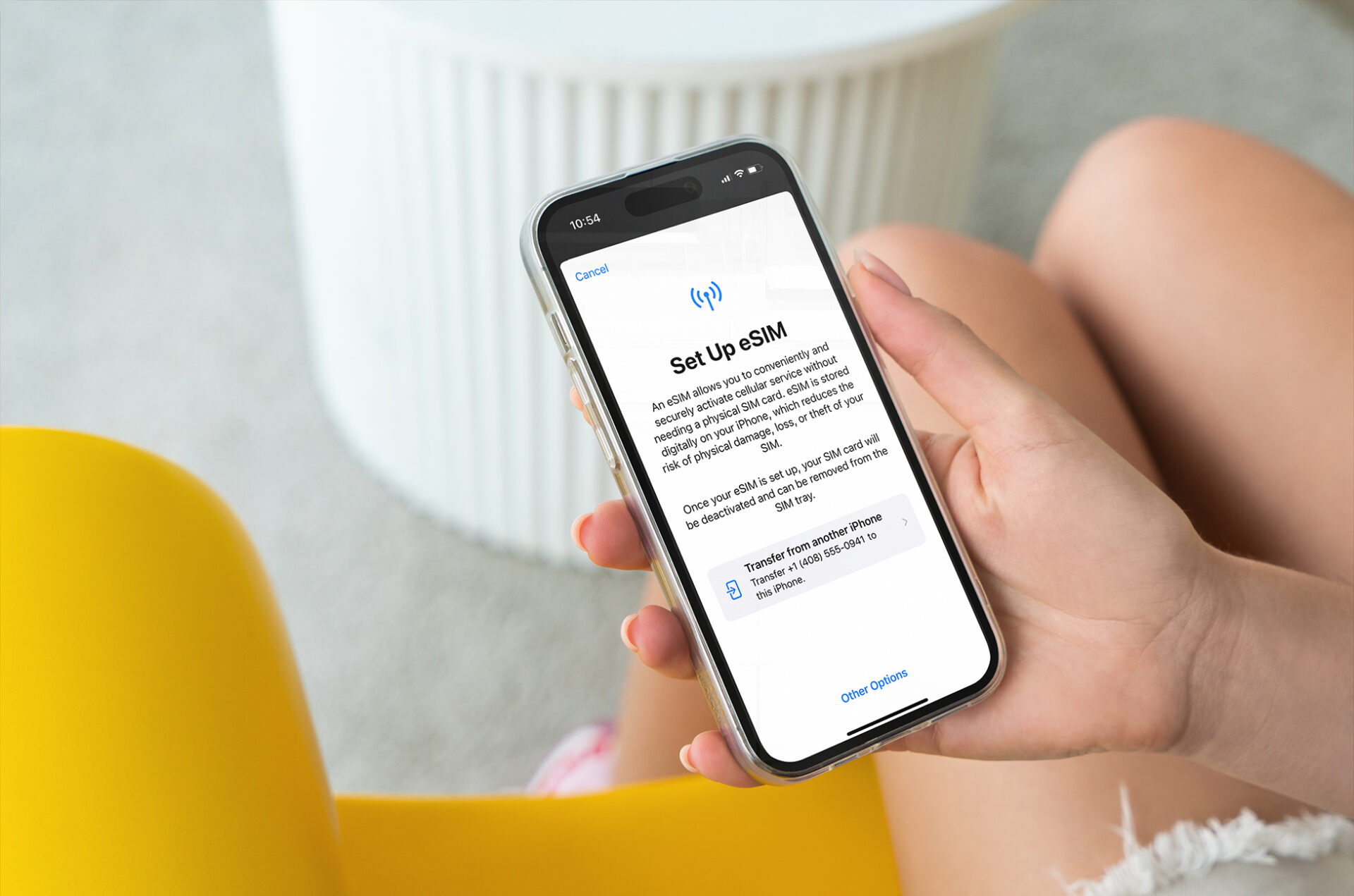
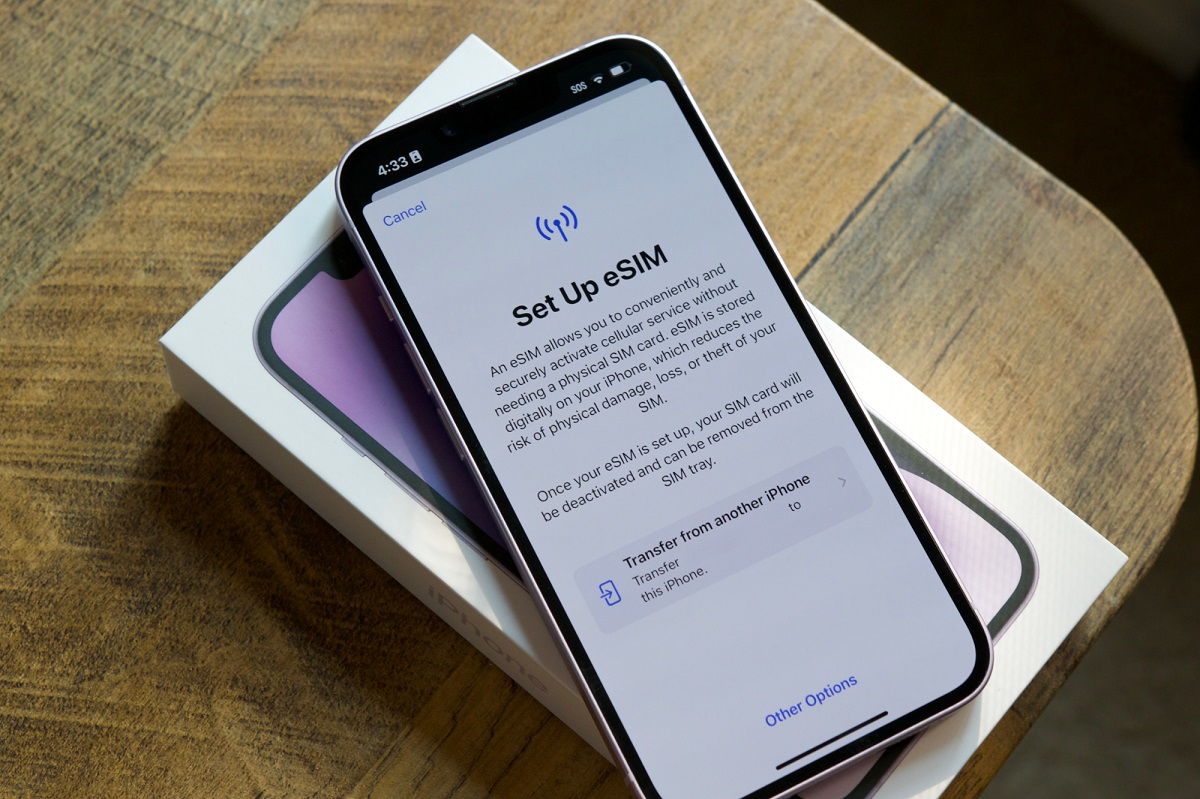
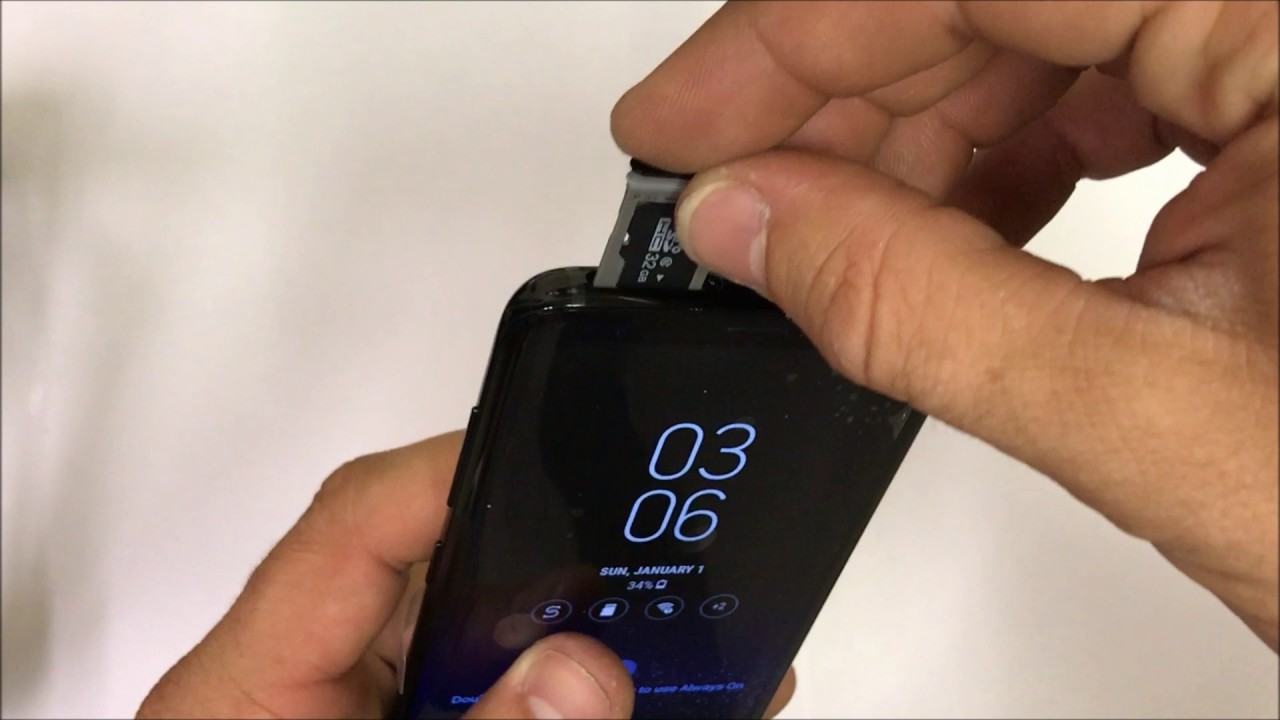
Using eSIM and a physical SIM at the same time lets one phone keep two active lines for calls, texts, and data. On iPhone and Pixel phones, the setup is handled in the cellular/SIM settings, where you choose the default voice line, the line for cellular data, and whether the phone may switch data automatically when coverage changes.
What dual SIM means
Apple documents Dual SIM as two active phone numbers or SIMs for making and receiving calls and text messages, and says you can use a physical SIM with an eSIM on supported iPhone models. Google says Pixel 3a and later can use two SIMs, one physical SIM card and one eSIM, and lets you choose which SIM to use for actions such as messaging or calling.
- iPhone: one physical SIM and one eSIM on iPhone SE (2nd generation), iPhone XR, iPhone XS, iPhone 11, iPhone 12, iPhone 13, iPhone 14, and later.
- iPhone: two eSIMs on iPhone SE (3rd generation), iPhone 13, and later.
- Pixel: one physical SIM plus one eSIM on Pixel 3a and later.
Set the default voice line
On iPhone, Apple's Dual SIM guidance says to go to Settings > Cellular, then tap Default Voice Line and choose a line. Apple also says you can tap a line and then tap Turn On this Line if it is not already active.
On Pixel phones, Google's Pixel eSIM guidance says you can choose which SIM to use for calling. The page does not document a single universal voice-default menu path in the retrieved text, so the exact path is not documented here.
Set the default messages line
Apple’s Dual SIM guidance says Dual SIM is used for calls and text messages, but the retrieved Apple page does not document a dedicated Messages default-setting path. Google says you can choose which SIM to use for messaging, but the retrieved Pixel page does not document a specific menu path in the available text.
Where the phone or carrier offers message-line selection, the available documentation in the retrieved pages does not spell out an exact button label or path beyond the general SIM selection behavior.
Set the line for mobile data
On iPhone, Apple says to go to Settings > Cellular, then tap Cellular Data and select a line. Apple also says to turn on Allow Cellular Data Switching if you want the phone to use either line depending on coverage and availability.
This matters when one line is for home service and the other is for travel or work data. If Allow Cellular Data Switching is on, the iPhone may move data to the other line when it decides coverage is better. If you want to keep data fixed on one line, Apple’s guidance implies leaving that option off and choosing the data line manually.
Roaming toggles and the home line
The retrieved Apple and Google pages confirm dual-SIM behavior, but they do not document a universal roaming-toggle path for every carrier or region in the text that was retrieved. They also do not document a single setting that guarantees the home line will never use data under all carrier conditions.
What is documented is the data-line control itself: on iPhone, set the line in Settings > Cellular > Cellular Data. If you want to prevent the home line from being the data line, choose the other line there and do not enable Allow Cellular Data Switching.
Practical setup sequence
A simple dual-SIM setup guide is to activate both lines, label them if your phone offers labeling, then assign one line for voice and one line for data. Apple documents the core iPhone steps in Settings > Cellular after at least two lines appear under SIMs. Google documents that Pixel phones let you use one physical SIM and one eSIM together on Pixel 3a and later.
- Activate the physical SIM and the eSIM.
- Turn on both lines if one is off.
- Set Default Voice Line to the line you want for outgoing calls on iPhone.
- Set Cellular Data to the line you want for mobile data on iPhone.
- Leave Allow Cellular Data Switching off if you want fixed data behavior on iPhone.
- On Pixel phones, choose the SIM you want for calls, messaging, and data in the SIM controls that Google documents for dual SIM use.
Trade-offs to expect
Dual SIM is useful when you want one number for personal use and another for travel, work, or a local data plan. The main trade-off is that data routing can be confusing if automatic switching is enabled, because the phone may prefer the line with better coverage.
Apple documents this directly through Allow Cellular Data Switching. Google documents that Pixel phones can choose SIMs for different actions, but the retrieved page does not spell out the same automatic data-switching control in the text provided here.
Supported models and differences
Apple and Google differ on supported hardware. Apple’s Dual SIM guidance covers one physical SIM plus one eSIM on iPhone SE (2nd generation), iPhone XR, iPhone XS, iPhone 11, iPhone 12, iPhone 13, iPhone 14, and later, and two eSIMs on iPhone SE (3rd generation), iPhone 13, and later. Google’s Pixel eSIM guidance covers Pixel 3a and later for one physical SIM plus one eSIM.
The retrieved pages do not document identical menu labels across both platforms, and they do not provide one shared standard for carrier-specific roaming controls. Where your carrier adds its own roaming or line-management options, those details are not documented in the retrieved pages.
More eSIM resources: Browse our eSIM guides and troubleshooting resources for compatibility, setup, travel-data and account-safety advice.
\nRelated reading: The Complete eSIM Guide: Setup, Transfers, Security and Travel Data, Why Smartphone Makers Are Dropping the Physical SIM Card, and Deactivating Your SIM Card: A Step-by-Step Guide.