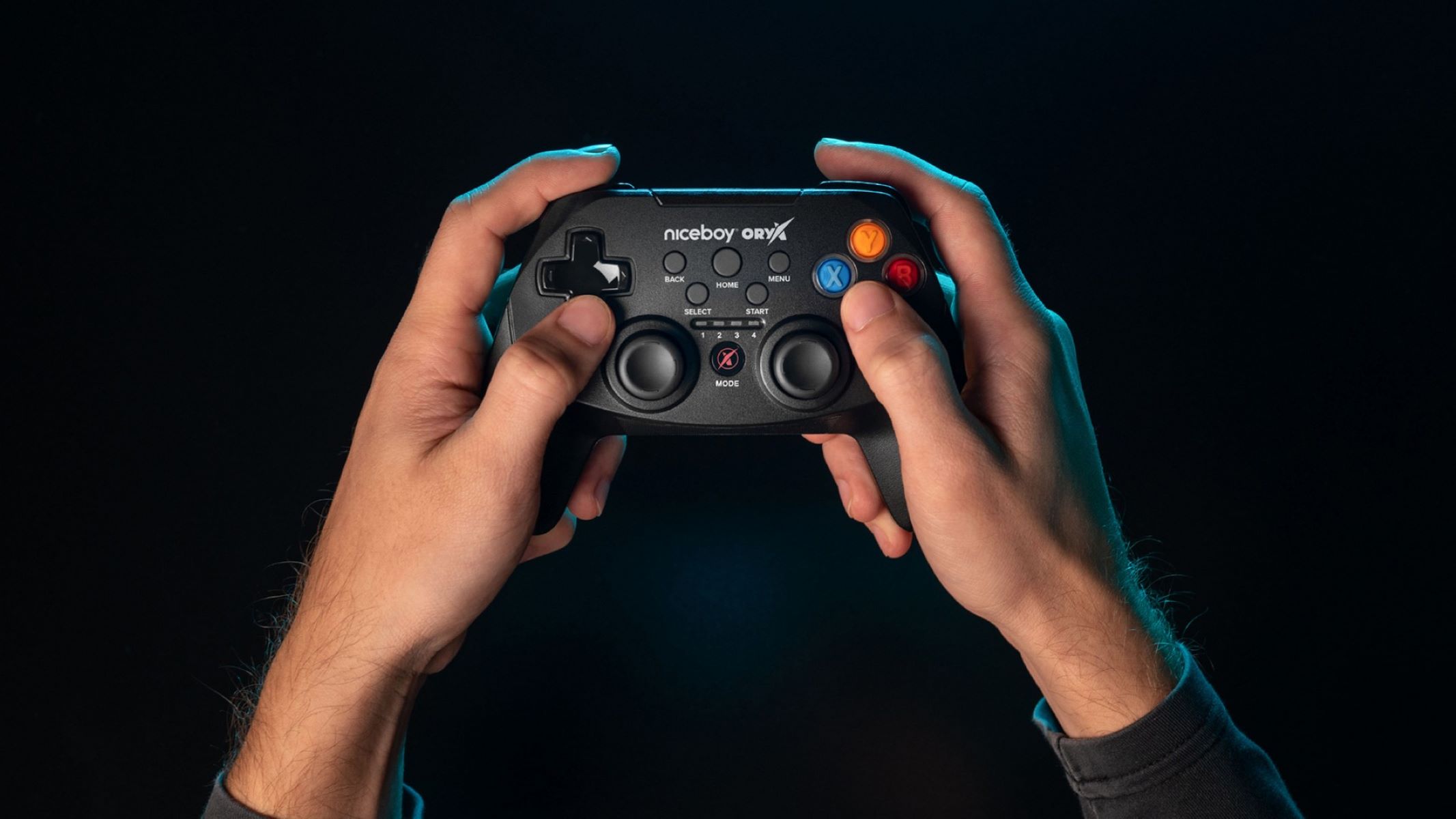
Adjusting controller axis sensitivity changes how your analog sticks translate physical movement into in-game action, letting you fine-tune aiming precision in shooters or steering control in racing games. Mastering this setting is key to improving your performance and comfort across any game genre.
What is controller axis sensitivity?
Controller axis sensitivity determines how quickly or slowly your in-game movements respond to the physical input of an analog stick or directional pad. High sensitivity means even a slight stick movement produces a fast in-game response, ideal for quick camera turns in first-person shooters. Low sensitivity requires larger stick movements for the same result, giving you finer control for precise aiming at long distances or careful navigation in exploration games. In racing games, higher sensitivity can make steering more responsive, while lower sensitivity helps maintain stability on straightaways. Understanding this balance is the first step to customizing your feel.
How to adjust controller axis sensitivity on Windows PC
On Windows, you have several ways to adjust sensitivity, from a built-in calibration tool to in-game menus and manufacturer software. Start with the universal Windows calibration tool for a baseline fix, then fine-tune per game.
- Press Windows + R, type joy.cpl, and press Enter.
- Select your controller, click Properties, then the Settings tab.
- Click Calibrate and follow the on-screen prompts to reset your stick’s center and full range of motion. This can fix drift or unresponsive areas but does not directly change sensitivity.
For direct sensitivity changes, open the settings or options menu inside your game and look for “controller sensitivity” or “axis sensitivity.” Many games let you adjust the X and Y axes separately. If you need more control, use manufacturer software (like Xbox Accessories or third-party tools) to remap sticks or adjust response curves globally across all games. For mouse users, fine-tuning the DPI settings for the Logitech G305 can achieve a similarly precise, personalized feel, and you can further stabilize your aim if you turn on angle snapping Logitech.
How to adjust controller axis sensitivity on Xbox
Xbox consoles and the Xbox Accessories app offer a global way to change stick sensitivity. This is useful if you want a consistent feel across every game without tweaking each title individually.
- On your Xbox console, go to Settings > Devices & connections > Accessories.
- Select the controller you want to adjust, then choose Configure.
- Create a new profile or edit an existing one. Under Stick sensitivity, choose a preset (e.g., “Instant,” “Default,” “Smooth,” “Delayed”) to change how aggressively the stick responds.
- Save the profile and assign it to your controller. The same app is available on Windows PC if you connect your Xbox controller there.
How to adjust controller axis sensitivity on PlayStation
PlayStation consoles include system-level settings for stick sensitivity that apply globally. This is especially helpful for adapting a controller’s feel to your preferred aiming style without entering each game’s menus.
- On your PS5 or PS4, go to Settings > Accessories > Controllers.
- Select Analog stick sensitivity (on PS5) or Controller sensitivity (on PS4).
- Press Options to apply the setting immediately. This change affects all games and system navigation.
If your sticks have drifted, check the same menu for a calibration option.
Fine-tuning dead zones and response curves
Axis sensitivity works hand-in-hand with dead zones and response curves to create your ideal controller feel. A dead zone is a small area around the stick’s neutral position where no input is registered, shrinking it makes the stick more responsive to tiny movements, while enlarging it can mask stick drift. Response curves control how input speed ramps up as you push the stick further; a linear curve gives a 1:1 feel, while a curved (exponential) one can make the center more precise and the edges faster. Many games and manufacturer tools let you adjust these alongside sensitivity. For example, in a racing game, you might lower the dead zone for quicker steering corrections and use a smoother curve to avoid jerky turns. Experiment with these together to match your reflexes and the demands of each game.