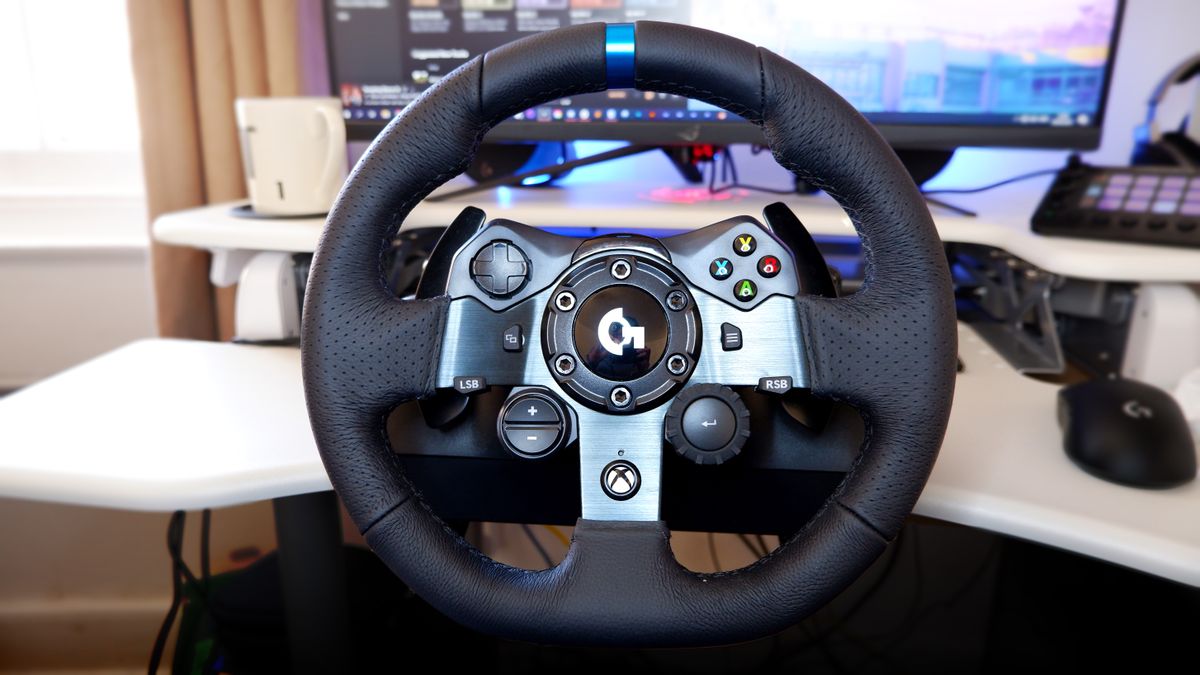
To configure racing wheel on Steam, you need to install the manufacturer's drivers, connect the wheel to your PC, and then adjust Steam's controller settings so the wheel is recognized instead of being treated as a generic gamepad. The fastest path is through Steam's desktop client, but the same options exist in Big Picture Mode; once Steam sees the wheel, most of the real tuning happens inside each game's own calibration menu.
What you need to configure your racing wheel on Steam
Before you start, gather three things: the correct drivers for your specific wheel model, a working USB connection (and sometimes a separate power cable), and access to Steam's controller settings. The drivers are non-negotiable, without them, your PC may see the wheel as an unknown device or a generic joystick, and Steam's configurator won't list it. The USB connection is equally important because Steam detects controllers through the operating system's device list, and a loose or faulty cable can cause intermittent drops mid-race. Finally, you need to know where Steam hides its controller options: it's under Steam > Settings > Controller > General Controller Settings, or via the settings gear in Big Picture Mode.
Install the racing wheel drivers from the manufacturer
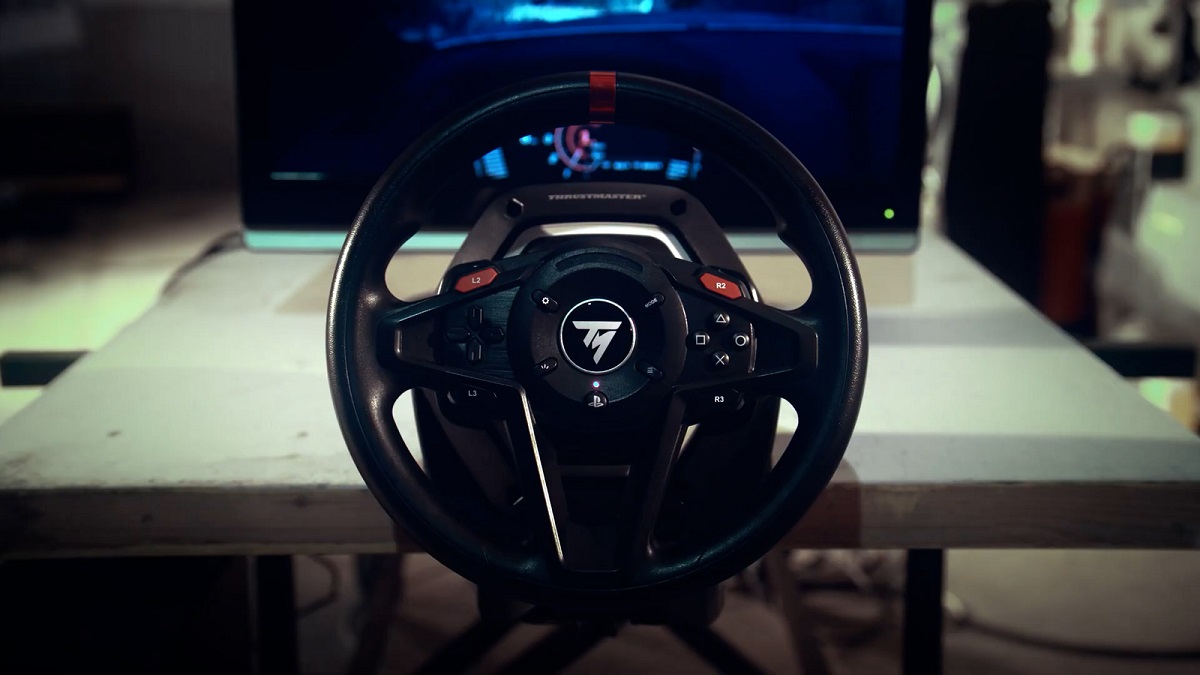
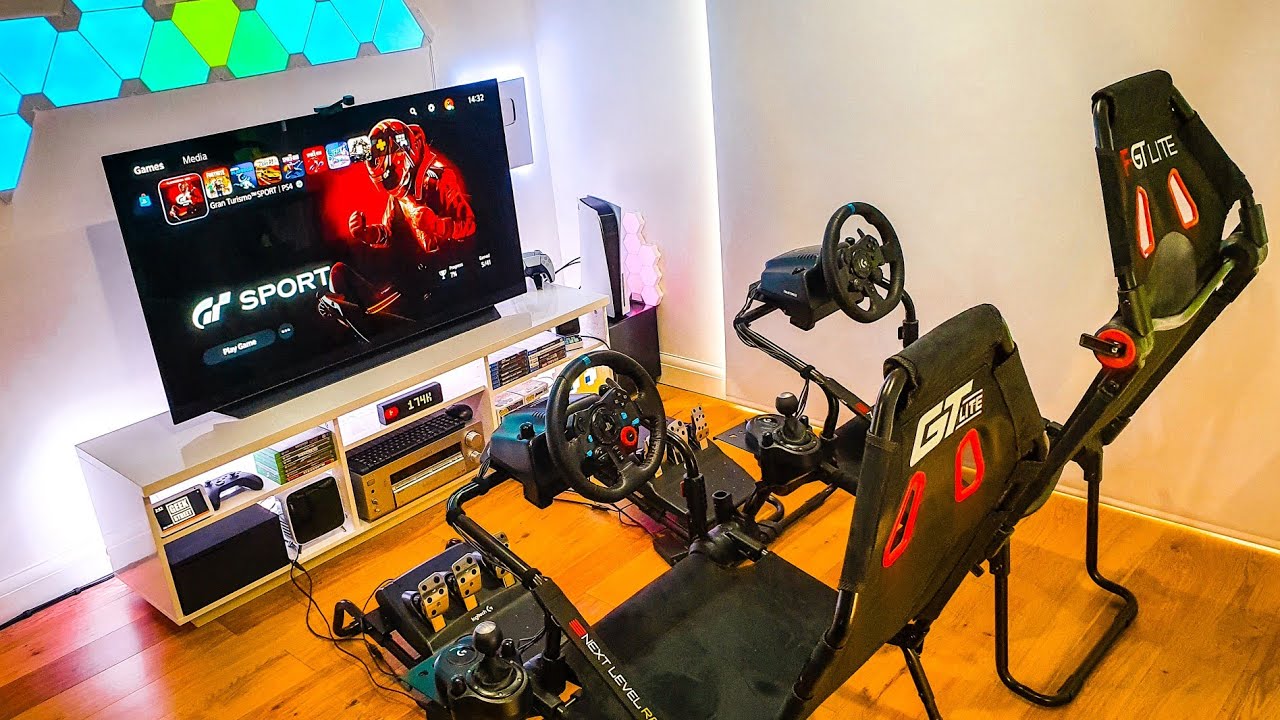
Go to the wheel maker's official website and find the support or downloads page for your exact model. Download the latest driver package, then run the installer and follow the on-screen prompts. After installation, restart your computer, this initializes the driver stack and ensures the wheel's inputs are recognized by the OS. If you're using a wheel from a major brand, the driver often includes a control panel for testing force feedback and rotation angle, but you don't need to open that panel now; Steam will handle the rest. Skipping this step is the most common reason a wheel "doesn't work" on Steam, so treat it as mandatory. For a quick reference on this process, many users search for a "racing wheel setup" guide that covers driver installation across brands, and the same principle applies here: install first, connect second.
Connect the racing wheel to your computer
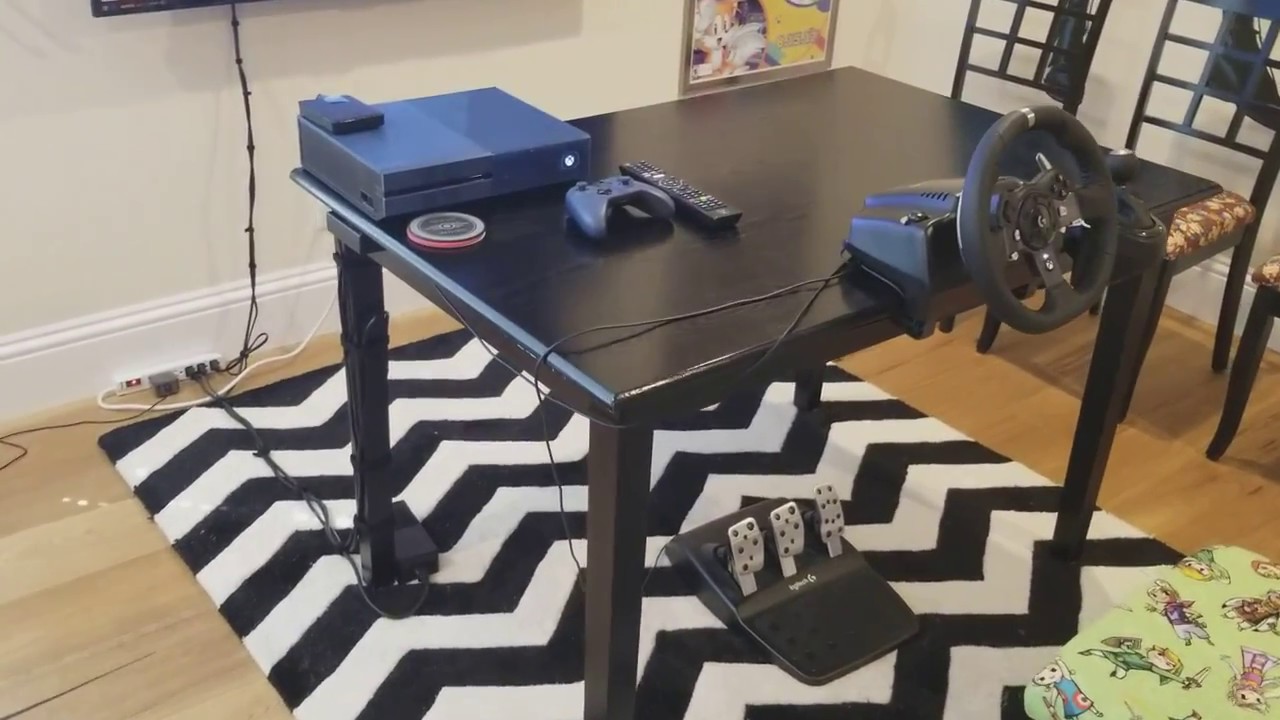
Plug the wheel's USB cable into a USB port on your PC, preferably a rear port on a desktop, since front-panel ports can sometimes provide unstable power. If your wheel has an external power adapter, connect it to a wall outlet and then to the wheel base. Make sure both the USB and power connections are fully seated; a loose power connection can cause the wheel to spin erratically or not respond at all. Once connected, you should hear a Windows device-connected sound, and the wheel may perform a self-calibration spin. A secure physical connection is the foundation for everything else, so take the extra ten seconds to verify it.
Open Steam's general controller settings
Launch Steam and click Steam in the top-left corner, then select Settings. In the Settings window, choose Controller from the left sidebar, then click General Controller Settings. This opens a screen where Steam lists all detected controllers. If you prefer Big Picture Mode, click the settings gear icon in the top-right corner of the Big Picture interface, then navigate to Controller > Controller settings, the same screen appears. On this screen, you'll see a section labeled "Detected Controllers" that should show your wheel once it's plugged in and drivers are installed. If the wheel doesn't appear, double-check the driver installation and the physical connection before proceeding. This screen is also where you'll enable or disable the support boxes that tell Steam how to interpret your input device.
Check the right controller support and uncheck generic gamepad
In General Controller Settings, you'll see checkboxes for different controller types: PlayStation, Xbox, Switch Pro, and Generic Gamepad Configuration Support. For a racing wheel, the critical action is to check the box that matches your wheel's protocol (usually Xbox or PlayStation, depending on the brand) and then uncheck Generic Gamepad Configuration Support. Why? Because when generic gamepad support is enabled, Steam may force your wheel to act like a standard joystick, which can cause conflicting inputs, like the wheel's pedals being read as buttons or the steering axis being ignored. Many wheel manufacturers and game developers specifically recommend unchecking that generic box to ensure the wheel's full range of motion and force feedback are passed through correctly. After you make this change, Steam will refresh the detected controllers list, and your wheel should appear as a recognized device. If you're also using a gamepad for other games, you can re-enable generic support later, but for wheel use, keep it off. Once your wheel is properly configured here, you can even use a racing wheel with Roblox for a more immersive driving experience.
Configure force feedback and controls inside your game
Steam's job ends once it recognizes the wheel; the actual tuning happens in the game's own options menu. Launch a racing title that supports wheels, go to its settings or controls section, and look for a "controller" or "wheel" submenu. Most modern racing games will detect the wheel automatically and offer a calibration wizard: it will ask you to turn the wheel fully left, fully right, press the throttle, press the brake, and then press the clutch if you have one. Follow those prompts by physically pressing the wheel's pedals and turning the wheel, this maps the physical inputs to the game's virtual controls. After calibration, you'll typically find sliders for force feedback strength, steering sensitivity, and dead zones. If you're using a Logitech wheel, a common search is "setup Logitech g920 racing wheel PC," and the in-game calibration steps are identical regardless of brand. For games that don't auto-detect, you may need to boot the game with the wheel already plugged in, then manually assign each action by selecting the control and pressing the corresponding pedal or button on the wheel. This per-game tuning is where you'll feel the difference between a generic controller and a proper wheel, so spend a few minutes in the settings before racing. And if you ever want to use a wheel on a different platform, the same calibration logic applies, though non-Steam platforms may have their own input handling or driver limitations. For now, focus on your Steam library, and remember that each game may require slightly different force feedback and sensitivity values, so don't be afraid to revisit the settings menu between races to fine-tune the feel.