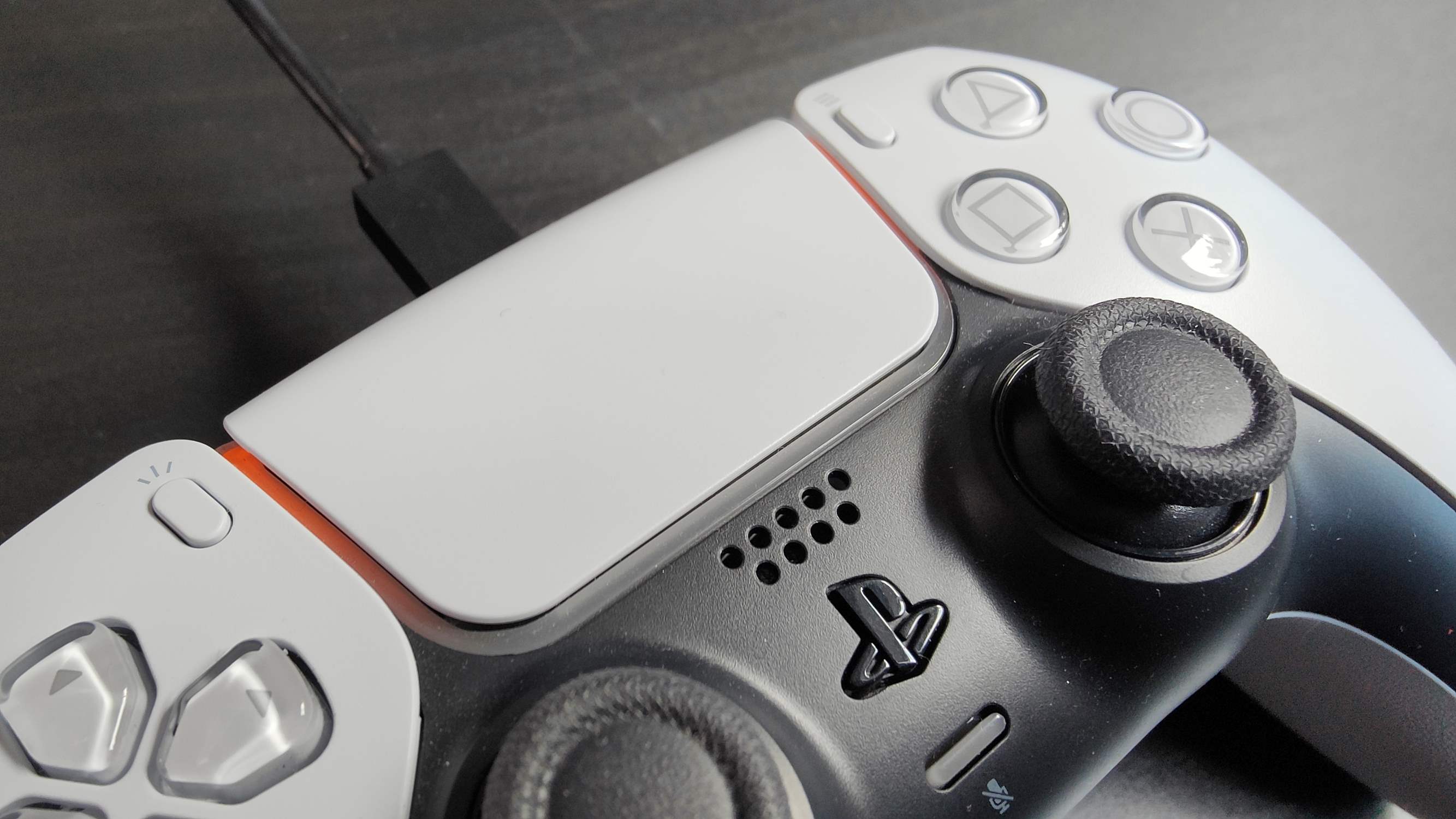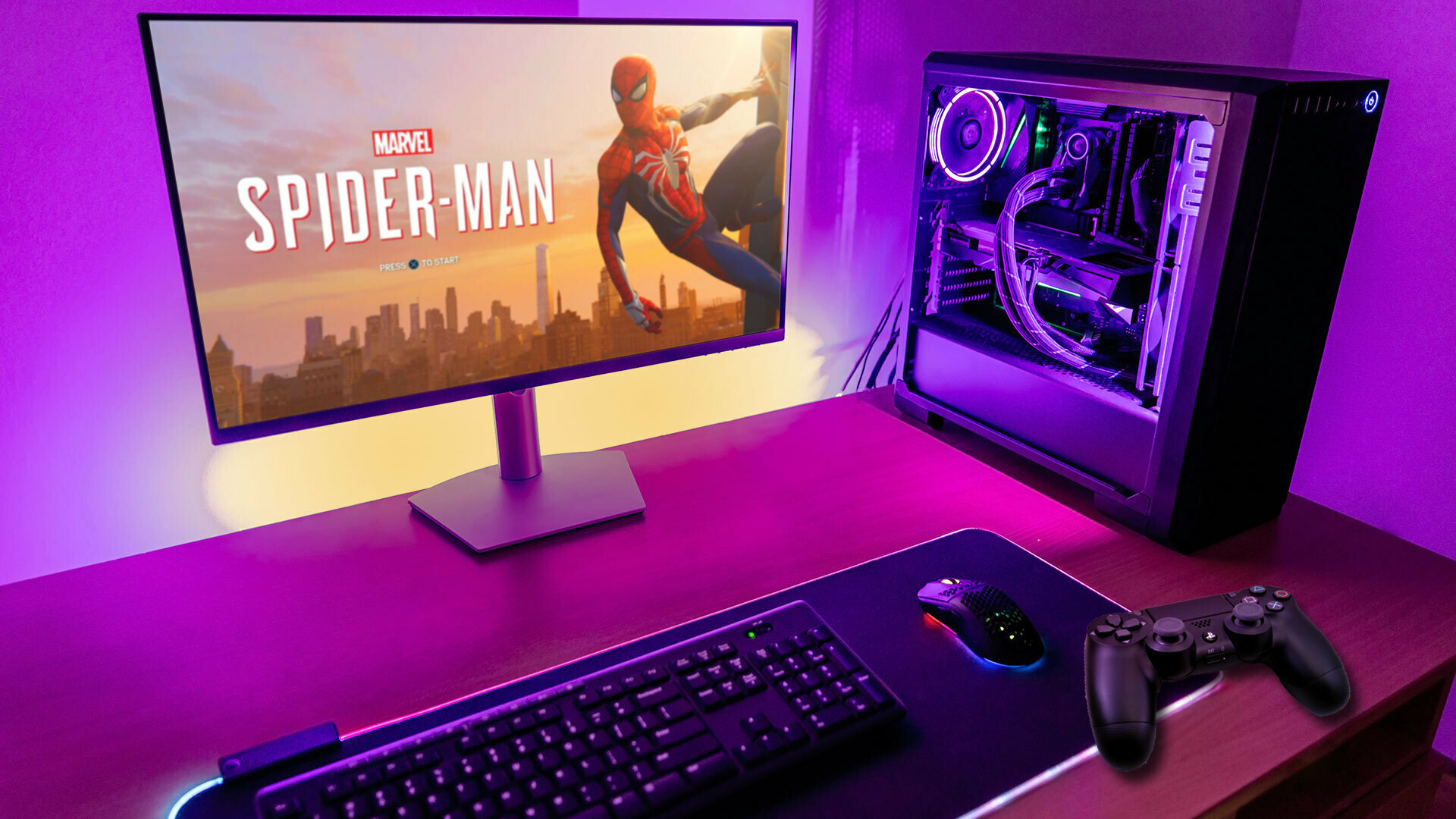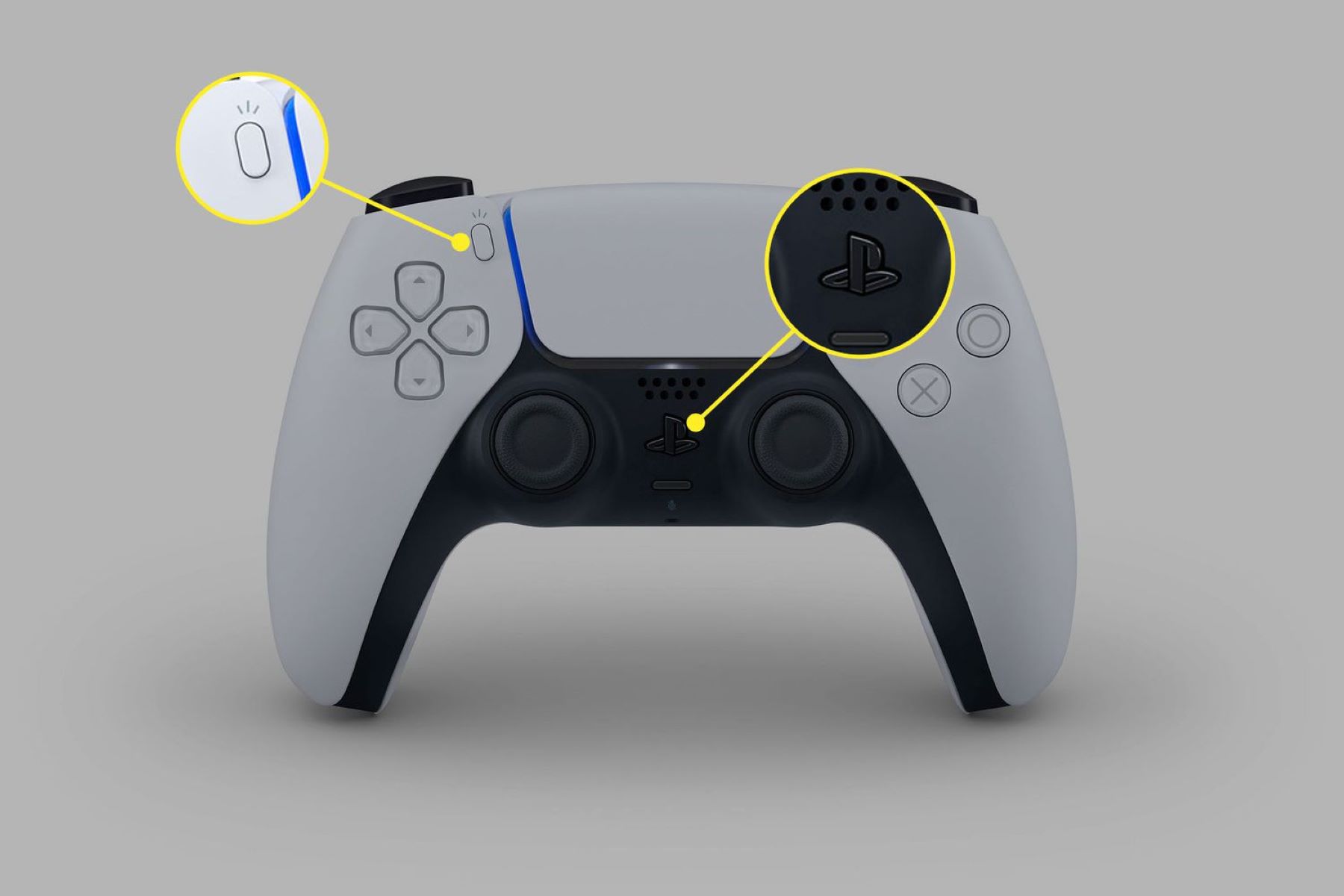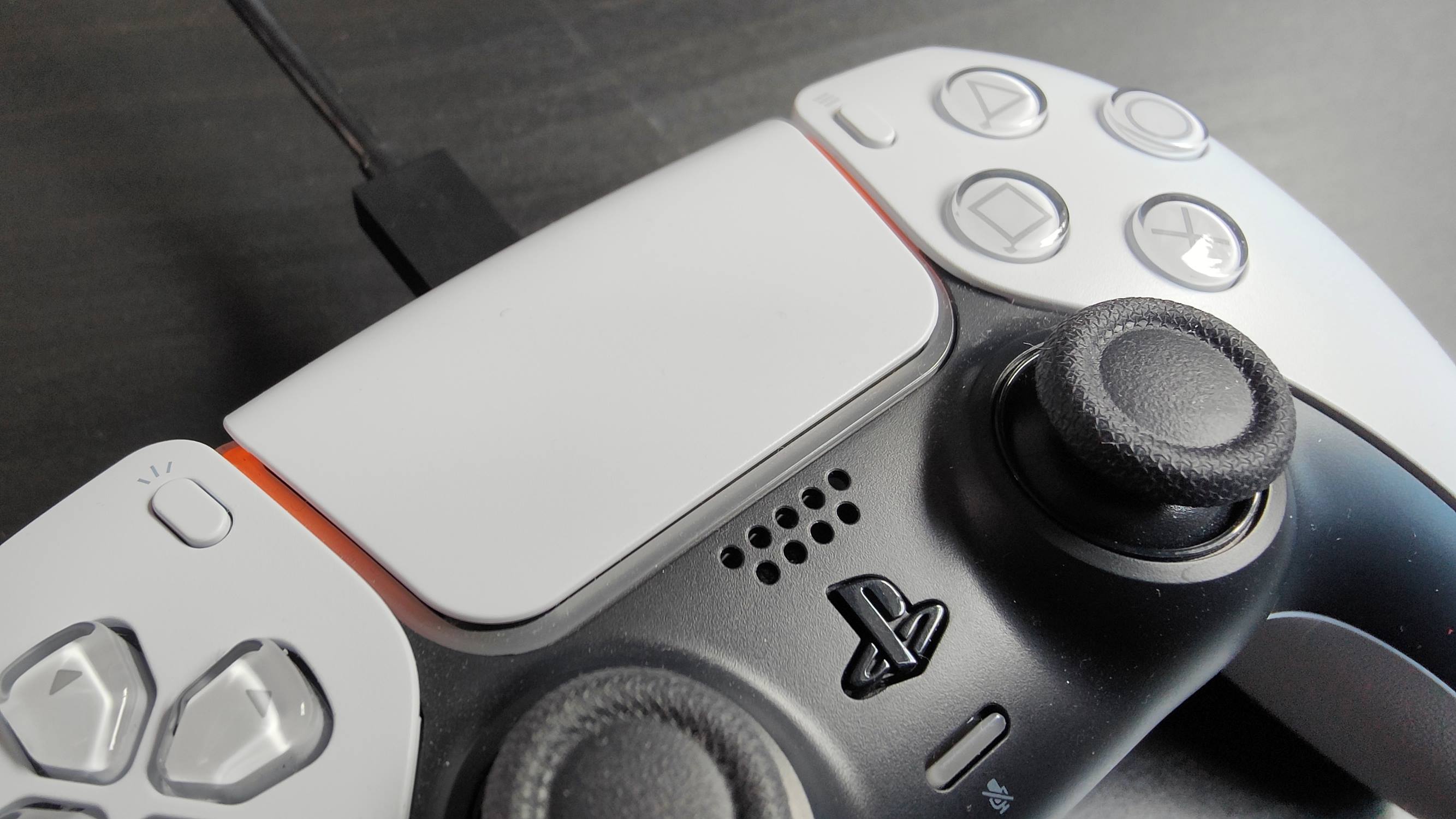
To connect a PS5 controller via Bluetooth, press and hold the PS and Create buttons together until the light bar blinks rapidly, then select “DualSense Wireless Controller” from your device’s Bluetooth settings. This method works on Windows 10 64-bit or 11, macOS 11.3 or later, iOS 14.5 or later, and Android 12 or later, with Android 13+ recommended for full support. Once paired, you can connect a second PS5 controller the same way for local multiplayer games.
What You Need to Connect a PS5 Controller via Bluetooth
Before you start, verify your device’s operating system meets the minimum requirements. The DualSense controller supports Windows 10 64-bit or Windows 11 via Bluetooth, macOS Big Sur 11.3 or later, iOS 14.5 or later, and Android 12 or later with Android 13+ recommended for full functionality. If you’re using a Windows PC without built-in Bluetooth, you’ll need a Bluetooth USB adapter, but not all adapters are supported, so choose one that explicitly lists DualSense compatibility. Also, ensure the controller’s firmware is up to date; you can update it using a PS5 console or a Windows PC with the PlayStation Accessories app. Outdated firmware can cause pairing failures or missing features.
Turn On the Controller and Activate Bluetooth Pairing Mode
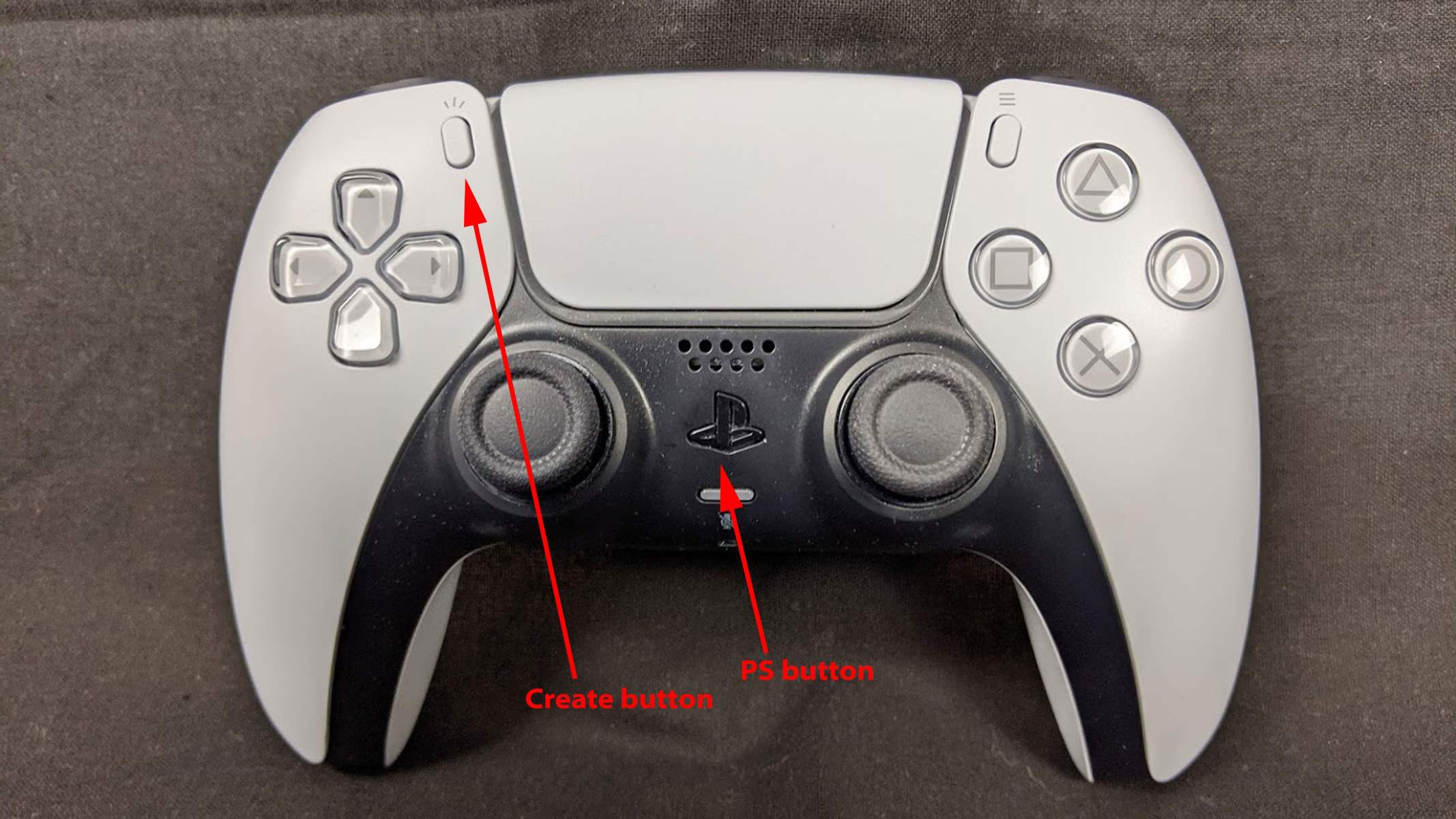
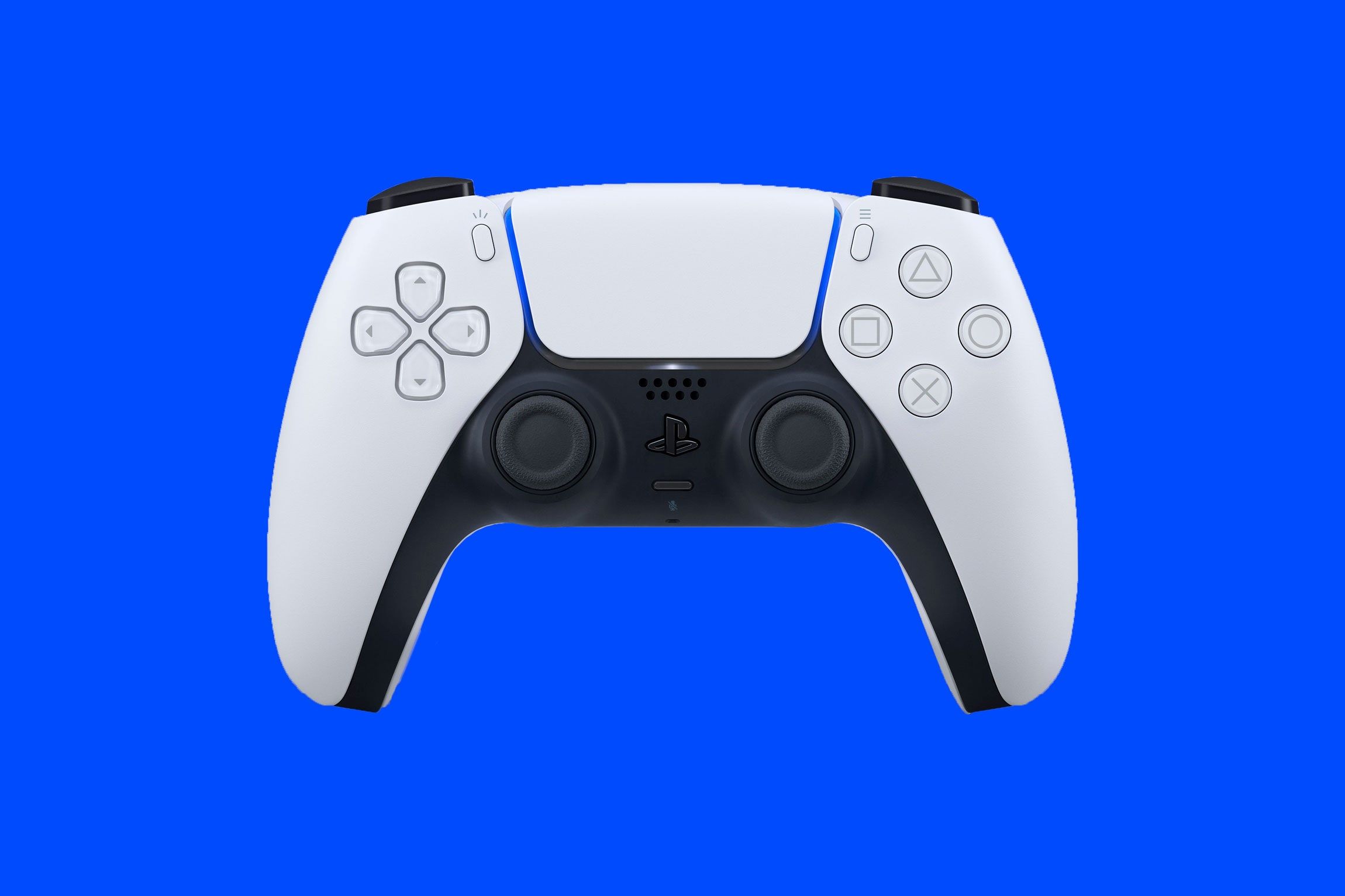
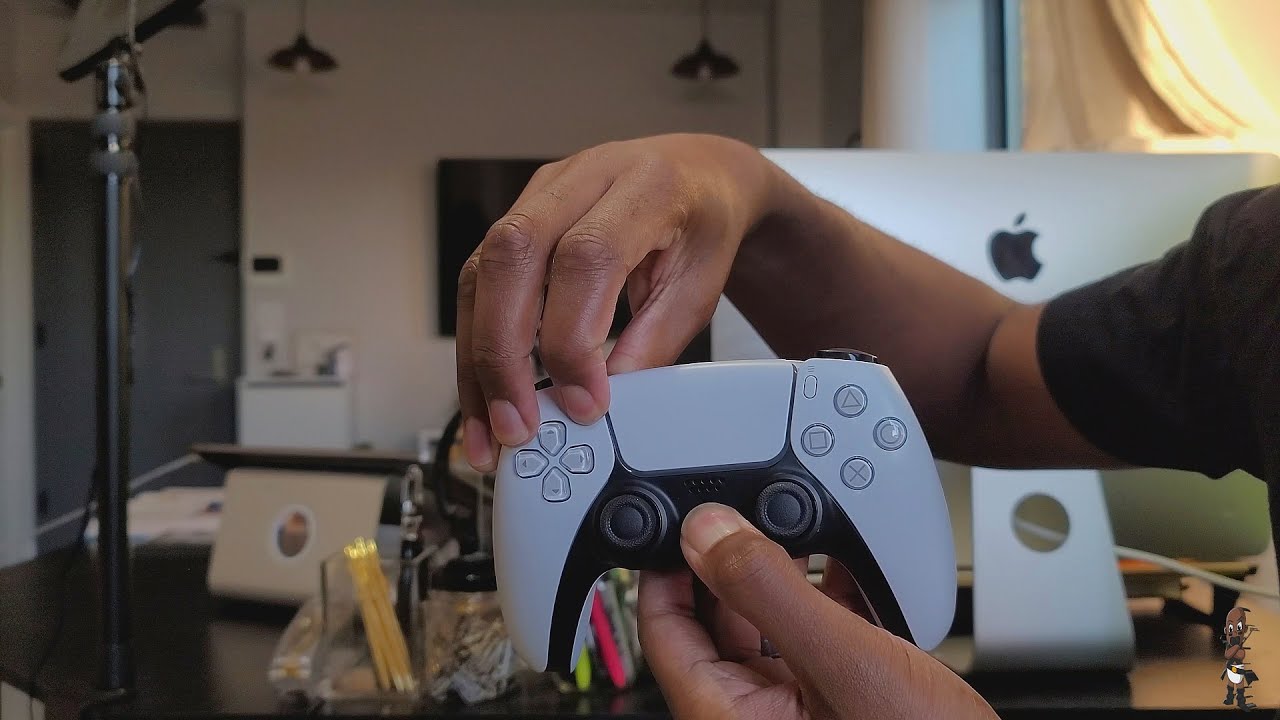
The correct way to put the DualSense into pairing mode is to make sure it is off and disconnected from any USB cable, then press and hold the PS button and the Create button simultaneously until the light bar blinks rapidly. The Create button is the small one to the left of the touchpad, not the Share button from older controllers. A common mistake is using a paperclip to press the reset hole on the back, this does not enter pairing mode and can actually reset the controller’s saved device list. The controller must be off USB; if it’s charging or connected by cable, it won’t enter wireless pairing mode.
Open Bluetooth Settings on Your Computer, Phone, or Tablet
Once the light bar is blinking, navigate to Bluetooth settings on your target device. On Windows, open Settings > Devices > Bluetooth & other devices and toggle Bluetooth on. On Mac, go to System Preferences > Bluetooth. On iOS, open Settings > Bluetooth. On Android, open Settings > Connected devices > Connection preferences > Bluetooth. Keep this screen open and your device within a few feet of the controller, Bluetooth range is limited, and walls or other electronics can interfere.
Select 'DualSense Wireless Controller' from the Device List
Your device will scan for nearby Bluetooth devices. Look for “DualSense Wireless Controller” or sometimes just “Wireless Controller” in the list. Tap or click it to initiate pairing. If prompted for a code, enter 0000 or confirm the on-screen pairing request. Once connected, the light bar stops blinking and stays solid, usually blue or white depending on your device. If the controller doesn’t appear after 30 seconds, turn it off (hold PS for 10 seconds) and repeat the PS + Create combination.
Pair the Controller with Multiple Devices and Switch Between Them
The DualSense supports multiple paired devices, and you can jump between them without re-pairing. To switch, hold the PS button and one of the action buttons, Triangle, Circle, Cross, or Square, for about 3-5 seconds. Each button corresponds to a different device slot: for example, Triangle might be your PC, Circle your phone, Cross your tablet, and Square your PS5. The light bar will blink while switching, then stay solid once connected to the new device. This works after you’ve paired each device at least once. To set a new device to a slot, pair it normally, then use the PS + action button combo to assign it.
Understand Feature Support: Haptics, Audio, and Triggers by Platform
Feature support varies by platform. On Windows PC, haptic feedback and adaptive triggers may require a USB connection for full functionality in supported games, though some third-party applications are working to enable these wirelessly. Haptic feedback is not supported on Mac and mobile devices, and adaptive triggers are not compatible with Android-based mobile devices. The built-in microphone and speaker are available on Windows PC when supported by the game but are not compatible with Mac and mobile devices. The headset jack feature requires a wired connection with PC and Mac and is not compatible with mobile devices. For the best experience on PC, consider using a USB cable for games that rely heavily on haptics or triggers.
Troubleshooting Common PS5 Controller Bluetooth Problems
If the controller doesn’t pair, start by checking your Bluetooth adapter. Incompatible USB adapters are a frequent cause on Windows, try a different adapter or connect via USB to see if the controller works at all. Not all PCs are supported even with the right OS version; some motherboards have weak Bluetooth radios. Update the controller’s firmware using a PS5 console or the PlayStation Accessories app on Windows, as older firmware can cause intermittent drops. If you previously paired the controller with another device, you may need to forget it in that device’s Bluetooth settings before pairing again. To reconnect the controller to a PS5 console after using it with another device, plug it into the PS5 with a USB cable and press the PS button, or re-pair it via the PS5’s Bluetooth settings. Finally, move closer to your device and remove nearby interference, Wi-Fi routers, cordless phones, and microwaves can disrupt Bluetooth signals. If the controller still won’t connect, turn it off completely, restart your device, and start the pairing process from scratch. If you're trying to pair an older model, the steps differ slightly when you connect PS4 controller Bluetooth.
For the wider topic, see connecting a game controller.