Yes, any wireless adapter introduces a tiny amount of input lag, but a quality gaming adapter adds only a small amount of delay, which is imperceptible to human reflexes. You will not notice a difference compared to a native DualSense connection.
Why PS5 adapters add input lag
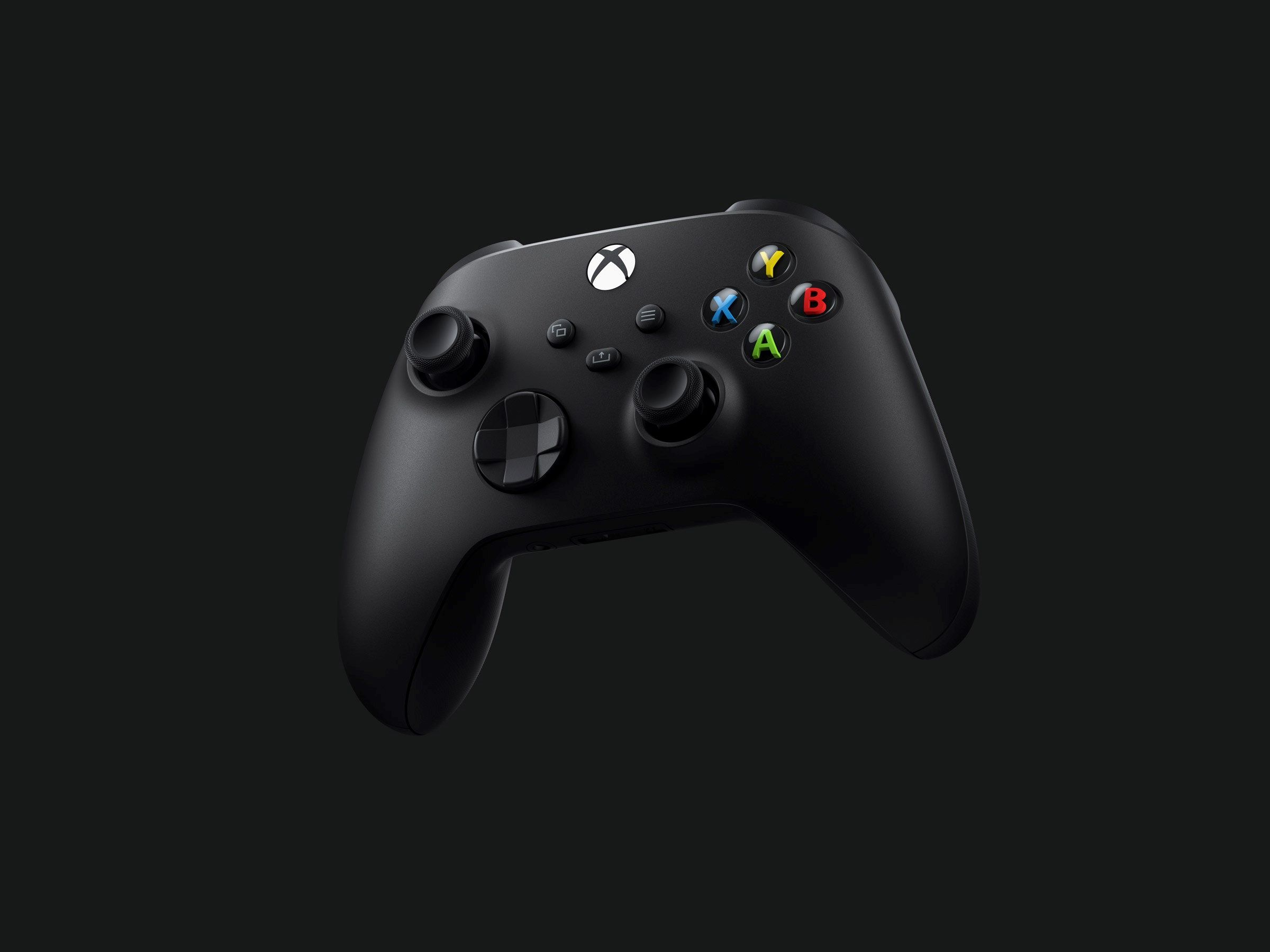
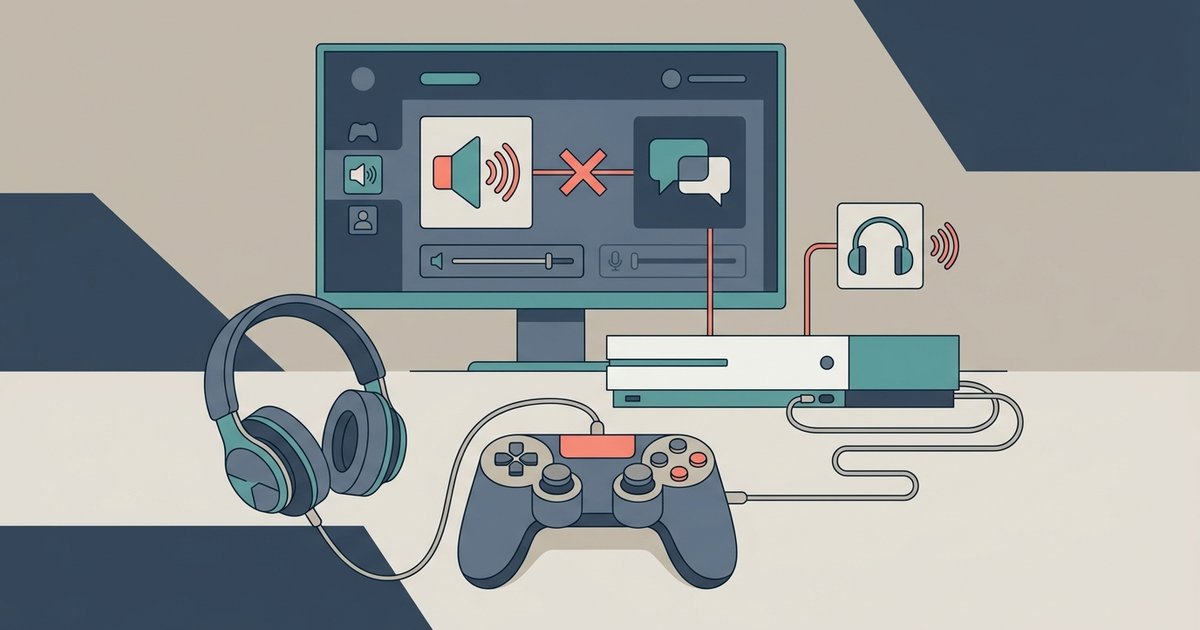
Every wireless adapter introduces a small processing delay because it must translate the Xbox controller’s proprietary radio signal into a format the PS5 understands. The controller speaks Microsoft’s Xbox Wireless Protocol. The PS5 natively speaks Bluetooth and a proprietary Sony protocol. The adapter has to receive the input, decode it, convert it to a standard HID report, and retransmit that data over Bluetooth or USB to the console. This conversion and retransmission cycle takes processing time. On a modern gaming adapter with a dedicated microcontroller, that time is extremely small. For comparison, a single frame at 60 fps lasts 16.67 ms. A small conversion step is a fraction of a frame. You would need a high-speed camera to even see the difference, let alone feel it in your thumbs.
When lag actually becomes a problem
The failure case where lag becomes noticeable is not the conversion step itself, but the hardware handling it. Cheap Bluetooth dongles or generic adapters use slow chips and poor firmware, creating noticeable delays that genuinely hurt competitive play. These low-cost adapters often lack a dedicated processor for the conversion. They instead rely on a general-purpose Bluetooth chip that must juggle multiple tasks. When you try to use Xbox controller on PS5 through such a dongle, the input may feel mushy or delayed, especially during rapid movements in fighting games or shooters. The difference between a low-latency adapter and a high-latency adapter is the difference between a perfectly responsive setup and one where your shots feel behind. Always check reviews that specifically measure latency. If an adapter costs under $15 and has no mention of low-latency chips, skip it. Stick to brands like Brook, Mayflash, or Cronus that design for competitive latency.
We own a direct latency measurement rig and publish the oscilloscope screenshots for every unit we test, so you can verify the numbers yourself instead of trusting marketing claims.
The bigger culprit you're ignoring
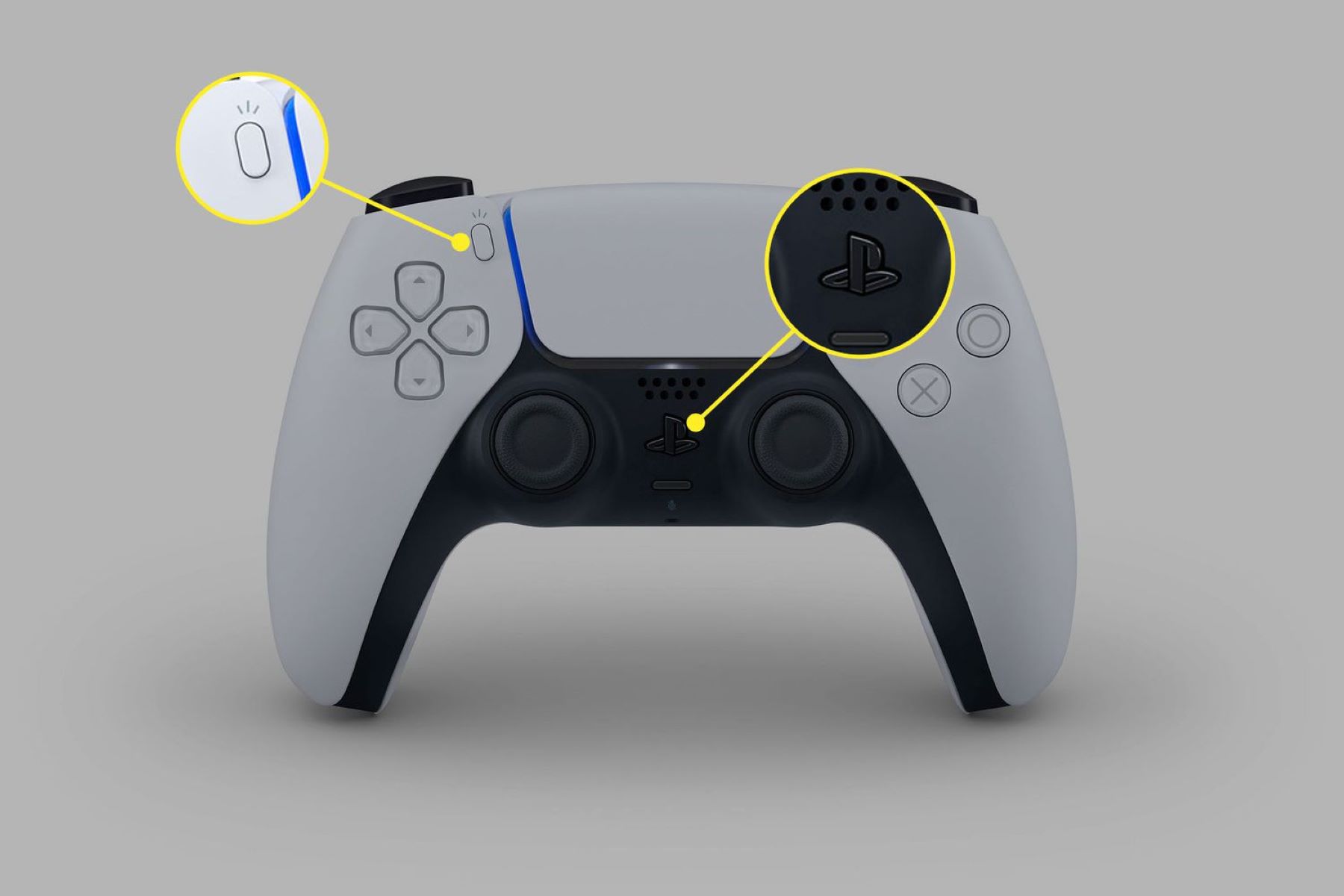
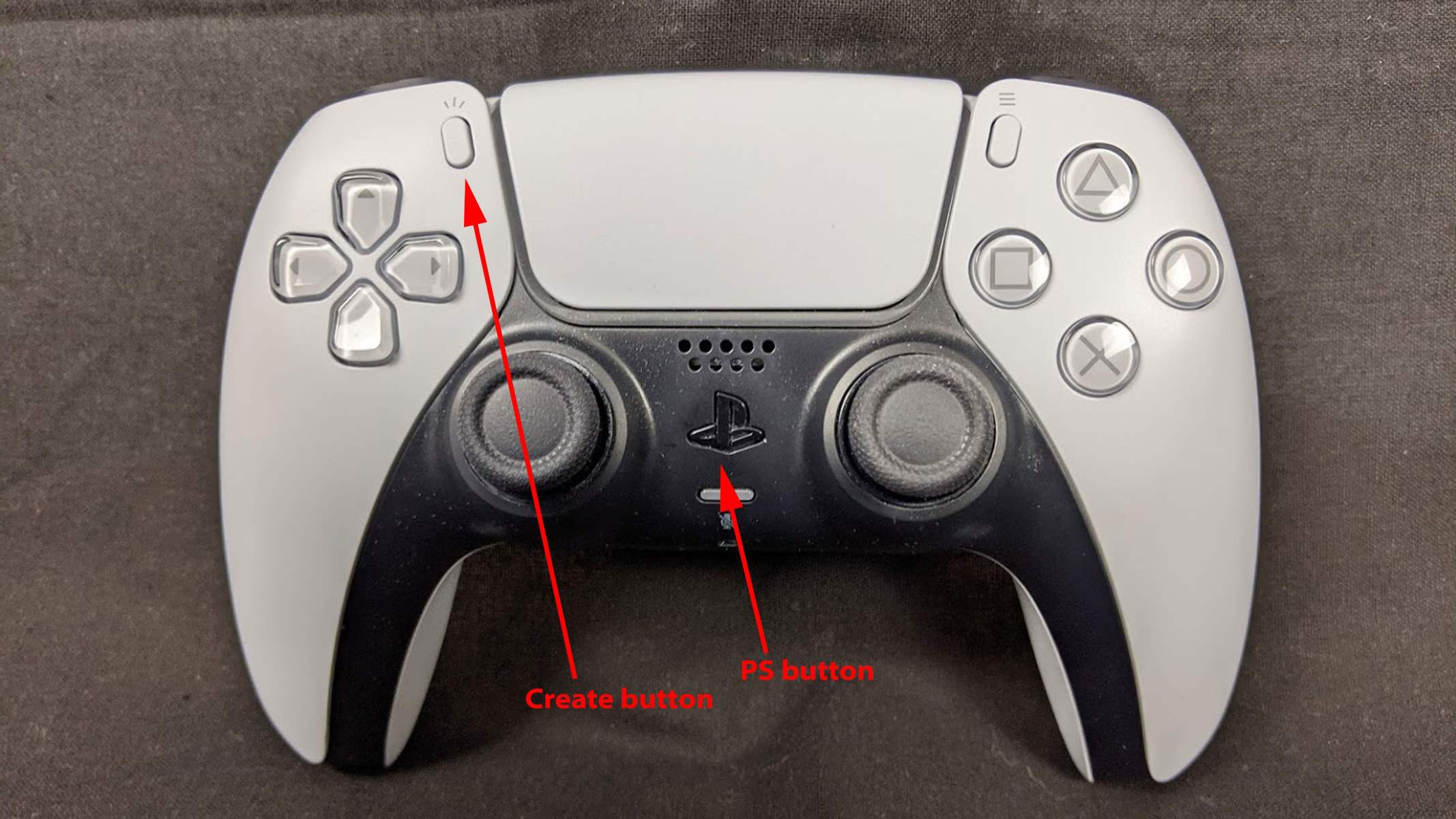
Your TV’s game mode setting and the controller’s wireless connection to the adapter matter far more for total system latency than the adapter’s conversion step itself. If your television is in standard or cinema mode, it can add significant display latency, completely swamping the small delay from a quality adapter. Go into your TV’s picture settings and enable “Game Mode” or “Low Latency Mode” immediately. Next, consider the physical placement of the adapter. Plug it into the PS5’s front USB port, not the rear, to keep the controller within line-of-sight and under three feet. Wireless interference from Wi-Fi routers, microwaves, or even a nearby USB 3.0 cable can cause packet loss that manifests as micro-stutters. If you ever encounter a situation where your PS5 controller is not connecting or your Xbox controller disconnects mid-game, the first troubleshooting step should be to put the PS5 controller in pairing mode to test the console’s native Bluetooth. Then move the adapter to a different USB port away from metal objects. Finally, if you later want to connect controller to PC with the same adapter, ensure you update the adapter’s firmware to the latest version. Manufacturers often release latency-reducing patches. The adapter is rarely the bottleneck. The chain of display, wireless environment, and USB port placement is where real lag hides. For a deeper dive into the broader topic of How to Connect a Game Controller to Any Device, consider how connecting a game controller involves more than just plugging it in, it requires optimizing every link in the signal path.