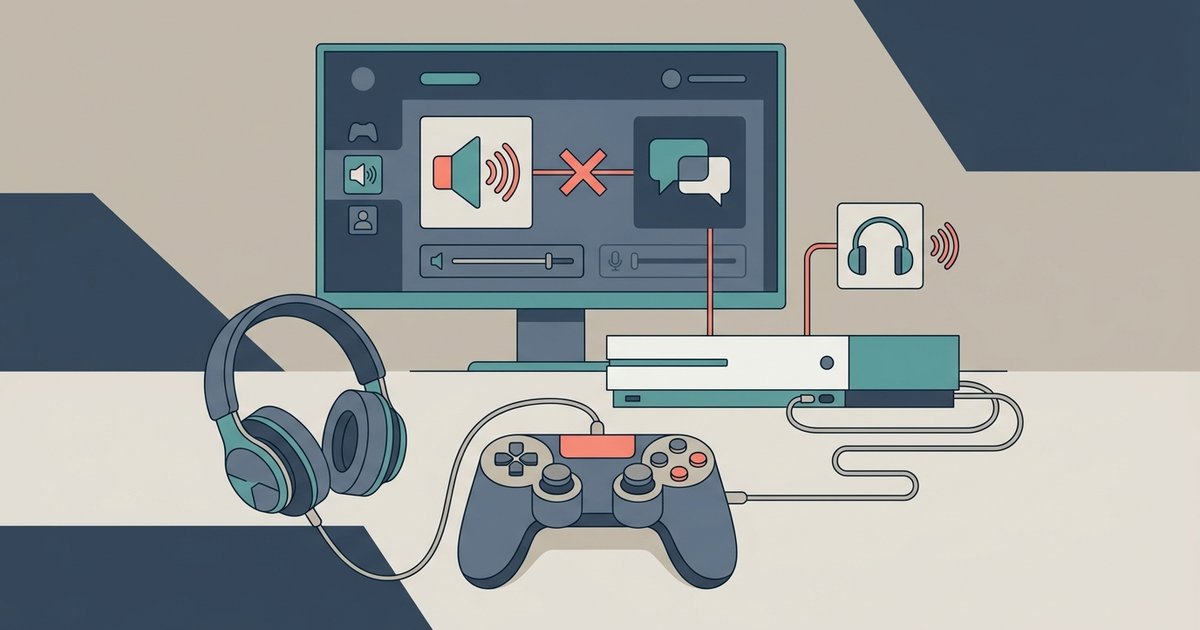
Your microphone is picking up sound from your TV speakers or your headset is bleeding audio. Switch to a closed-back headset and lower your TV volume, or adjust your DualSense controller microphone settings to reduce pickup.
Lower your TV volume or mute it to fix PS5 Discord audio bleed
Open speakers, like your TV or a soundbar, project game audio into the room. If you are using a headset or the DualSense controller’s built-in mic, that ambient sound gets picked up and sent through Discord. Even at moderate volume, the controller’s voice input treats game explosions and dialogue as voice input. Mute your TV entirely or lower the volume below 10% to eliminate the primary source of leakage. Book a closed-back headset or earbuds as your only audio source, and rely entirely on that personal listening device’s output. This is the simplest fix and often resolves the echo immediately, especially after you make a PS5 account primary to keep your audio settings locked to your profile.
Switch to a closed-back headset or earbuds
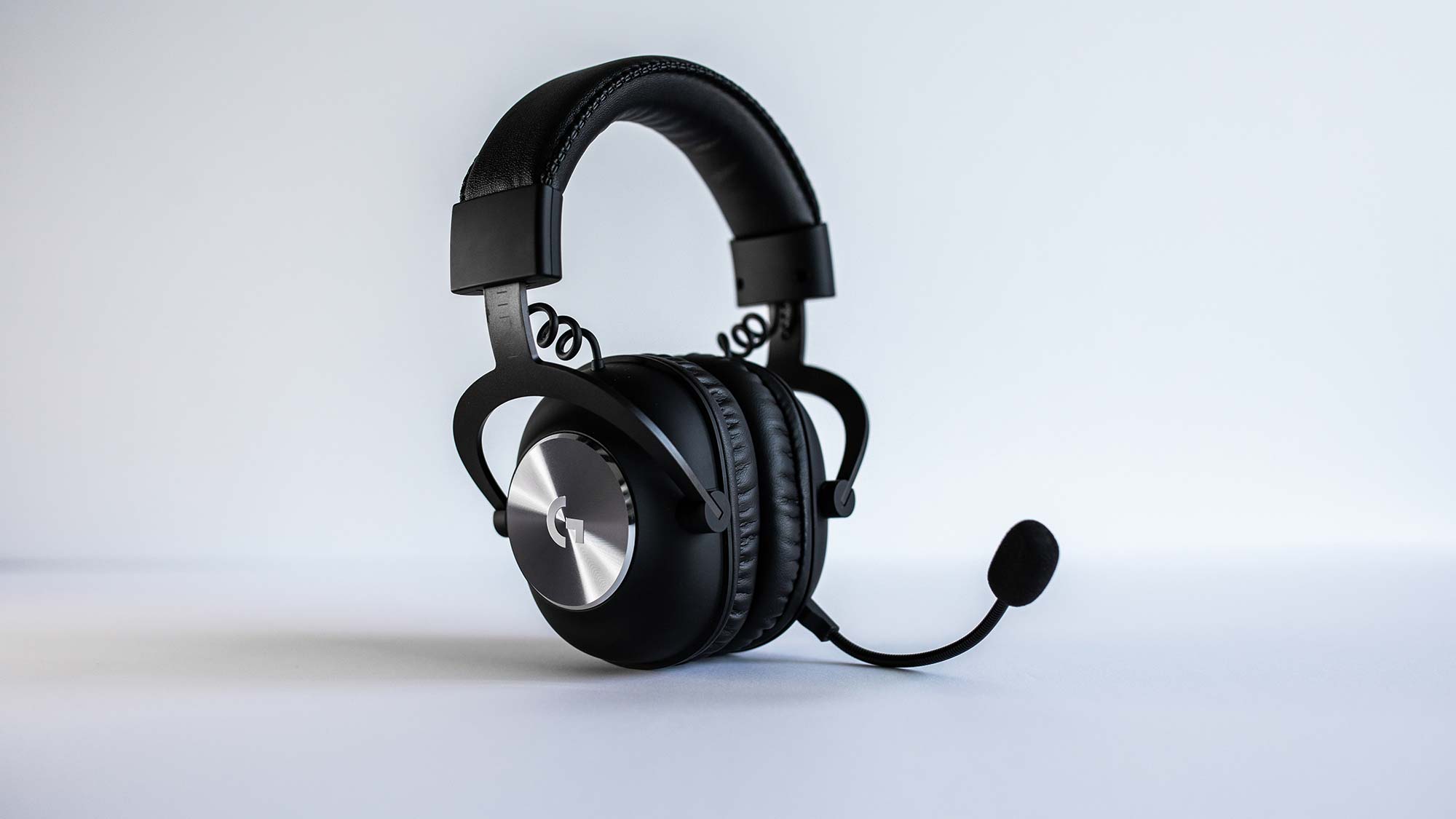
Open-back gaming cans have vents or grilles that let sound escape outward. That escaping audio is exactly what your voice input captures, especially if the mic is near the ear cup. A closed-back headset or standard earbuds physically block the sound from leaving the ear cup. For example, the Pulse 3D headset is closed-back and isolates audio well, whereas many budget “gaming” options are open-back. If your friends still hear echoes after lowering TV volume, test with standard wired earbuds; if the echo stops, the audio bleed from your previous gear was the culprit. To get Discord on PlayStation, you must already have linked accounts, but the audio bleed issue is independent of the app itself.
Adjust the DualSense controller microphone level
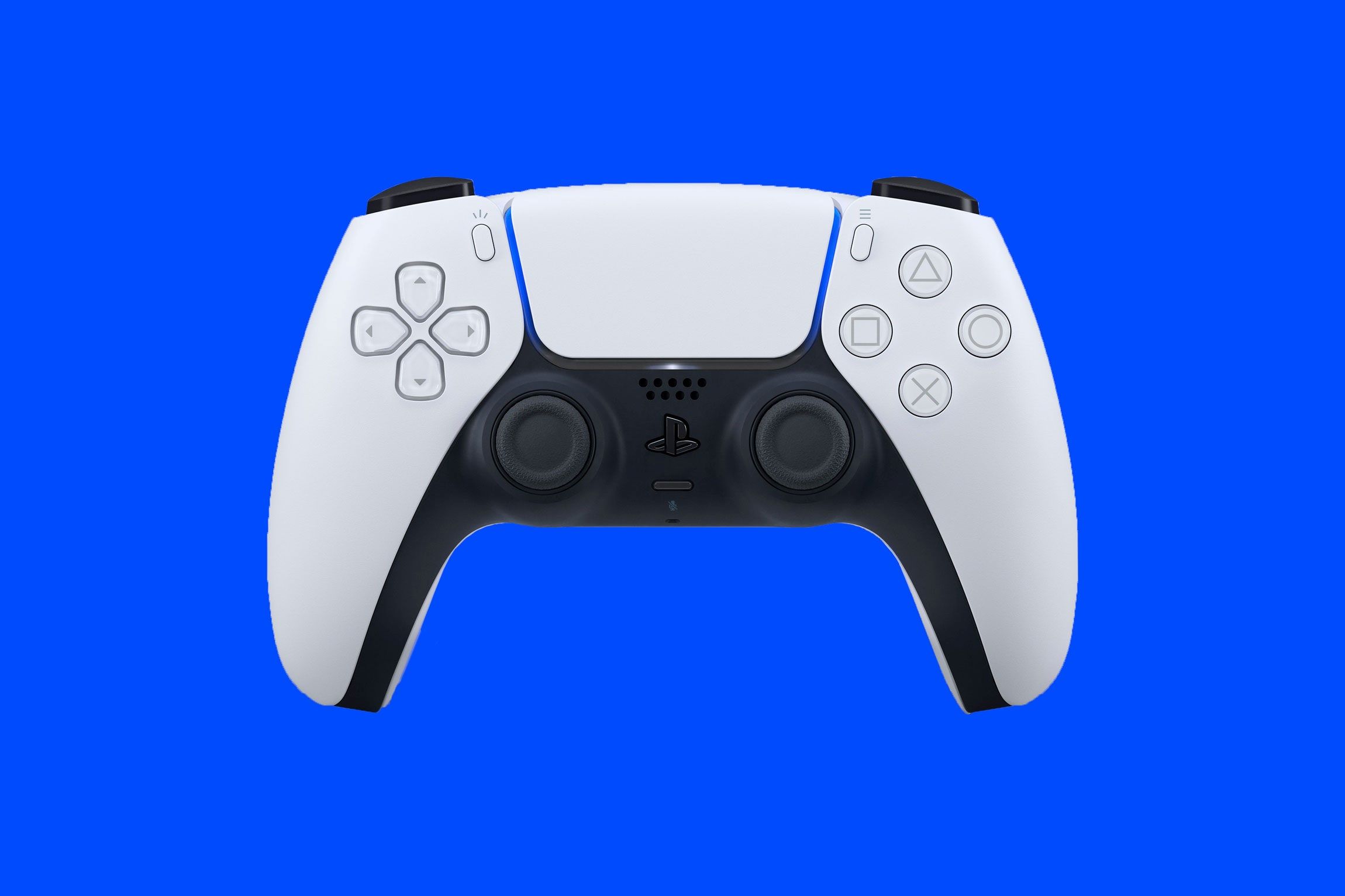
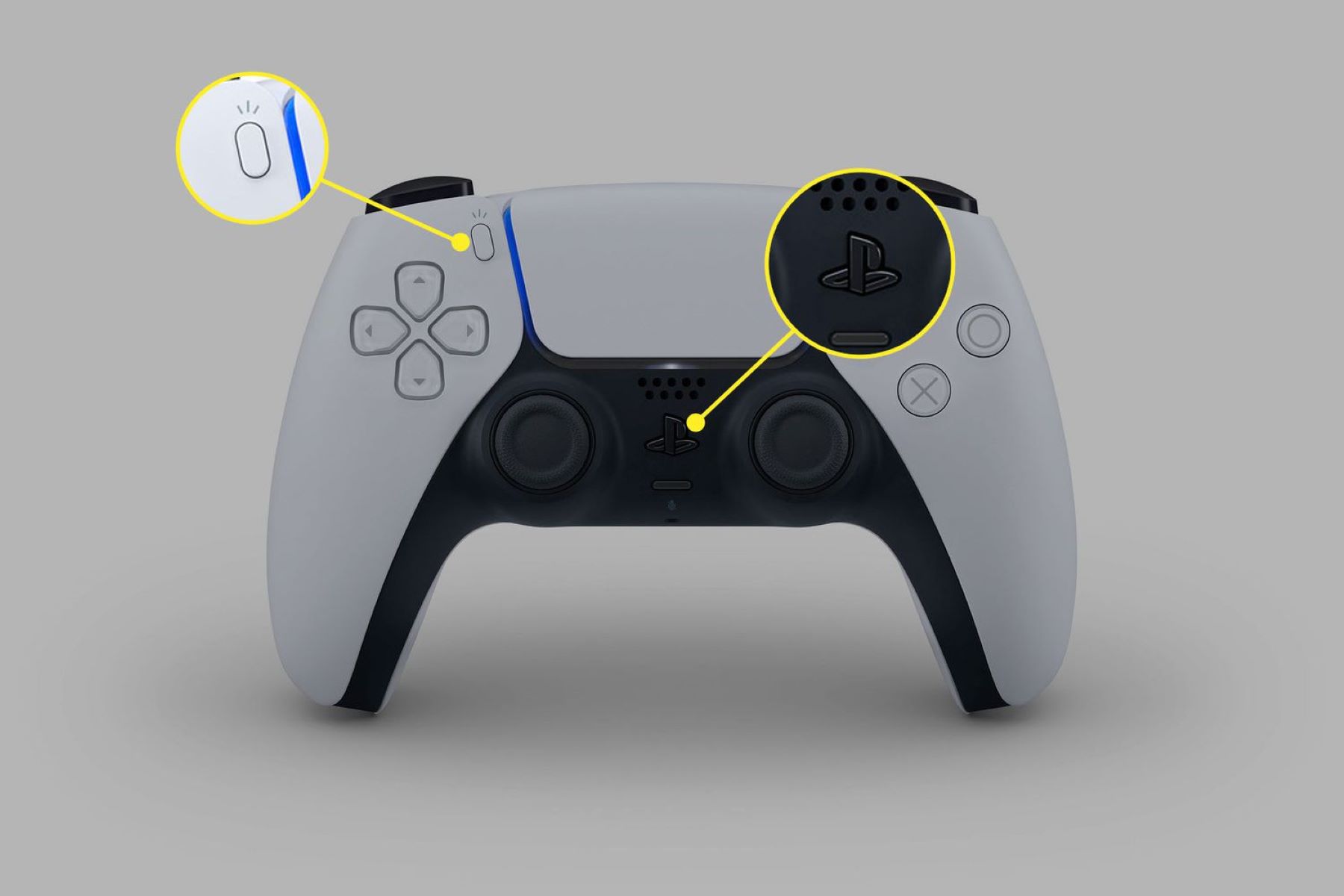
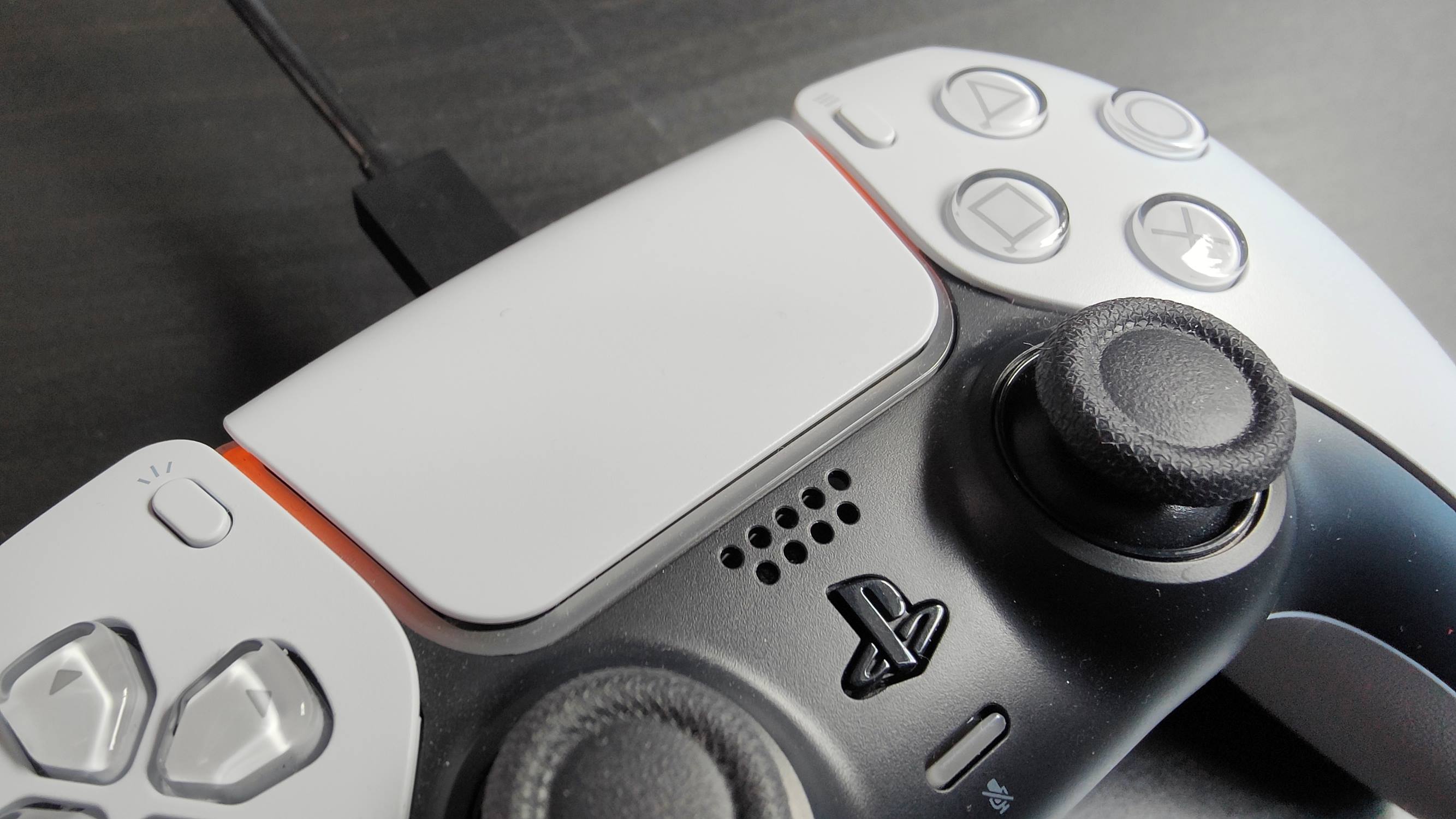
The DualSense controller has a built-in mic that is extremely sensitive. By default, its input level is set to maximum in PS5 system settings. Navigate to Settings > Sound > Microphone > Adjust Microphone Level and drag the slider down to a lower level. This reduces how much background noise the controller treats as voice. Press the mute button on the controller (the small button below the PlayStation button) to physically disable the mic when using a separate headset.
Skip the headset mic and use a separate USB microphone
Your current listening device is picking up sound from your TV speakers or your personal audio gear is bleeding audio. Book a dedicated USB microphone and position it away from your speakers to break the loop. Arrive at the PS5 settings menu and go to Settings > Sound > Microphone, then select the USB mic as the input while keeping your closed-back headset as the output. This physical separation ensures that even if your earbuds leak slightly, the capture device is too far away to register it. This echo happens because the game audio leaves your speakers, enters your mic, and Discord re-broadcasts it to your friends, creating a delayed, hollow loop.
When Discord is not the cause
If you have lowered TV volume, switched to a closed-back headset, and reduced the controller mic level but the echo persists, skip the software blame, the problem is not Discord’s voice processing. The failure case is an HDMI audio feed or a capture card sending game sound directly into the chat input. For example, if you use an external capture card (like an Elgato) and its audio output is routed to your PC’s microphone input, Discord on your PC will broadcast that raw game audio. Similarly, if your PS5 is set to output audio via HDMI to a monitor that has a headphone jack, and you plug a mic into that monitor, the monitor may mix game sound into the mic channel. Arrive at your PS5 audio output settings: go to Settings > Sound > Audio Output. Ensure it is set to “AV amplifier” or “Soundbar” only if you are using an external receiver; otherwise, use “TV” and disable any “Audio Format (Priority)” that might loop back. If the audio routing is correct but your chat still feels delayed, you may need to fix Discord voice chat lag on PS5 to rule out a network bottleneck. The root cause here is a direct audio cable or HDMI handshake that feeds game sound into the microphone input, Discord is just the messenger amplifying the mistake.
Unlike other consoles, the PS5 routes all voice chat through the console’s operating system even when using Discord, which means the DualSense controller’s built-in mic remains active as a second input source unless you physically mute it or switch the input device manually.