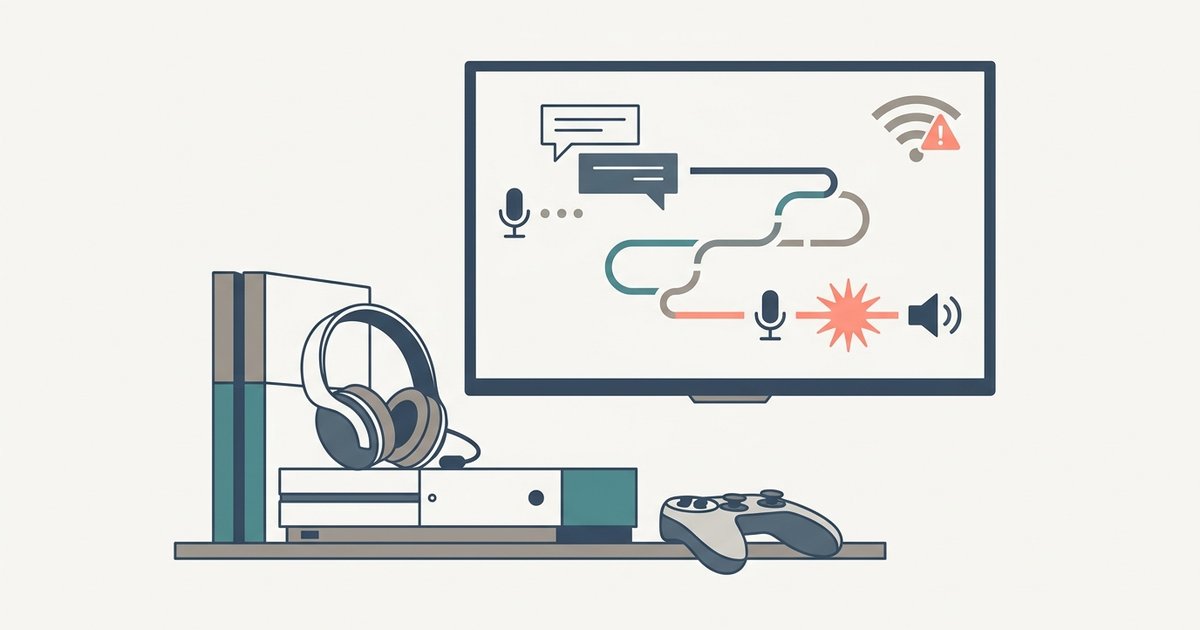
The lag is almost always caused by network congestion or wireless interference on the 2.4GHz band, not your console hardware. Force your phone to connect to a 5GHz Wi-Fi network and move it closer to the router to clear up the relay instantly.
1. Fix Discord Voice Lag by Switching to 5GHz Wi-Fi
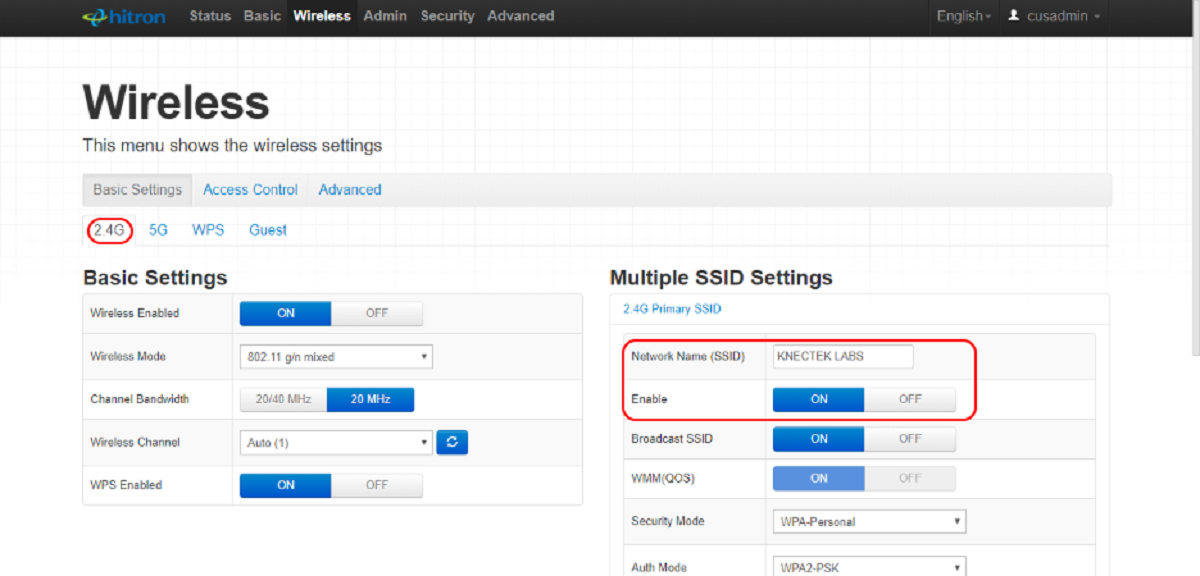
Discord voice chat on PS5 is integrated through account linking and the PS5 interface, not routed through your phone as a relay server. When your phone is stuck on a crowded 2.4GHz connection, shared with microwaves, baby monitors, and neighboring Wi-Fi, packets drop. This creates the robotic stutter you hear. On an iPhone, open Settings > Wi-Fi, tap the blue “i” next to your network name, and look for a “5GHz” label. If you see only “2.4GHz,” your router might broadcast both bands under one name. You must manually forget the network, then reconnect while standing next to the router to force the phone onto the faster band. On Android, go to Settings > Wi-Fi, tap the gear icon next to your connection, and enable “Preferred Band” or “5 GHz only” if available. If your router does not separate bands, log into its admin page (usually 192.168.1.1) and split the SSID into two distinct names, e.g., “MyWiFi-5G” and “MyWiFi-2.4G.” Once connected to 5GHz, test voice chat. The half-second delay should vanish immediately. If you still experience issues, you may need to make a PS5 account primary to ensure your console license doesn't interfere with background network services.
2. Disable Bluetooth and Battery Savers
Active Bluetooth connections, like wireless headphones or a DualSense controller paired to your phone, compete with Discord’s voice relay for your phone’s radio resources. This causes audio choppiness. Turn off Bluetooth entirely in your phone’s quick settings while using Discord voice chat on PS5. Low-power modes also throttle background activity. On iPhone, disable Low Power Mode in Settings > Battery. On Android, turn off Battery Saver in Settings > Battery. These modes deliberately reduce CPU and radio performance to save battery, directly cutting the voice relay quality. If you must keep your phone charged, plug it into a wall outlet instead of relying on a battery-saving profile. After disabling both, restart the Discord app on your phone and rejoin the voice channel on PS5.
3. When the Lag Is Actually the Server
Even with a perfect local setup, the specific Discord voice server region may be overloaded. This produces robotic distortion that isn’t your fault. On your phone, open the Discord voice channel you are using, tap the channel name at the top, then select “Voice Settings.” Scroll to “Server Region” and manually switch to a different region. For example, change from “US East” to “US Central” or “Europe West.” This forces your relay to a less congested server, often clearing the lag immediately. Note that this setting affects everyone in the channel. You must have “Manage Channel” permissions or ask the server admin to change it. If you cannot change the region, the admin can do it from the server settings under “Voice Channels.” This is the failure case where your hardware and connection are fine, but Discord’s infrastructure is the bottleneck.
Discord routes your PS5 voice chat through your phone, making your mobile connection the single point of failure for audio quality. For more foundational setup steps, you can get Discord on PlayStation by linking your account through the PS5’s Game Base menu under “Discord,” or link Discord to PlayStation via the mobile app’s “Connections” tab. If you are also trying to stream PS4 on Discord without capture card, remember that the same 5GHz rule applies for your streaming device. If you hear game audio doubling through your headset, you may need to stop PS5 game audio playing through Discord to eliminate the echo. Finally, ensure your console is set correctly in Settings > Users and Accounts > Other to avoid authorization conflicts that can indirectly affect voice chat stability.