If your Discord stage is missing, you must wait up to an hour for Discord to fully activate Community features, and you cannot create a Stage channel on mobile, you must use the desktop app or browser client.
1. Wait for Discord Stage eligibility to kick in
When you enable Community in Server Settings, Discord does not instantly grant all Community features. The server must pass an automated eligibility check that can take up to sixty minutes. During this window, the Stage venue option remains invisible even though Community appears to be toggled on. To confirm that the server is fully activated, go to Server Settings > Community and look for a green checkmark next to "Community is enabled" and the phrase "Your server is now a Community server." If you see that exact confirmation, the delay has passed. If not, wait the full hour and then refresh your client. This backend wait is a common reason new server owners cannot find the option, and it applies regardless of which client you use. Once eligibility is confirmed, you can proceed to make a stage in Discord, but only on the correct platform. If you need to plan ahead, scheduling a Discord stage in advance lets you set a specific start time so your audience knows exactly when to join.
2. Switch to desktop or browser
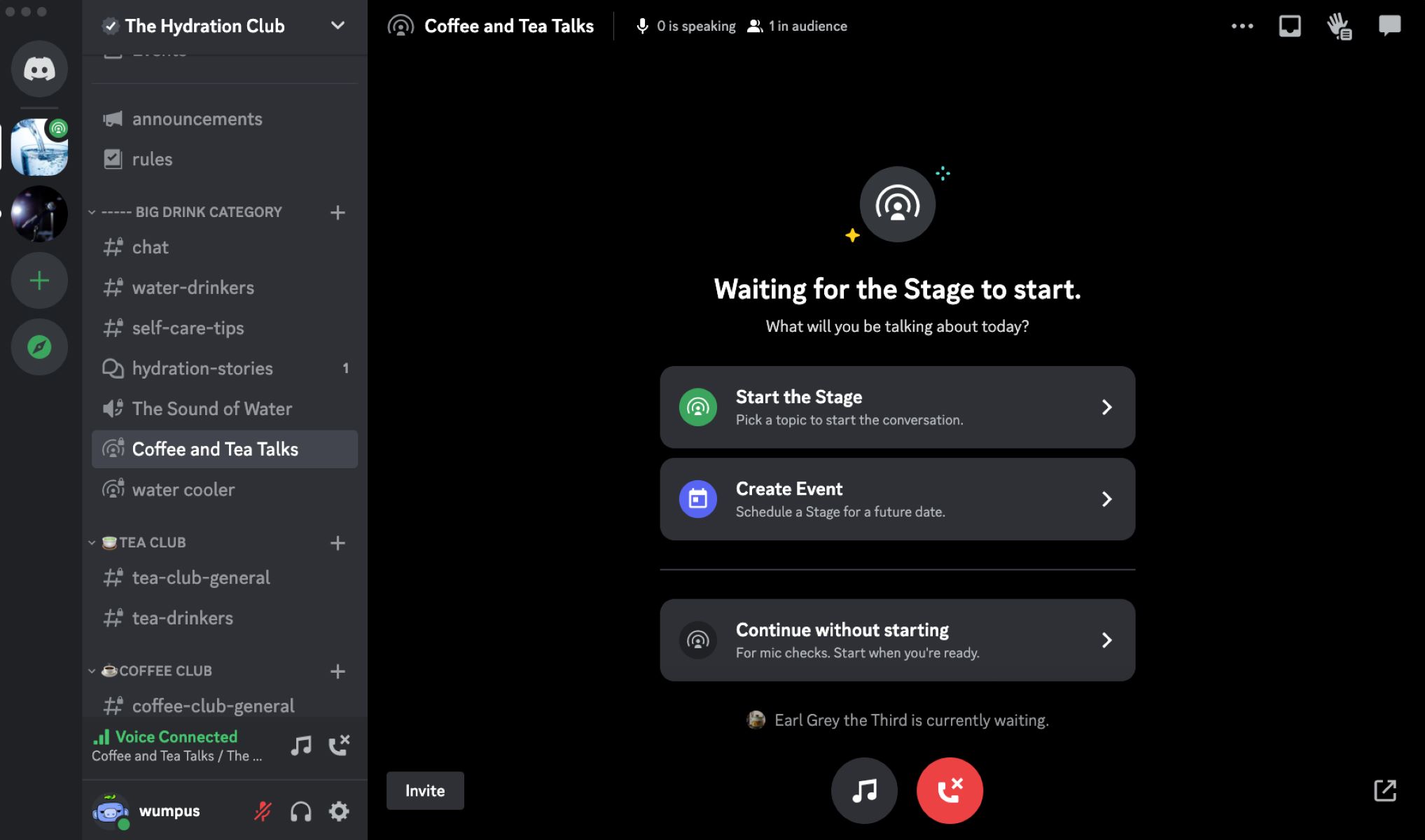
The mobile app for iOS and Android deliberately hides the Stage venue creation option, even when Community is fully active. You must use the Discord desktop app or the web browser client. On desktop, navigate to your server, click the plus icon (⊕) next to the voice spaces category, and select Stage Channel from the type dropdown list. The option appears directly below "Voice Channel" and above "Forum." If you are on mobile, you will never see this list entry, the app simply omits it. This is not a bug; it is a design limitation because stage moderation tools require a larger interface. You may need to use the desktop app or browser client to start a stage event. After switching to desktop, the option will appear immediately if your server is eligible. Both are accessible from the desktop interface where stage creation works.
3. Check room type permissions
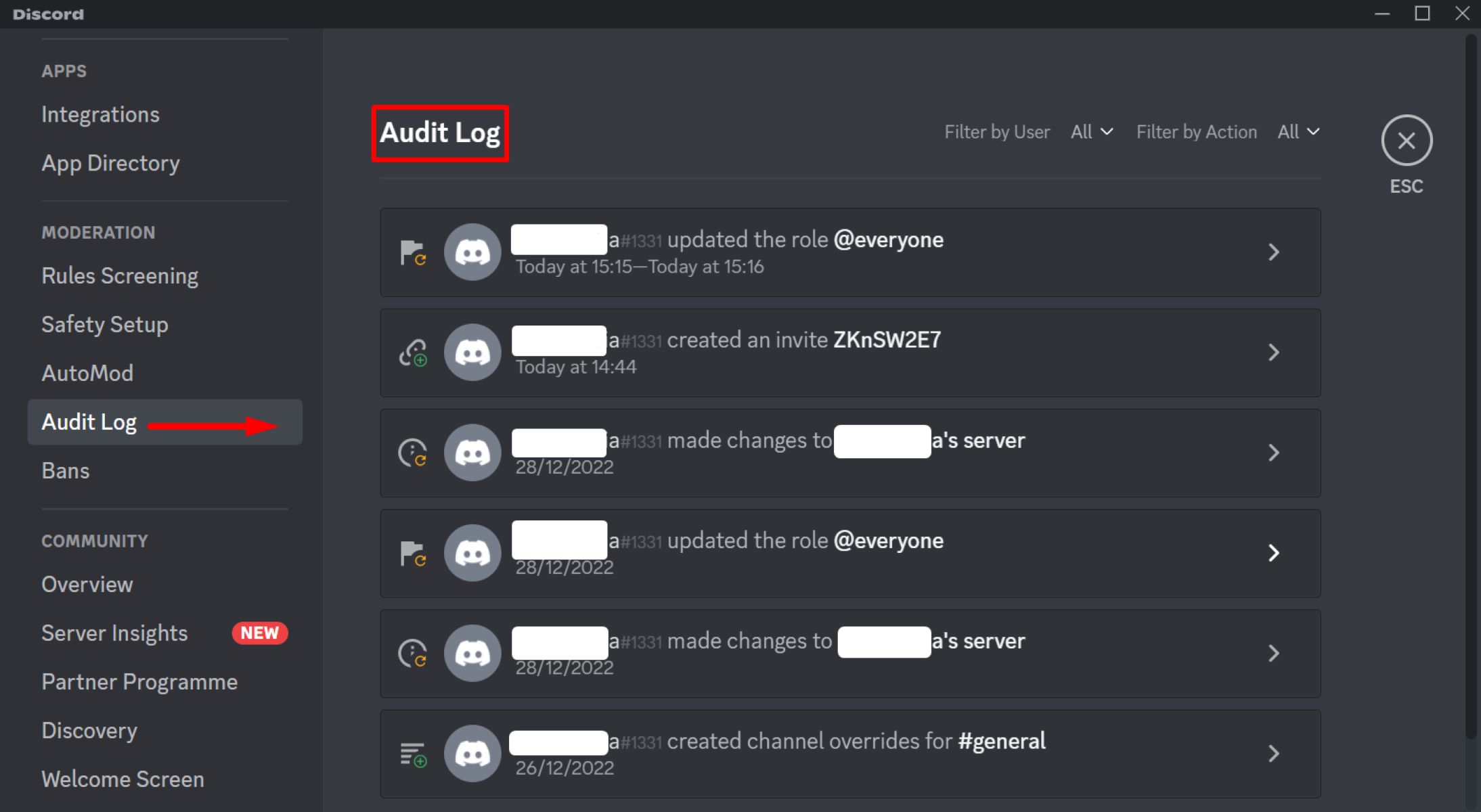
Even after the hour delay and switching to desktop, the Stage venue option can be hidden by your own role permissions. Go to Server Settings > Roles > Your Role and scroll to the "Channel Permission" section. Look for the permission Manage Channels. If this permission is disabled for your role, the plus icon for adding spaces will still appear, but the Stage option will be grayed out or missing from the dropdown. Additionally, the Manage Channels permission must be enabled. By default, the @everyone role lacks this permission, so if you are an admin but your role inherits from @everyone, you may be blocked. Set both permissions to green checkmarks, then save changes and refresh the server. Once corrected, the option will appear in the creation menu. This permission check also applies when you want to make a stage in Discord for a live event, the same setting controls whether the button is visible.
\nRelated reading: How To Remove Bot From Discord.