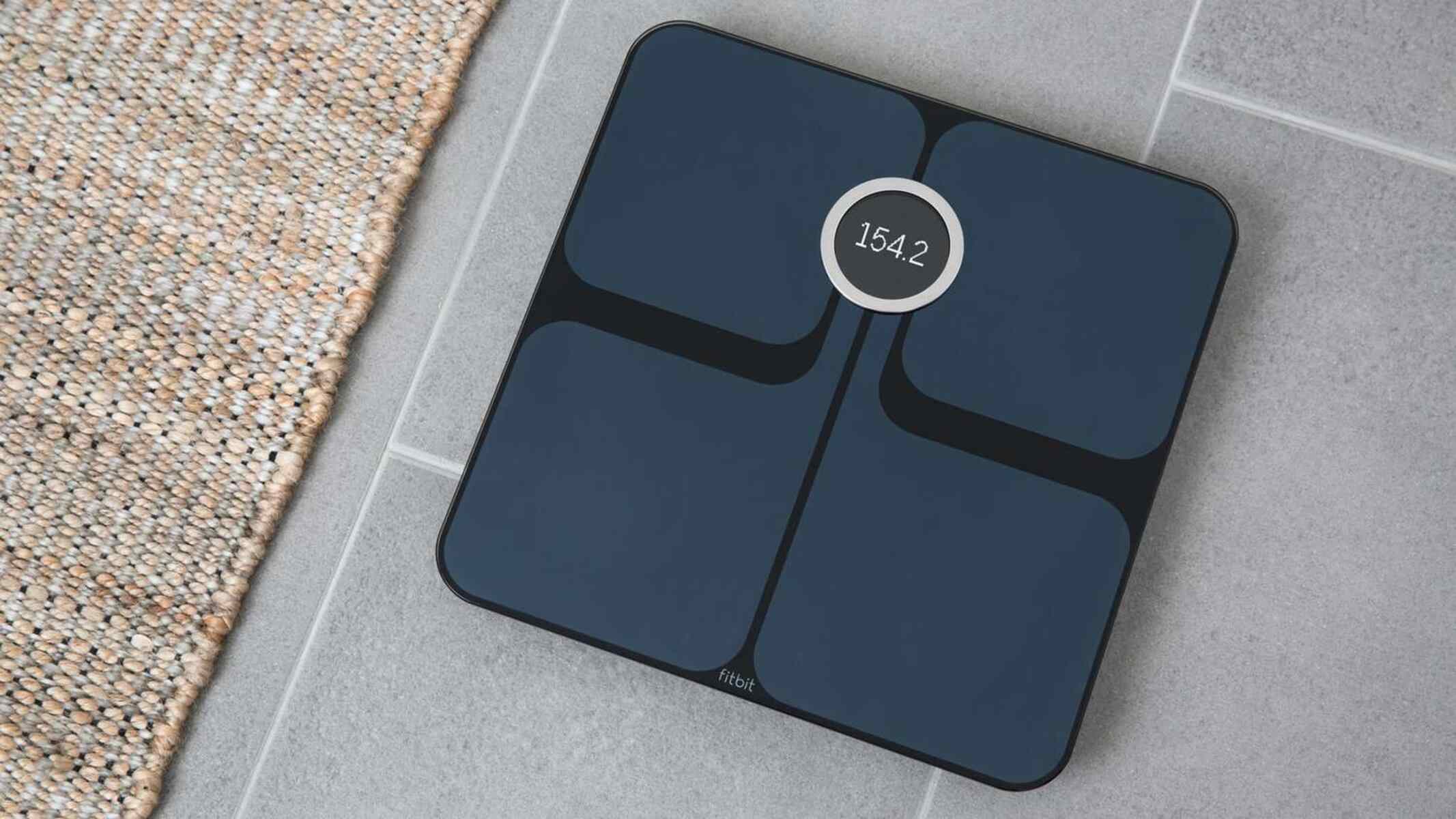
To change your Fitbit Aria WiFi settings, you must connect the scale to a 2.4 GHz network that supports the correct security protocols. Whether you have moved to a new home or changed your internet service, adjusting the Fitbit Aria WiFi settings is the only way to restore syncing and keep your data current.
Before you change your Fitbit Aria WiFi settings
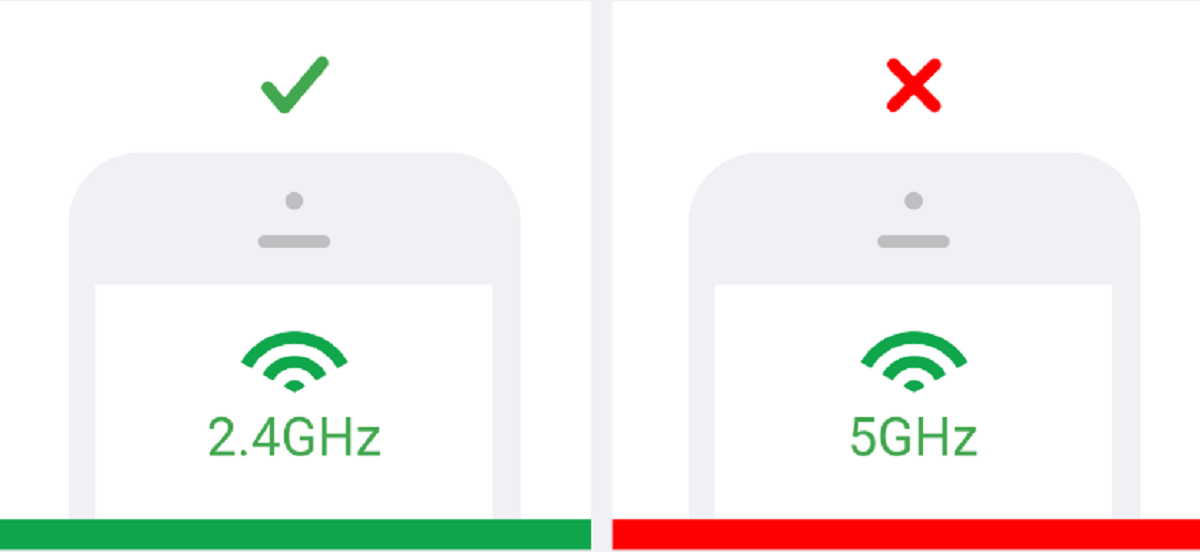
Both the original Fitbit Aria and the Aria 2 connect exclusively to 2.4 GHz Wi-Fi networks. They do not support 5 GHz or Ethernet connections. The scales support WEP, WPA, and WPA2 personal security protocols, and they require automatic (DHCP) IP setup; static IP configuration is not supported. The original Fitbit Aria has an additional requirement: it needs an 802.11b-compatible network. Many modern routers disable the 802.11b protocol by default, which can prevent the original Aria from connecting. If you own the original model, check that your router's 2.4 GHz band is set to 802.11b, 802.11b/g, or 802.11b/g/n mode before you begin. If you also use the simpler Aria Air, you can get your weight data into the app with a step-by-step guide to syncing your Fitbit aria air scale. While you are maintaining your device, you might also want to refresh its look with a step-by-step guide on changing your Fitbit band.
How to change Wi-Fi on the original Fitbit Aria
Changing the Wi-Fi network on the original Fitbit Aria uses a web-based setup tool. This process does not involve the Fitbit app.
- On a Wi-Fi-enabled computer, phone, or tablet, visit Fitbit.com/scale/setup/start.
- Put the scale into setup mode. Remove one battery, wait 10 seconds, then reinsert it.
- If the scale does not display "SETUP ACTIVE" immediately after reinserting the battery, press briefly and firmly on the two corners farthest from the display. This triggers the setup mode.
- On your computer or mobile device, open the Wi-Fi settings and connect to the scale's temporary network. This network appears as "Aria" followed by six alphanumeric characters.
- Return to the browser window where you opened the setup page. Confirm the connection, then select your home Wi-Fi network from the list that appears. Enter your network password.
- The scale will now connect to your new network and begin syncing your data.
How to change Wi-Fi on the Fitbit Aria 2
Changing the Wi-Fi network on the Fitbit Aria 2 uses the Fitbit app on a Bluetooth-enabled smartphone. This process is part of the broader "Fitbit setup and syncing" workflow, which also handles initial device pairing and data transfer.
- Open the Fitbit app on your smartphone. Navigate to the Account icon, then select "Set up a new device" or "Aria 2," then "Wi-Fi Network" or "Pair Scale to Different Network."
- Step on the scale barefoot to power it on. The scale will display a four-digit code.
- Enter the four-digit code into the Fitbit app when prompted.
- The app will scan for available networks. Select your home Wi-Fi network and enter your password.
- Ensure your Wi-Fi password is typed exactly as it appears, as it is case-sensitive. Once the connection is established, the scale will begin syncing.
Troubleshooting Fitbit Aria Wi-Fi connection problems
If the scale does not connect after following the steps above, try these specific fixes.
Check router compatibility for the original Aria
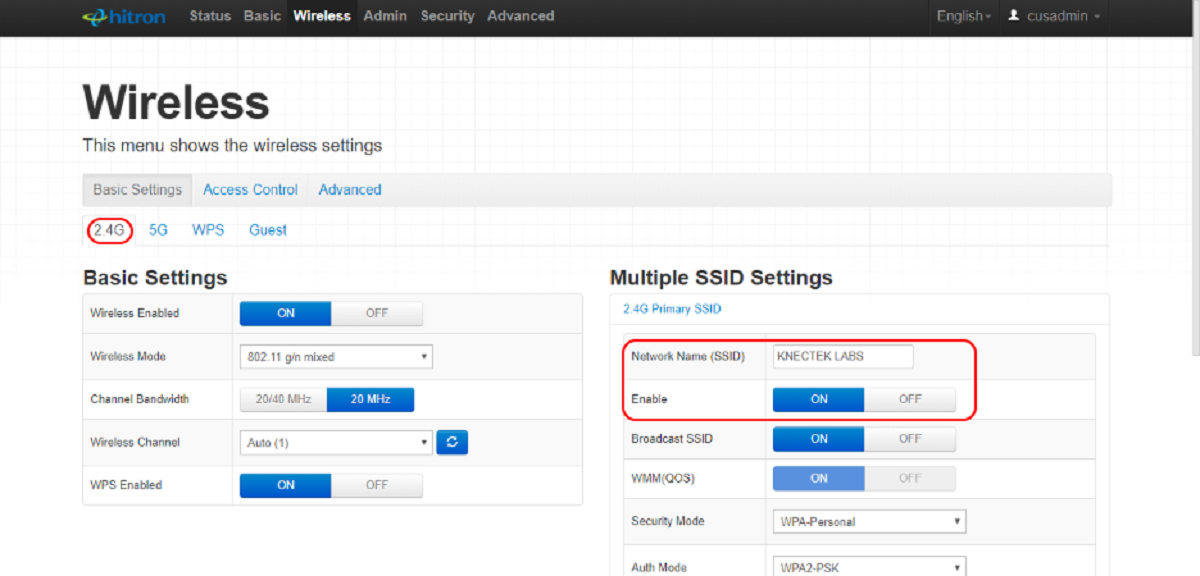
If you have the original Fitbit Aria, ensure your router's 2.4 GHz band is set to 802.11b/g/n mode. Many modern routers disable 802.11b by default, which prevents the original Aria from connecting. Access your router's settings and change the wireless mode for the 2.4 GHz band to include 802.11b.
Trigger setup mode manually
This action forces the scale into setup mode.
Verify password and placement
Wi-Fi passwords are case-sensitive. Double-check that you have entered the password exactly as it appears. Also, place the scale within 10 to 15 feet of your Wi-Fi router for optimal connectivity. If the signal is weak, move the scale closer to the router.
Factory reset the Aria 2
As a last resort for the Aria 2, perform a factory reset. This clears all user data and Wi-Fi networks from the scale. Remove the batteries, press a small button above the battery slots, and reinsert the batteries while holding the button. After the reset, you will need to set up the scale again from scratch using the Fitbit app.