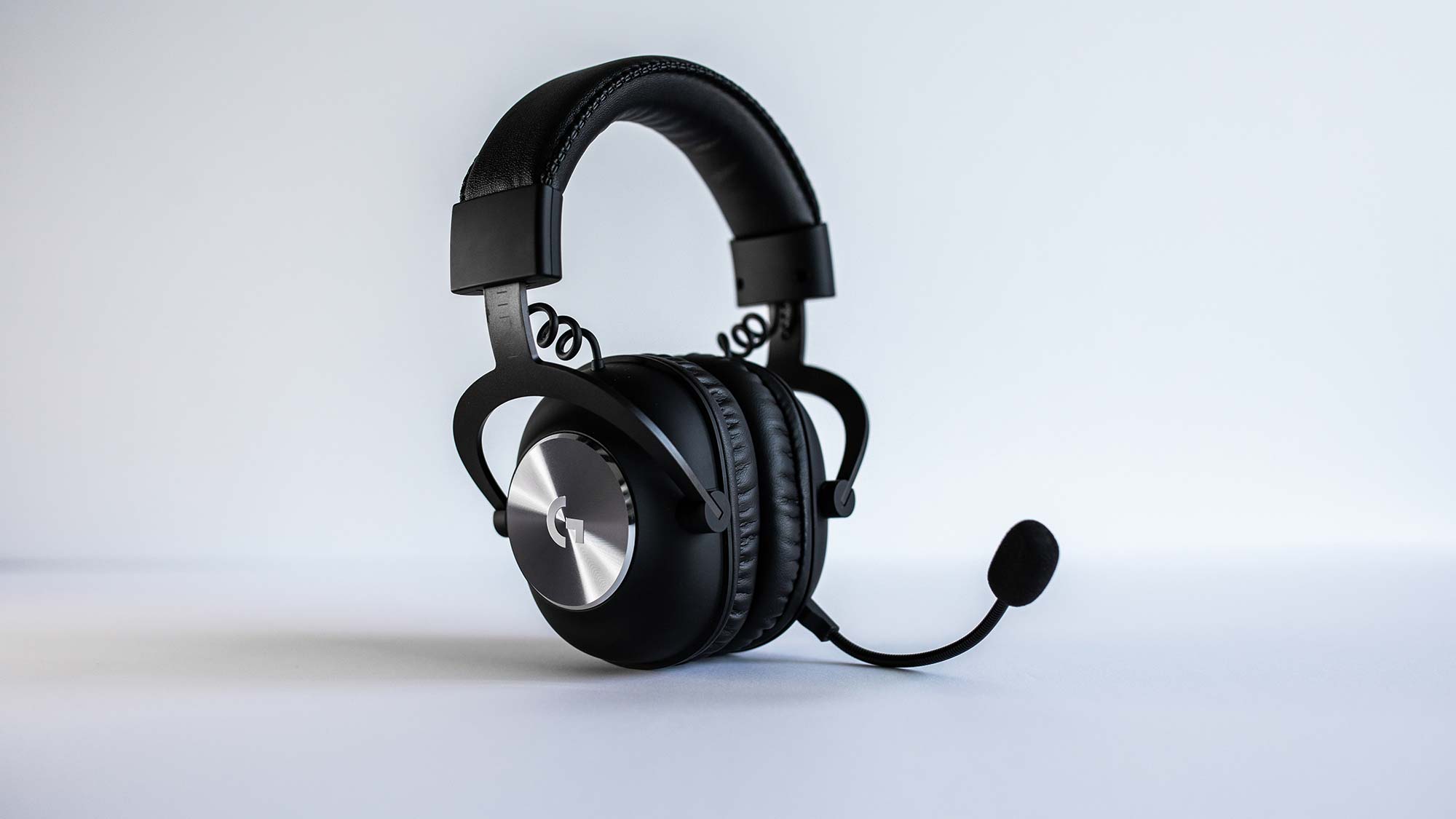
Fix Logitech G Pro X mic not working: start here
If your Logitech G Pro X mic not working, the fastest path to a fix begins with checking physical connections before touching any software. Most cases of this headset's microphone failing trace back to a loose cable or a privacy setting that blocks input at the system level. If a mute function was accidentally triggered, you may need to get the microphone back on my keyboard first. Once you restore input, you can make Logitech g733 mic sound better with similar tuning steps.
- Push the detachable boom microphone into the left ear cup until you feel a solid click. A half-seated mic will register as disconnected even though it looks inserted.
- Press the PC connectivity cable into the headset's bottom jack until you hear two firm clicks. This cable carries both audio and mic signals, so a partial connection kills the microphone while speakers still work.
- Check the mute switch on the inline cable. It sits opposite the volume wheel and flips up for mute, down for live audio. A switch left in the up position produces zero mic output with no warning light on most units.
- If the mic works on the second device, the fault lies in your PC's settings or drivers, not the hardware.
These four checks take under two minutes and eliminate the most common failure points. If the mic remains silent on a second device, the issue is physical and you should skip ahead to contacting Logitech support. If it works elsewhere, continue with Windows configuration.
Enable microphone access in Windows privacy settings
Windows 10 and 11 both enforce per-device microphone permissions that can block the G Pro X even when everything else is correct. A system-wide toggle or an app-specific denial will produce the exact symptom of a dead mic.
Windows 10
- Type "microphone privacy" into the taskbar search and open the matching settings page.
- Click the Change button and turn on "Microphone access for this device."
- Toggle on "Allow apps to access your microphone."
- Scroll to "Desktop app's access to your microphone" and confirm it reads On.
Windows 11
- Press the Windows key, type "microphone privacy," and open the result.
- Set "Microphone access" to On.
- Scroll to the app list and ensure "Logitech G Pro X" appears with its toggle On.
After changing these settings, close and reopen the application that uses the mic. Windows applies privacy changes immediately, but some apps cache the permission state at launch.
Set Logitech G Pro X as the default input device
Windows can route voice input to a different device if multiple microphones are present, such as a webcam or a monitor's built-in array. The G Pro X must be the default recording device for any app to pick it up reliably.
- Right-click the speaker icon in the system tray and choose Sounds.
- Open the Recording tab. Look for "Logitech G Pro X" or "Logitech G Pro X Gaming Headset."
- Right-click it and select Set as Default Device. Also set it as Default Communication Device if that option appears.
- Right-click any other active input devices (webcams, virtual mics) and choose Disable to prevent Windows from switching.
Disabling virtual inputs is especially important if you have installed audio routing tools like Voicemeeter or VB-Cable, which often register as default devices after updates.
Update Logitech G HUB software
Logitech G HUB controls the G Pro X's Blue Voice microphone processing and firmware. An outdated or corrupted G HUB installation can make the mic appear dead even though Windows sees the device.
- Open G HUB and click the gear icon in the top-left corner.
- Select "Check for Updates" under the General tab. Install any pending updates and restart G HUB.
- If the mic failed immediately after a G HUB update, roll back by uninstalling the software entirely.
For a clean reinstall: press Windows+R, type appwiz.cpl, and press Enter. Find Logitech G HUB in the list, uninstall it, then restart your PC. Download the latest installer from Logitech's official G HUB page and run it fresh. This clears corrupted profiles and driver hooks that survive normal updates.
Install the correct audio driver from Logitech's website
Windows Update often installs a generic USB audio driver that works for playback but mishandles the G Pro X's microphone input. Logitech ships a headset-specific driver that properly exposes the mic channels.
- Go to Logitech's support site and search for "G Pro X headset."
- Open the Downloads section and select your Windows version (10 or 11, 64-bit).
- Download the latest driver package and run the installer as administrator.
- Restart your computer after installation completes.
Do not rely on Device Manager's "Search automatically for drivers" option. That pulls the same generic Microsoft driver that likely caused the issue. The manual download from Logitech replaces it with the correct USB audio class driver.
Troubleshoot USB connectivity
If the G Pro X uses the USB DAC adapter rather than the 3.5mm cable, port-level problems can interrupt the mic signal path independently of the speakers.
- Unplug the USB cable from both the PC and the headset adapter.
- Inspect the full cable length for kinks, exposed wires, or bent connector pins.
- Blow compressed air into the USB port on your PC and the adapter's connector to clear dust.
- Plug the headset into a different USB port, preferably one directly on the motherboard's rear I/O panel rather than a front-panel header.
- Connect through a powered USB hub if the port supplies insufficient power. Some laptops throttle USB power during load, which can starve the mic preamp.
Test the headset on a second computer using the same USB adapter. If the mic works there, the original PC's USB controller or power delivery is the problem. If it fails on both, the adapter itself is faulty.
Stop background software from blocking the mic
Applications that hold exclusive access to the microphone can prevent the G Pro X from transmitting to anything else. Voice chat clients and audio routing tools are the usual culprits.
- Disable virtual audio cables and routing software like Voicemeeter, VB-Cable, or SoundSwitch. These tools intercept audio streams and can swallow the mic input.
- Run a full malware scan with Windows Defender or your preferred antivirus. Some hijacking trojans install fake audio drivers that capture and discard mic input.
After closing these programs, reopen a single voice app and test the mic. If it works, re-enable the other apps one by one to identify the conflicting one.
Disable exclusive mode
Windows exclusive mode lets one application take sole control of an audio device. When a game or voice app grabs the G Pro X in exclusive mode, other programs lose mic access, and sometimes the device itself stops responding.
- Right-click the speaker icon in the system tray and select Sounds.
- Open the Playback tab, select your default output device (the G Pro X), and click Properties.
- Navigate to the Advanced tab.
- Under Exclusive mode, uncheck both "Allow applications to take exclusive control of this device" and "Give exclusive mode applications priority."
- Click Apply, then OK, and restart your computer.
This setting affects the playback device, but the same exclusive mode flag applies to the recording path on most USB headsets. Disabling it prevents apps from locking the mic hardware.
Turn off audio enhancements
Windows audio enhancements add processing like bass boost, virtual surround, and loudness equalization. These effects can conflict with the G Pro X's built-in Blue Voice processing and mute the mic output.
- Right-click the speaker icon and select Sounds.
- Open the Playback tab, select the G Pro X, and click Properties.
- Go to the Enhancements tab.
- Check the box labeled "Disable all enhancements."
- Click Apply and OK.
Apply pending Windows updates
Windows updates occasionally break USB audio class drivers, and the subsequent patch fixes that regression. A system that has not been updated in weeks may have a known bug affecting the G Pro X mic.
- Press Windows+I to open Settings.
- Go to Update & Security (Windows 10) or Windows Update (Windows 11).
- Click "Check for updates."
- Install all pending updates, including optional driver updates.
- Restart your computer when prompted.
Missing cumulative updates can also leave the USB audio stack in an inconsistent state, which manifests as intermittent mic failures. Running the update cycle ensures the system has the latest USB audio class fixes from Microsoft.
Reinstall Logitech G HUB as a last repair step
If the mic still fails after all previous steps, a corrupted G HUB profile may be the remaining software cause. A full clean reinstall clears every saved setting and driver hook without requiring a support ticket.
- Press Windows+R, type appwiz.cpl, and press Enter.
- Select Logitech G HUB from the list and click Uninstall.
- Restart your computer to release any locked files.
- Download the latest G HUB installer from Logitech's website.
- Run the installer and complete the setup without importing old profiles.
After the fresh install, plug in the G Pro X and let G HUB detect it. Re-test the mic in a voice app before reconfiguring any Blue Voice settings. If the mic works now, the issue was a corrupted profile, not hardware.
Contact Logitech support with diagnostic results
If every software fix has failed and the mic still does not work after testing on another computer, the headset likely has a hardware defect. Logitech support can process a warranty replacement, but they need evidence that you exhausted the troubleshooting path.
Before contacting them, prepare the results of your cross-device test, the privacy settings you confirmed, and the G HUB reinstall you performed. Logitech's support team will ask for these details to distinguish a faulty unit from a configuration problem. They can then initiate an RMA if the hardware failure is confirmed, which is the only remaining fix for a physically broken microphone.
\nRelated reading: How To Stop PS5 Game Audio Playing Through Discord.