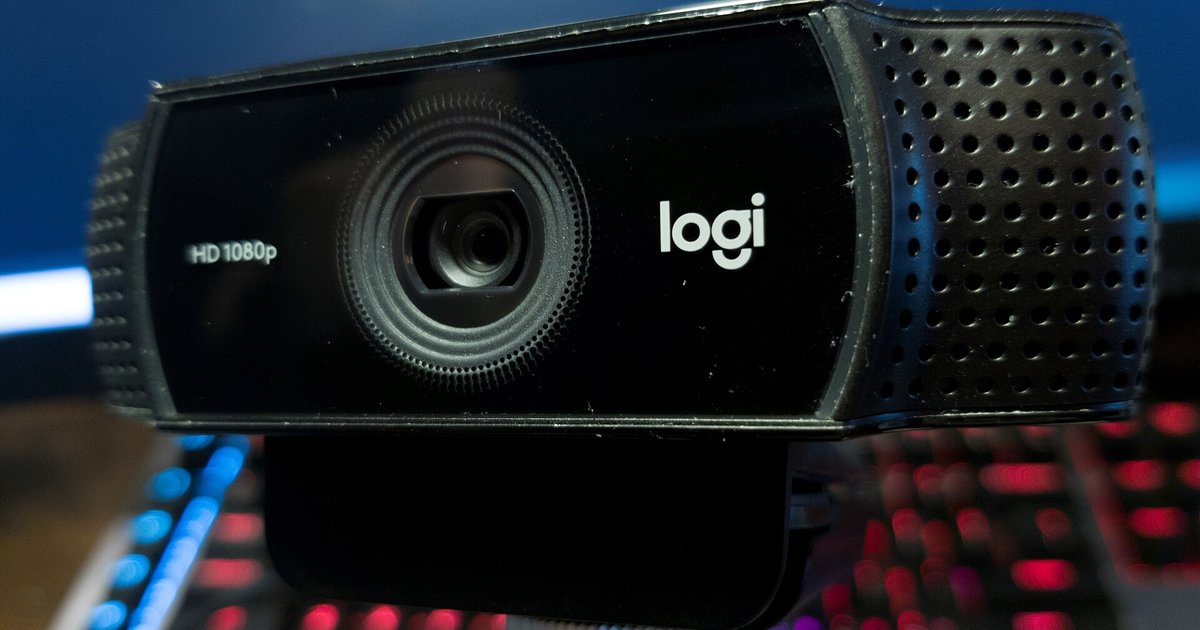
Google Meet is overriding your Logitech firmware blur with its own browser-based background effects. You must turn off Meet's built-in background blur or any Chrome flags that force camera effects for the Logitech blur to pass through.
Turn off Meet's built-in processing to fix Logitech webcam blur
Open Google Meet and join or start a meeting. Click the 'Apply visual effects' icon in the lower right corner of the video preview window, or during a meeting click the three-dot 'More options' menu and select 'Apply visual effects.' Ensure that 'Slightly blur your background' or 'Blur your background' is not selected. If you see any custom virtual background image selected, click the 'None' tile to remove it. Meet’s own blur, when active, takes control of the video pipeline. It discards any blur already applied by the Logitech firmware. You must also check that any appearance or lighting adjustments under 'Apply visual effects' are not applied, as these can also intercept the camera stream. After turning off all Meet processing, your Logitech webcam’s background blur should appear in the meeting window within a few seconds. You originally set this blur in Logi Tune.
Check Chrome flags that hijack your camera
In the Chrome address bar, type chrome://flags and press Enter. Search for 'WebRTC' or 'background blur.' Look for any experimental flags that might force camera processing and set them to 'Disabled.' Chrome’s experimental flags can force browser-level processing on your webcam feed before it reaches Meet. This effectively overwrites the hardware blur from your Logitech camera. When these flags are active, the browser treats the camera as a raw input and applies its own blur algorithm. This cancels out the firmware-based blur. After disabling the flags, restart Chrome completely. This step is critical if you have previously enabled any flag to test camera alterations. Many users forget to revert them. The flag then silently hijacks every meeting. Once flags are disabled, the Logitech blur should pass through uninterrupted.
When blur still won't work in Meet
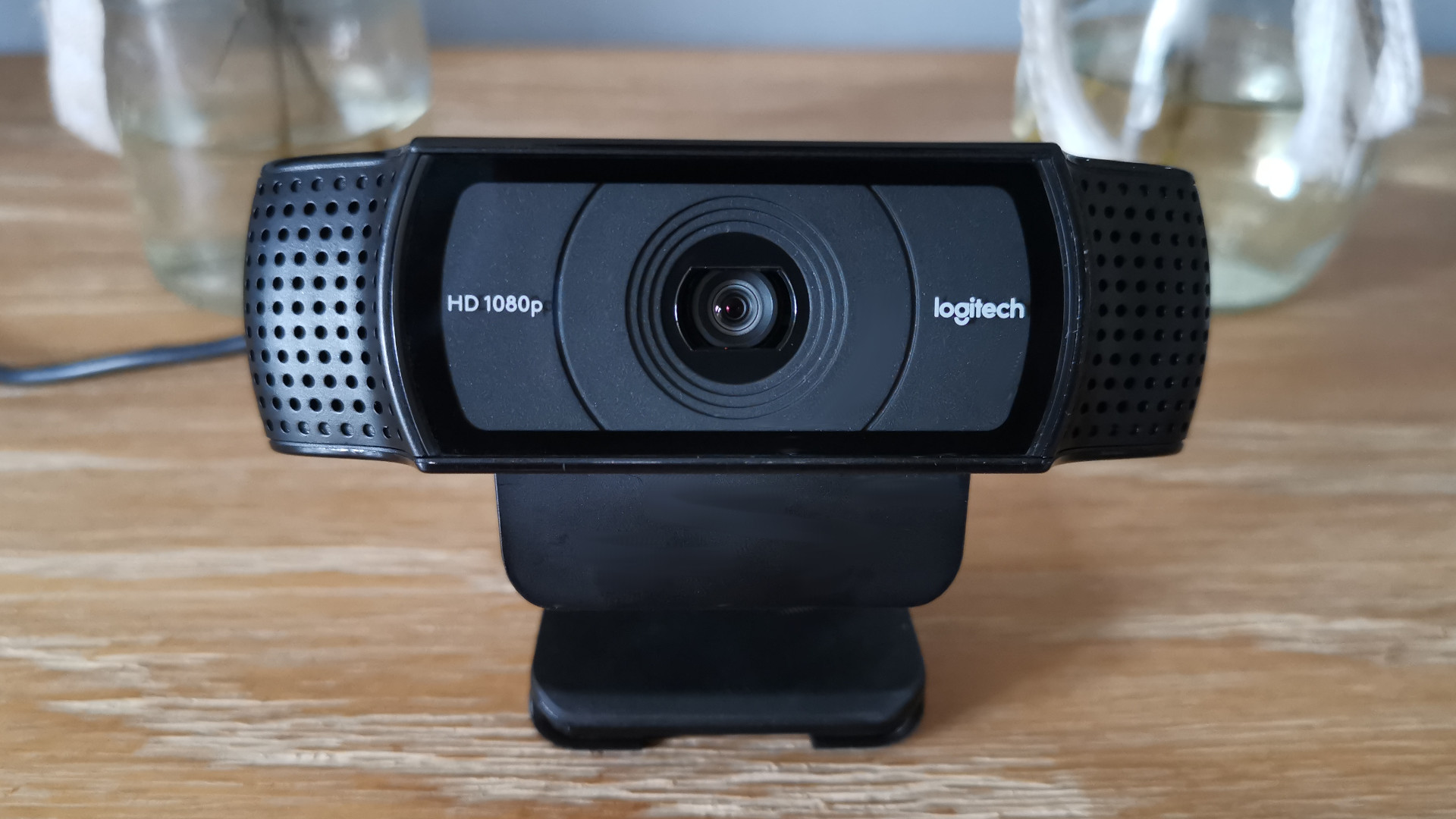
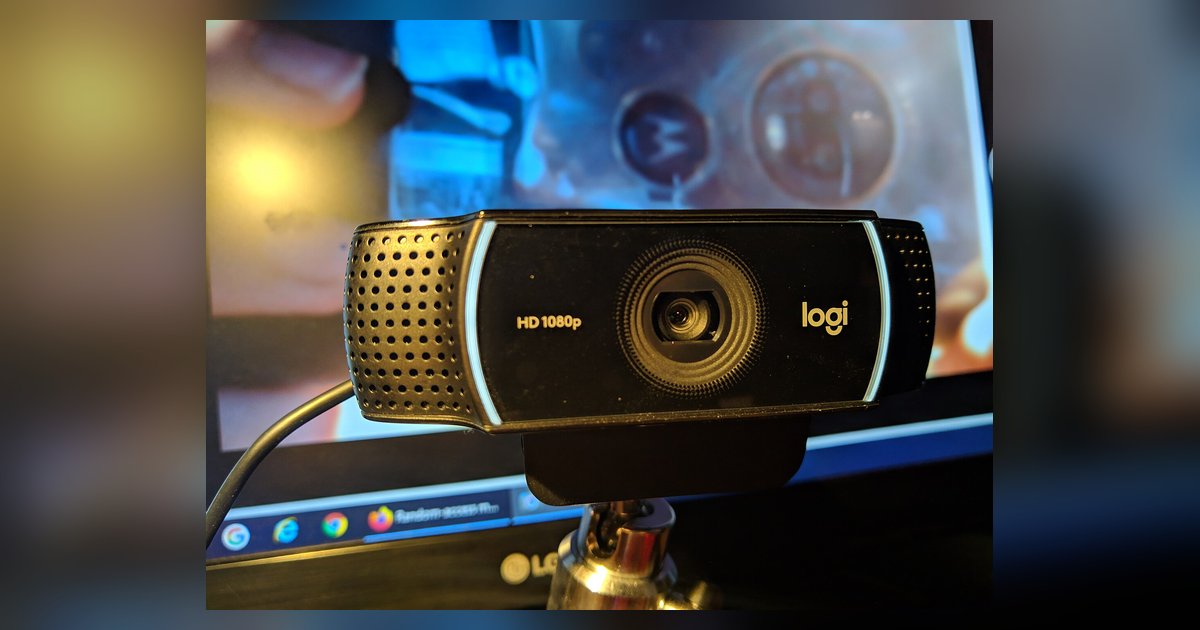
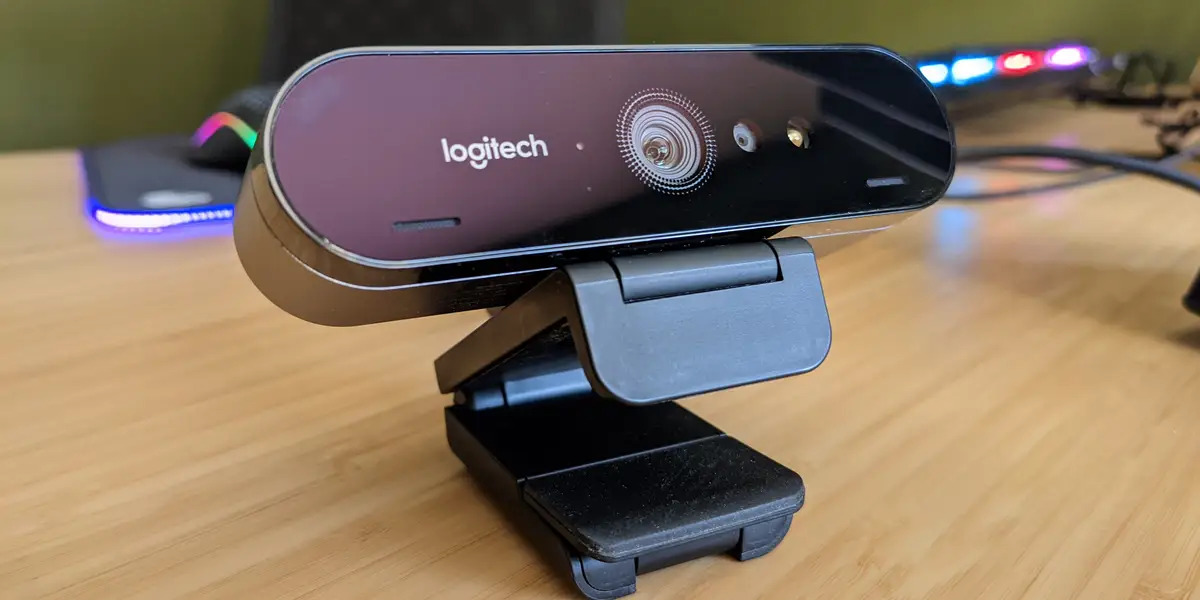
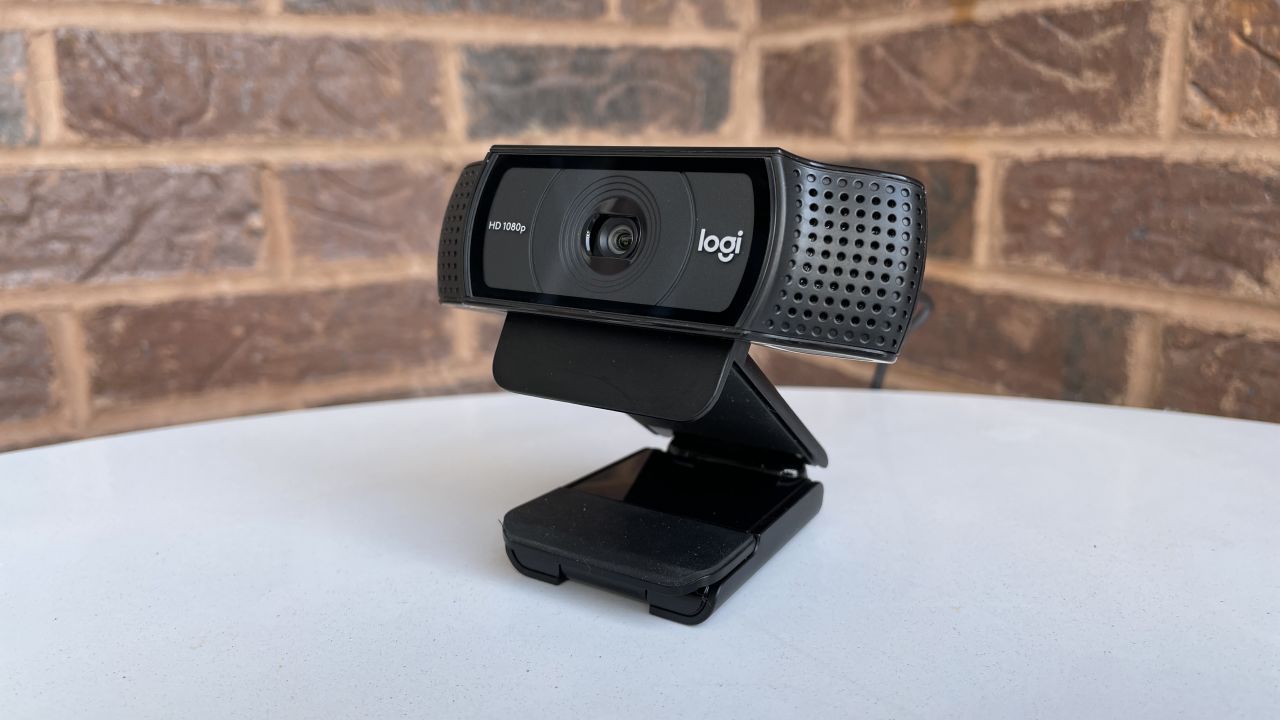
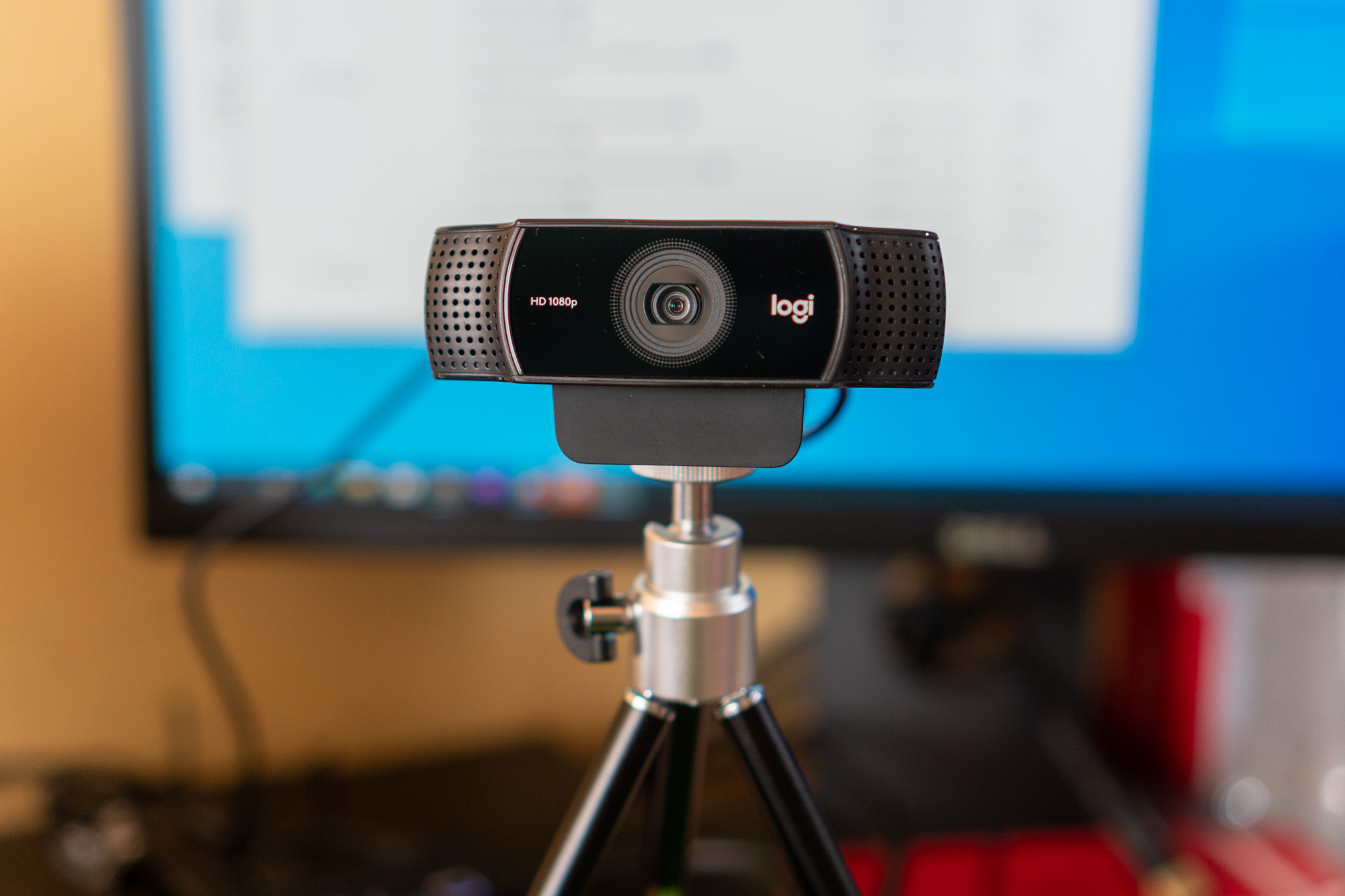
If the backdrop remains sharp, you are likely using a browser or managed Chrome profile that always applies its own camera processing. For example, the Microsoft Edge browser on Windows 10 and 11 has a native "Camera effects" toggle in its own settings. This toggle cannot be fully bypassed by Logitech firmware. Similarly, corporate-managed Chrome profiles may enforce group policies that restrict or control visual effects on all video calls. In these failure cases, Logitech firmware blur cannot be used. You must rely on Meet’s native processing instead. This means you should re-enable Meet’s built-in blur and accept that the software version will be used. As a workaround, you can try using the Logi Tune or G Hub application to apply the blur before Meet sees the camera. This introduces latency and is not supported on all systems. For users who need to blur background on Logitech webcam reliably, the only guaranteed path is to run a browser that does not enforce its own processing. For hardware-specific guidance, see how to set up the Logitech Brio webcam or set up the Logitech C922 Pro Stream webcam. Each model has distinct firmware menus that affect blur compatibility.
The Logitech firmware blur fails in Google Meet because the browser applies its own processing layer on top of the camera feed, stripping away the hardware-level effect you activated in Logi Tune or G Hub the moment Meet receives the video stream. For a complete walkthrough on setting up a Logitech webcam, including how to preserve hardware features like background blur across all applications, see our full setup guide.